Beta Release — 28-04-2026
📌 What Was Happening
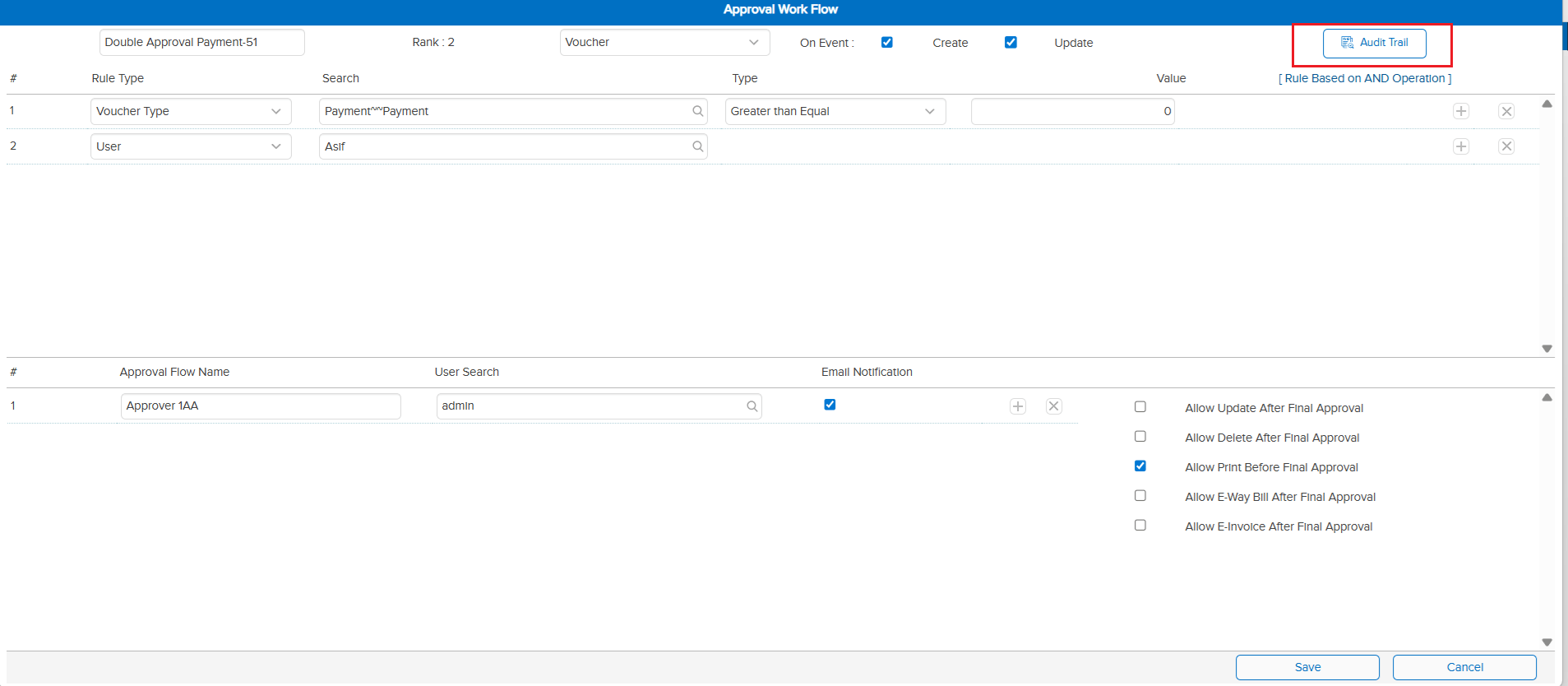
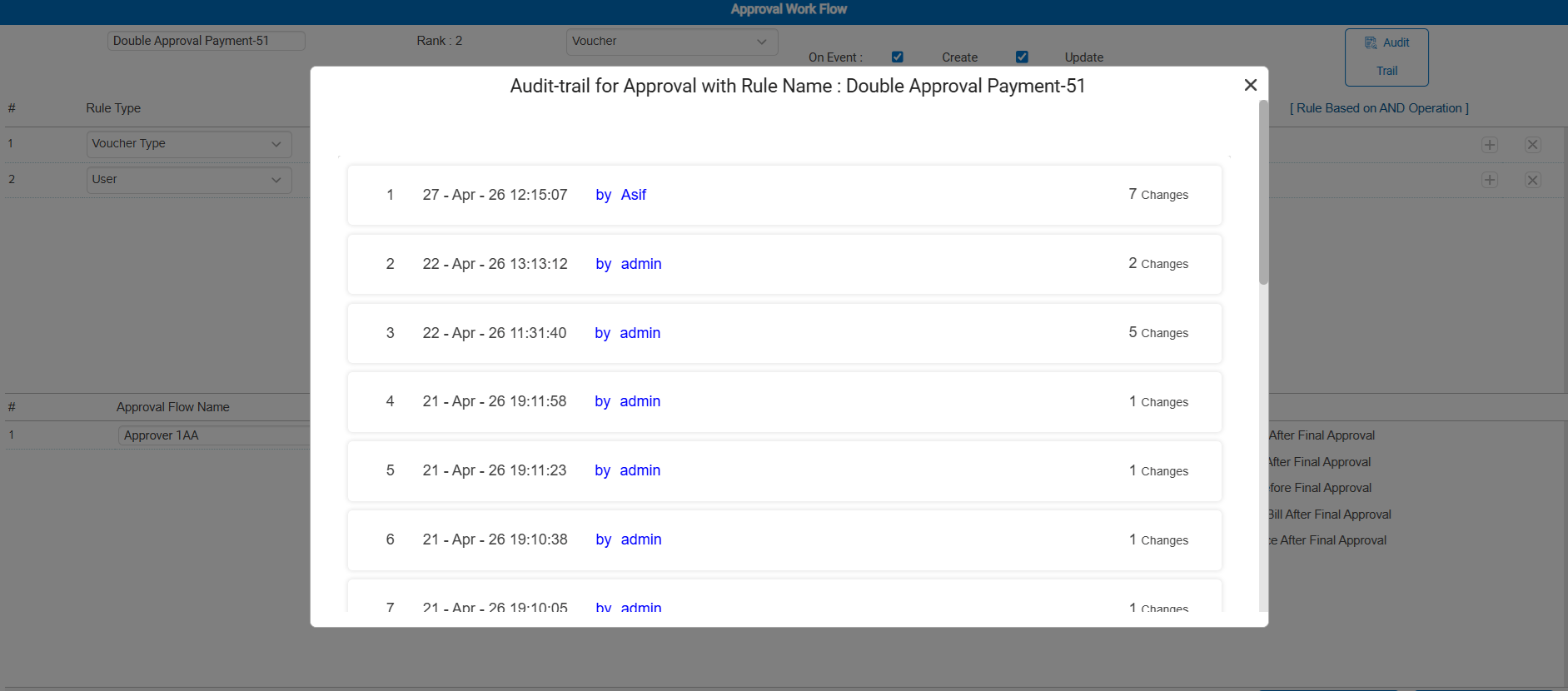
In the Approval Workflow Master, there was no option to check the Audit Trail. Users had no way to track who made changes to the approval workflow configuration, when the changes were made, or what was modified — making it difficult to maintain transparency and accountability over workflow settings.
🌟 What This Means for You
An Audit Trail is now available for the Approval Workflow Master. You can view a complete history of changes made to approval workflow configurations — including who made the change, when it was made, and what was modified. This enables better tracking, transparency, and accountability for your approval processes.
🎬 Where to Find It
📷 See It in Action
📌 What Was Happening
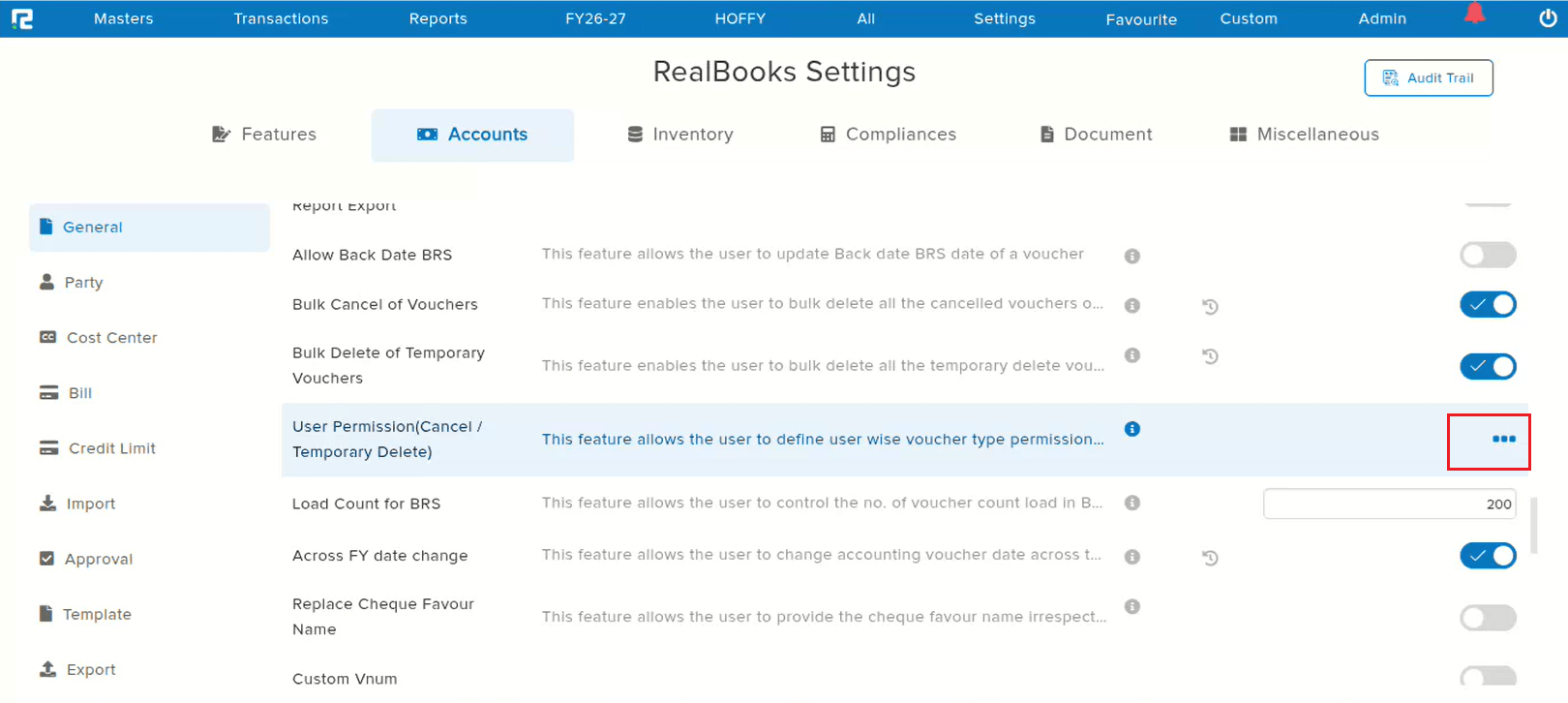
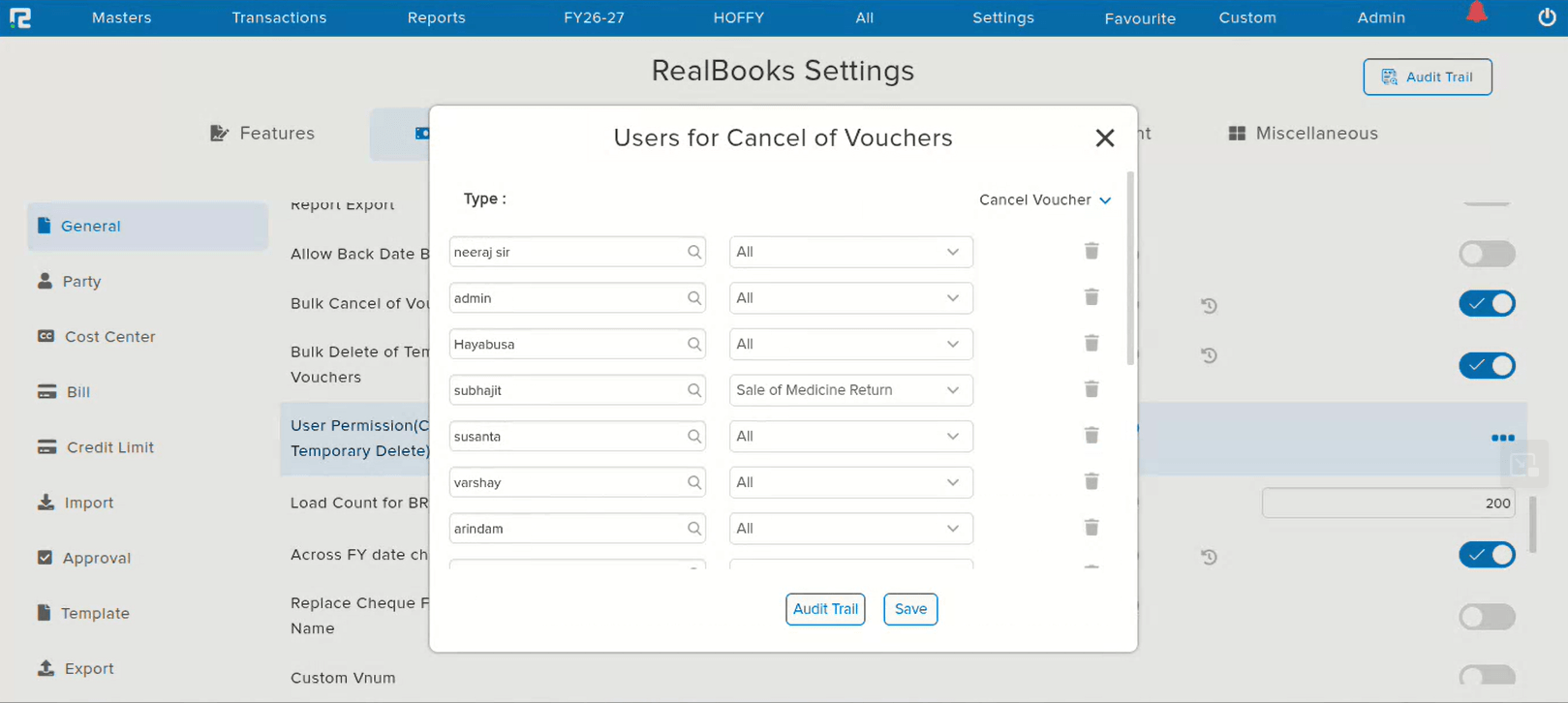
The User Permission pop-up for Cancel / Temporary Delete actions on the Settings page was not accessible. Users were unable to interact with or configure these permission settings, requiring optimization to make the pop-up functional and reachable.
🌟 What This Means for You
The User Permission (Cancel / Temporary Delete) pop-up in the Settings page has been optimized and is now fully accessible. You can configure cancel and temporary delete permissions directly from the settings without any issues.
🎬 Where to Find It
📷 See It in Action
📌 Overview
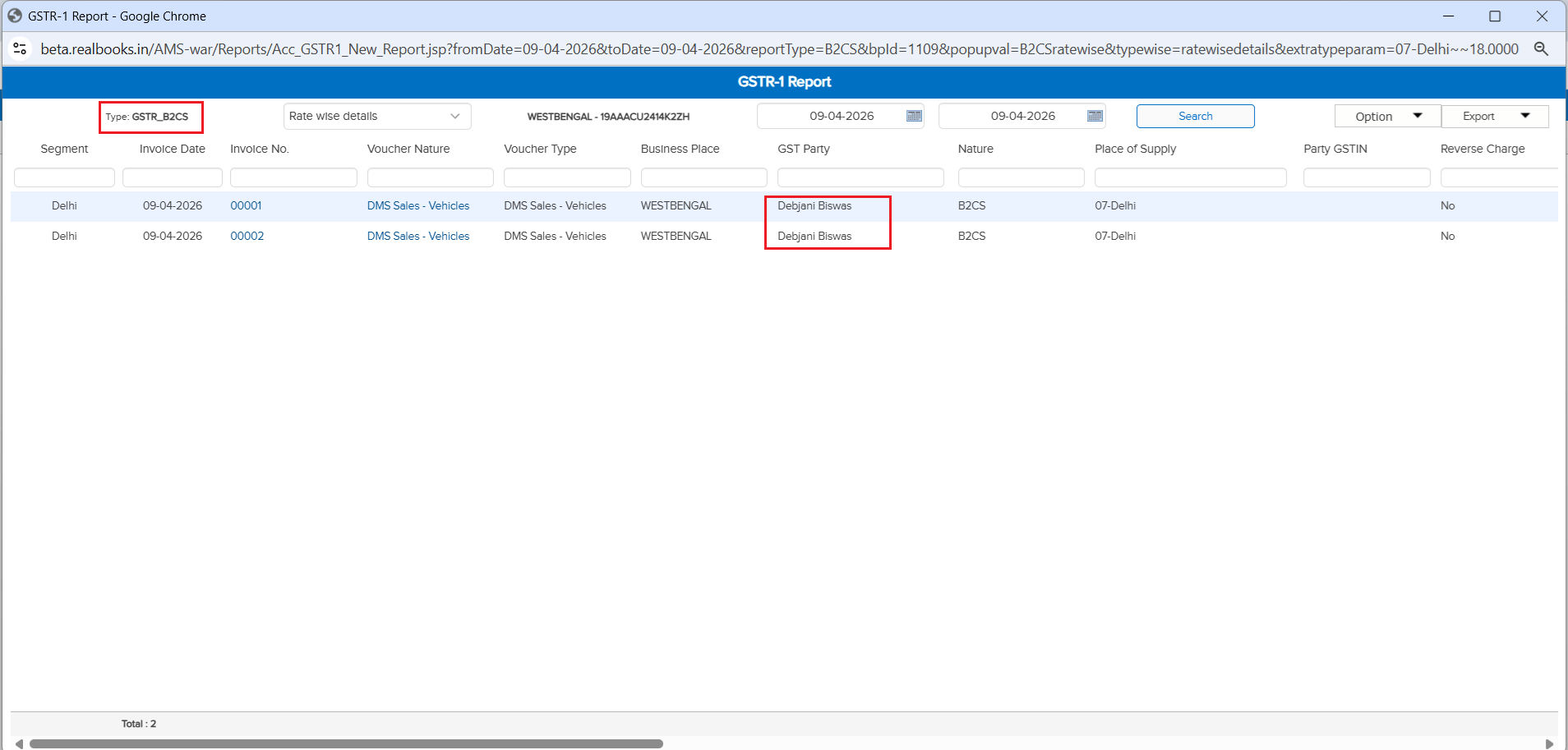
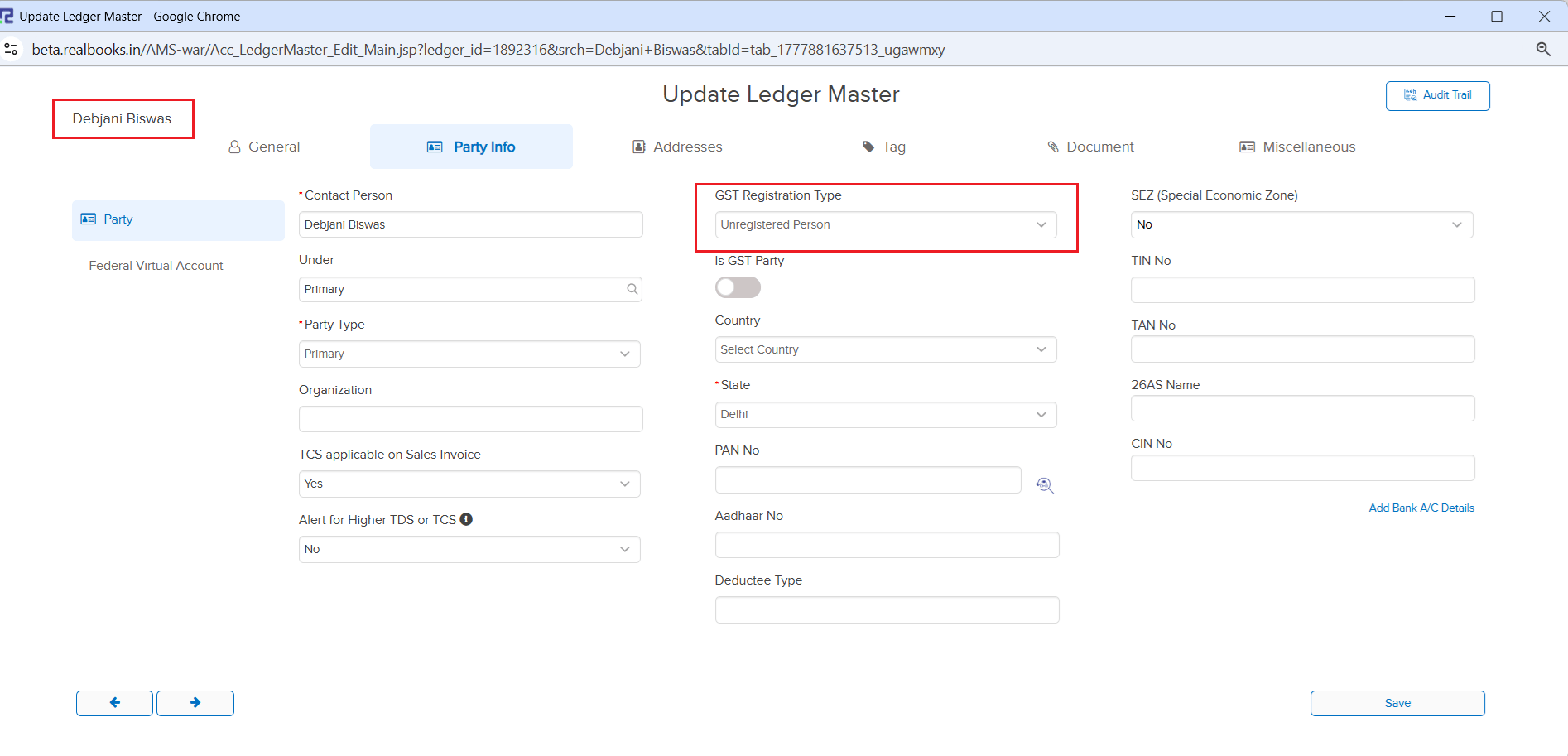
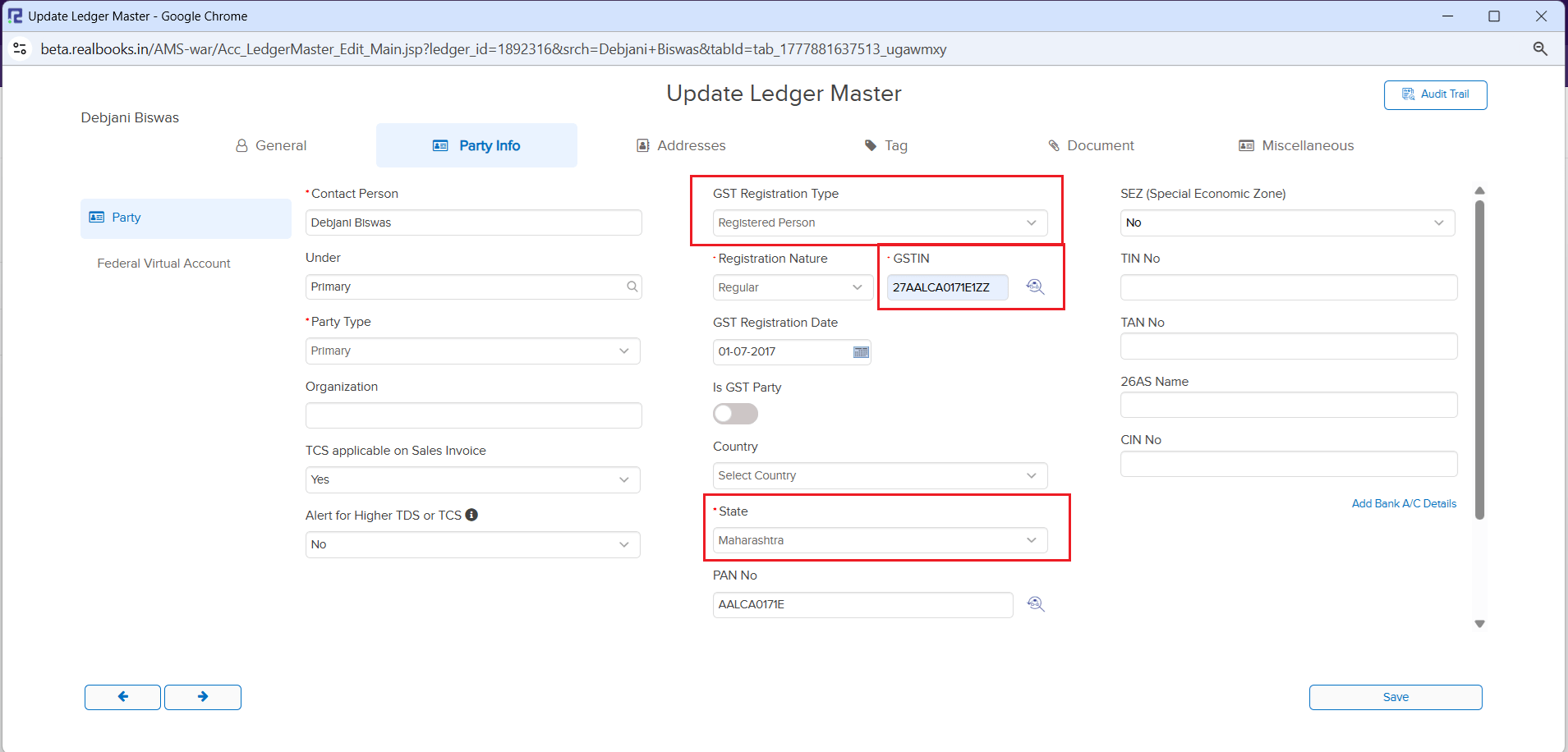
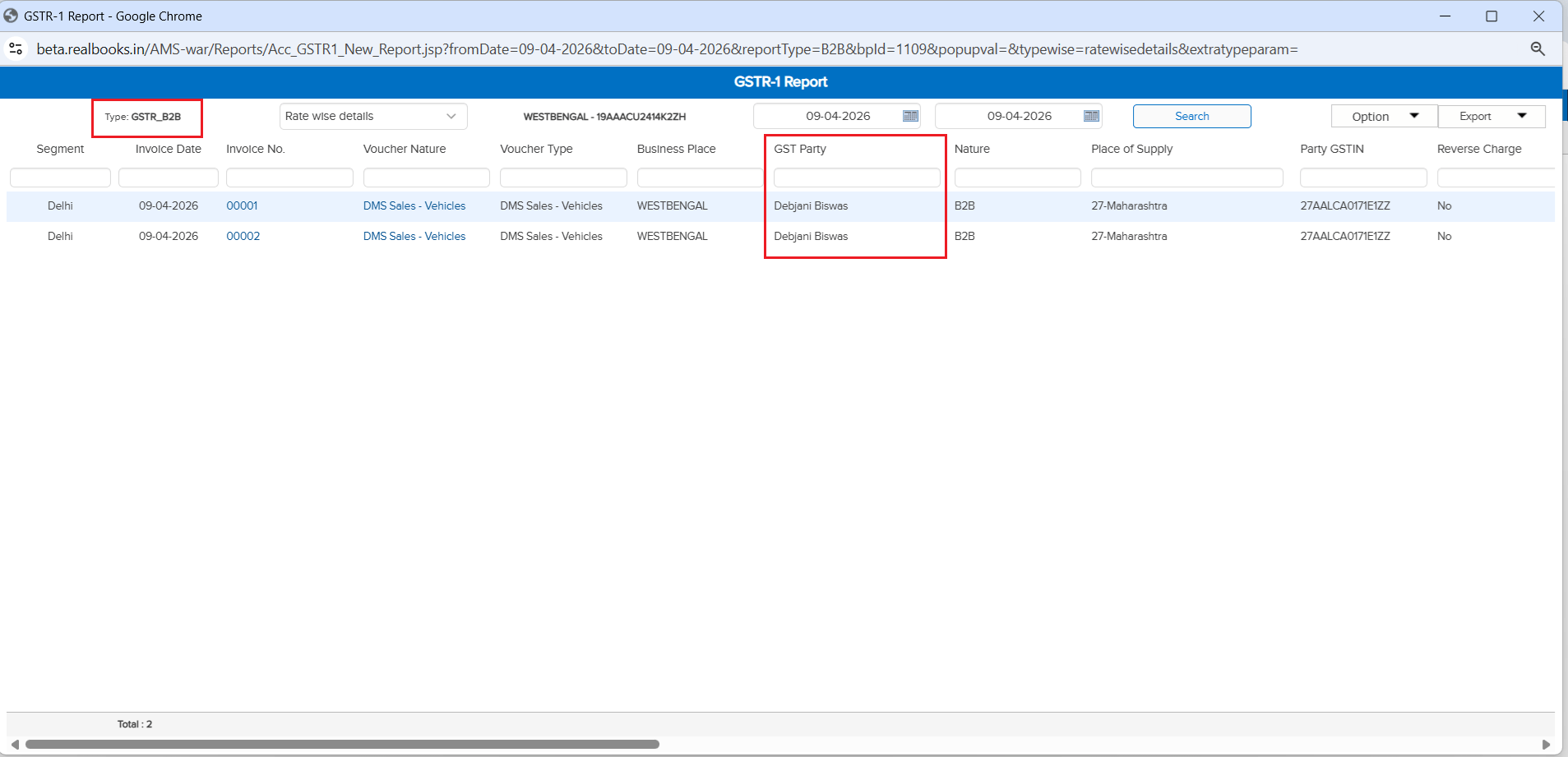
When a party’s State Name or Registration Type (e.g., Unregistered → Registered) was updated in the Ledger Master, the existing voucher entries were not automatically reclassified in GST reports. This could lead to incorrect GSTR-1 reporting — for example, transactions continuing to reflect under B2CS instead of B2B.
📌 How It Works
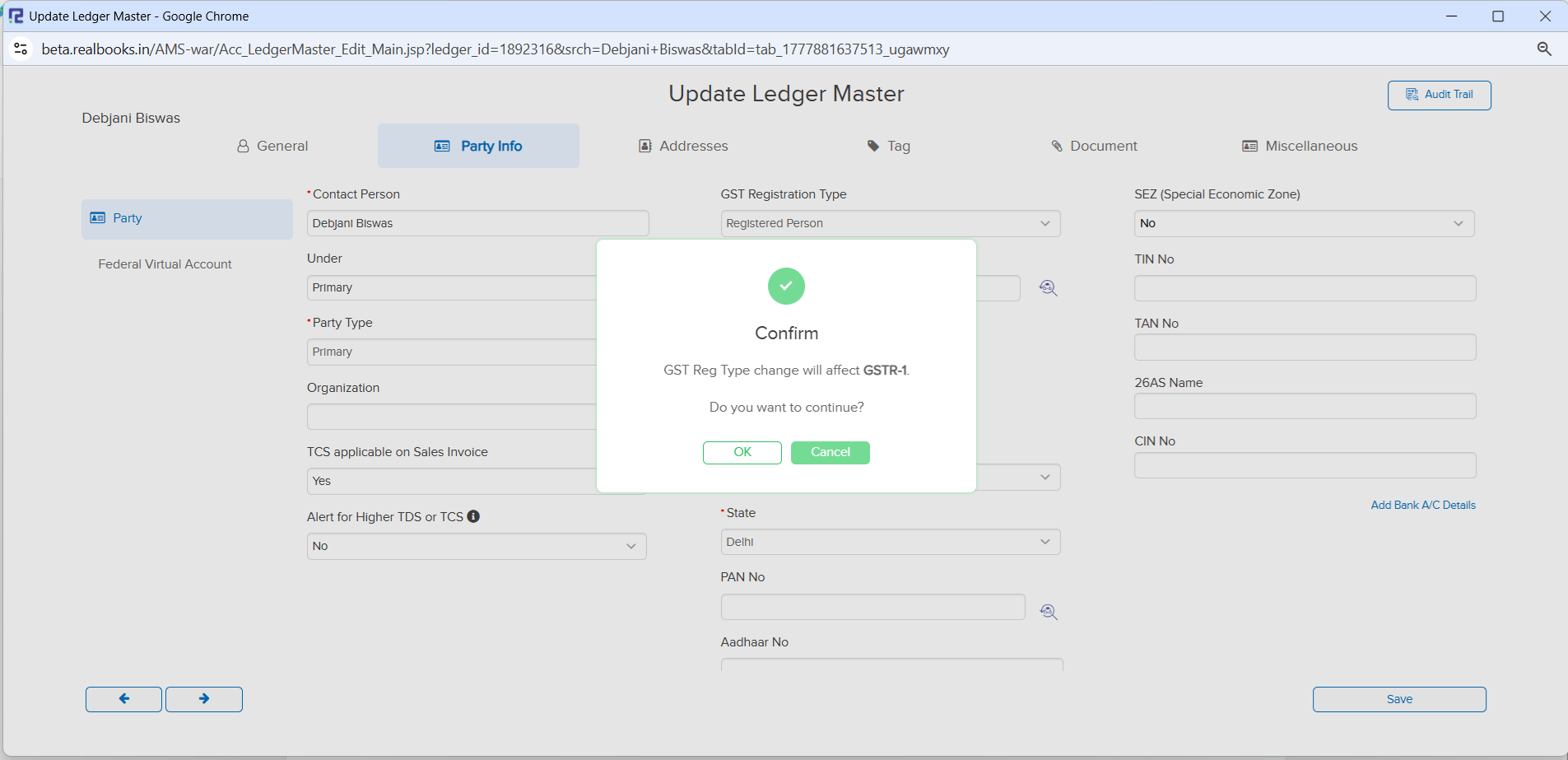
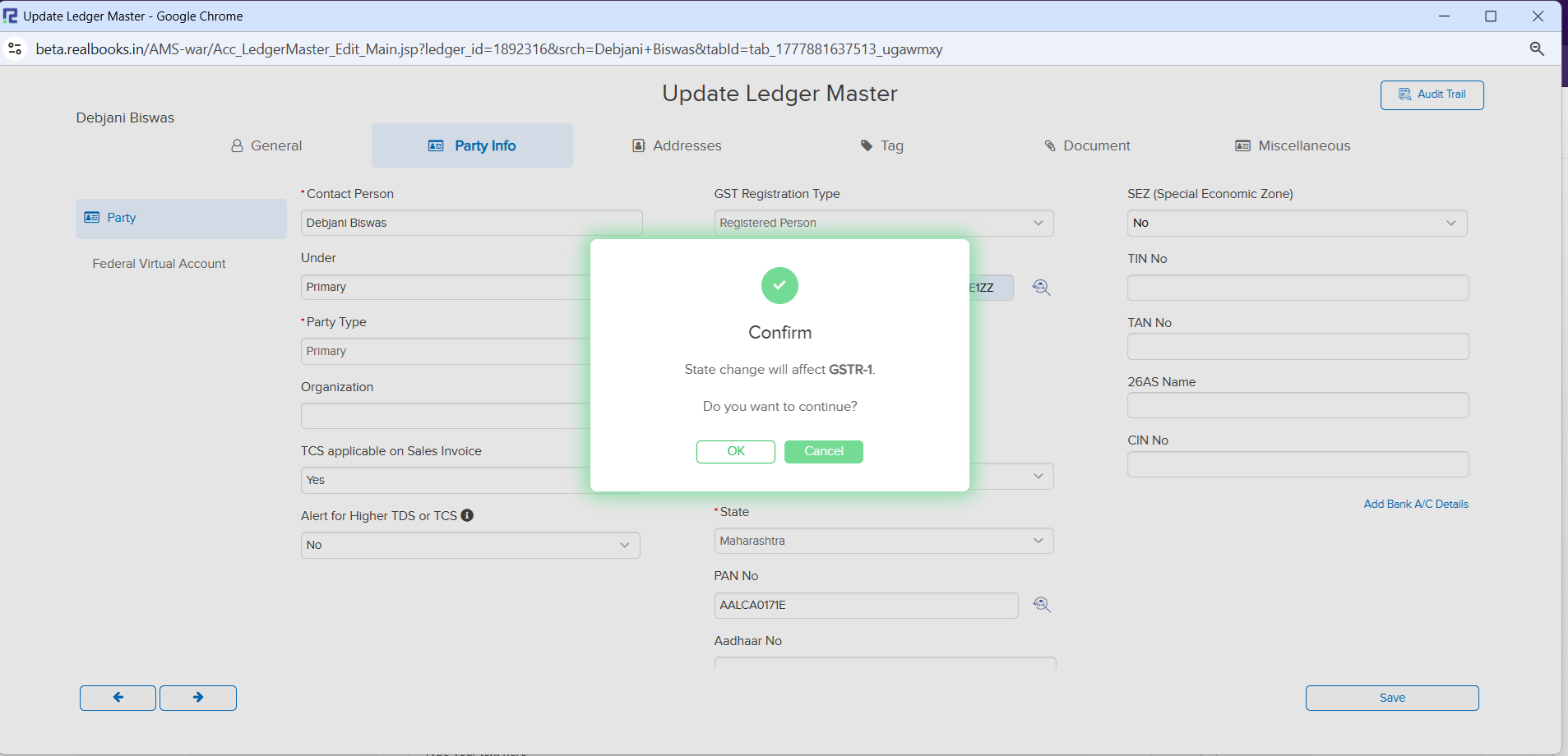
When you update the State Name or Registration Type under Ledger Master → Party Details:
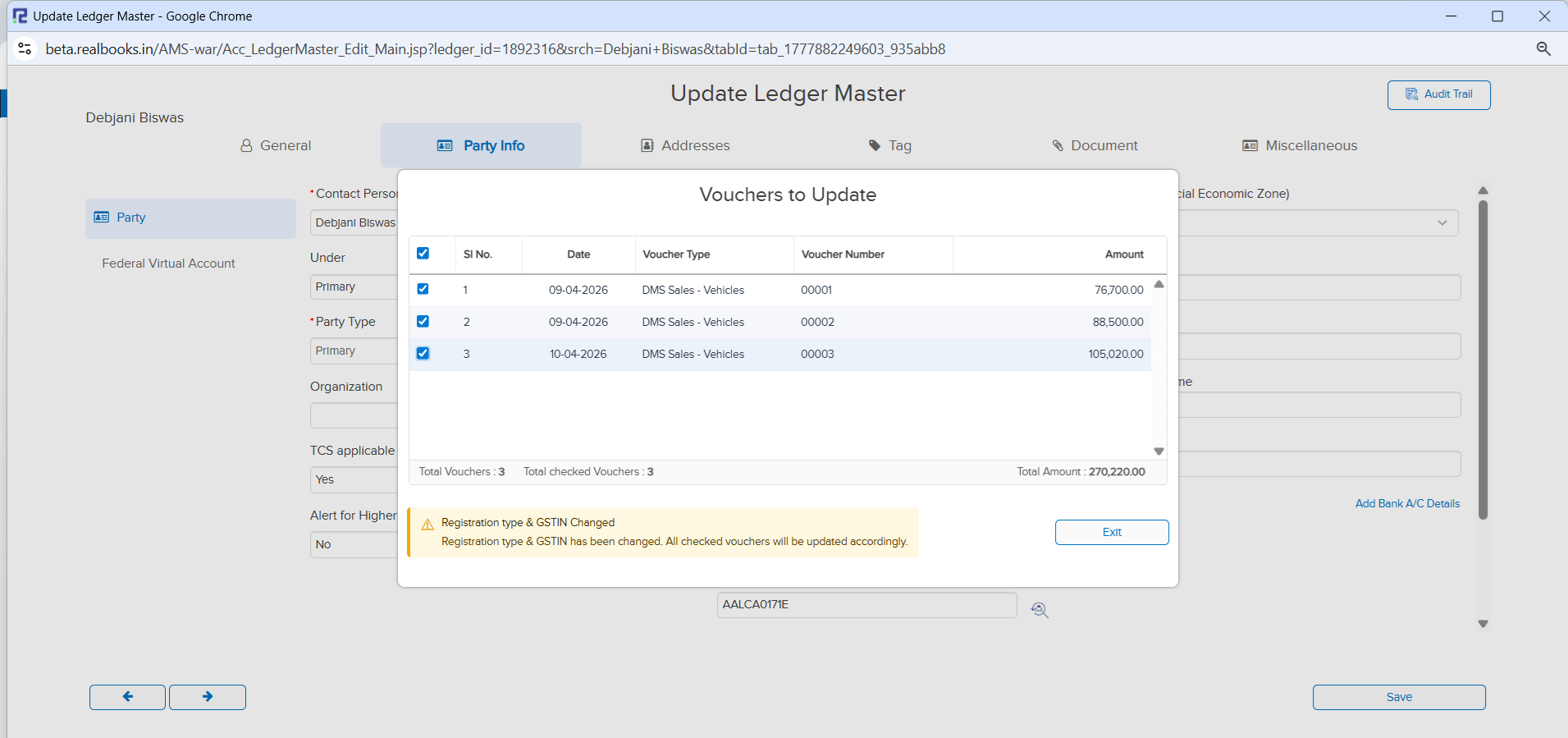
• A pop-up appears showing a list of impacted voucher entries with Voucher Date and Voucher Number
• On clicking Save on the Ledger Master, selected entries are automatically pushed for re-sync with GSP
• GST classification is updated accordingly in reports
Logic: Only voucher entries dated after the GST Registration Date (available in Ledger Master) are listed for re-sync.
🌟 What This Means for You
You no longer need to manually identify and re-sync voucher entries when a party’s state or registration type changes. The system automatically detects impacted entries and re-syncs them with the GSP — ensuring accurate GSTR-1 classification and compliance without manual intervention.
🎬 Where to Find It
📷 See It in Action
📌 What Was Happening
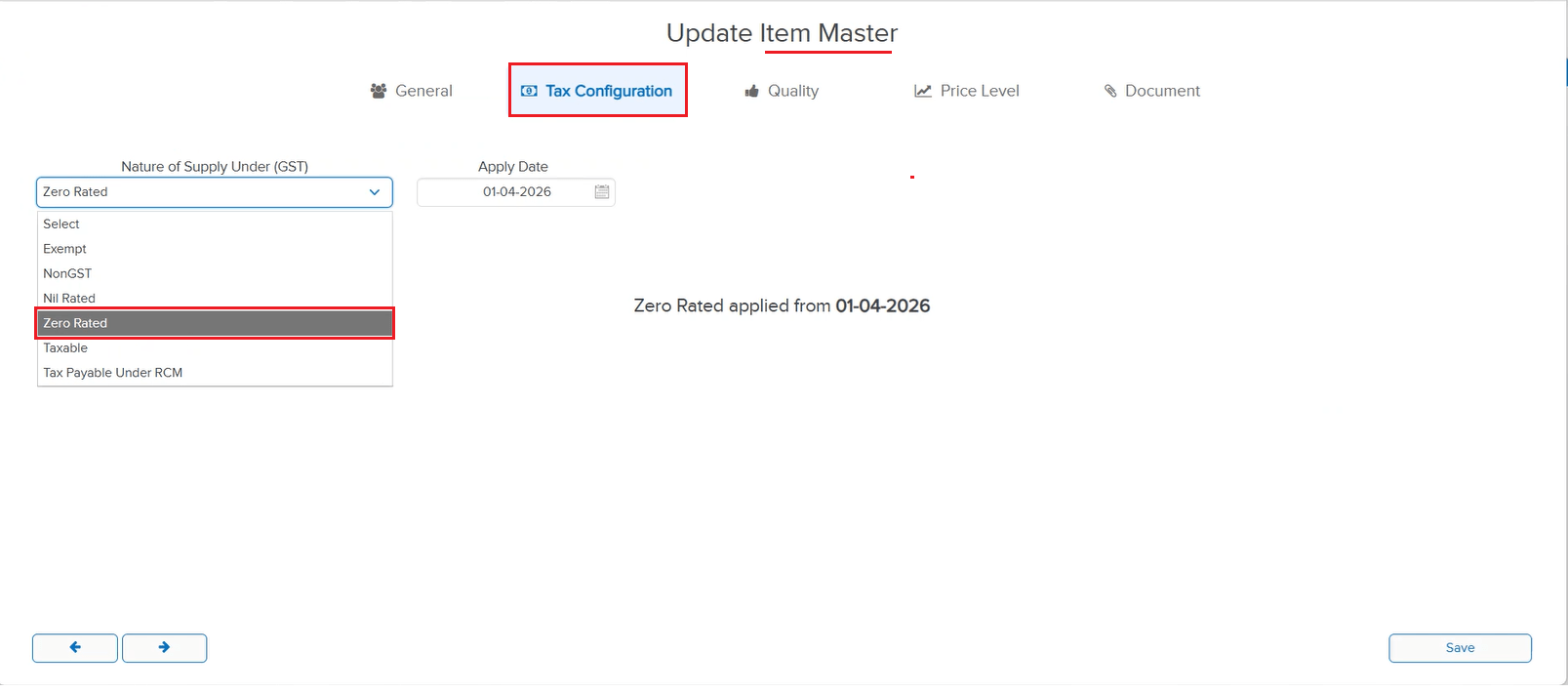
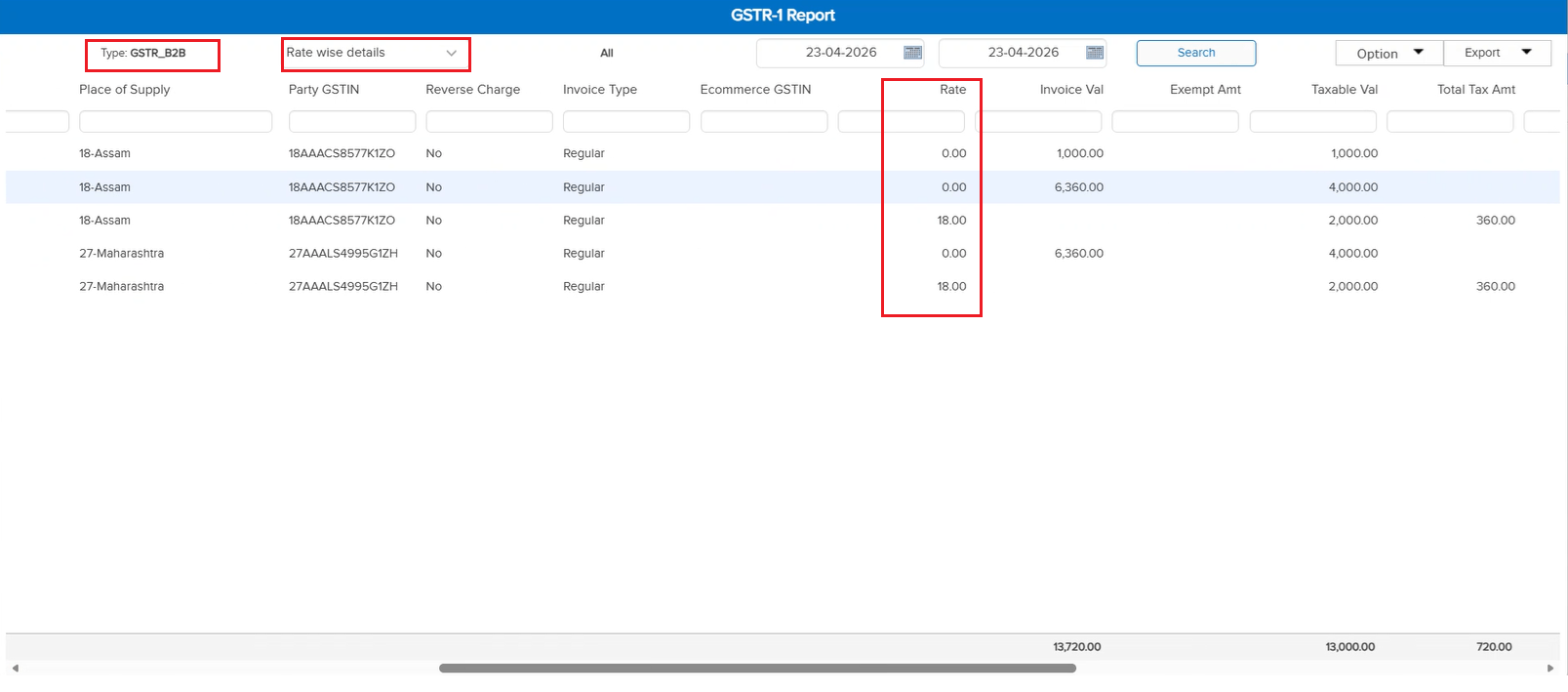
There was no option to assign a 0% GST rate in the Item Master. Items that are taxable at 0% were being treated as Exempt in GST return Excel exports, causing incorrect classification. The 0% rate was also not visible in GST rate-wise reports, leading to discrepancies in compliance reporting.
🌟 What This Means for You
A 0% GST rate option has been introduced and is now configurable under the Item Master. Key improvements include:
• Inter & Intra Sales — Items with 0% GST now correctly appear under Taxable Value (not Exempt) in GST return Excel
• GST Rate-wise Reports — 0% rate is now visible across all GST rate-wise reports for accurate reporting
• Item Master Configuration — 0% rate can be selected and saved directly from the Item Master setup
📷 See It in Action
📌 What Was Happening
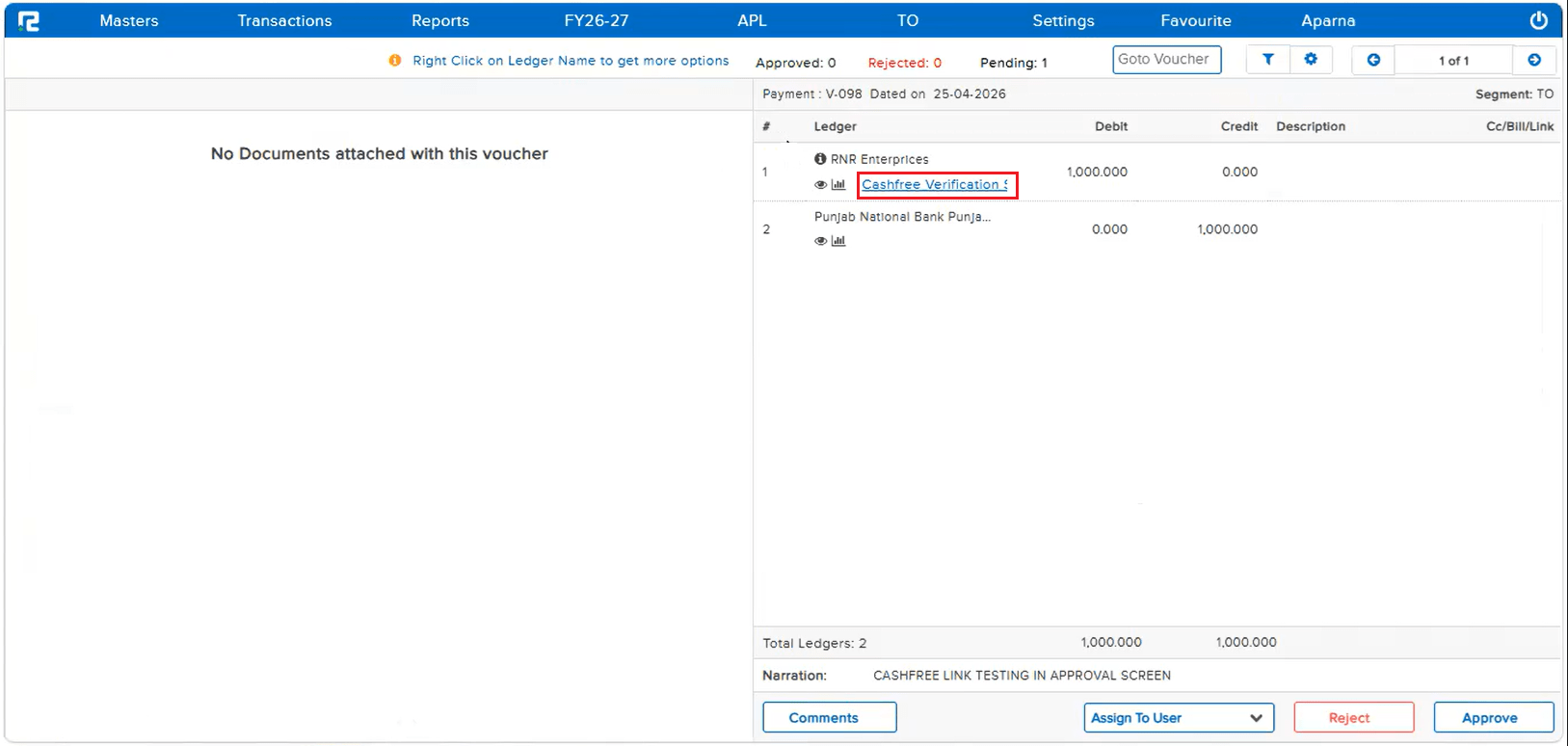
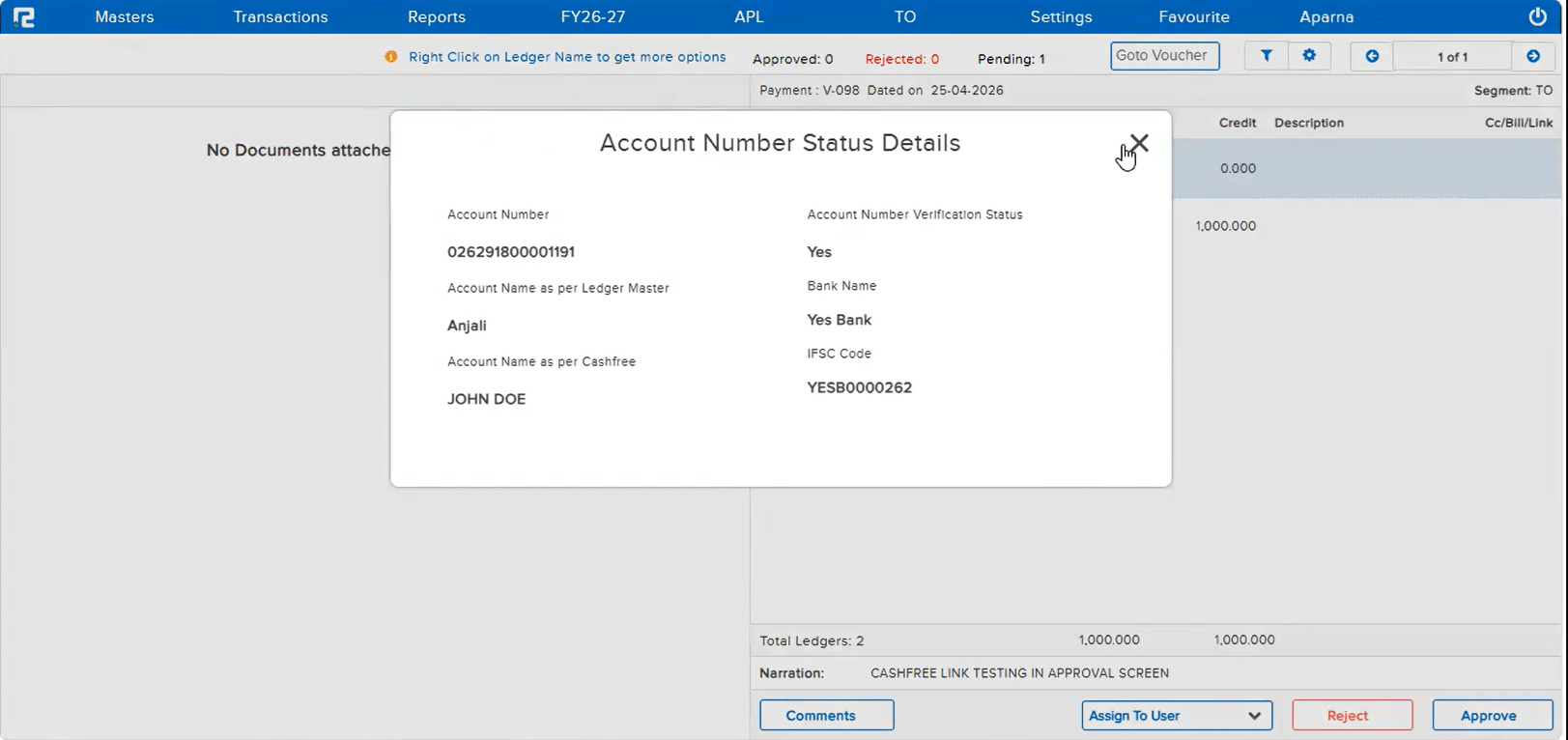
In the Approval Screen, there was no way to quickly verify the Cashfree bank validation status of a party ledger. Approvers had to navigate away from the approval screen and open the Ledger Master separately to check whether the bank details were verified via Cashfree — slowing down the approval process.
🌟 What This Means for You
A clickable link has been added in the Approval Screen beside the party ledger name. Clicking it displays the Cashfree verification details directly:
• CashFree Verification — Yes / No
• Account Name as per Ledger Master
• Account Name as per Cashfree
• Bank Name
• Account Number
• IFSC Code
This allows approvers to verify bank details without leaving the approval screen — making the process faster and more reliable.
📷 See It in Action
📌 What Was Happening
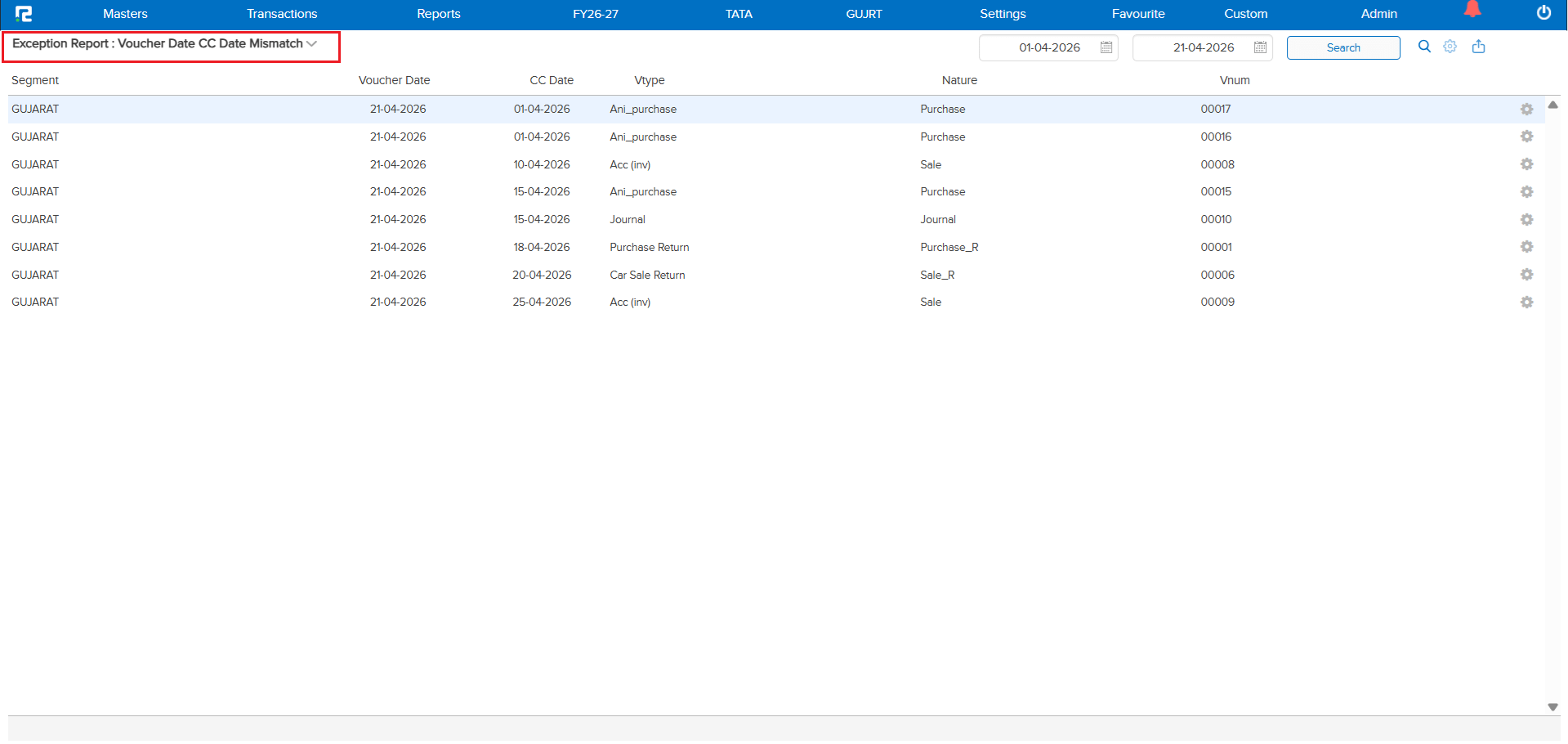
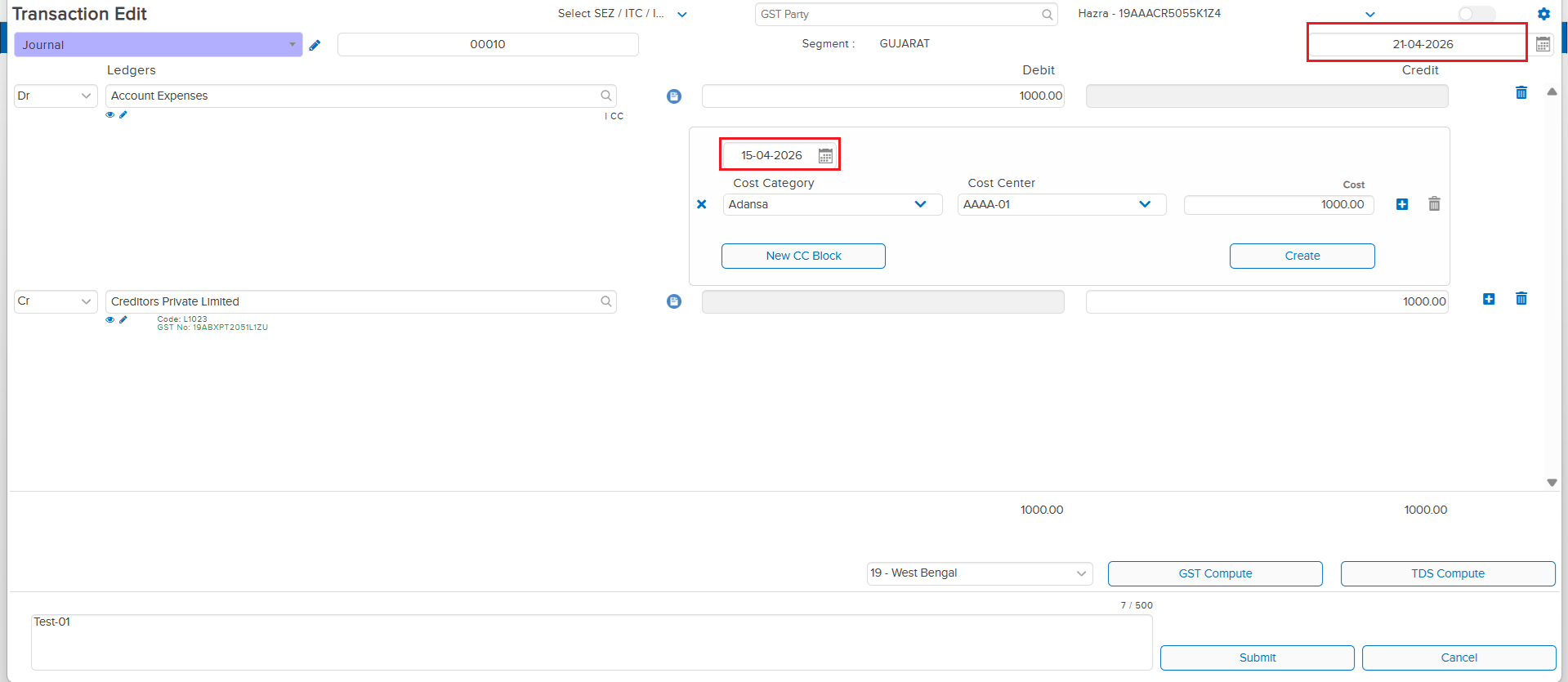
Under the Exception Report, there was no option available to identify or understand the difference between Cost Center Date entries and Voucher Date entries. Users had no way to spot mismatches between these two dates, making it difficult to track discrepancies and ensure data accuracy across vouchers.
🌟 What This Means for You
A new Voucher Date CC Date MisMatch option has been added under the Exception Report. You can now easily identify vouchers where the Cost Center Date differs from the Voucher Date — enabling better clarity, tracking, and quicker resolution of date-related discrepancies.
🎬 Where to Find It
📷 See It in Action
📌 What Was Happening
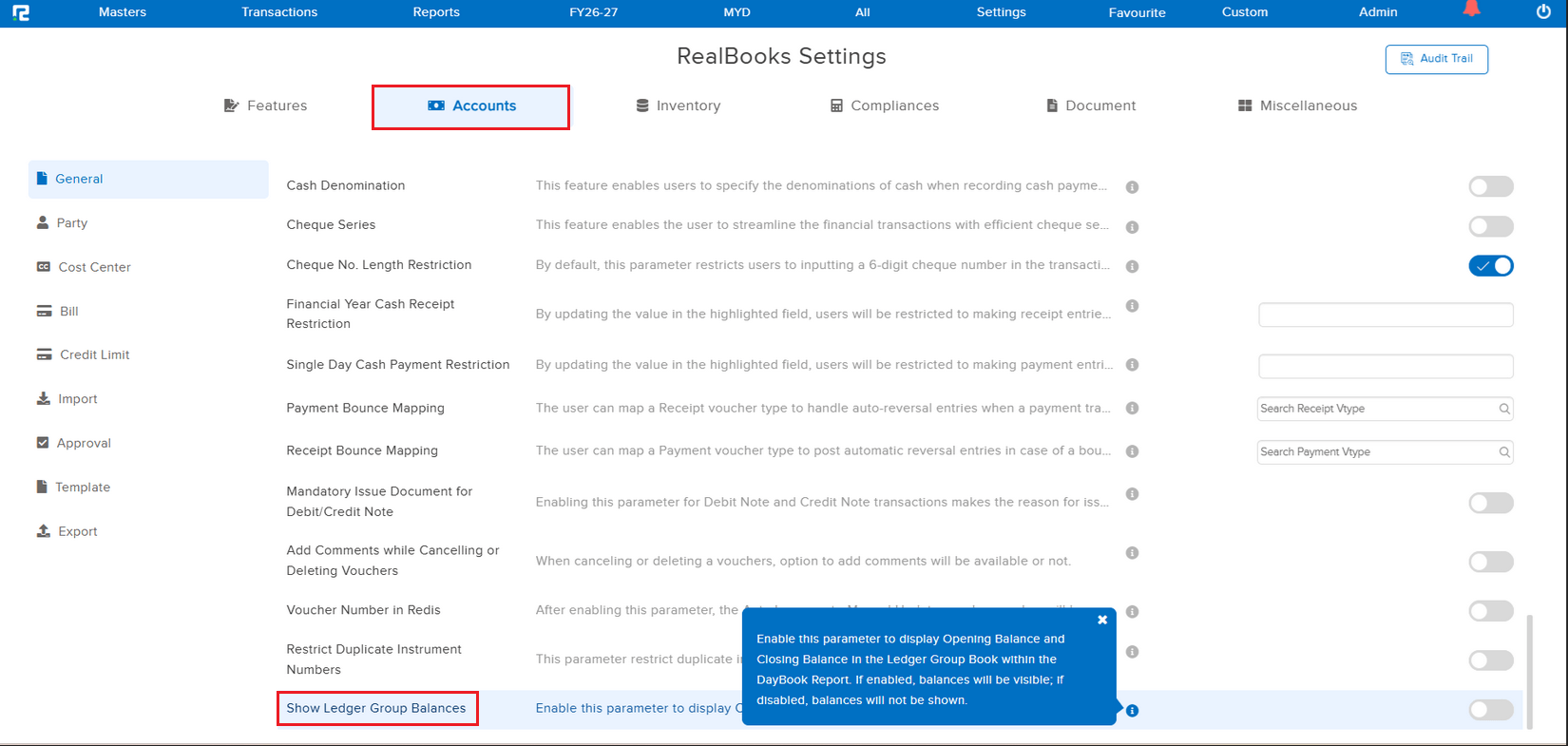
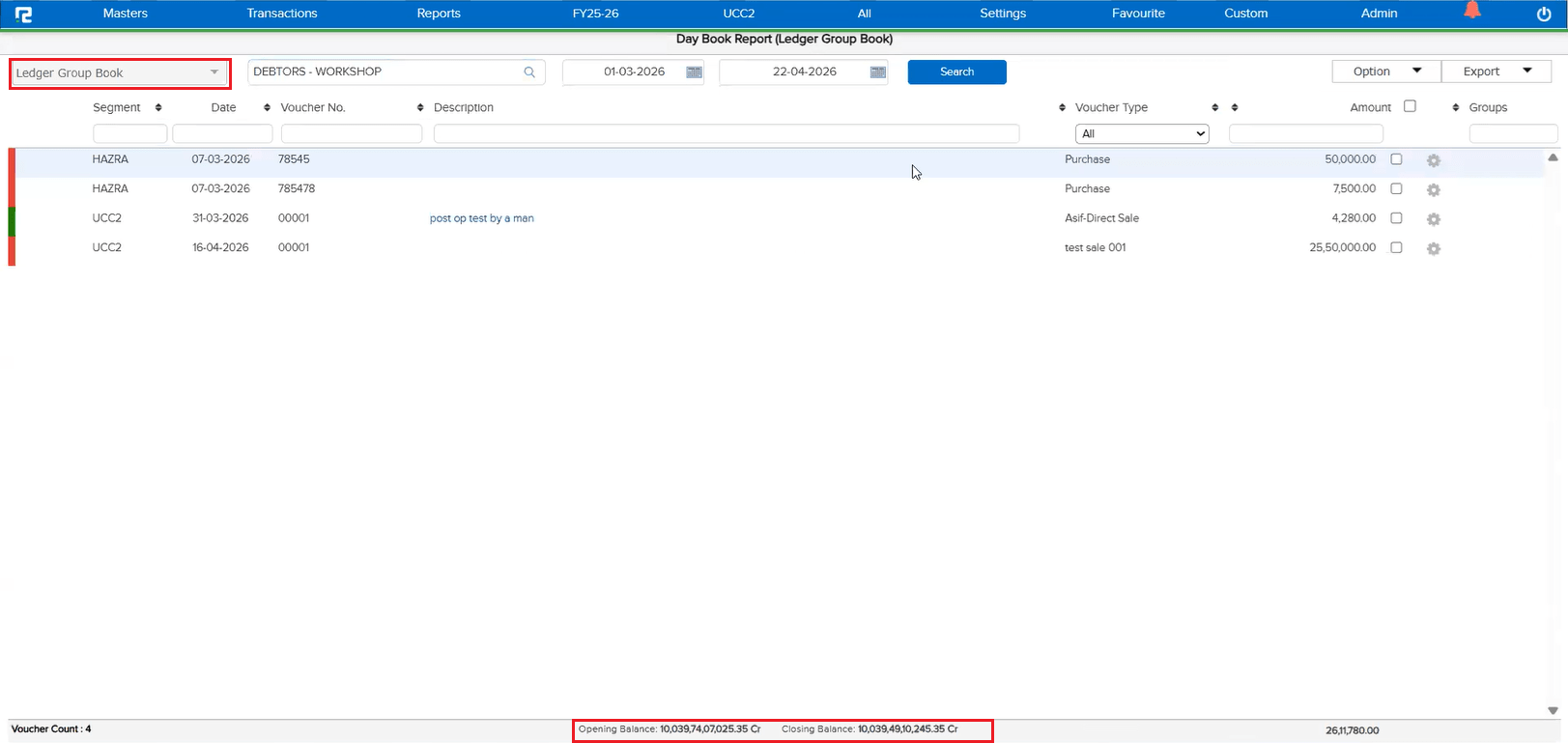
In the Ledger Group Book under the DayBook report, the Opening Balance and Closing Balance were not displayed in the UI or in the exported data. Users had to refer to other reports to get these balance figures, making it inconvenient to get a complete financial picture directly from the Ledger Group Book.
🌟 What This Means for You
A new parameter Show Ledger Group Balances has been introduced under configuration. When enabled, the Opening Balance and Closing Balance will be displayed in the Ledger Group Book within the DayBook Report — both in the UI and in the exported data. If disabled, balances will not be shown.
🎬 Where to Find It
📷 See It in Action
📌 What Was Happening
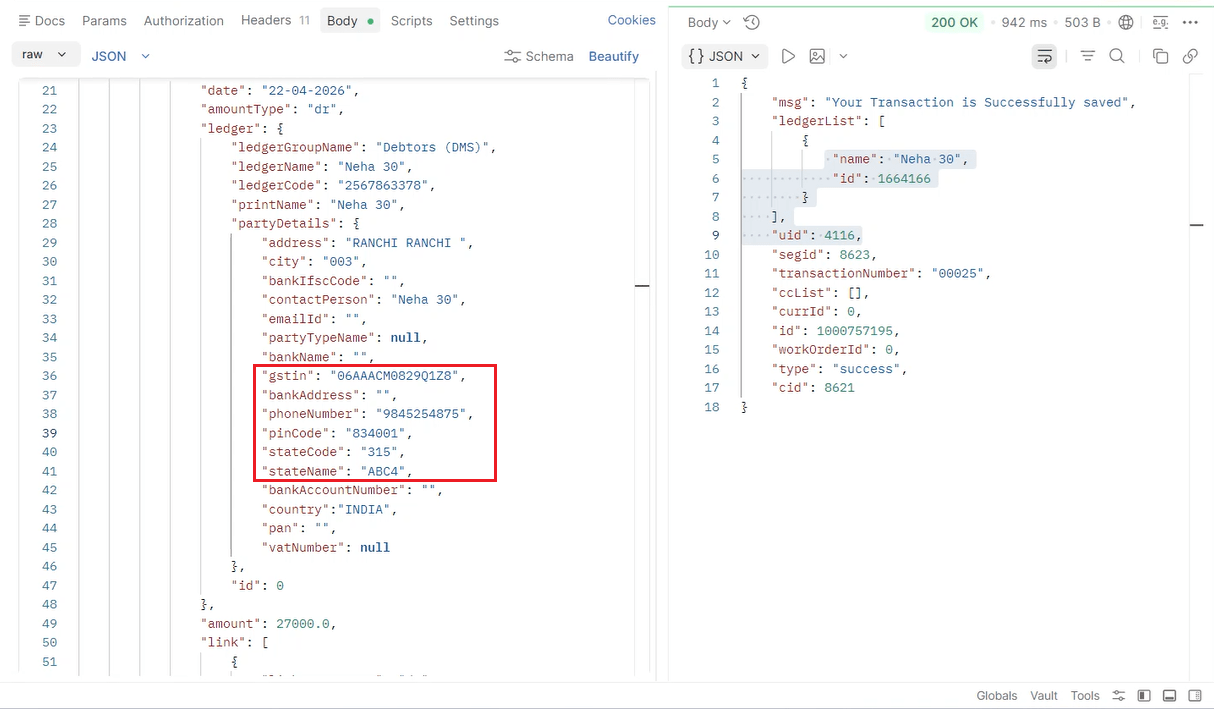
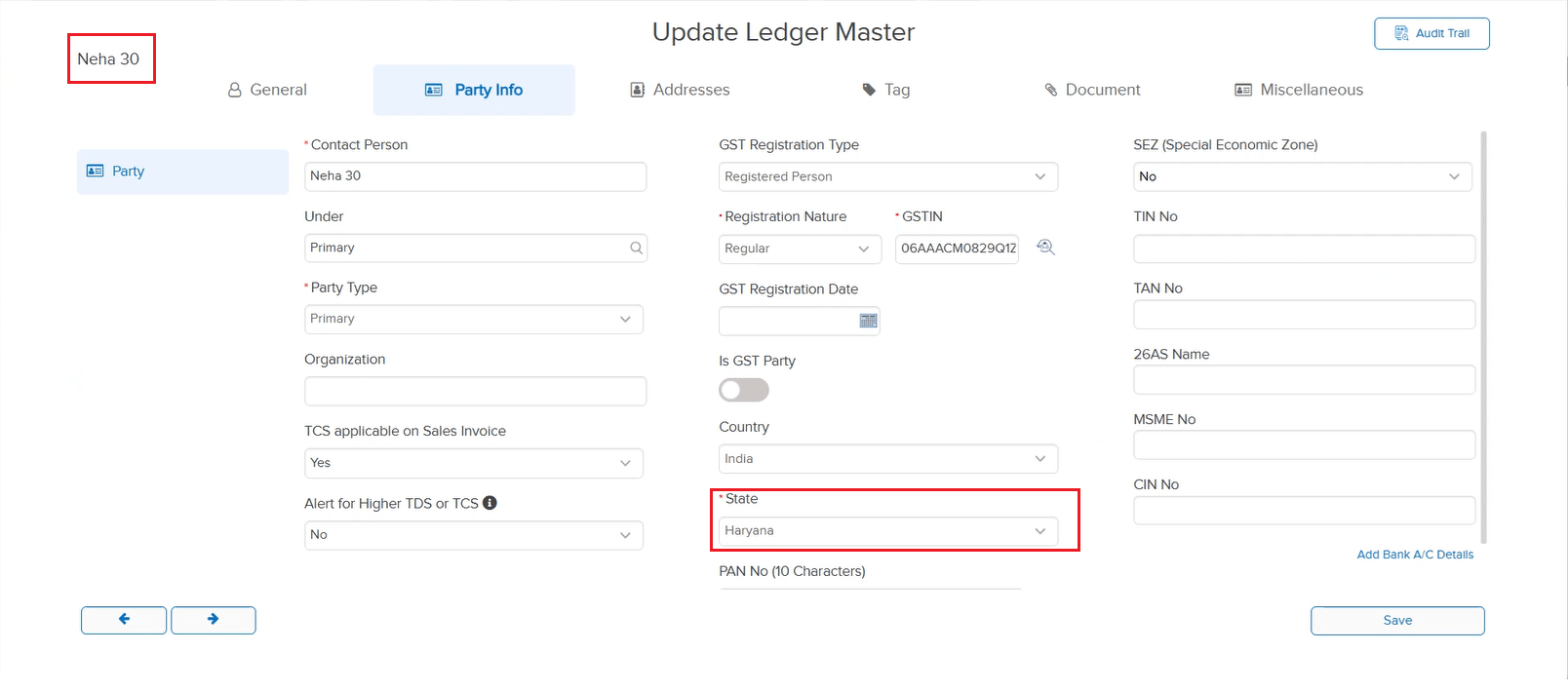
When downloading the Ledger Master Listing with the option Party Listing For GST in Excel format, the file was being downloaded as 0 Bytes (empty file). This was caused by a few party ledgers having their State Code saved as N/A in the database via the API, which broke the export process.
🌟 How This Helps You
The API logic has been corrected to handle invalid state data gracefully:
• If both State Code and State Name are invalid → Ledger Category defaults to Regular
• If State Code is valid but State Name is invalid → State Name is derived from the State Code
• If State Code is invalid but State Name is valid → State Code is derived from the State Name
The Party Listing for GST Excel export now downloads correctly with complete data.
🛠 Where to Find It
📷 See It in Action
📌 What Was Happening
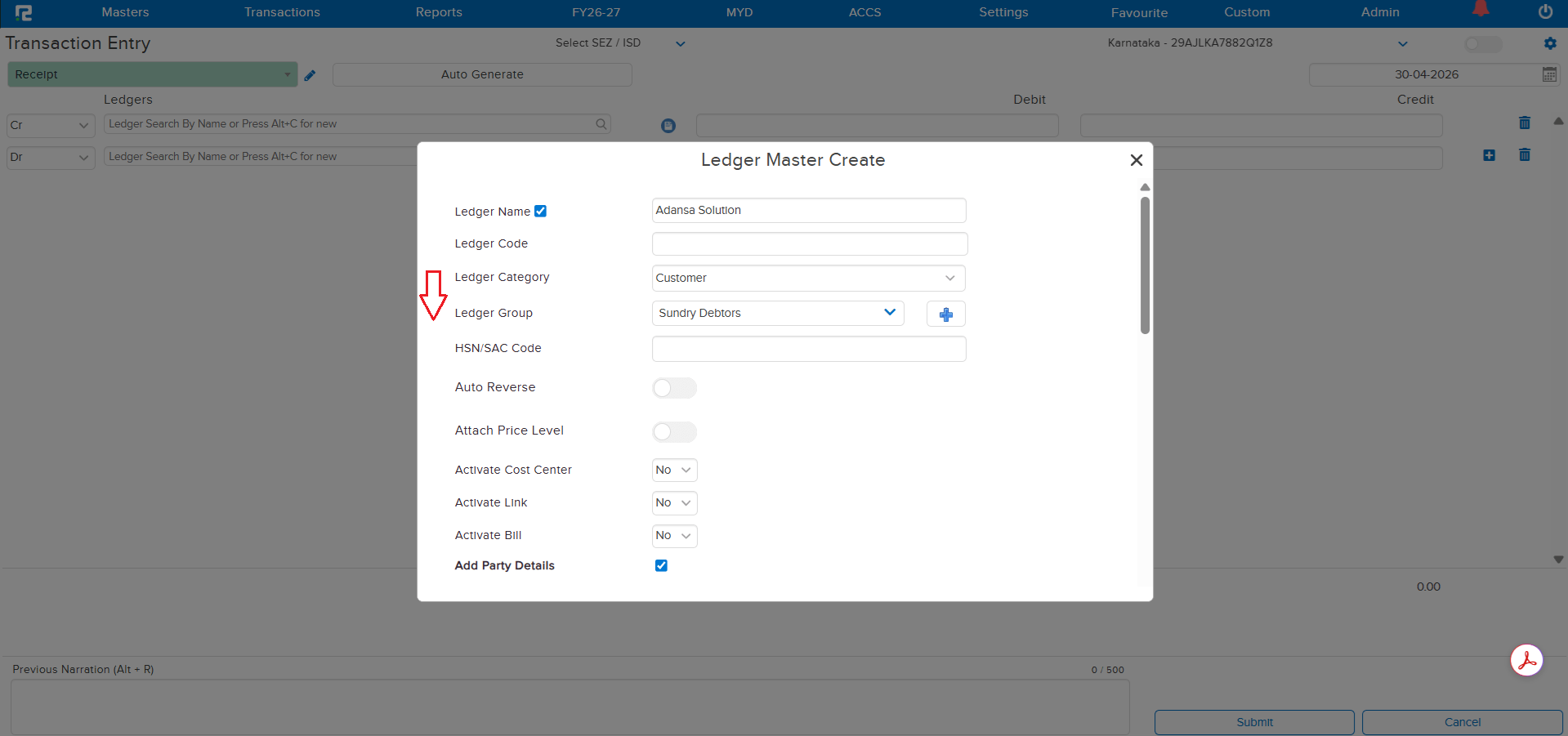
When creating a Ledger through the Alt + C shortcut key, the cursor disappeared after selecting the Ledger Category. Users had to use the mouse to navigate to the next field, breaking the keyboard-driven workflow and slowing down the ledger creation process during entry passing.
🌟 How This Helps You
The cursor behavior has been fixed. After selecting the Ledger Category, pressing the Tab key now correctly moves the cursor to the next field (Ledger Group) — restoring the seamless keyboard navigation during Alt + C ledger creation.
📷 See It in Action
📌 What Was Happening
When Duplicate Ledger Code was allowed as per company configuration, multiple ledgers with the same code existed in the books. During entry posting, the system was randomly posting entries against any of these duplicate ledgers — instead of considering ledger visibility. This caused entries to be booked against incorrect or disabled ledgers.
🌟 How This Helps You
The system now correctly considers ledger visibility when posting entries with duplicate ledger codes. Entries are booked only against the ledger where visibility is enabled — ledgers with disabled visibility are no longer considered for entry posting. This ensures accurate and predictable transaction recording.
📌 What Was Happening
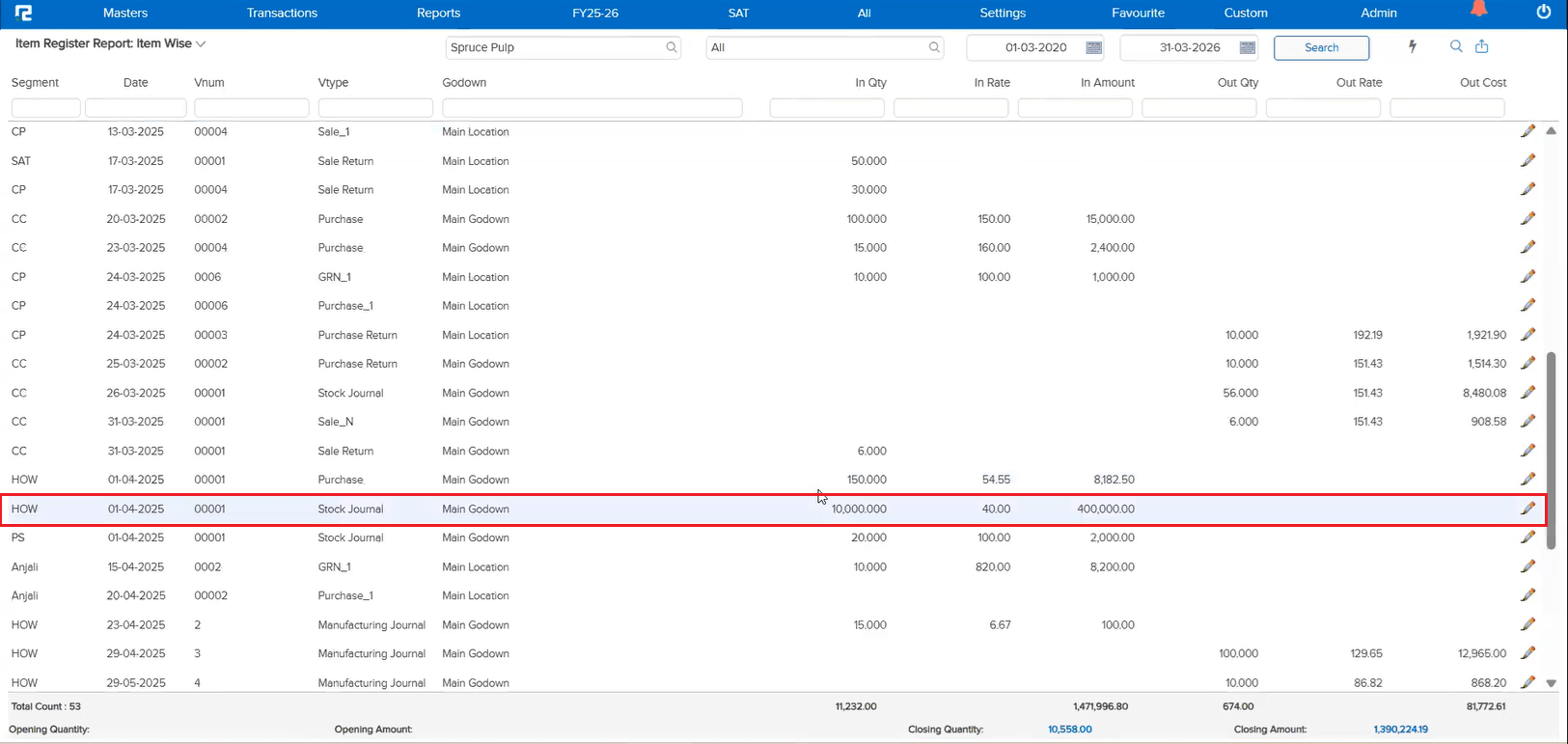
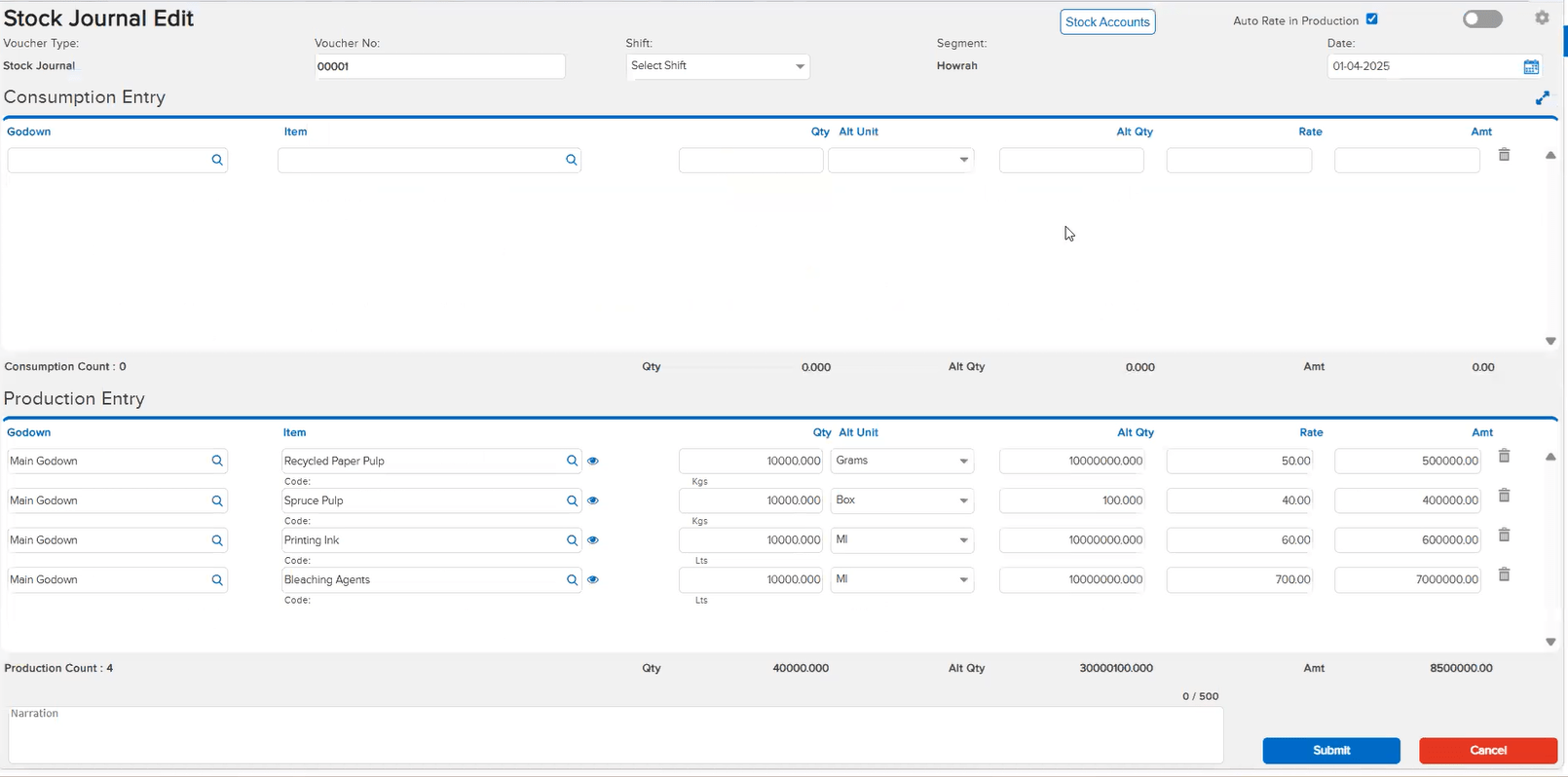
In the Item Register report, when editing any Stock Journal entry, a Purchase entry from the row above was incorrectly opening instead of the selected Stock Journal transaction. This caused confusion and made it impossible to edit Stock Journal entries directly from the Item Register.
🌟 How This Helps You
The issue has been corrected. Editing a Stock Journal entry from the Item Register now correctly opens the selected Stock Journal transaction — no longer loading an unrelated Purchase entry. You can reliably edit Stock Journal entries directly from the report without any workaround.
🛠 Where to Find It
📷 See It in Action
📌 What Was Happening
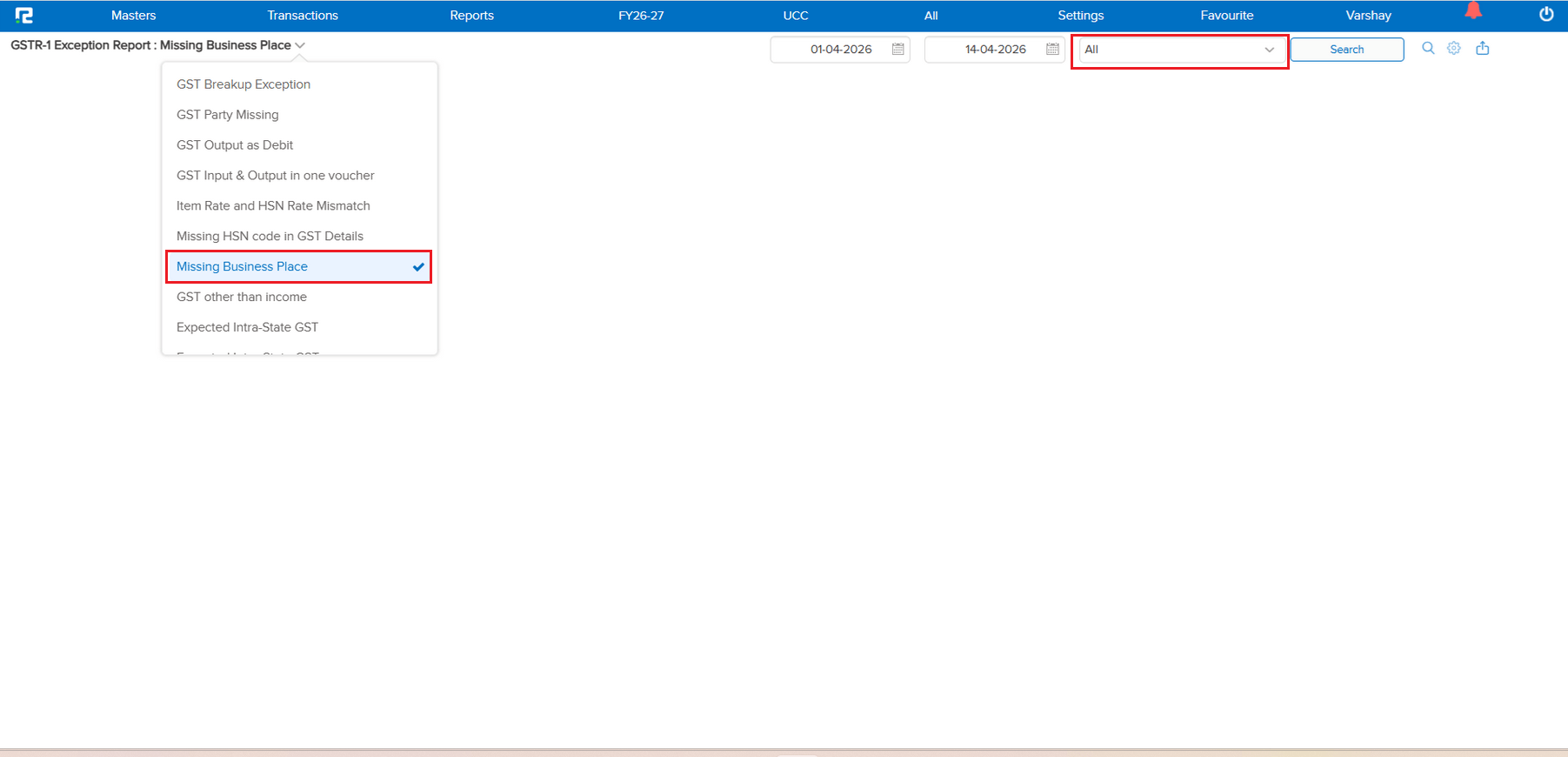
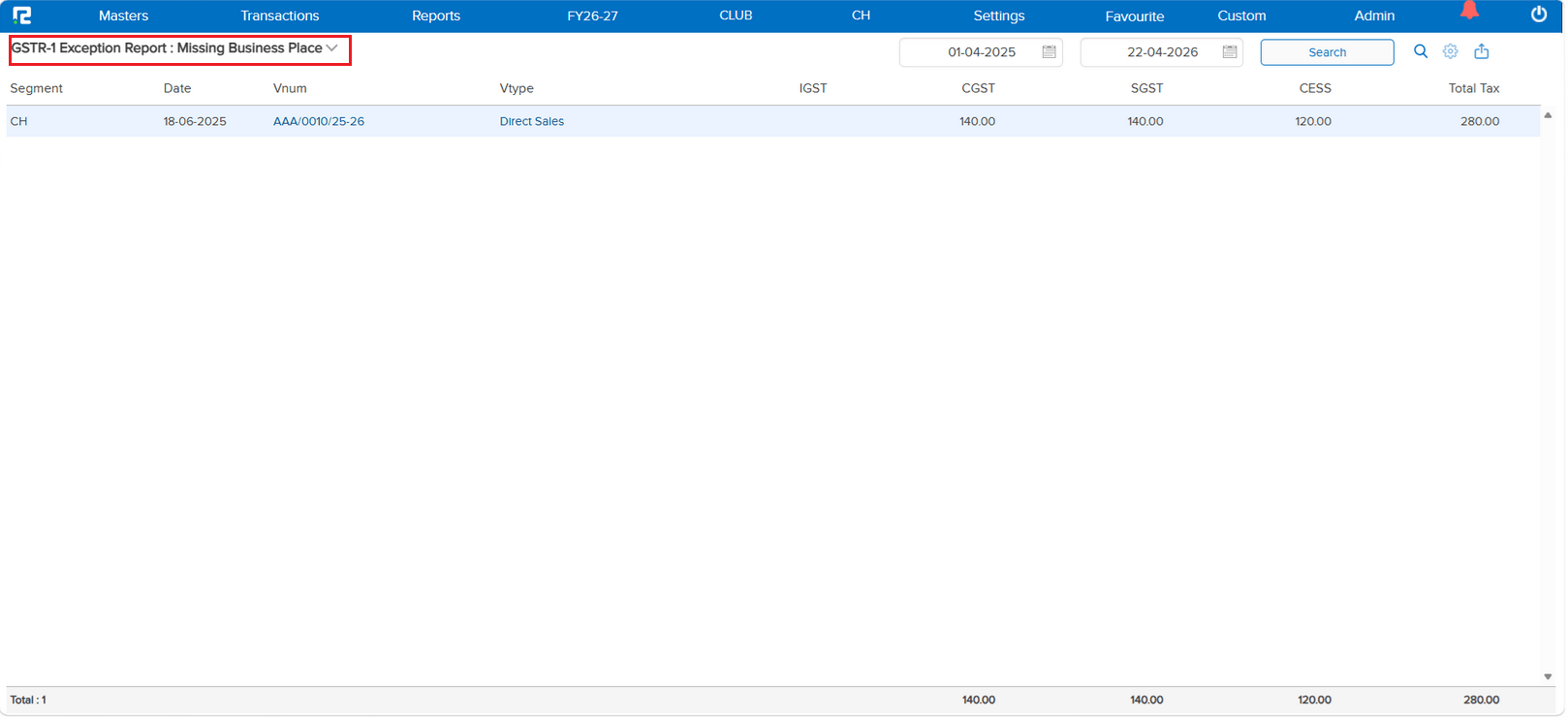
In the GSTR-1 Exception Report for missing Business Place, the Business Place selection option was available, which was unnecessary and caused confusion. Since this exception specifically lists vouchers with missing BP data, having a BP filter in this context was redundant and misleading.
🌟 How This Helps You
The Business Place selection has been removed from the GSTR-1 Exception report for missing Business Place. This simplifies the exception view and removes the unnecessary filter — allowing you to directly see all vouchers with missing BP data without confusion.
🛠 Where to Find It
📷 See It in Action
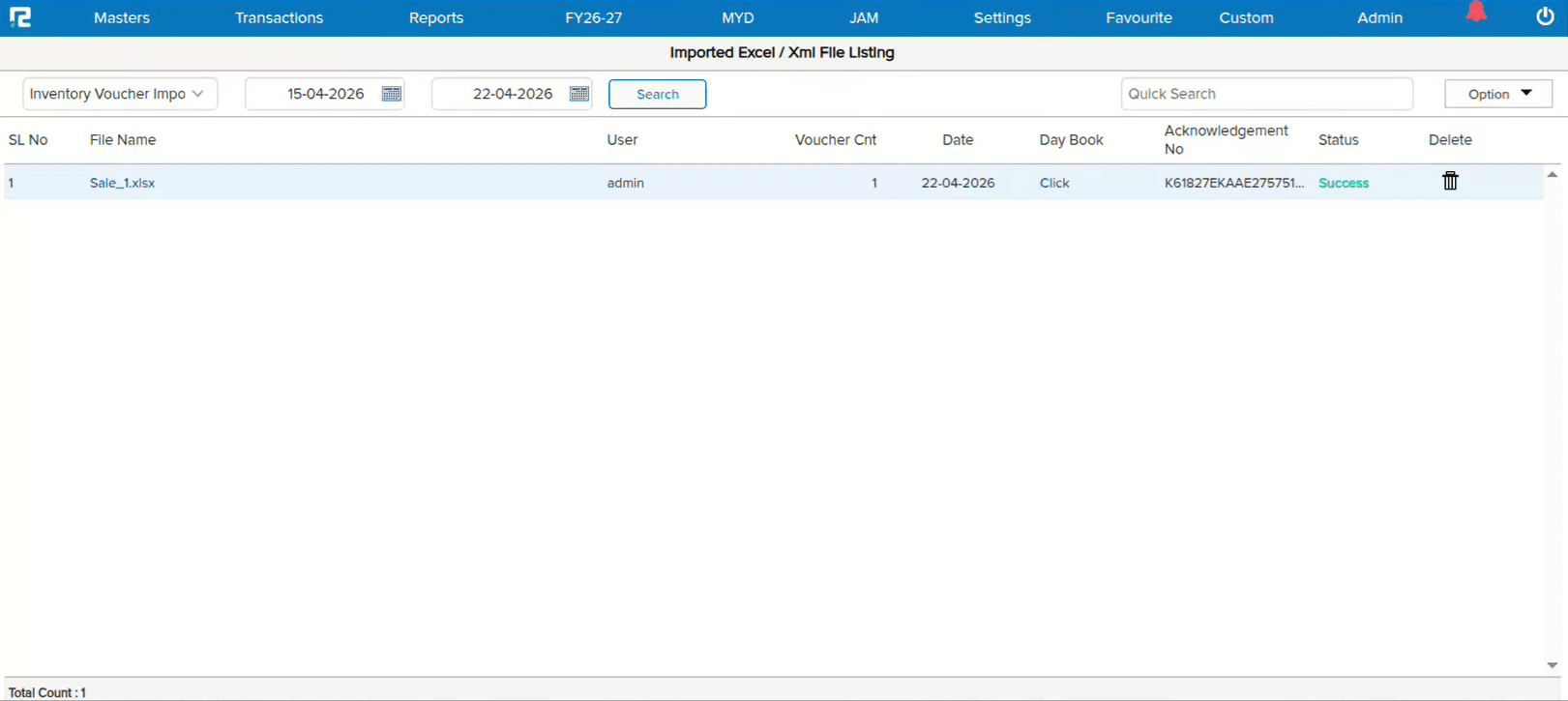
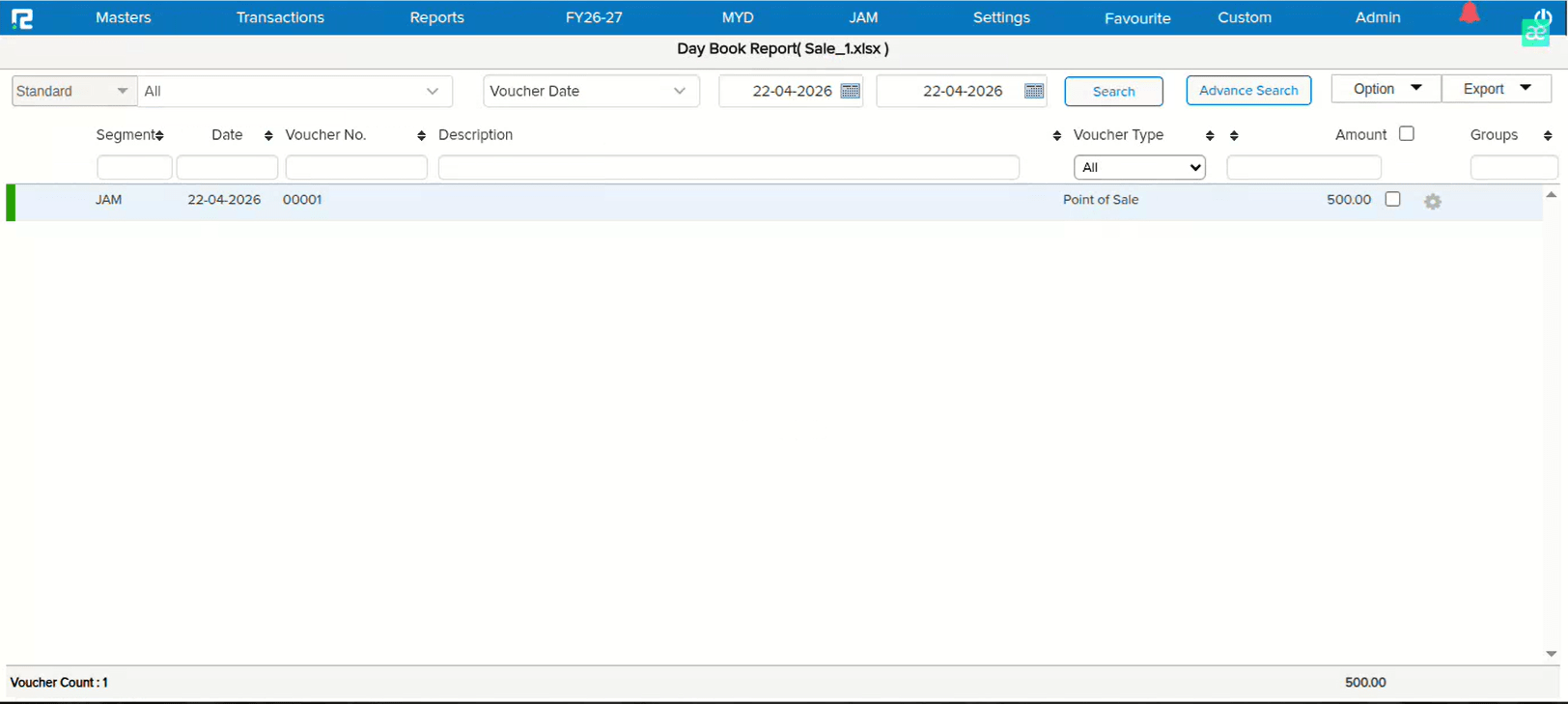
📌 What Was Happening
The Voucher Count was reflecting incorrectly in the Import List, and the Click option under DayBook was not working for successfully uploaded files. This issue occurred in companies where no one had run the Old Report and the voucher types remained unchecked in the menu. In this scenario, clicking the “Click” icon from the Import List would open the Day Book but display the message: “Please select any voucher type” instead of opening the specific entry.
🌟 How This Helps You
The voucher count now reflects correctly in the Import List, and the Click option properly opens the specific entry in DayBook for successfully uploaded files — regardless of whether the Old Report has been run or voucher types are checked in the menu. This ensures consistent behavior across all companies under the same domain.
📷 See It in Action