Beta Release — 25-05-2026
📌 What’s New
Currently, there was no dedicated screen to reconcile the physical stock (actual count) against the book stock (system records). Users had to manually compare quantities and values outside the system, making the stock reconciliation process tedious and error-prone.
🌟 What This Means for You
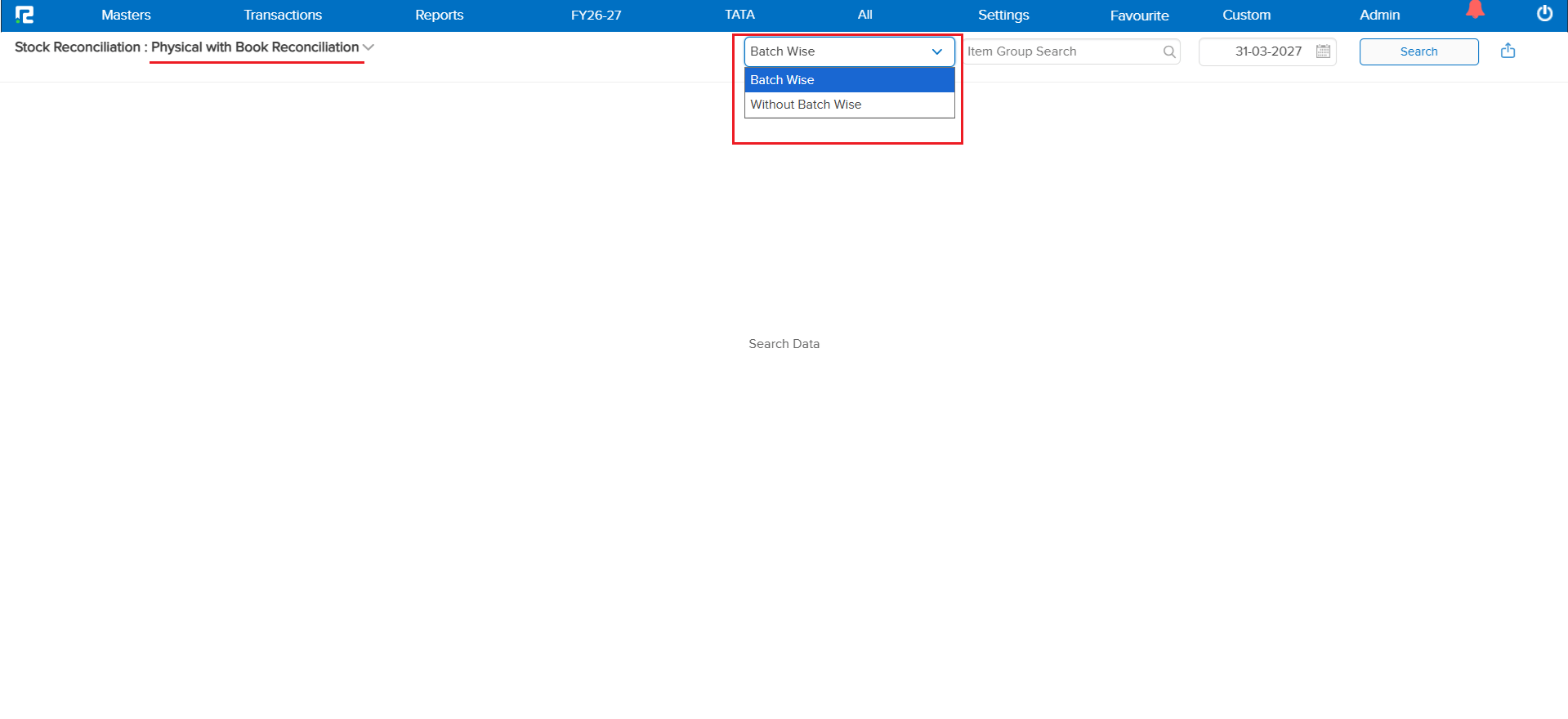
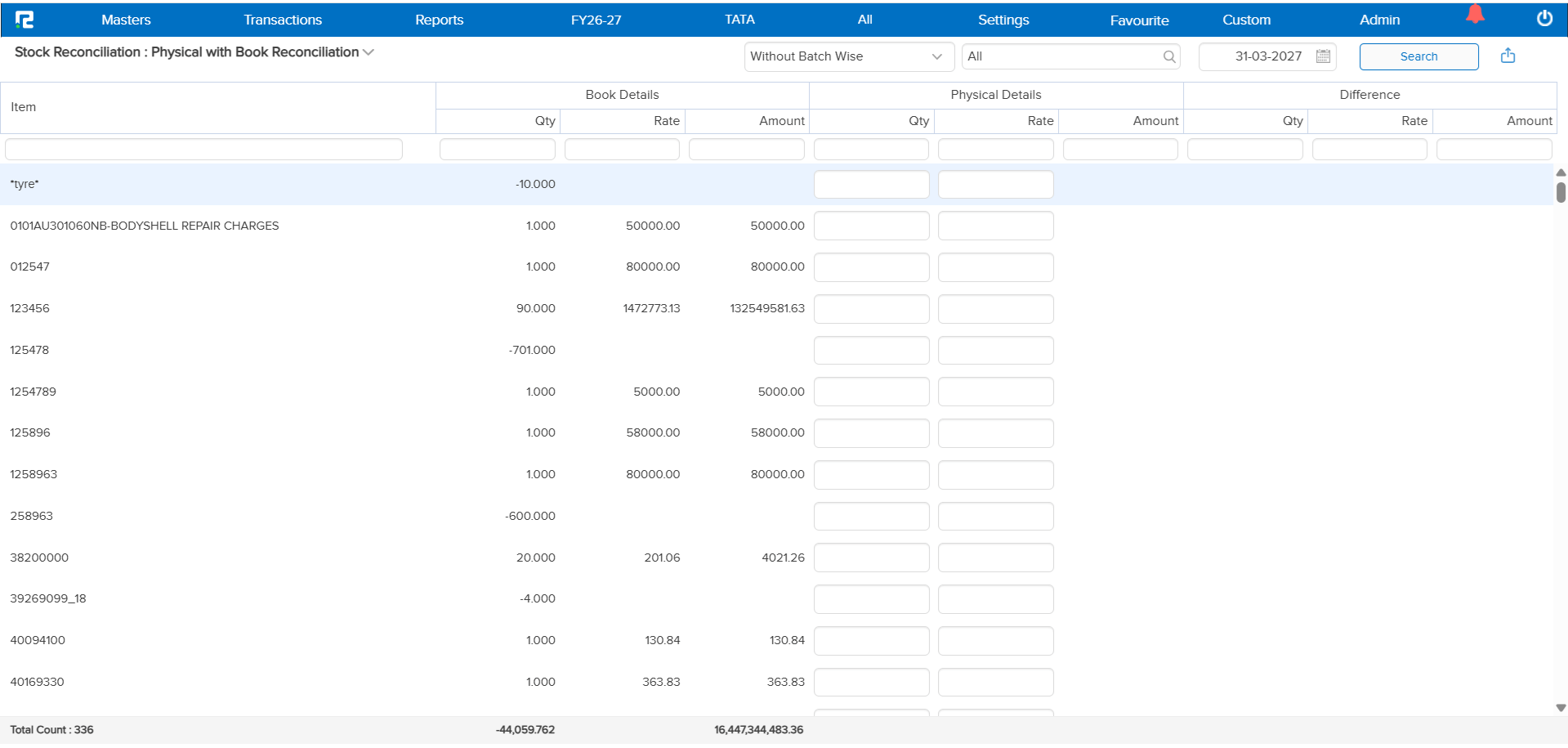
A new Stock Reconciliation Report screen has been introduced. The system automatically displays the Book Stock (as per system records), and users can enter or update the Physical Stock after performing the physical count. The system then calculates and displays the difference in Quantity, Rate, and Amount automatically.
Key Highlights:
• Batch Wise – Report is batch-wise where batch is applicable
• Segment Restriction – Where segment is applicable, adding physical stock will not be allowed from “All Segment”
• Difference Calculation – Book Details − Physical Details = Difference
This helps you easily identify shortages, excess stock, or valuation differences between system records and actual physical stock.
🎬 Where to Find It
📷 See It in Action
📌 What Was Happening
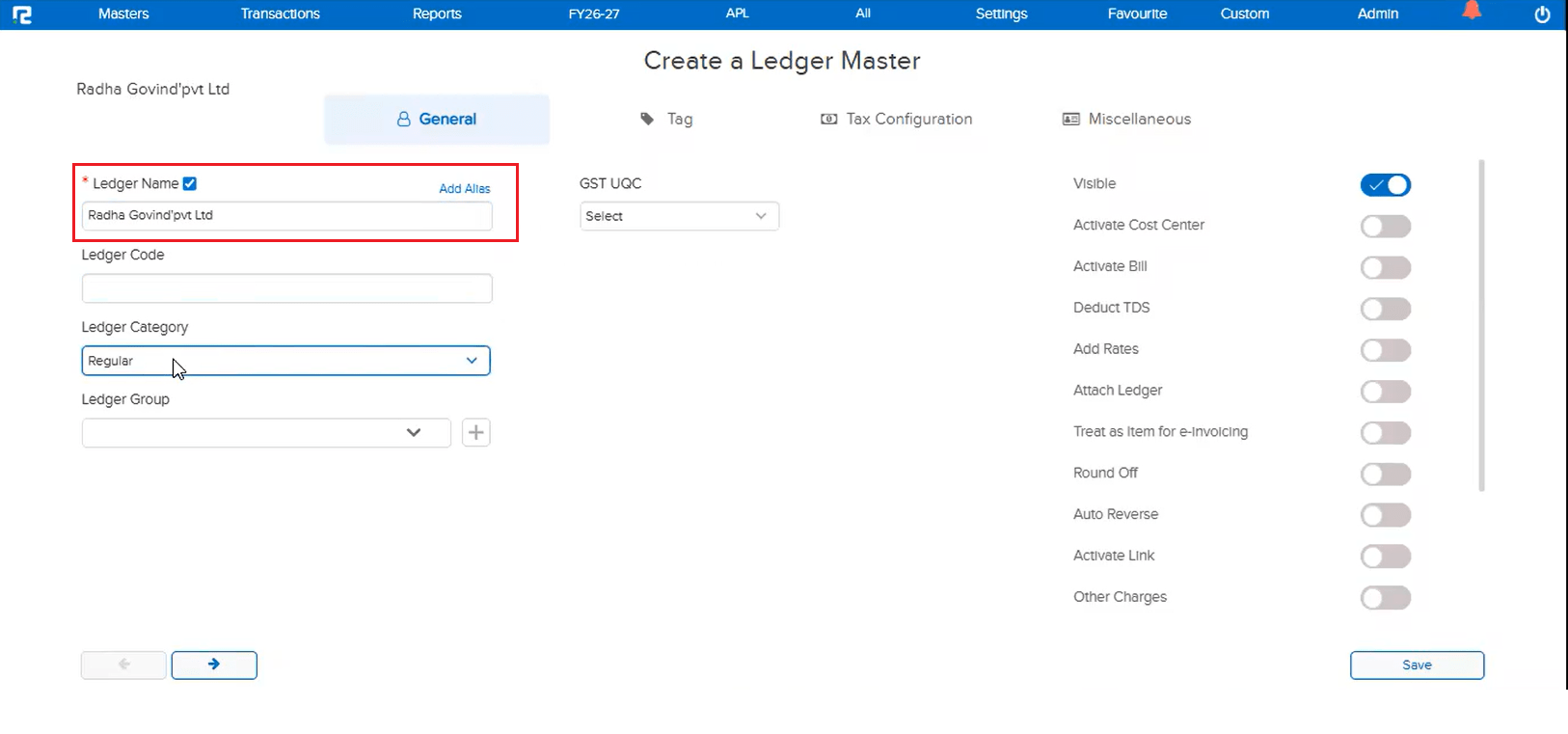
The single apostrophe (’) symbol was previously restricted in the Ledger Master due to an internal technical glitch. This meant users could not use the apostrophe character while creating or naming ledgers — which was inconvenient for ledger names that naturally include an apostrophe (e.g., “Ram’s Enterprise”).
🌟 What This Means for You
The underlying technical issue has been resolved, and the single apostrophe (’) is now allowed again in the Ledger Master. You can freely use the apostrophe character when creating or editing ledger names without any restrictions.
🎬 Where to Find It
📷 See It in Action
📌 What Was Happening
When inventory transactions contained a large number of items, opening them in edit mode would take a significant amount of time. This affected the following screens:
• Purchase
• Sale
• Purchase Return
• Sale Return
• Price Difference
The prolonged loading time made the experience frustrating for clients who had to wait for the screen to open before they could make any changes.
🌟 What This Means for You
The above screens have been optimized for edit mode. Even when the number of items is large, the screen now opens in edit mode within 1–2 seconds — making the workflow significantly faster and more efficient. No more waiting for heavy transactions to load before editing.
🎬 Where to Find It
📌 What Was Happening
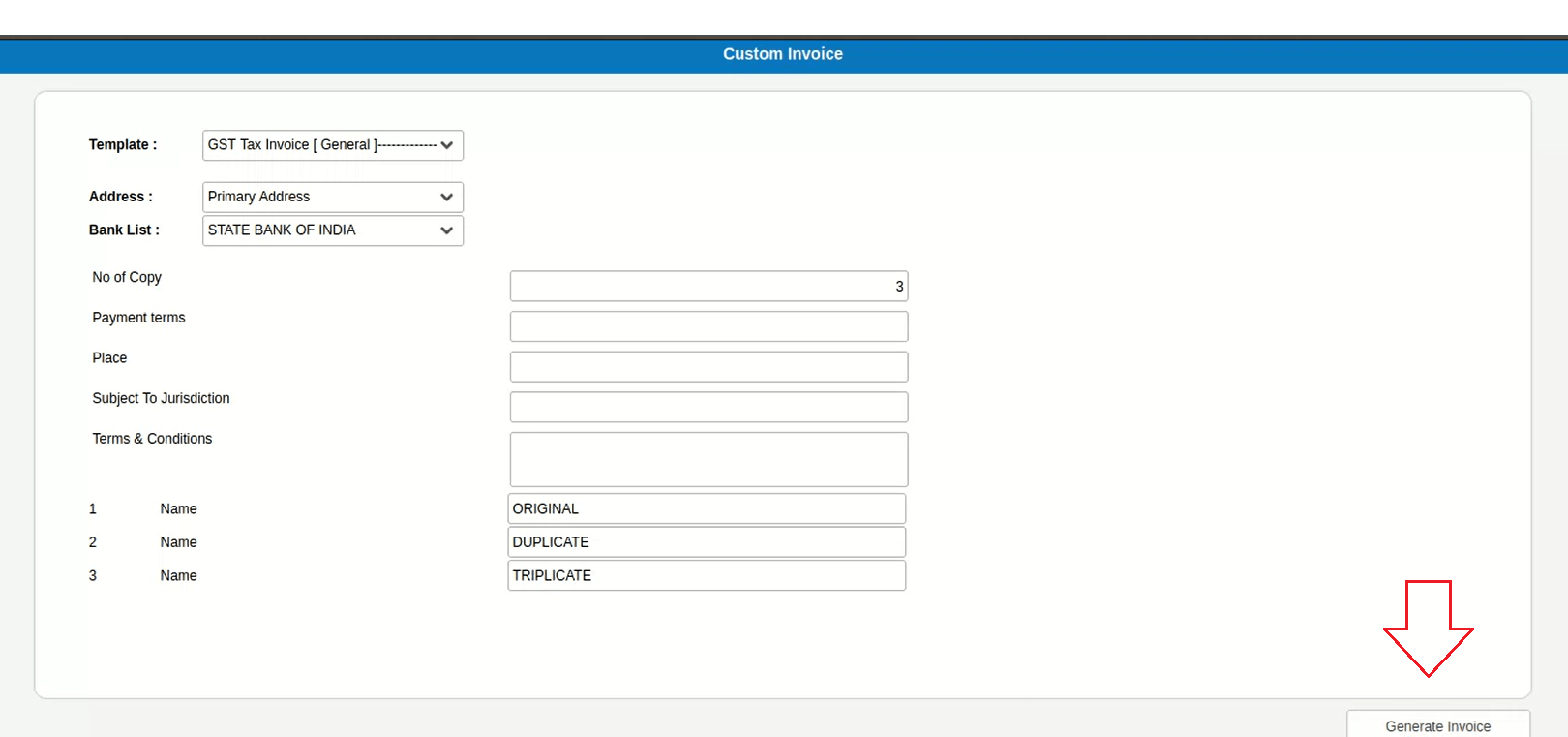
When generating a template from Voucher Types where WhatsApp Integration is applicable, users were presented with two print options:
• Generate Invoice & Share with WhatsApp
• Generate Invoice
There was no way to set a default option, so users had to manually choose the WhatsApp option each time — adding extra clicks to a repetitive workflow.
🌟 What This Means for You
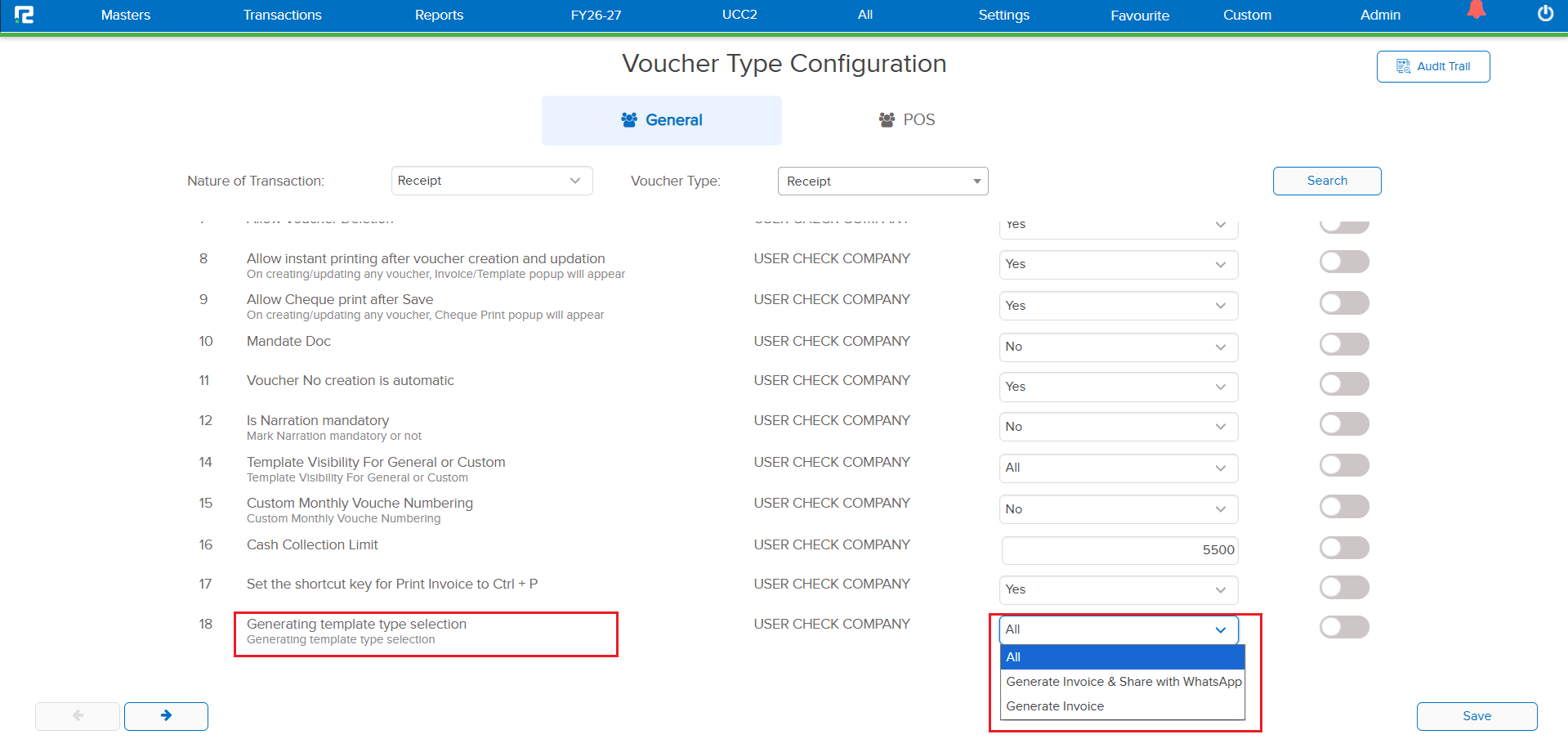
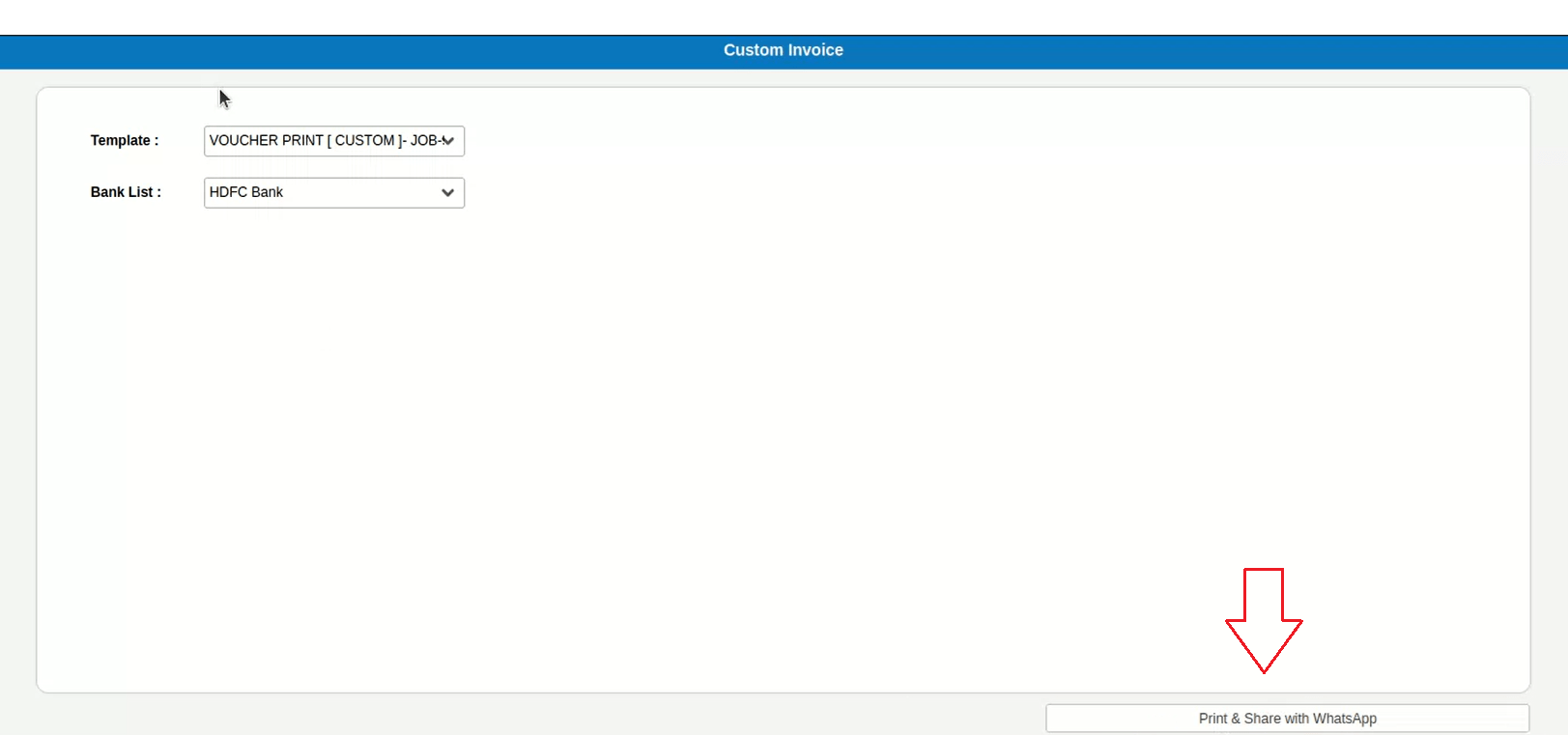
A new provision has been added in Txn Configuration to define “Generate Invoice & Share with WhatsApp” as the default print option. When enabled, only the WhatsApp sharing button will be available — streamlining the print flow and reducing manual clicks for users who primarily share invoices via WhatsApp.
🎬 Where to Find It
📷 See It in Action
📌 What Was Happening
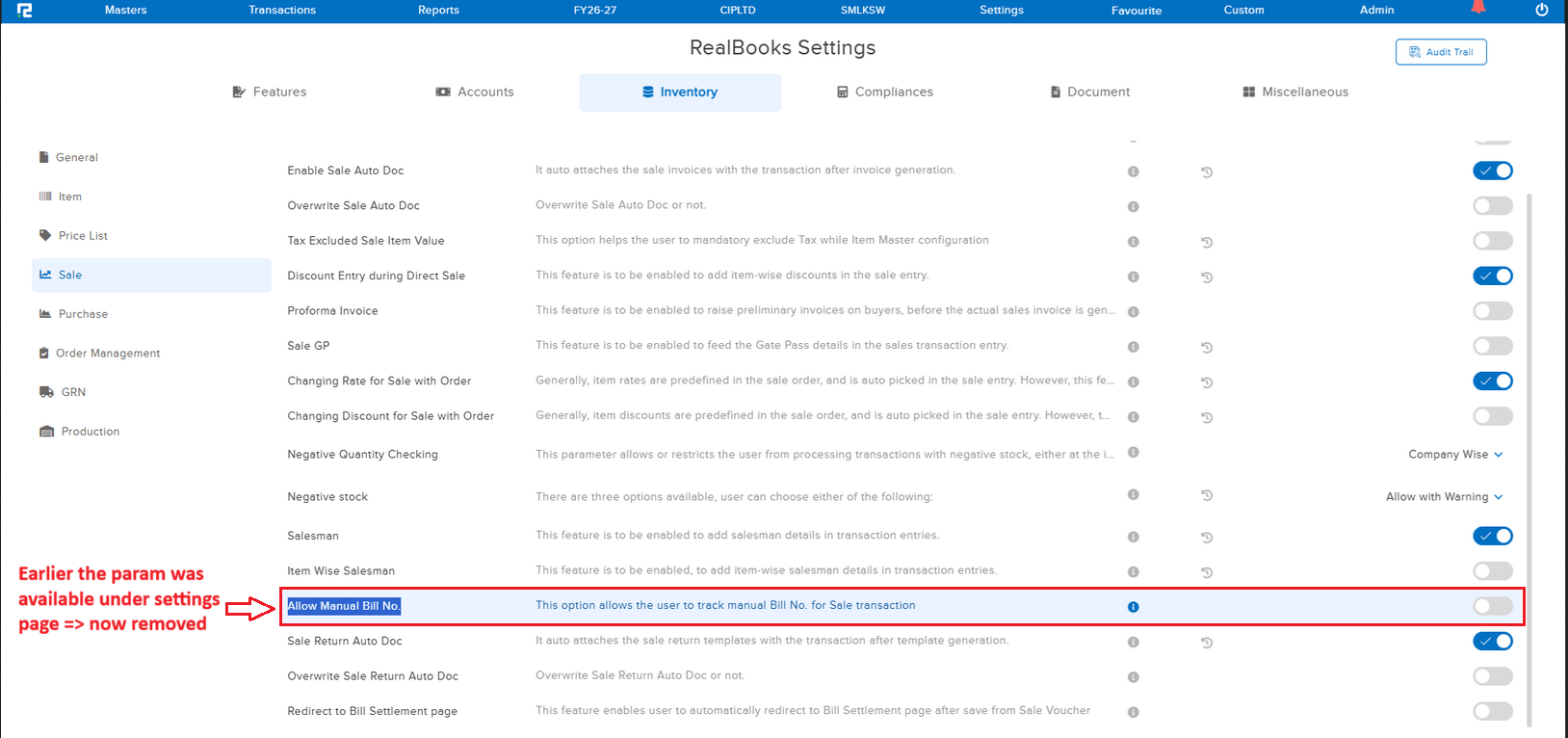
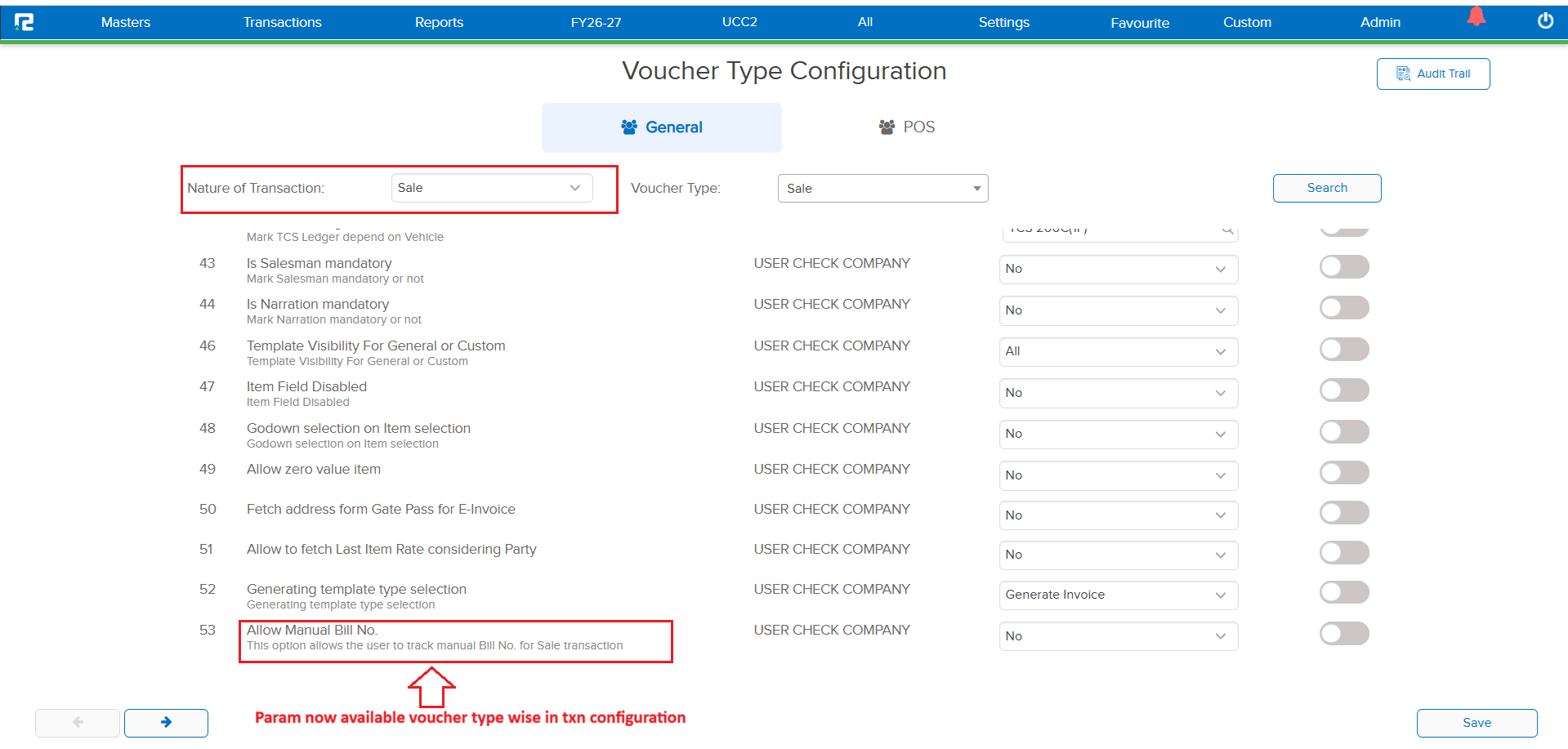
For voucher types with the nature Sale, the parameter “Allow Manual Bill No.” was only available under Configurations. It was not available under Transaction (TXN) Configurations, limiting the flexibility for users who needed to control this setting at the transaction configuration level for all Sale-type vouchers.
🌟 What This Means for You
The “Allow Manual Bill No.” parameter is now available under Transaction (TXN) Configurations for all voucher types having the nature Sale. This gives you more granular control over manual bill number entry directly from the transaction configuration screen.
🎬 Where to Find It
📷 See It in Action
📌 What Was Happening
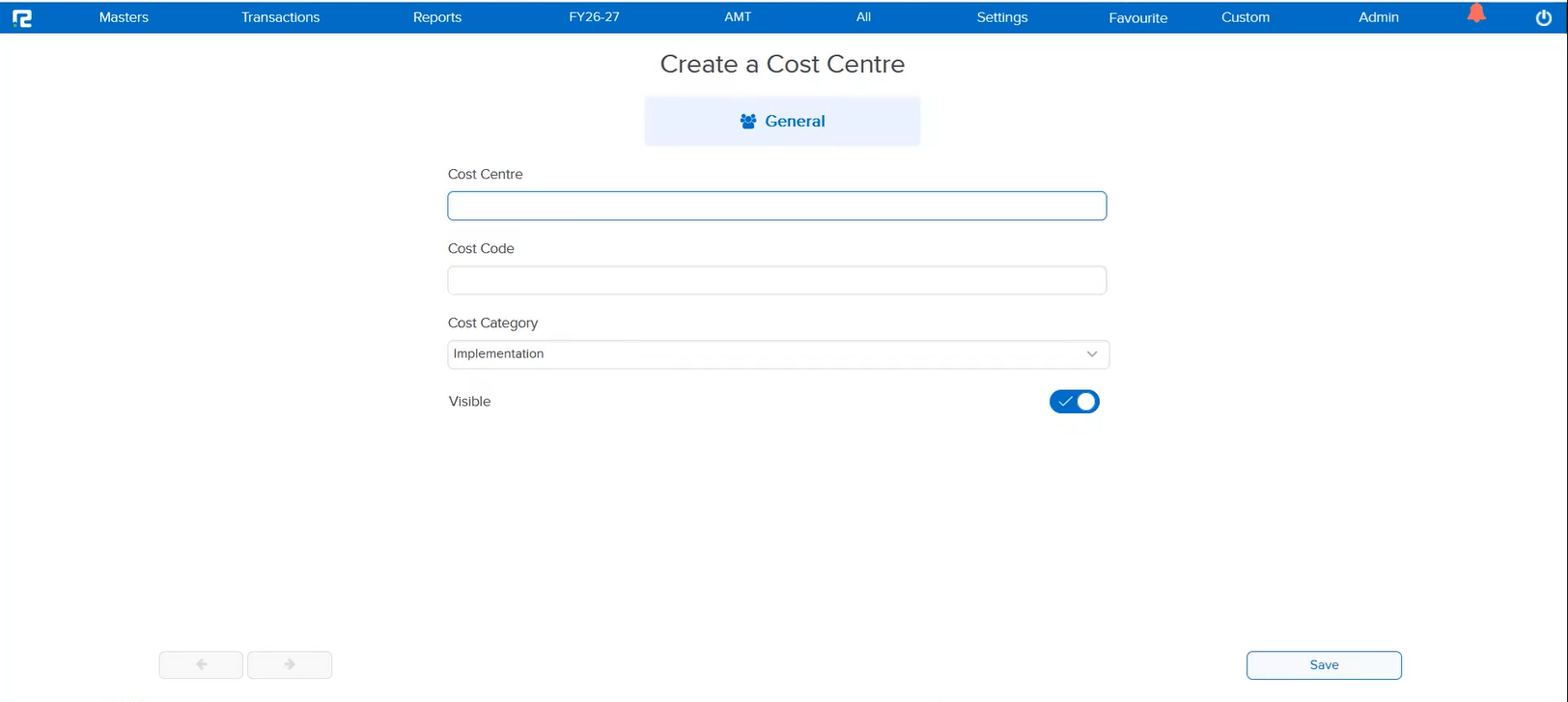
If the Business Place was not saved in any accounting transaction, there was no option available to update it after the fact. Users had to either re-create the transaction or leave the Business Place field empty — which could cause issues in compliance and reporting workflows.
🌟 What This Means for You
A new option has been provided to update the Business Place in accounting transactions where it was not previously saved. You can now easily assign or correct the Business Place without needing to delete and re-create the transaction.
📷 See It in Action
📌 What Was Happening
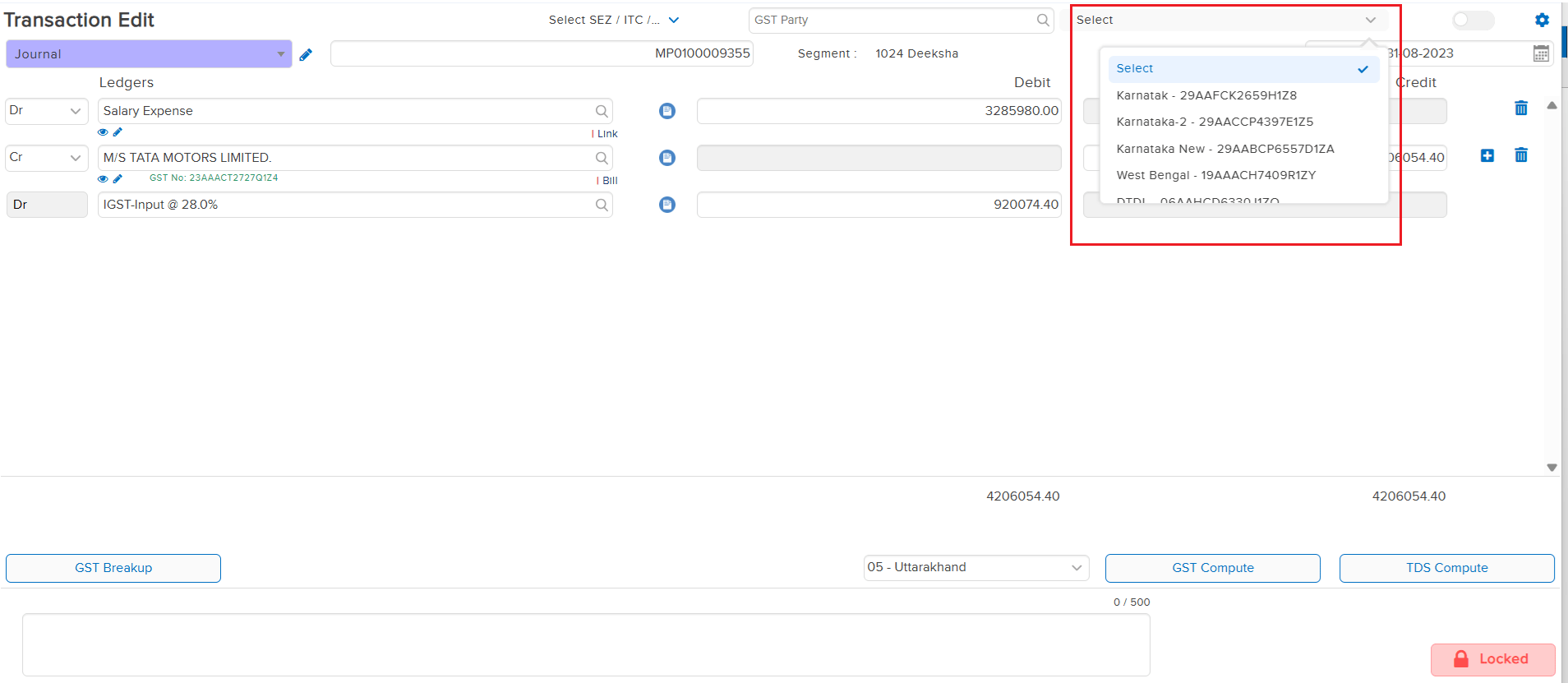
When a new user was created and the “Allowed From” option was selected for back date entry and edit during the initial setup (first go), the back date entry and edit values were not getting saved correctly in the backend. This caused incorrect permission behaviour for the newly created user regarding back-dated transactions.
🌟 How This Helps You
The saving mechanism for back date entry and edit permissions in User Master has been corrected. Now, when a user is created and the “Allowed From” option is selected for back date entry / edit in the first go, the values are saved correctly in the backend — ensuring accurate permission enforcement from the start.
🎬 Where to Find It
📷 See It in Action
📌 What Was Happening
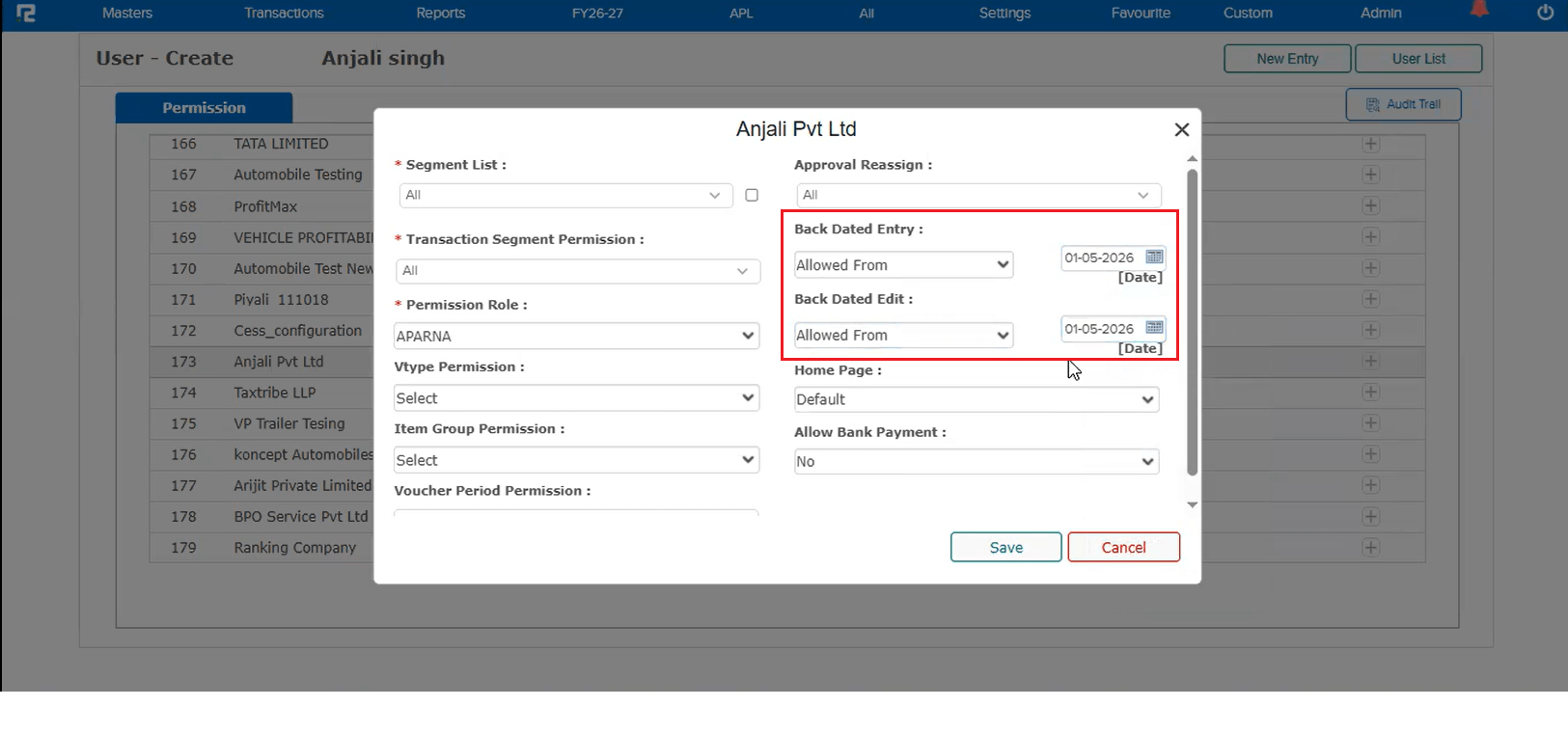
While creating a Cost Center Master, if the user selected the Cost Category using keyboard keys instead of the mouse, the Party field would sometimes appear even when it was not enabled for the selected Industry cost category. When this happened, the Party field became mandatory, preventing the user from saving the cost center without filling it — even though the category did not require it.
🌟 How This Helps You
The cost category selection logic has been corrected to properly evaluate the Party field visibility regardless of whether the selection is made via keyboard or mouse. The Party field will now only appear when it is genuinely enabled for the selected cost category — ensuring a consistent and error-free cost center creation experience.
🎬 Where to Find It
📷 See It in Action
📌 What Was Happening
The Cashfree verification status option was appearing on multiple screens without any parameter check. This meant the option was visible to all users regardless of whether the Cashfree feature was enabled for their company. The affected screens were:
• Approval Screen
• Ledger Master
• Ledger Master shortcut from Transaction Screen
• Ledger Master View
🌟 How This Helps You
The Cashfree verification status option is now parametric across all the above screens. It will only be visible when the Cashfree feature parameter is enabled for the company — ensuring a cleaner interface for users who do not use Cashfree and preventing unnecessary confusion.
📌 What Was Happening
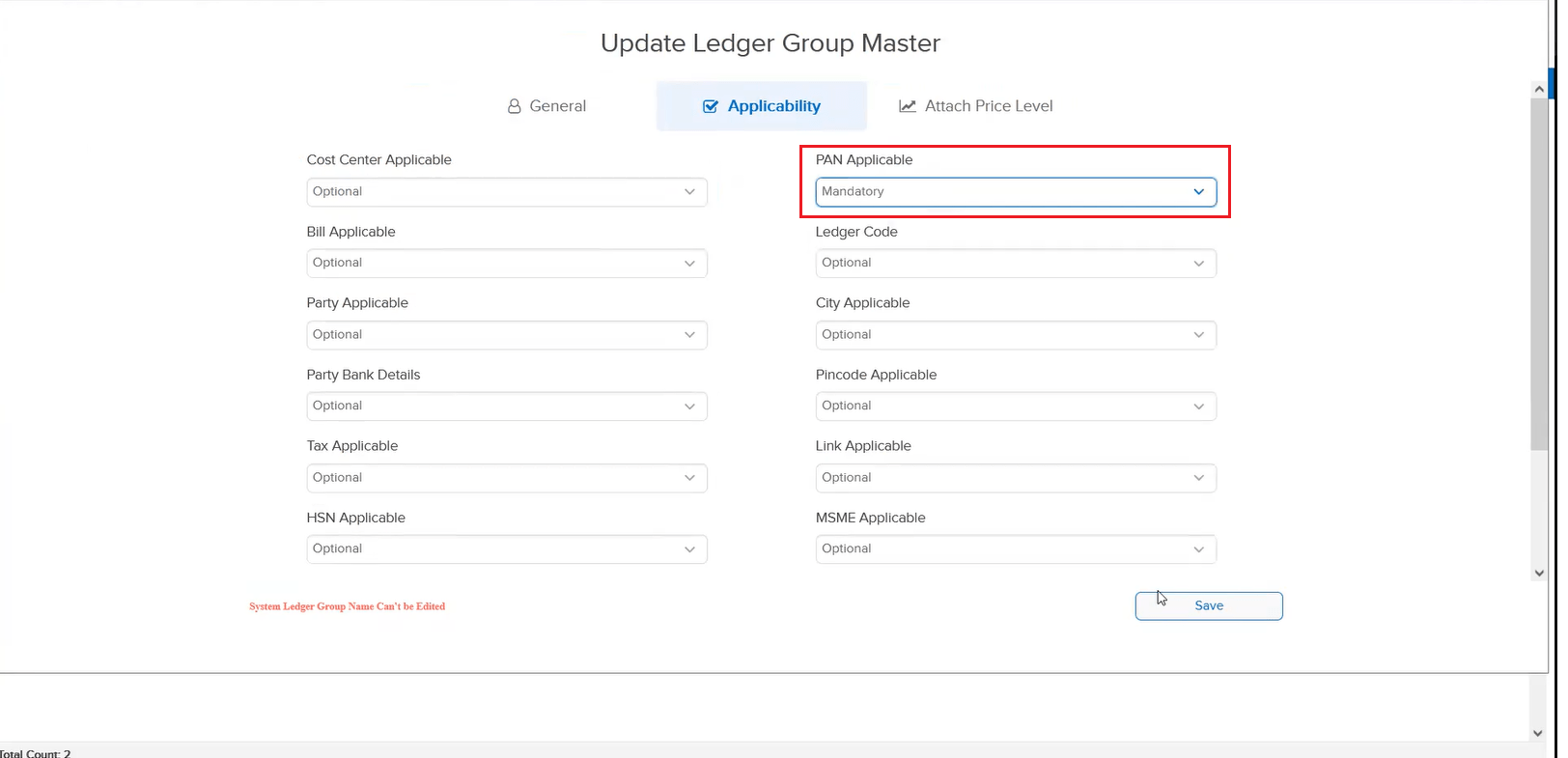
When PAN applicability was set to “Mandatory” for a ledger group, the Ledger Master was not getting saved. This prevented users from creating or updating any ledger under that group, blocking master data management entirely.
🌟 How This Helps You
The issue has been resolved. The Ledger Master now saves correctly even when PAN is marked as mandatory for the ledger group — ensuring uninterrupted ledger creation and updates.
🎬 Where to Find It
📷 See It in Action
📌 What Was Happening
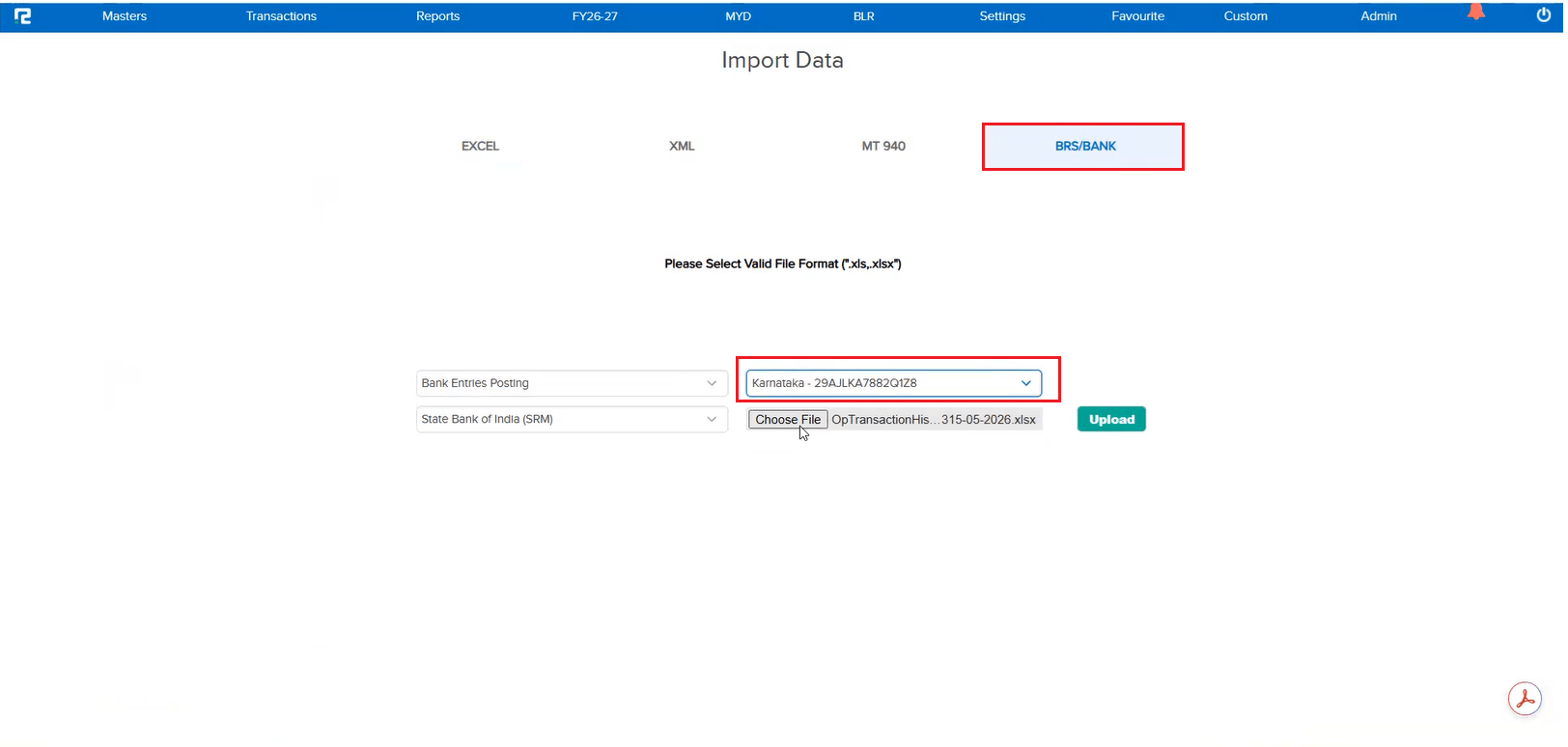
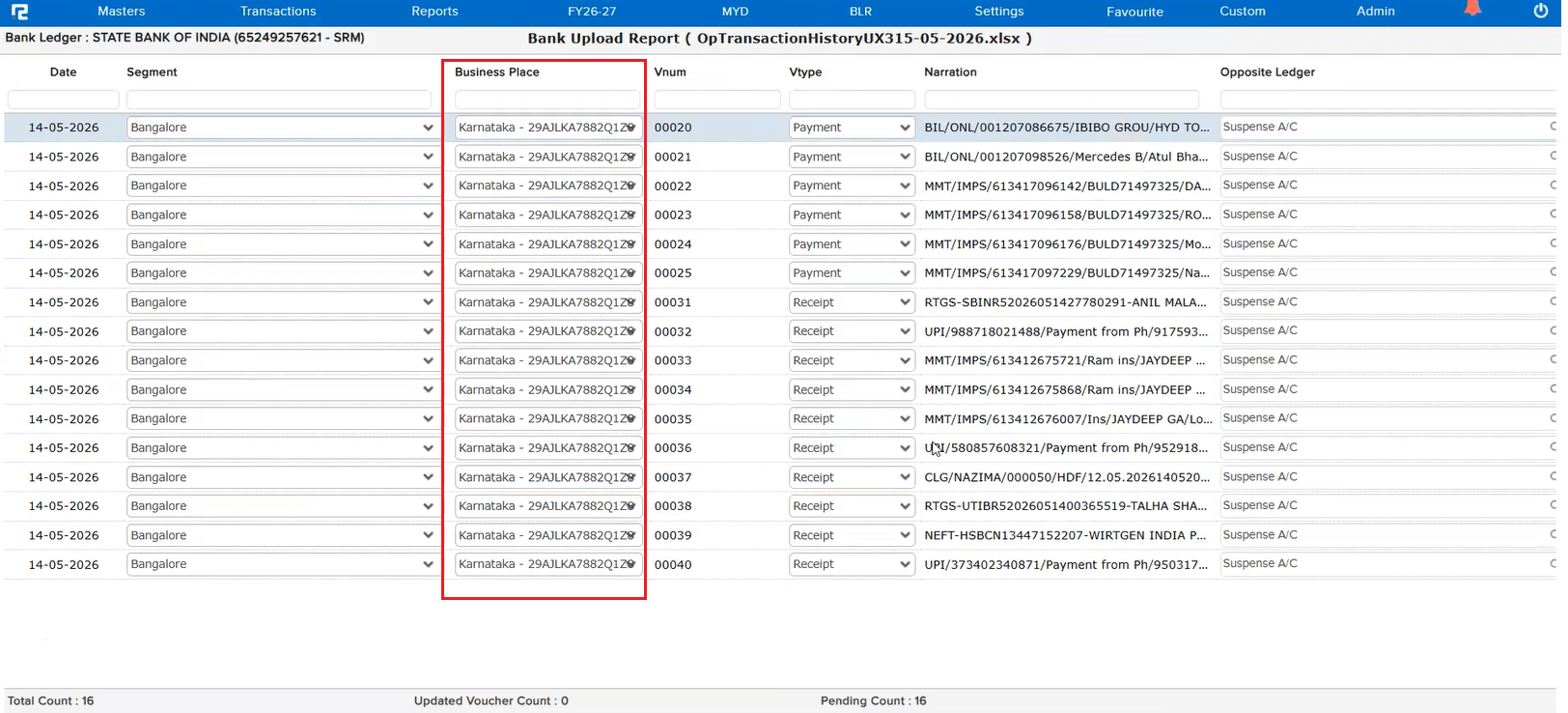
During Bank Statement import for entry posting, even when the user selected a Business Place, it was not getting saved in the transaction screen. This meant the Business Place information was lost after posting, requiring manual correction of each affected transaction.
🌟 How This Helps You
The issue has been corrected. The Business Place selected during Bank Statement import now saves correctly in the transaction screen — ensuring accurate transaction data without the need for manual post-import corrections.
🎬 Where to Find It
📷 See It in Action
📌 What Was Happening
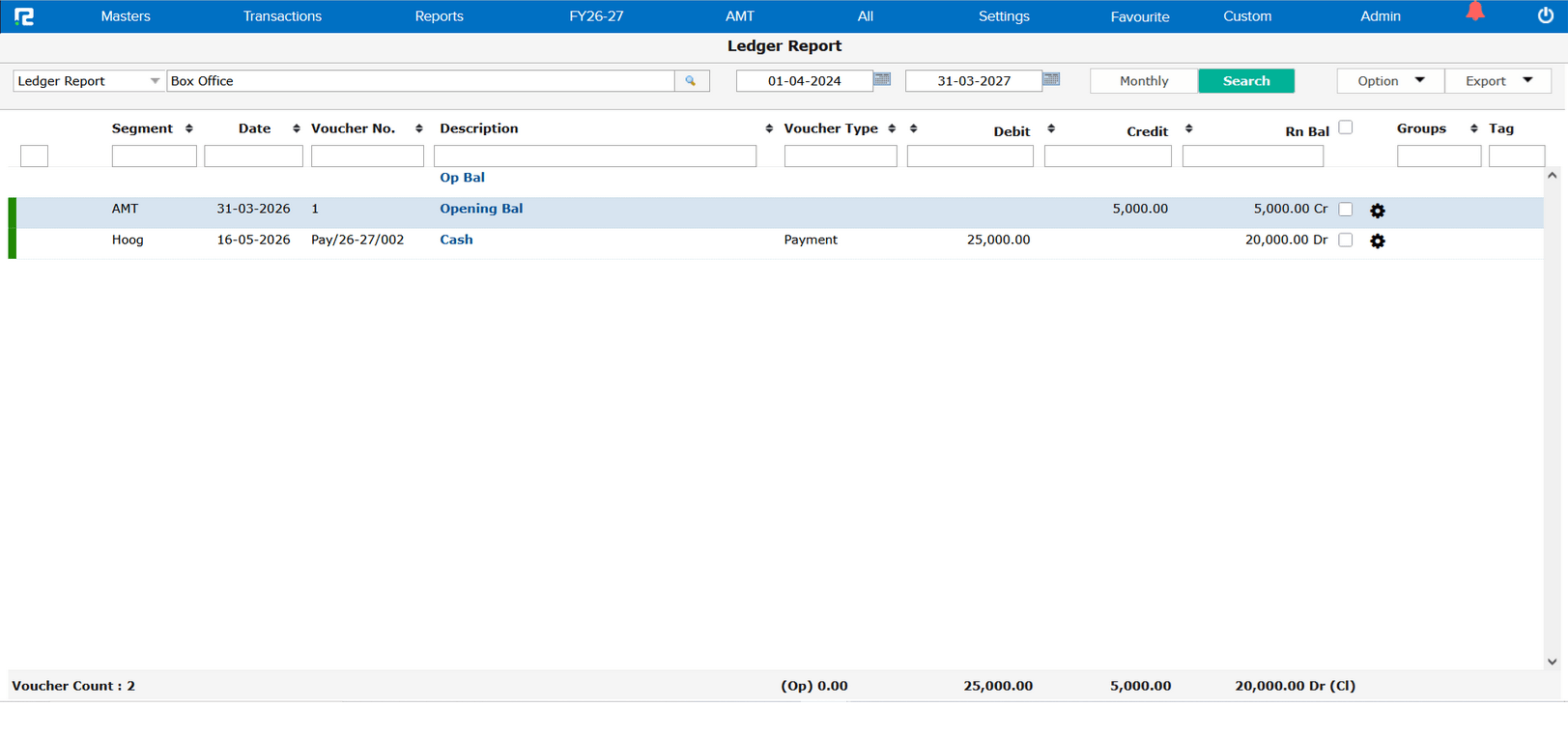
When the opening balance was updated as on 31-03-2026 and a user ran the Ledger Report from 01-04-2024, the opening balance was appearing randomly among the transaction entries instead of being displayed first. In some cases, the ledger balance was reflected in place of the opening balance — causing confusion and incorrect report interpretation.
🌟 How This Helps You
The Ledger Report now correctly displays the opening balance at the top, followed by the transaction entries in proper order. The issue where the ledger balance was incorrectly shown in place of the opening balance has been resolved — ensuring accurate and consistent report output.
🎬 Where to Find It
📷 See It in Action
📌 What Was Happening
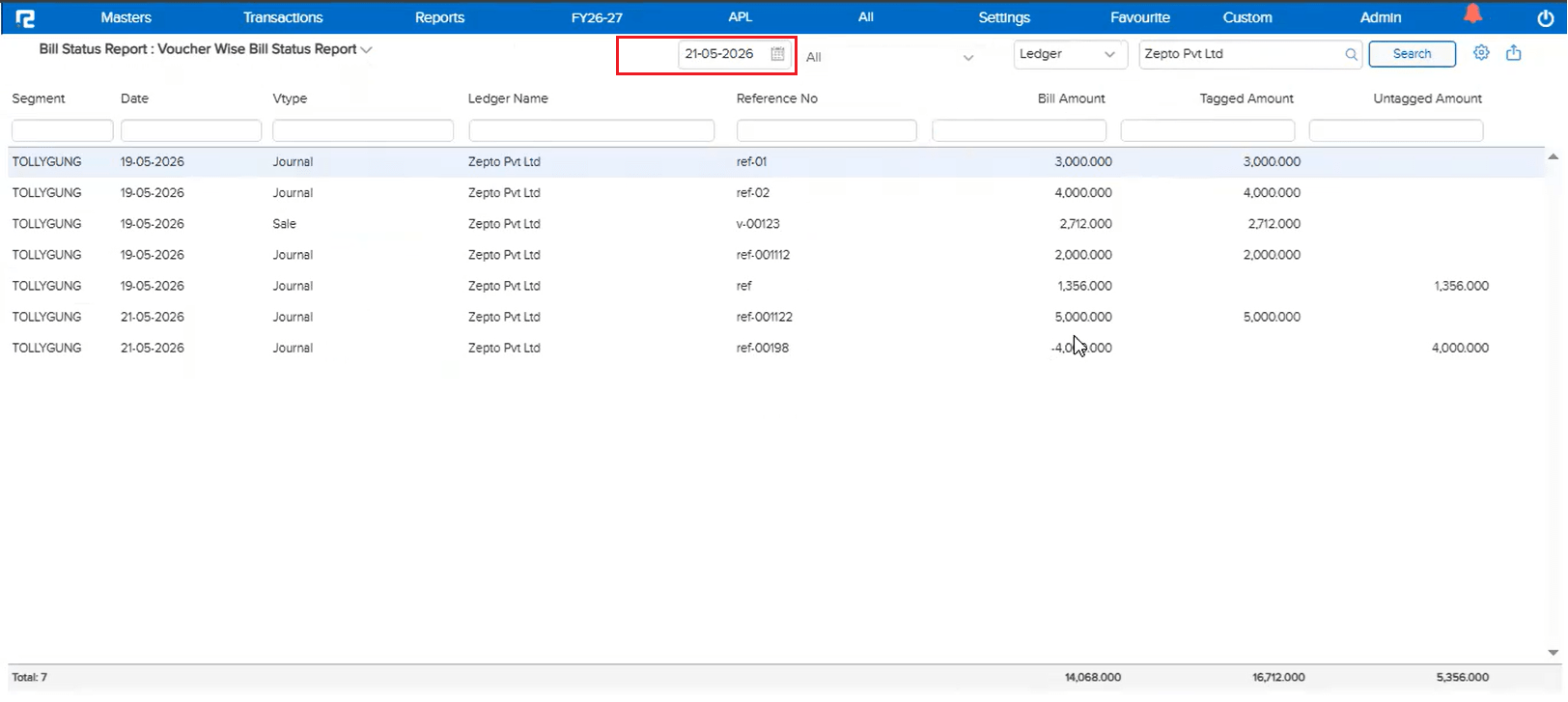
In the previously released Voucher Wise Bill Status Report, the From Date field was available on the report screen. However, this field had no relevance to the report output — the report logic only required a cut-off date. Having the From Date field was misleading and could cause confusion for users.
🌟 How This Helps You
The From Date field has been removed from the Bill Status Report. Now only the Till Date field is available, making the report interface cleaner and aligned with the actual report logic.
🎬 Where to Find It
📷 See It in Action
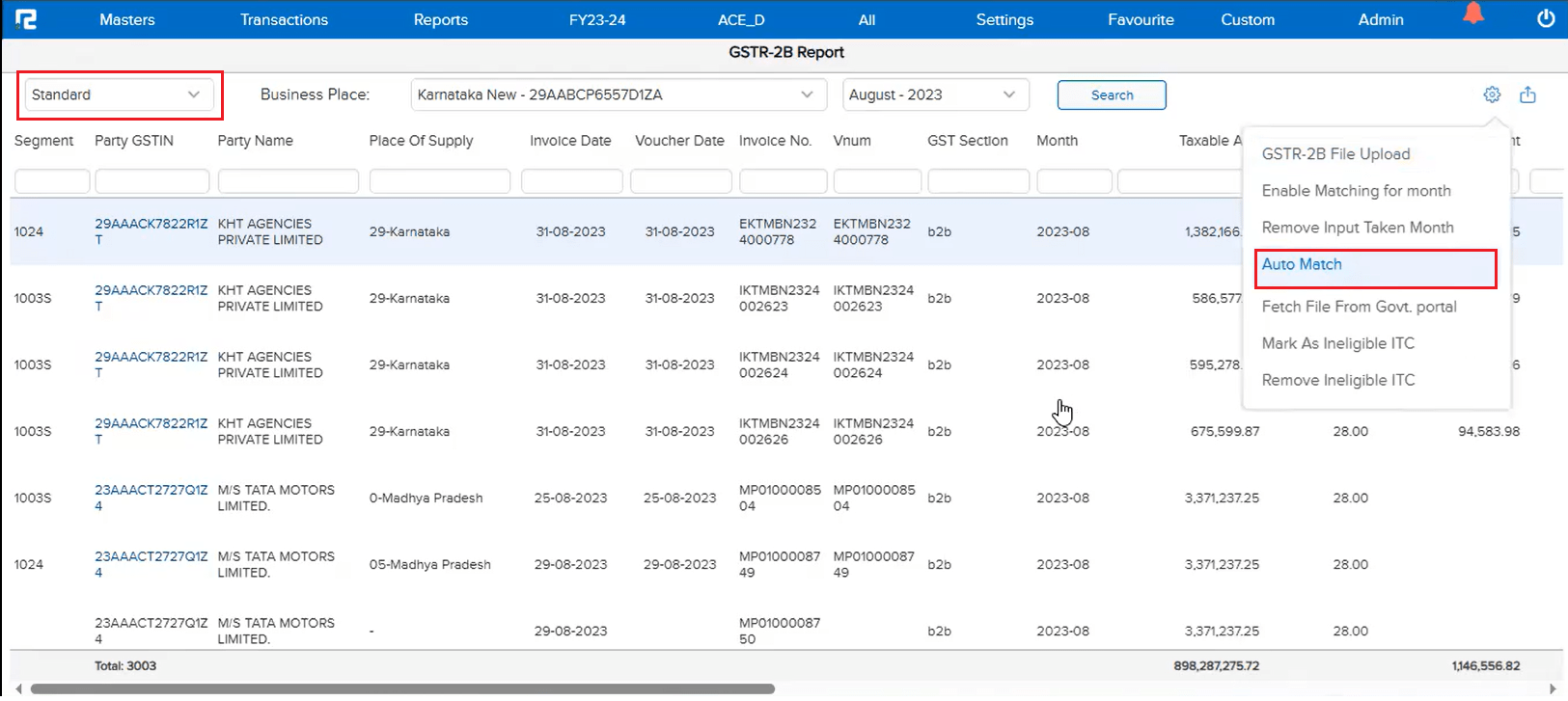
📌 What Was Happening
When an entry was created in RealBooks in March 2026 but the corresponding entry reflected in the JSON in April 2026 (i.e., crossing the financial year boundary), the auto match was not working. This happened even though the system is configured to check and match data 3 months before and after the entry post date in JSON. The issue was specifically related to the financial year beginning logic.
🌟 How This Helps You
The financial year boundary handling in GSTR-2B matching has been corrected. Auto matching now works correctly for entries that span across the financial year beginning — ensuring entries created in March are properly matched with their corresponding April JSON data without manual intervention.
📷 See It in Action