Beta Release — 30-05-2026
📌 What’s New
There was no dedicated screen to reconcile TDS Receivable as per Books with the 26AS statement. The 26AS statement is available in Excel format based on TAN number, but users had to manually compare TDS amounts outside the system — making the reconciliation process tedious and error-prone.
🌟 What This Means for You
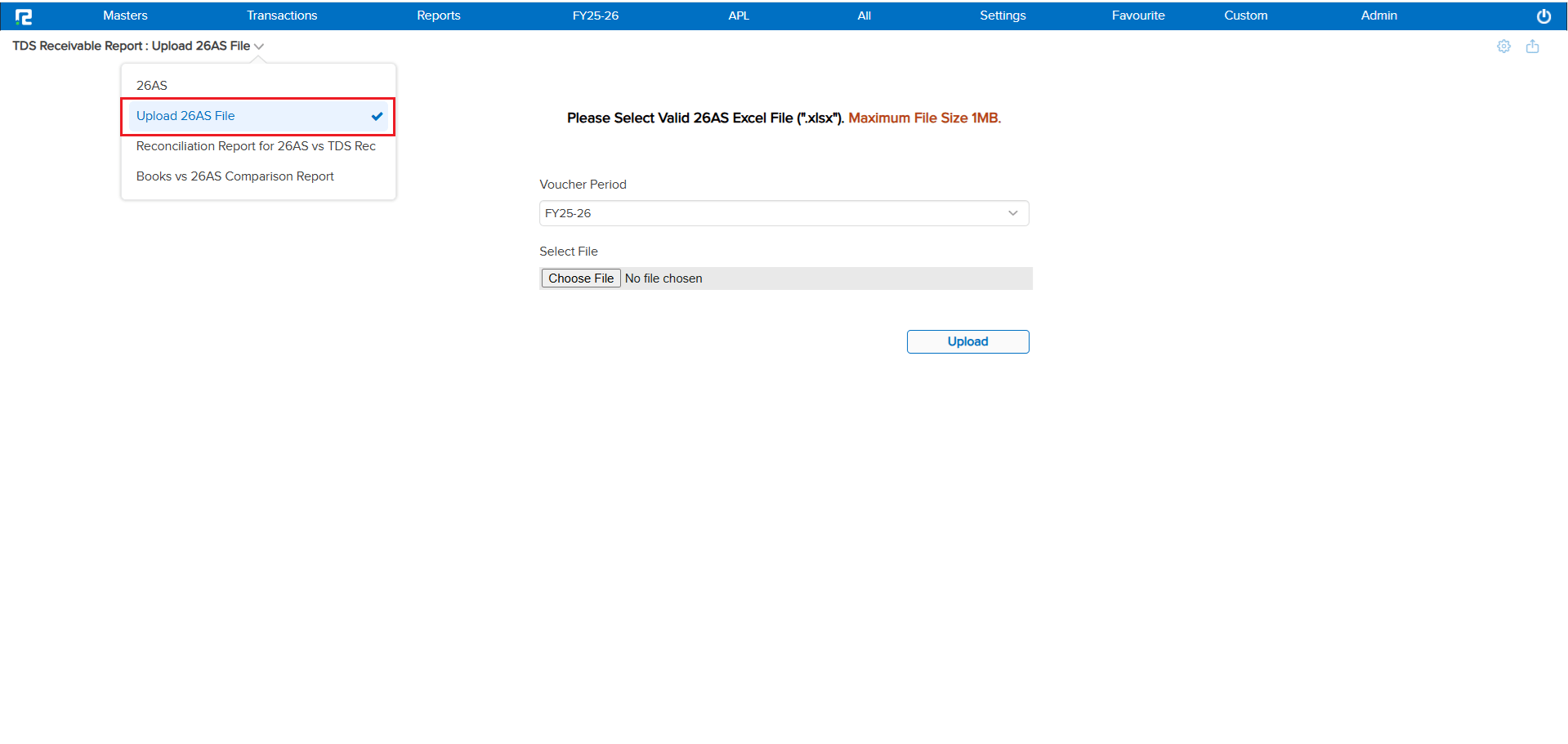
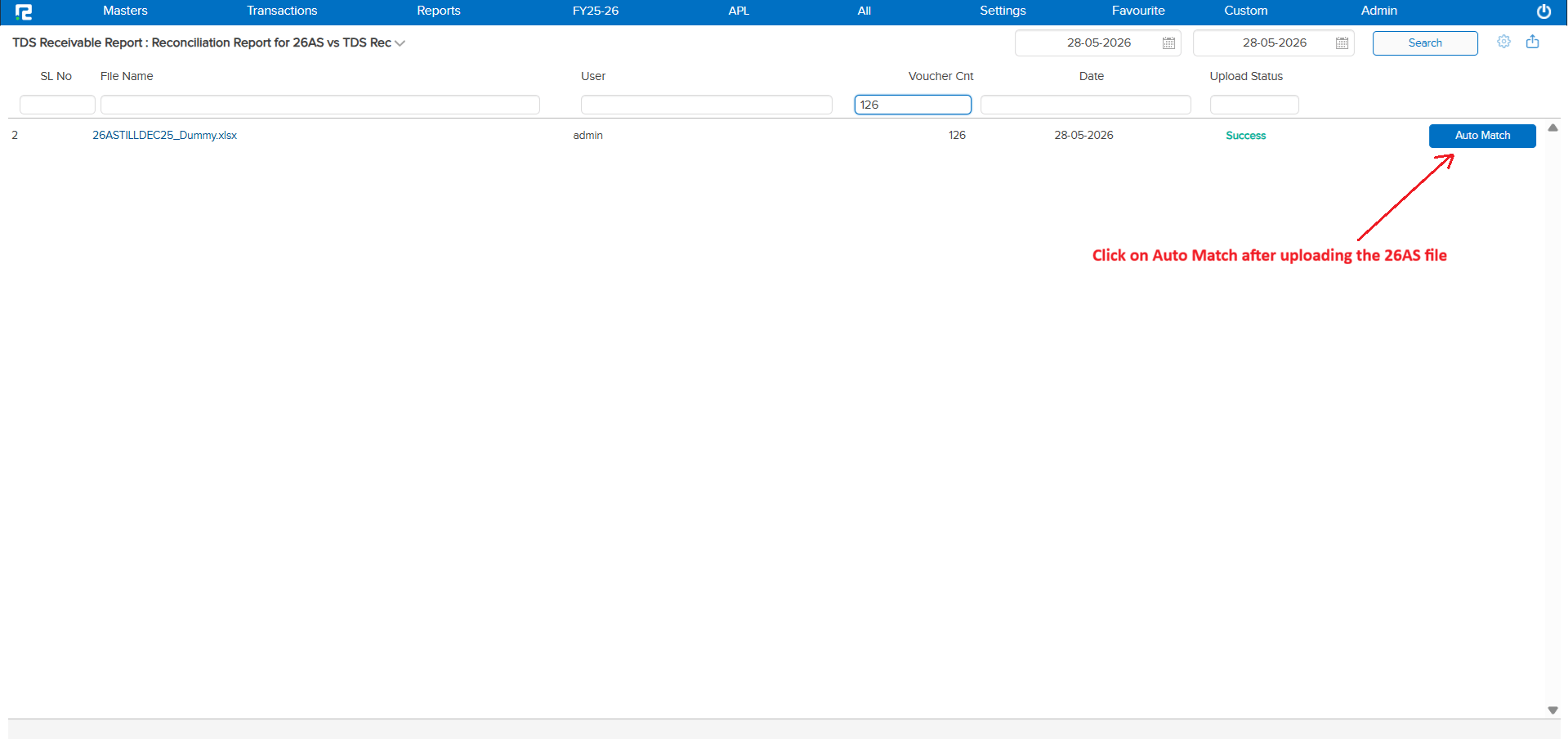
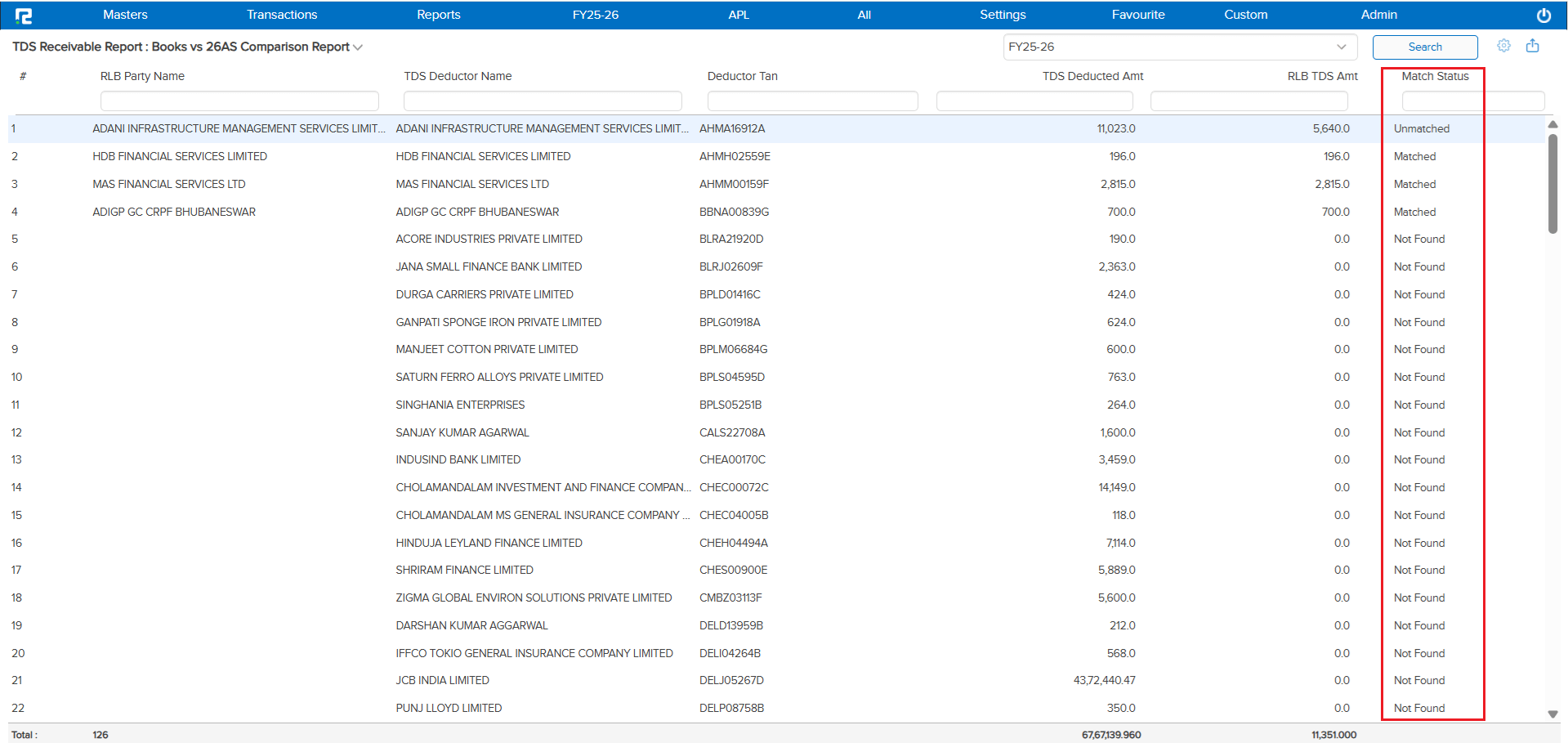
A new 26AS vs TDS Receivable Reconciliation Report has been introduced. The system fetches entries from the uploaded 26AS Excel file and compares them with the ledger balances in the books, party-wise.
Reconciliation Logic:
• Reconciliation is done party-wise — bill-wise matching is not required
• Only the total TDS amount per party is compared between Books and 26AS
• The report displays the difference between the amount in Books and the amount in 26AS
Important: If the 26AS Excel file is re-imported for the same financial year, the system will replace the previously imported file for that financial year with the newly uploaded one.
🎬 Where to Find It
📷 See It in Action
📌 What Was Happening
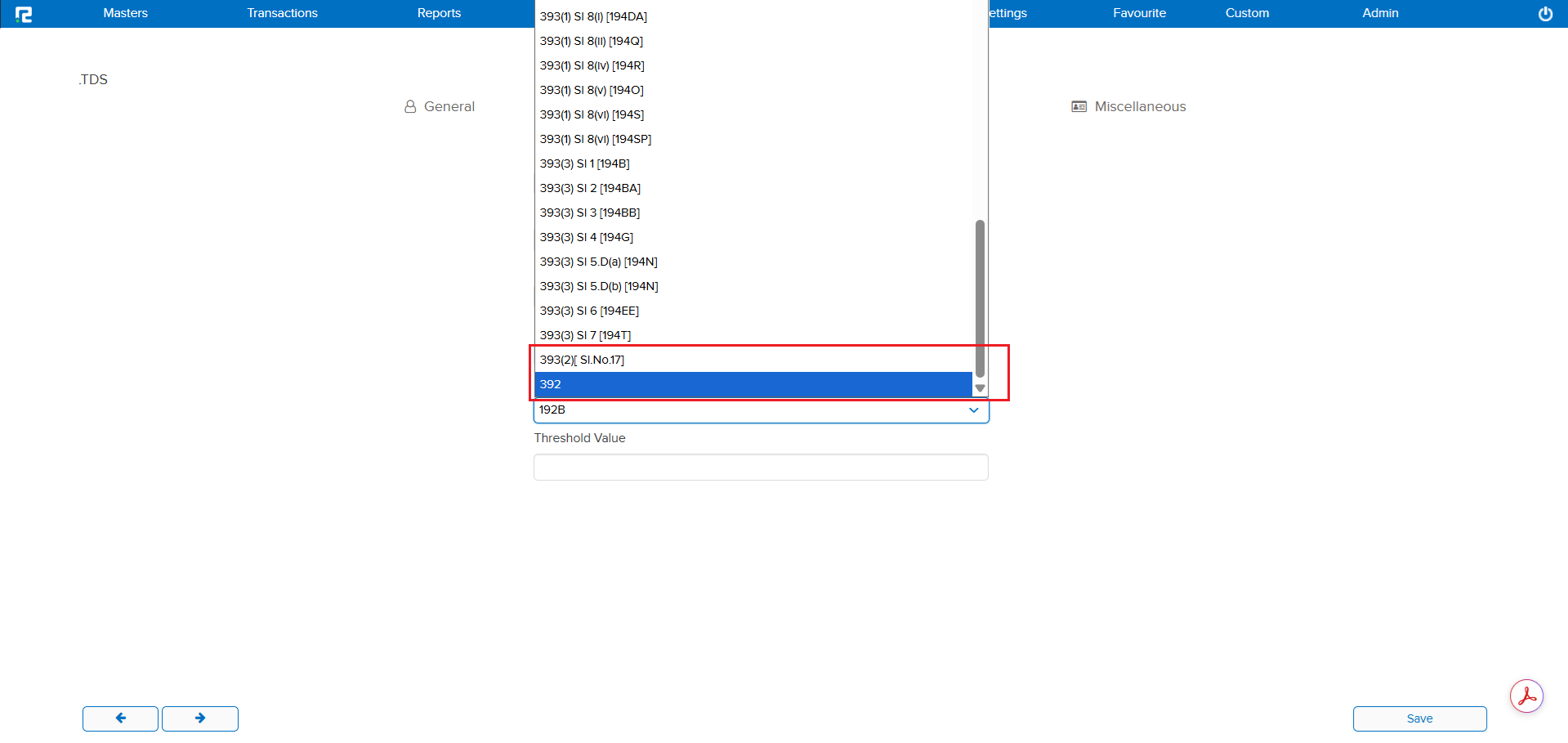
Two new TDS sections required for compliance were not available in the Ledger Master. Users who needed to map ledgers to Section 393(2) [Sl.No.17] or Section 392 had no option to do so within the system.
🌟 What This Means for You
The following new TDS sections have been added to the Ledger Master:
• Section 393(2) [Sl.No.17]
• Section 392
You can now map ledgers to these sections directly, ensuring accurate TDS deduction and compliance reporting.
🎬 Where to Find It
📷 See It in Action
📌 What Was Happening
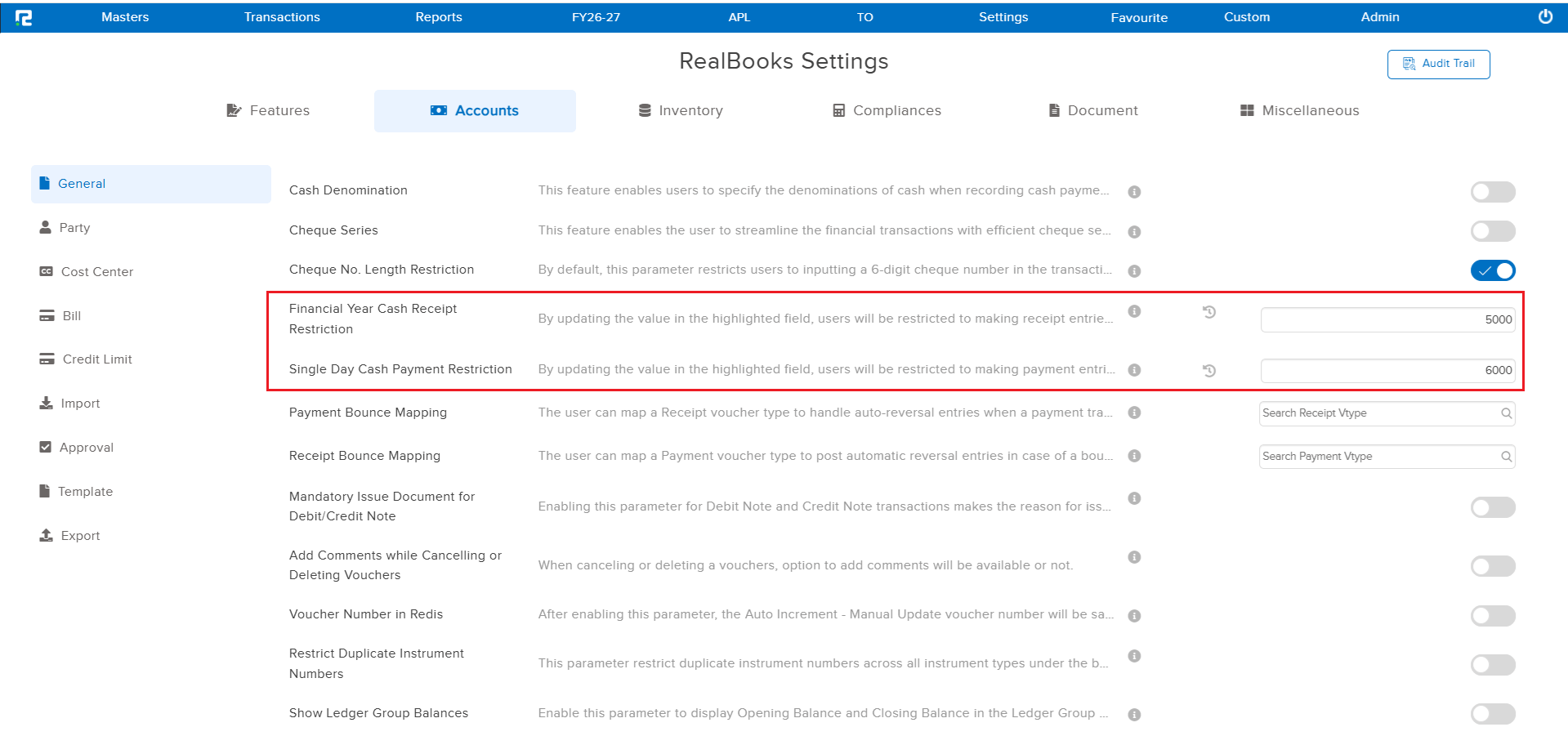
The Amount Restriction feature — which prevents entries from exceeding a specified amount — was available in standard Payment and Receipt voucher types. However, this restriction was not available for IBT Receipt & Payment voucher types (IBT_PAY and IBT_REC), leaving inter-branch transactions without any amount cap enforcement.
🌟 What This Means for You
The Amount Restriction feature has now been implemented for the following IBT voucher types:
• IBT_PAY (IBT Payment)
• IBT_REC (IBT Receipt)
Similar to standard Payment and Receipt vouchers, any transaction posted through these IBT voucher types will now be restricted from exceeding the specified amount limit — ensuring consistent control across all payment and receipt workflows.
🎬 Where to Find It
📷 See It in Action
📌 What Was Happening
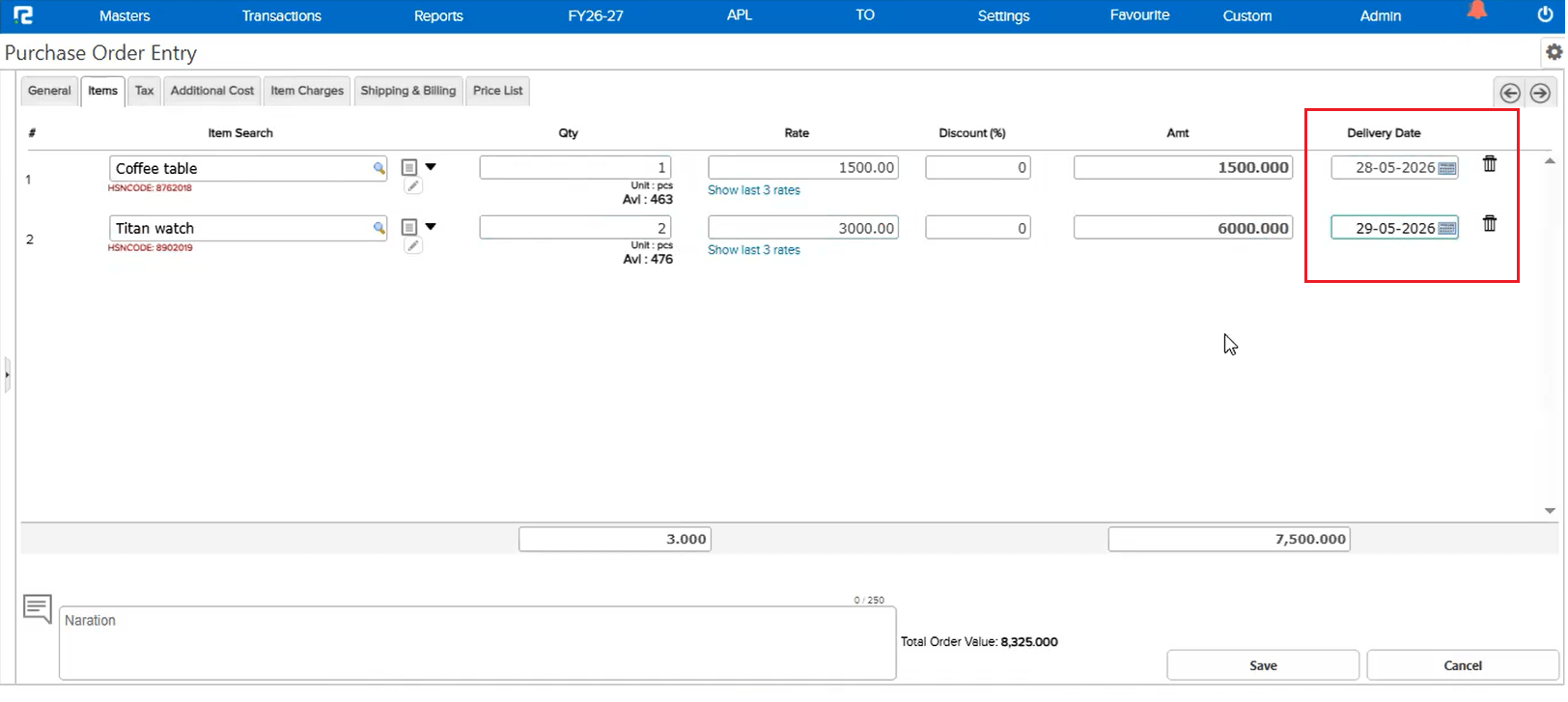
In the Purchase Order (PO) screen, there was no provision to specify a delivery date at the item level. Users who needed different delivery timelines for individual items within the same PO had no way to capture this information directly in the system.
🌟 What This Means for You
An item-wise Delivery Date field has been introduced in the Purchase Order screen. You can now specify a separate delivery date for each item line within a PO — allowing more precise tracking of expected delivery timelines per item.
Please Note: This feature is parametric and needs to be enabled from the backend before it becomes available on the PO screen.
🎬 Where to Find It
📷 See It in Action
📌 What Was Happening
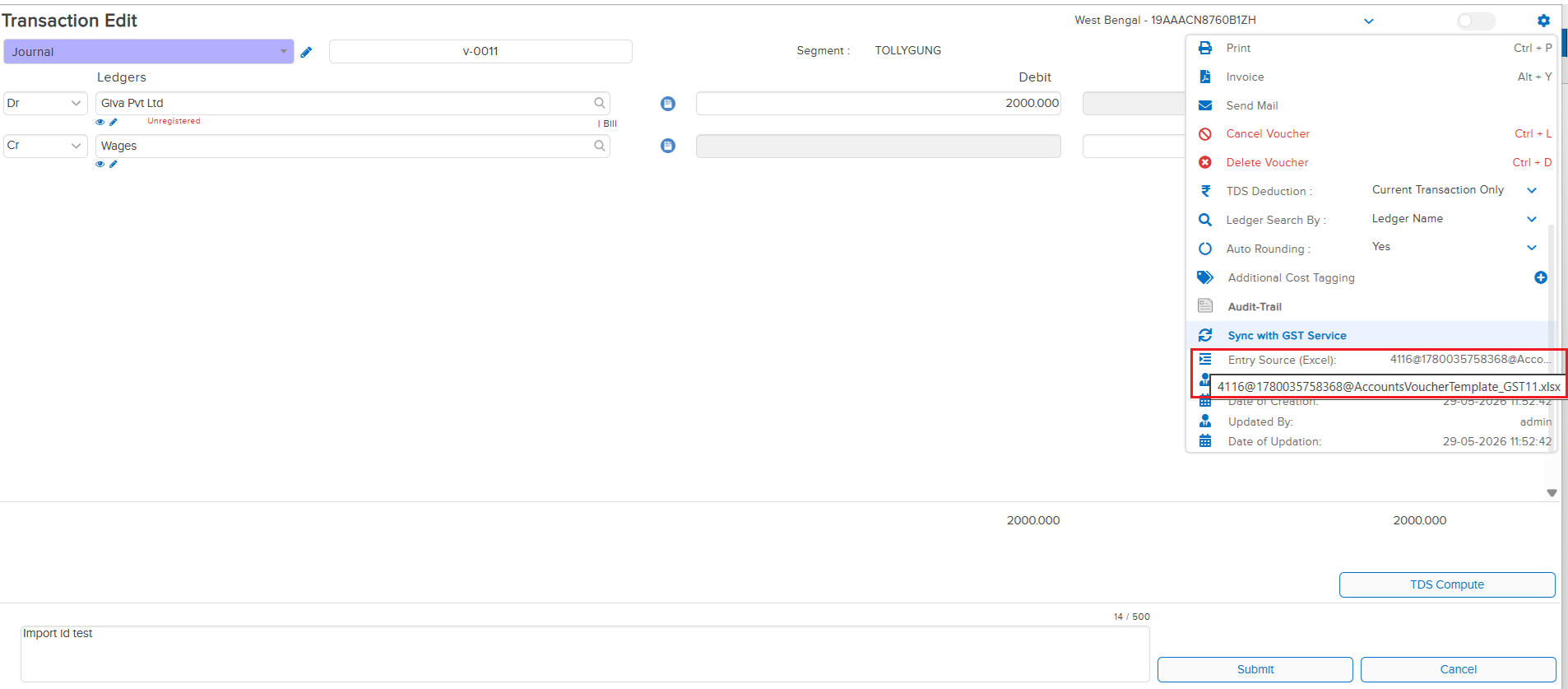
When transactions were created via Excel import, there was no way to trace which Excel file a particular transaction originated from. The source file ID was not being stored against the transaction, making it difficult to audit or track import history.
🌟 What This Means for You
The system now tracks and stores the Excel File ID against each transaction that is created through an Excel import. This is available across the following transaction types:
• Accounting Transactions
• Sale
• Sale Return
• Purchase
• Purchase Return
This makes it easier to audit, trace, and verify which Excel file was the source of any imported transaction.
🎬 Where to Find It
📷 See It in Action
📌 What Was Happening
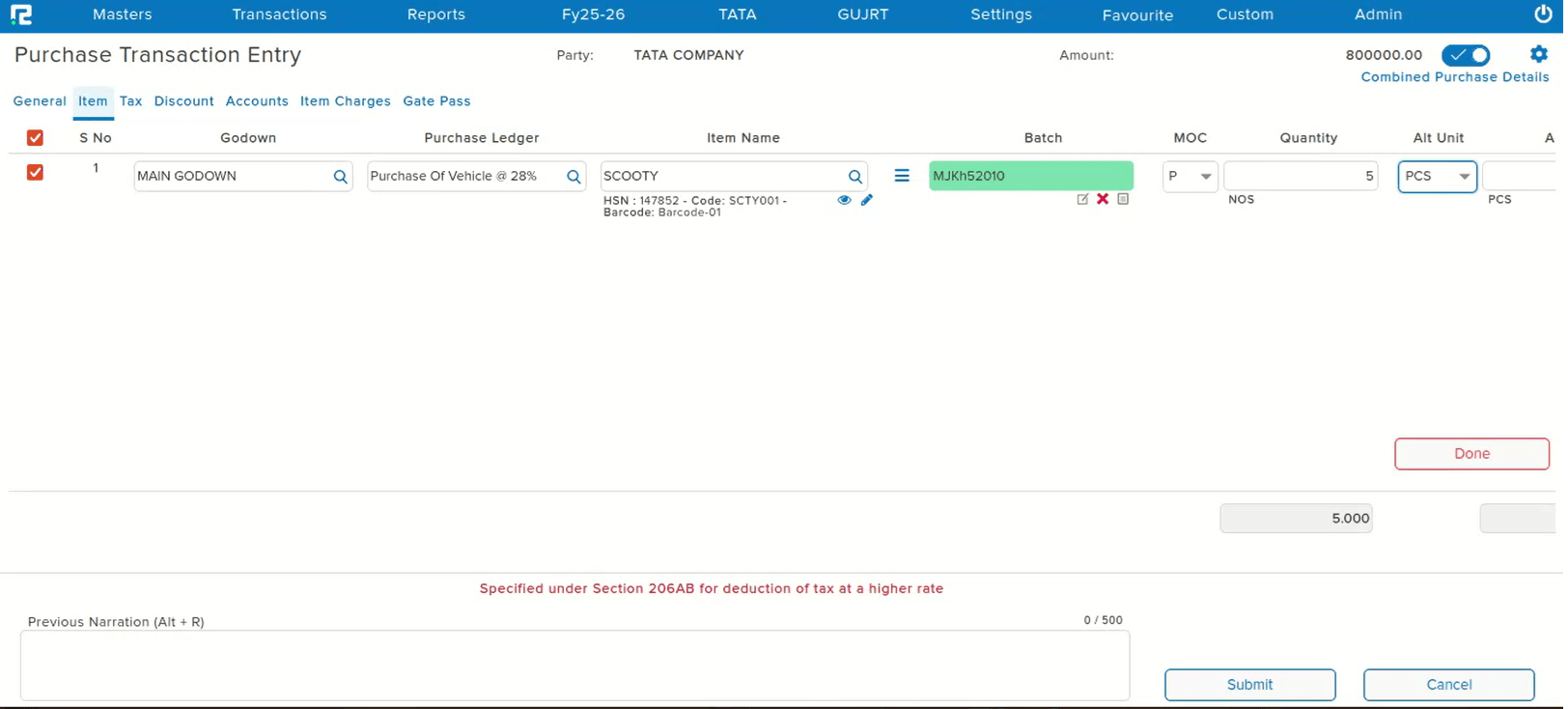
While posting a Purchase entry, when navigating through fields using the Tab key, the cursor was supposed to move sequentially through each field. However, after the Quantity field, pressing Tab was skipping the Alt Unit and Alt Qty fields entirely and jumping directly to the Rate field — even though data needed to be entered in both Alt Unit and Alt Qty.
🌟 How This Helps You
The Tab key navigation in the Purchase entry screen has been corrected. The cursor now moves sequentially through Quantity → Alt Unit → Alt Qty → Rate — ensuring no fields are skipped and data entry is smooth and complete.
🎬 Where to Find It
📷 See It in Action
📌 What Was Happening
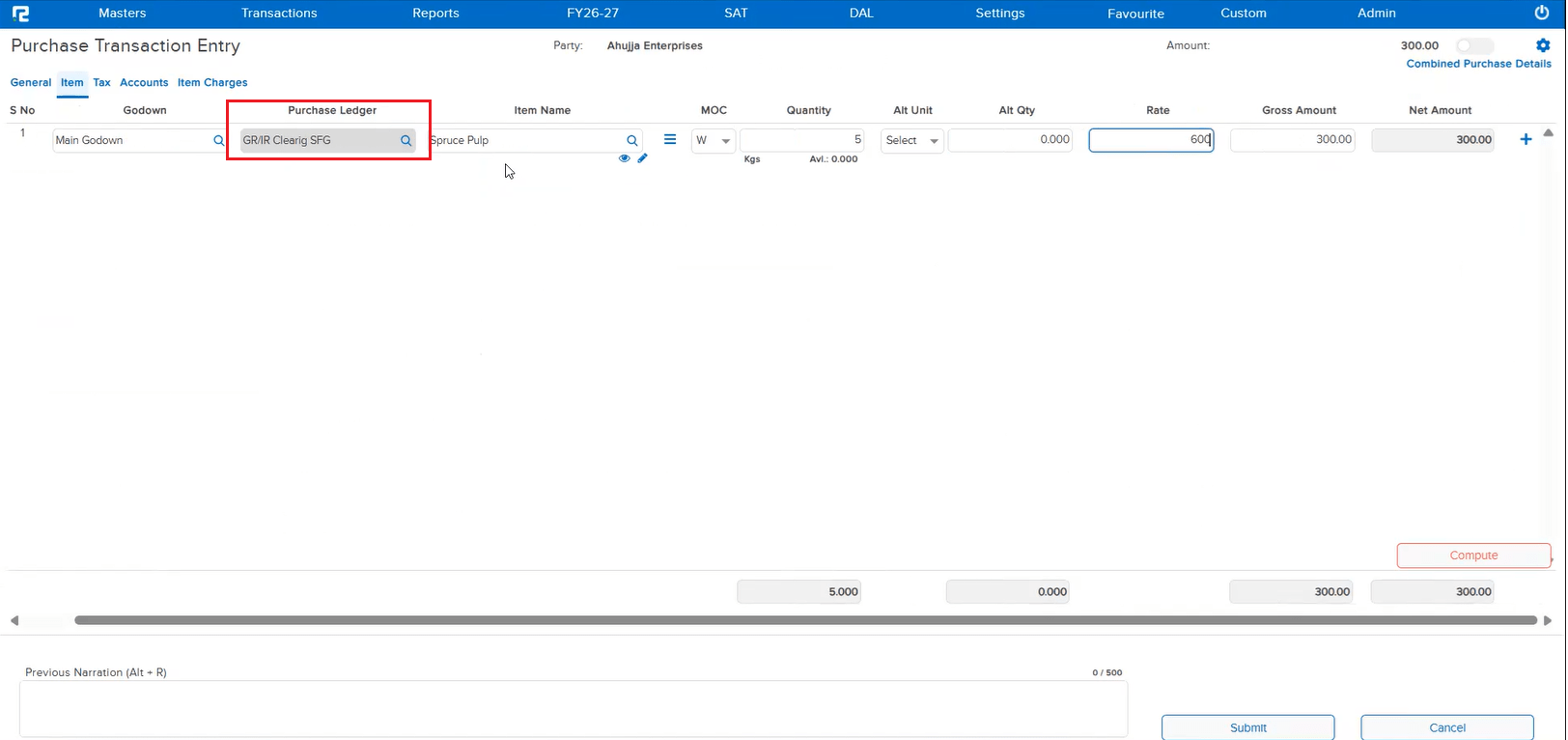
Following the recent release of the optimized inventory screen, a bug was introduced for companies where the Stock Accounting module is enabled. In such companies, the Purchase ledger must always be in Multi Purchase format — regardless of whether the Multi Purchase parameter is enabled or disabled. However, the new optimized inventory screen was not enforcing this rule, causing incorrect ledger behaviour for Stock Accounting companies.
🌟 How This Helps You
The issue in the optimized inventory screen has been fixed. For companies where Stock Accounting is enabled, the Purchase ledger will now always appear in Multi Purchase format — irrespective of the Multi Purchase parameter setting — ensuring correct and consistent accounting behaviour.
🎬 Where to Find It
📷 See It in Action
📌 What Was Happening
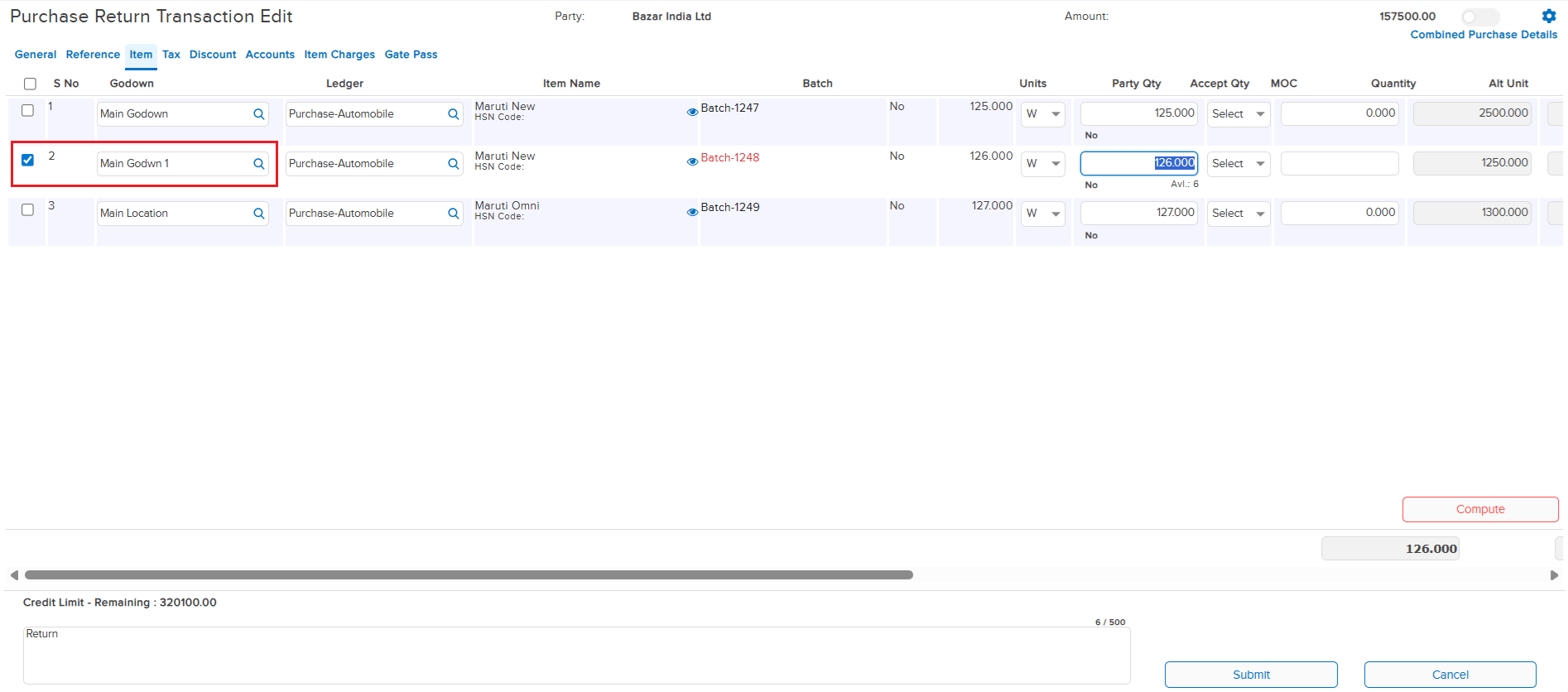
When a user opened a Purchase Return entry in edit mode and unticked and re-checked the tagged purchase reference, the godown of the previous item line was automatically getting replaced into the newly checked item row. This caused incorrect godown values to be populated without any user input, leading to data integrity issues in the Purchase Return entry.
🌟 How This Helps You
The issue has been fixed. When editing a Purchase Return and re-selecting the tagged purchase reference, the godown value of each item row is now retained correctly and will no longer be overwritten by the previous line’s godown — ensuring accurate and reliable data in Purchase Return entries.
🎬 Where to Find It
📷 See It in Action
📌 What Was Happening
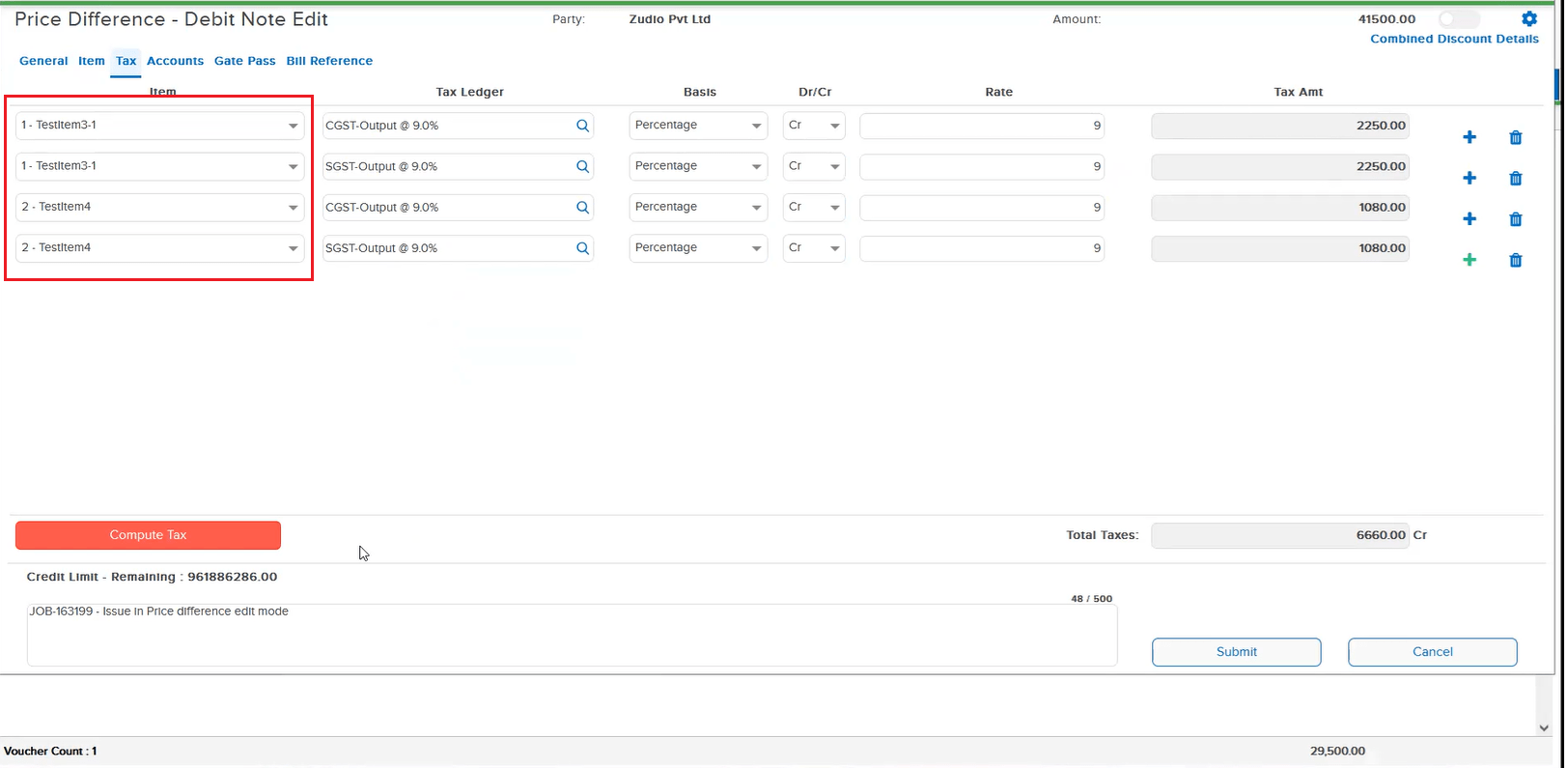
When opening a Customer Debit Note (Price Difference) in edit mode, adding a new item, and then navigating to the Tax tab to add a new tax line for that item, two issues were observed:
• The previous item line was getting automatically removed, prompting the user to re-select the item
• The tax ledger could not be selected in the new tax line, blocking the user from completing the entry
🌟 How This Helps You
Both issues in the Price Difference edit mode have been resolved. The item line is now retained correctly when switching to the Tax tab, and the tax ledger can be selected without any issues — ensuring a smooth and uninterrupted editing experience for Customer Debit Note entries.
🎬 Where to Find It
📷 See It in Action