Beta Release — 14-08-2026
📌 What Was Needed
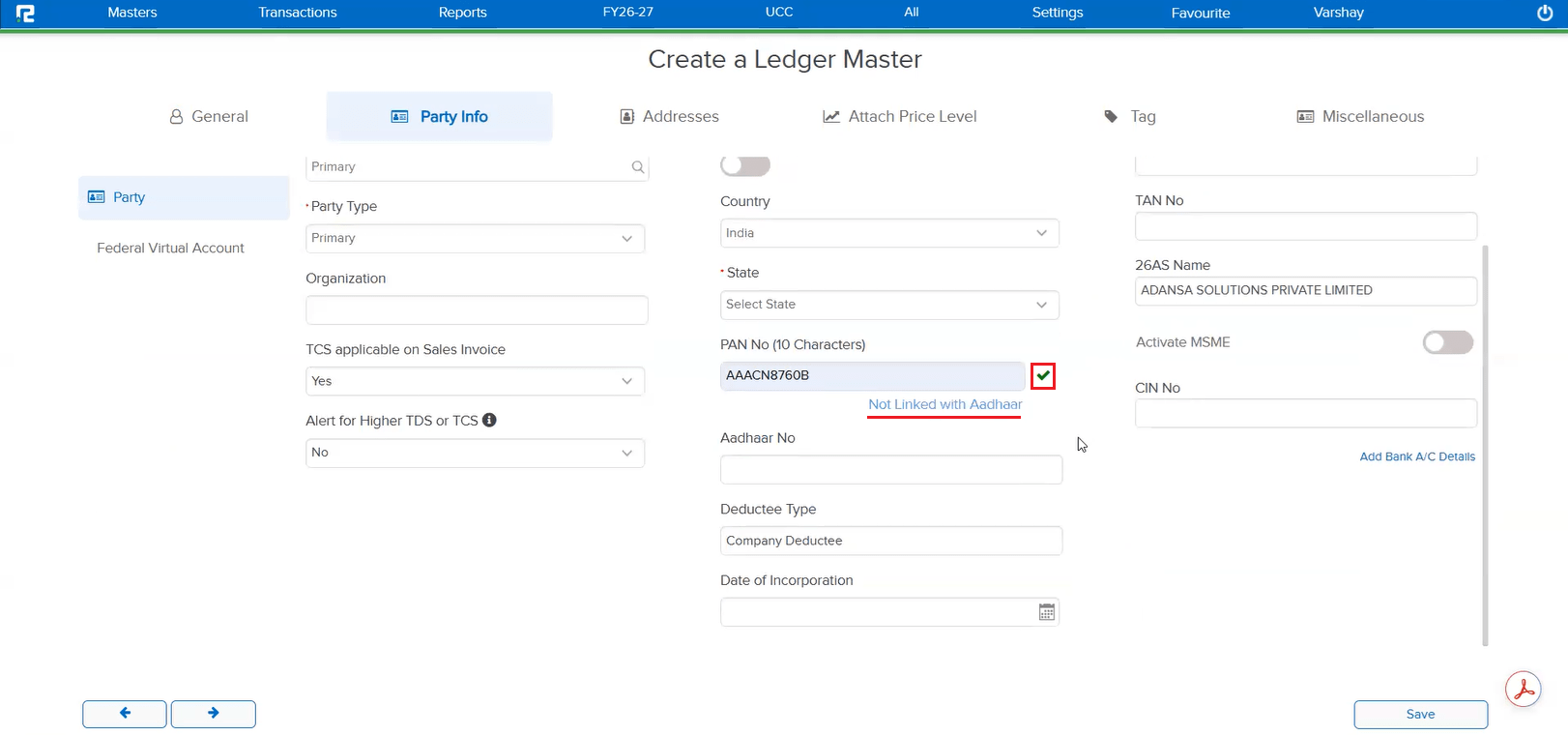
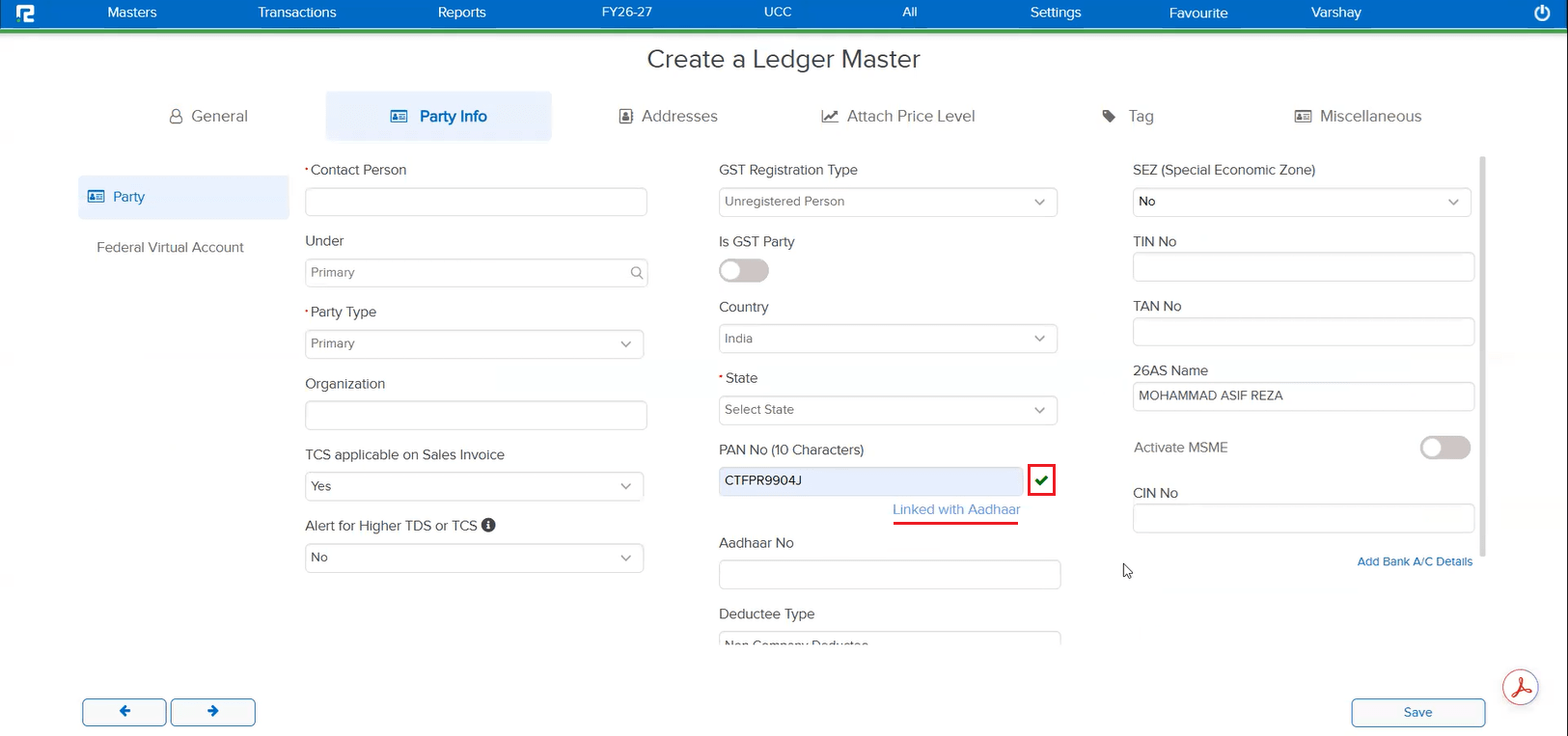
Once a PAN was verified on the Ledger Master screen, only the PAN verification status was shown — there was no indication of whether that PAN was linked to any Aadhaar at all.
🌟 What This Means for You
After the PAN is verified, the Ledger Master screen now also shows the PAN–Aadhaar linking status right there — “Linked with Aadhaar” or “Not Linked with Aadhaar” — so you can confirm the linkage without checking elsewhere.
🎬 Where to Find It
📷 See It in Action
📌 What Was Needed
Earlier, the Ledger Master only had the MSME No. field — if this was filled in for a party, the entry would appear in the MSME reports. There was no way to explicitly mark a party as an MSME or record its MSME Type — Manufacturer, Trader, or Service — and this classification did not reflect anywhere in the MSME reports.
🌟 What This Means for You
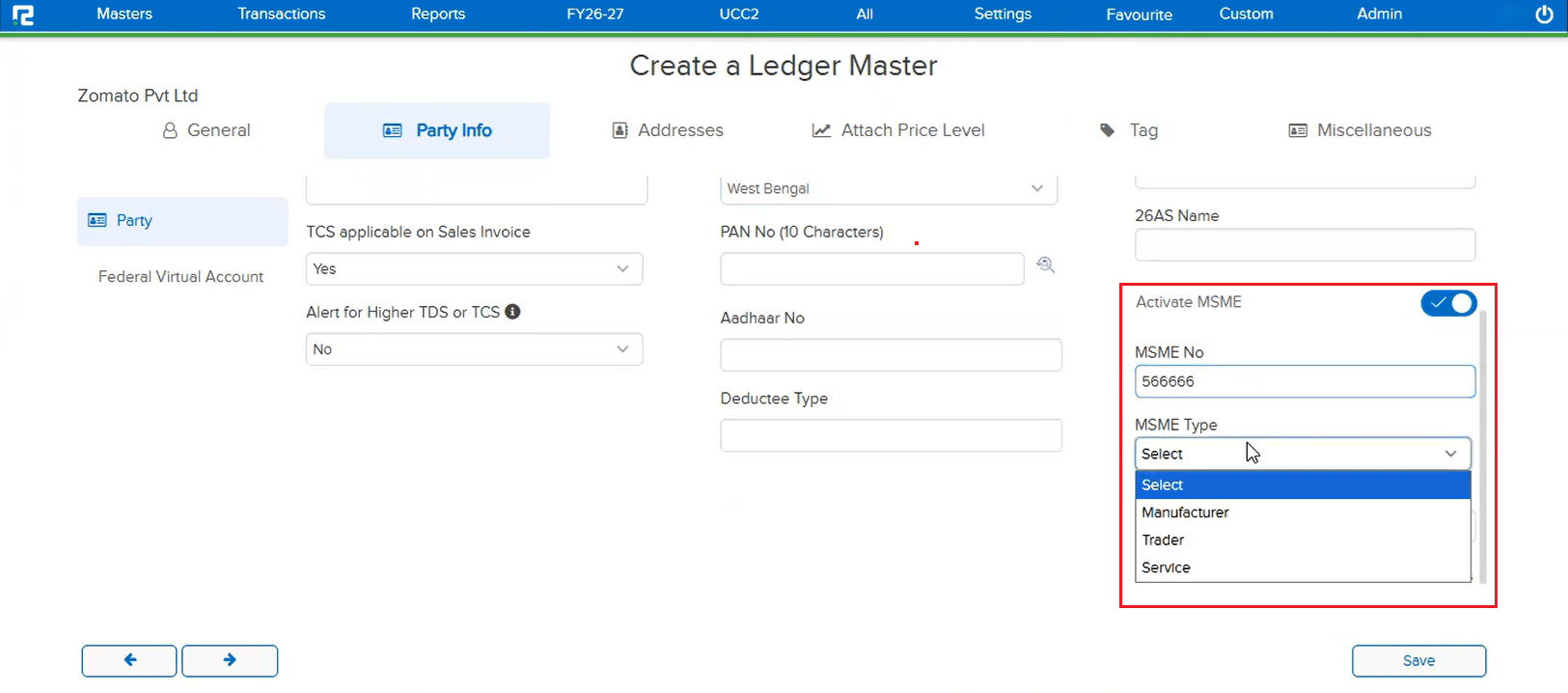
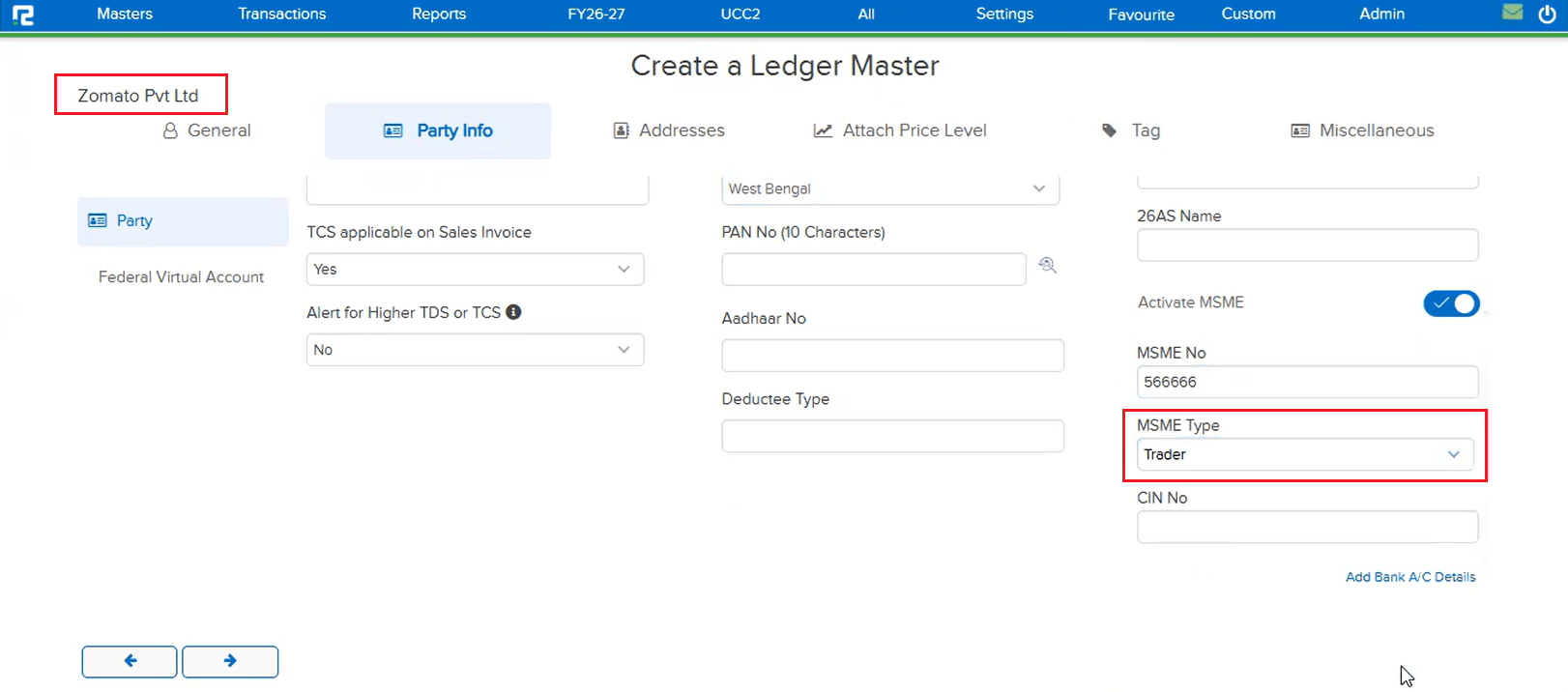
A new Activate MSME toggle and MSME Type dropdown (Manufacturer / Trader / Service) have been added on the Ledger Master alongside the MSME No. field:
• Turn on Activate MSME to explicitly mark a party as an MSME, then set its MSME Type and MSME No.
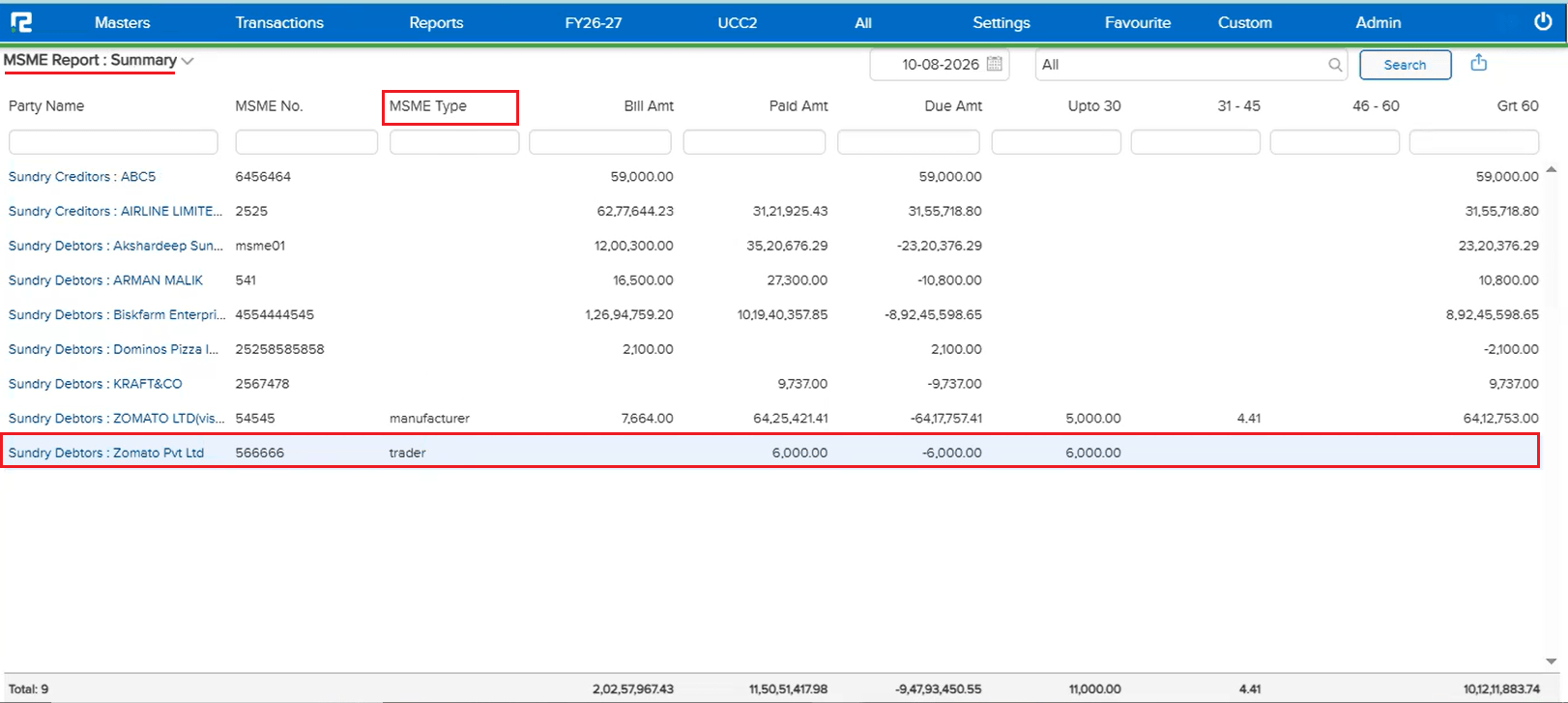
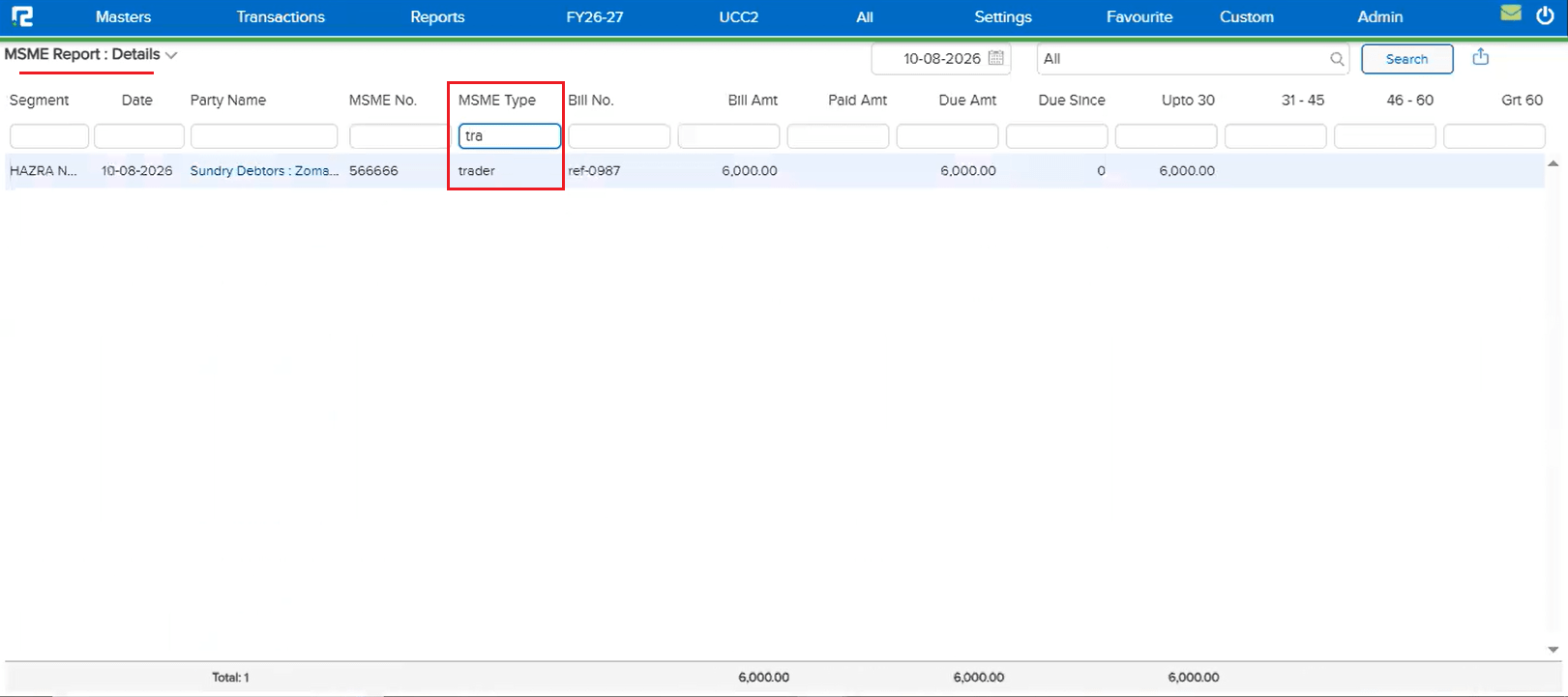
• The MSME Type column now appears in both the MSME Report: Summary and MSME Report: Details, and can be filtered like the other columns.
🎬 Where to Find It
📷 See It in Action
📌 What Was Needed
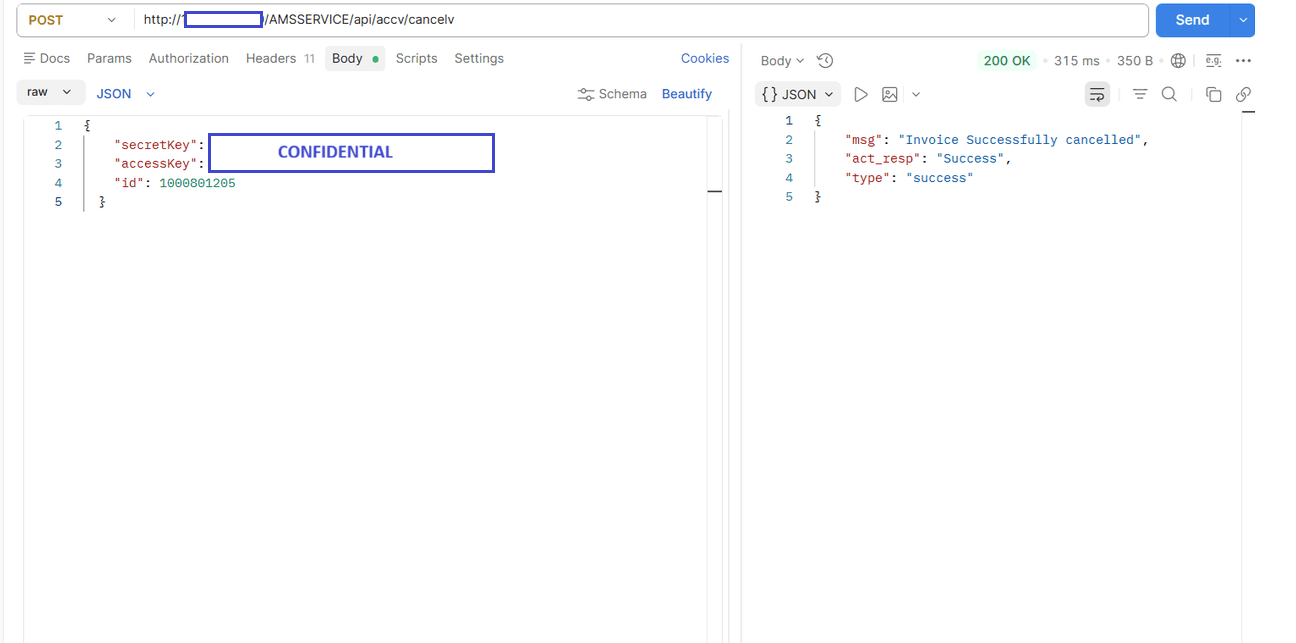
There was no API available to cancel a voucher programmatically for a user who already has cancellation access — cancellation could only be performed manually from within the application.
🌟 What This Means for You
A new Voucher Cancellation API is now available — POST /AMSSERVICE/api/accv/cancelv — which cancels the given voucher id when the requesting user has cancellation access, and returns a success response.
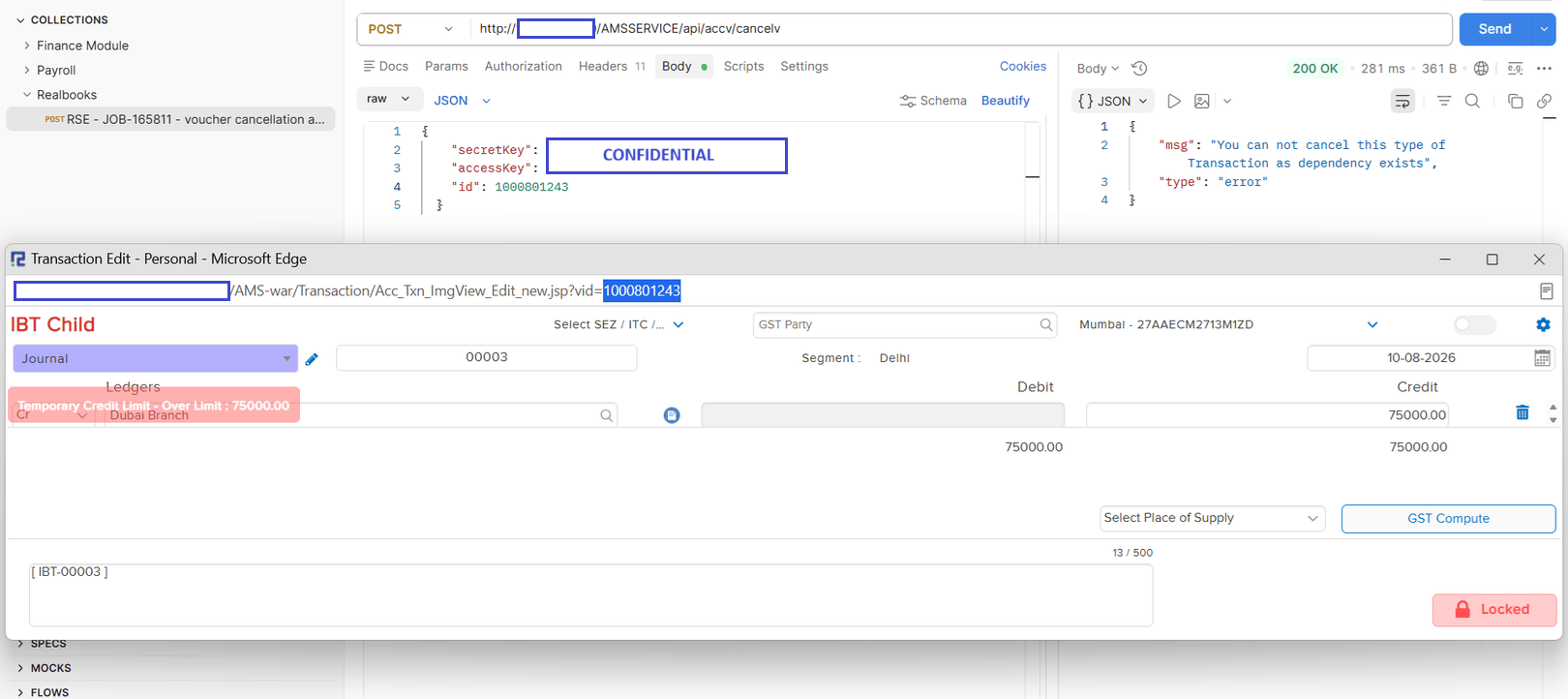
If the voucher cannot be cancelled — for example, when a dependency exists (a linked transaction) — the API correctly returns an error response explaining why, instead of cancelling it.
📷 See It in Action
📌 What Was Needed
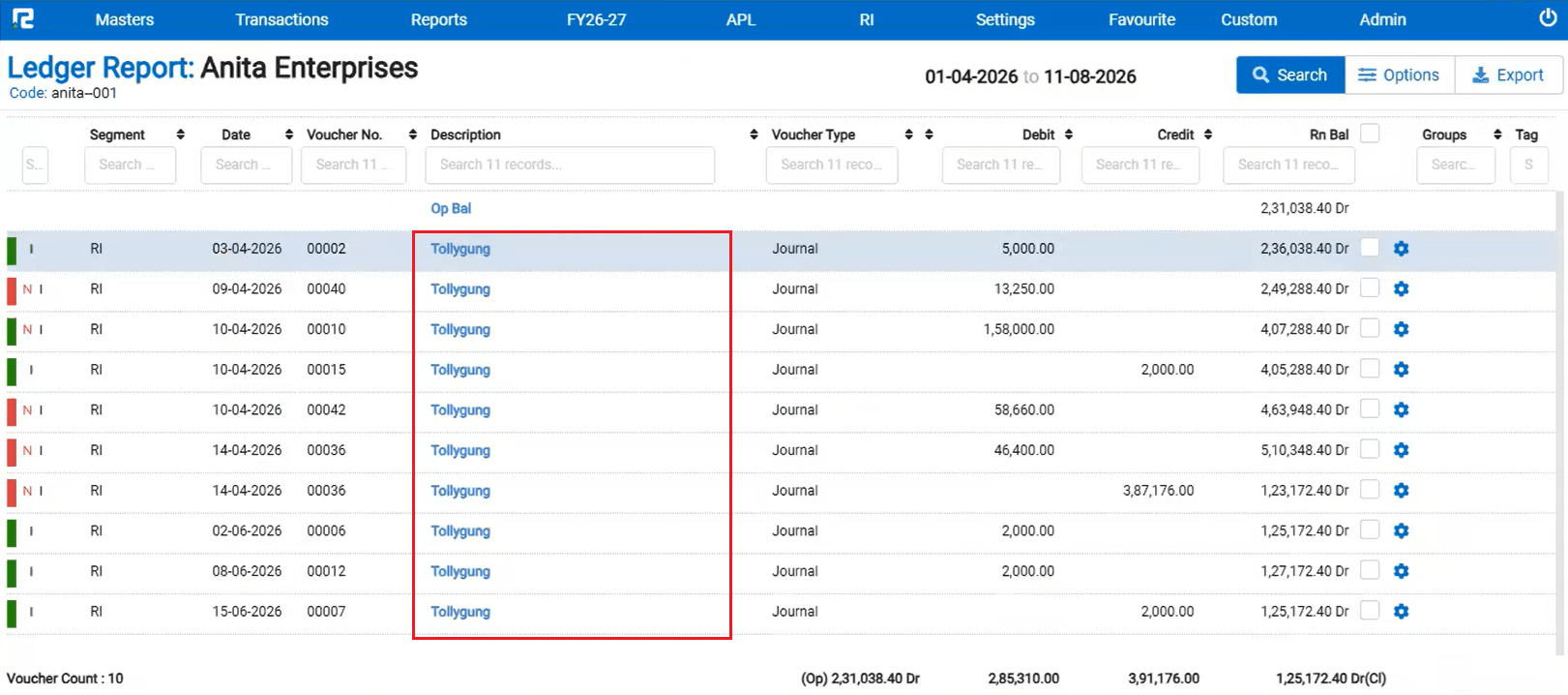
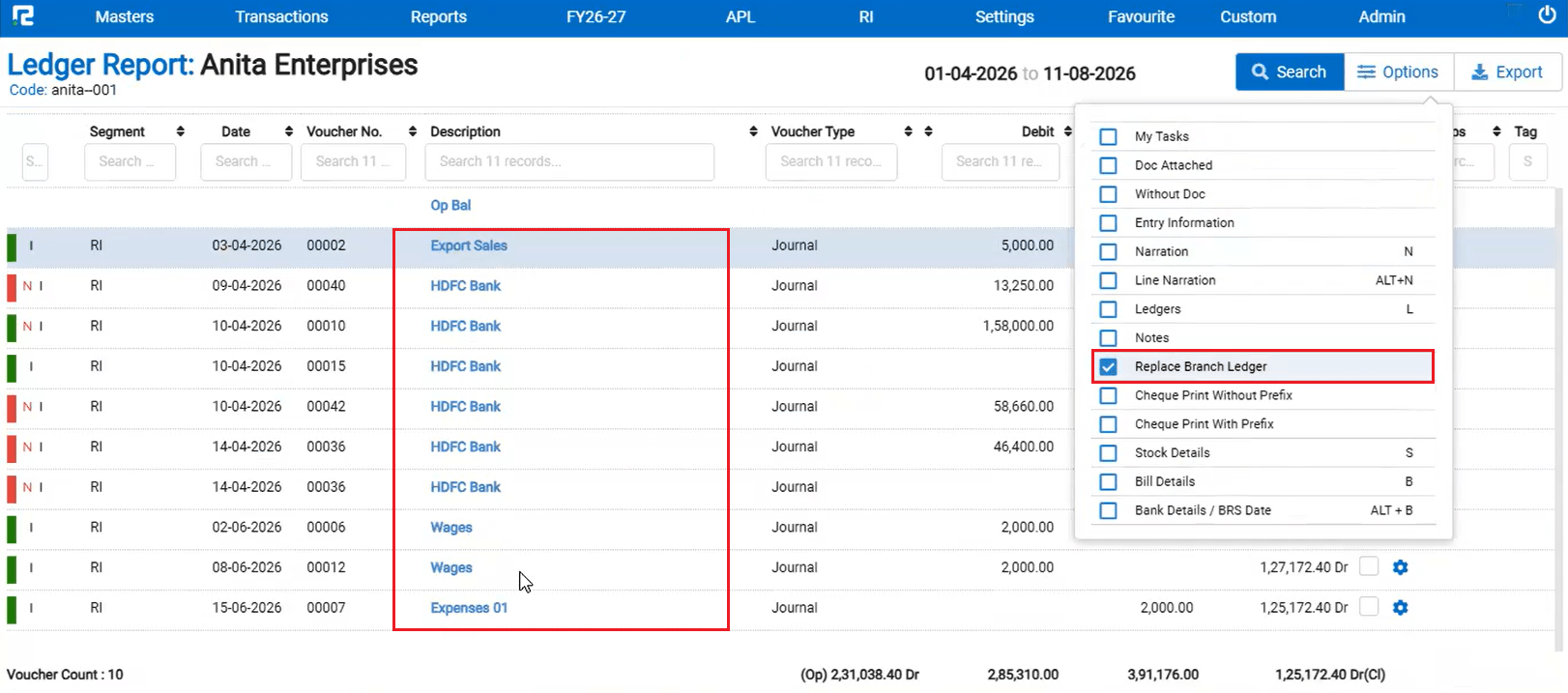
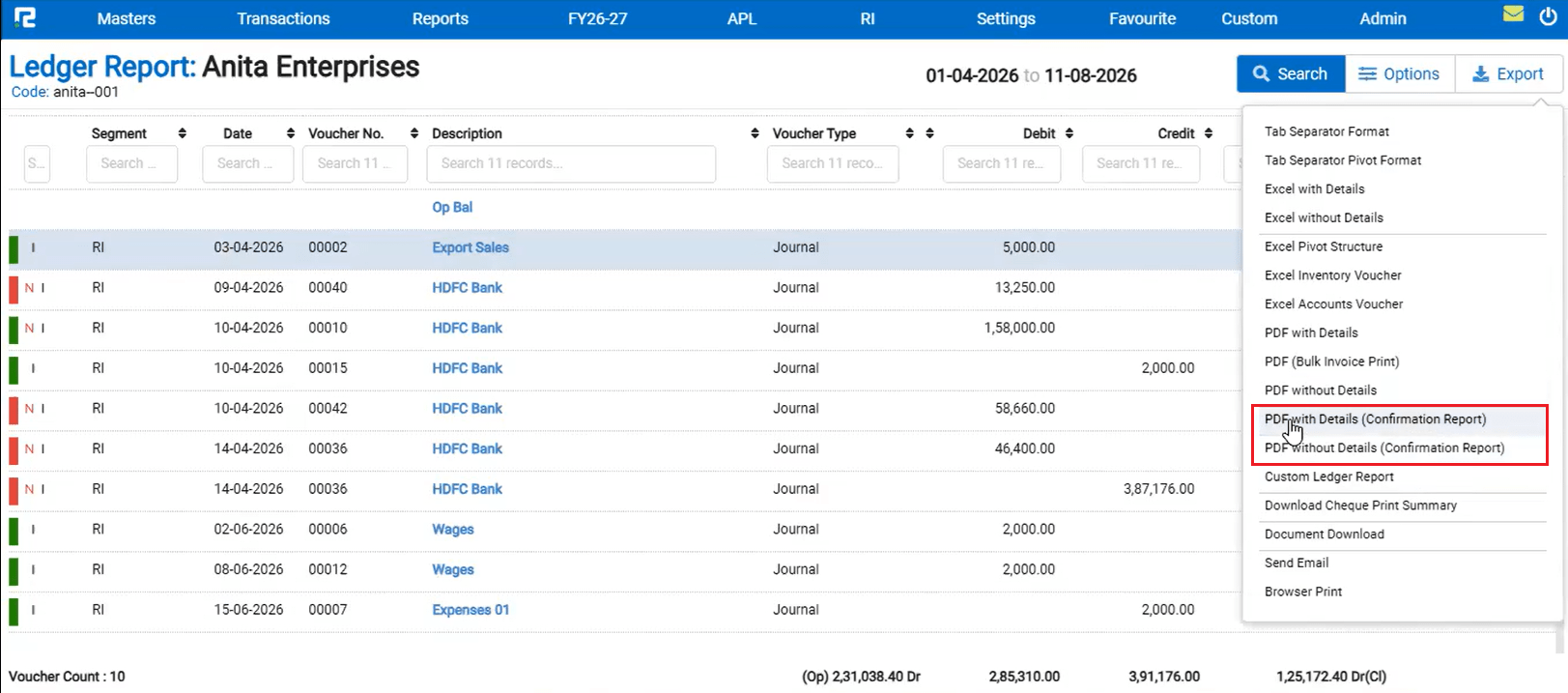
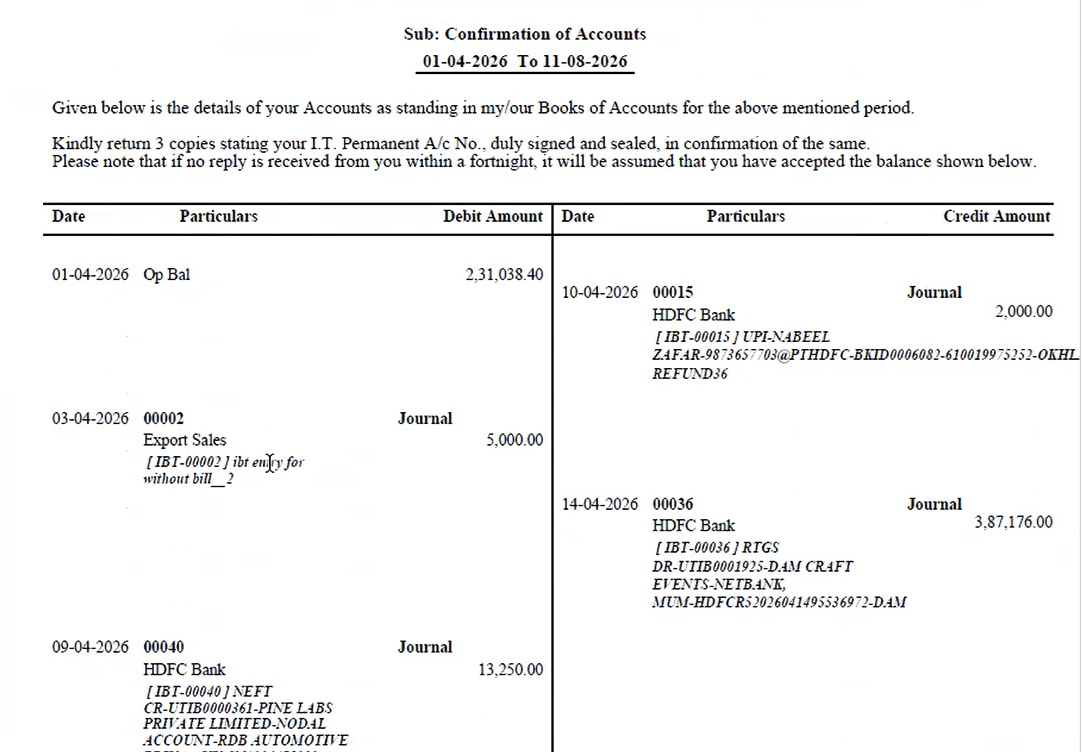
On the Ledger Report, when the Replace Branch Ledger option was used to display a replaced ledger in place of the original, exporting PDF without Details (Confirmation Report) and PDF with Details (Confirmation Report) did not reflect the replaced ledger — the exported PDFs still showed the original ledger, out of sync with what the UI displayed.
🌟 What This Means for You
When a branch ledger has been replaced, the replacement ledger shown in the UI is now correctly reflected in both:
• PDF without Details (Confirmation Report)
• PDF with Details (Confirmation Report)
This keeps the exported PDFs consistent with the ledger displayed in the application.
🎬 Where to Find It
📷 See It in Action
📌 What Was Happening
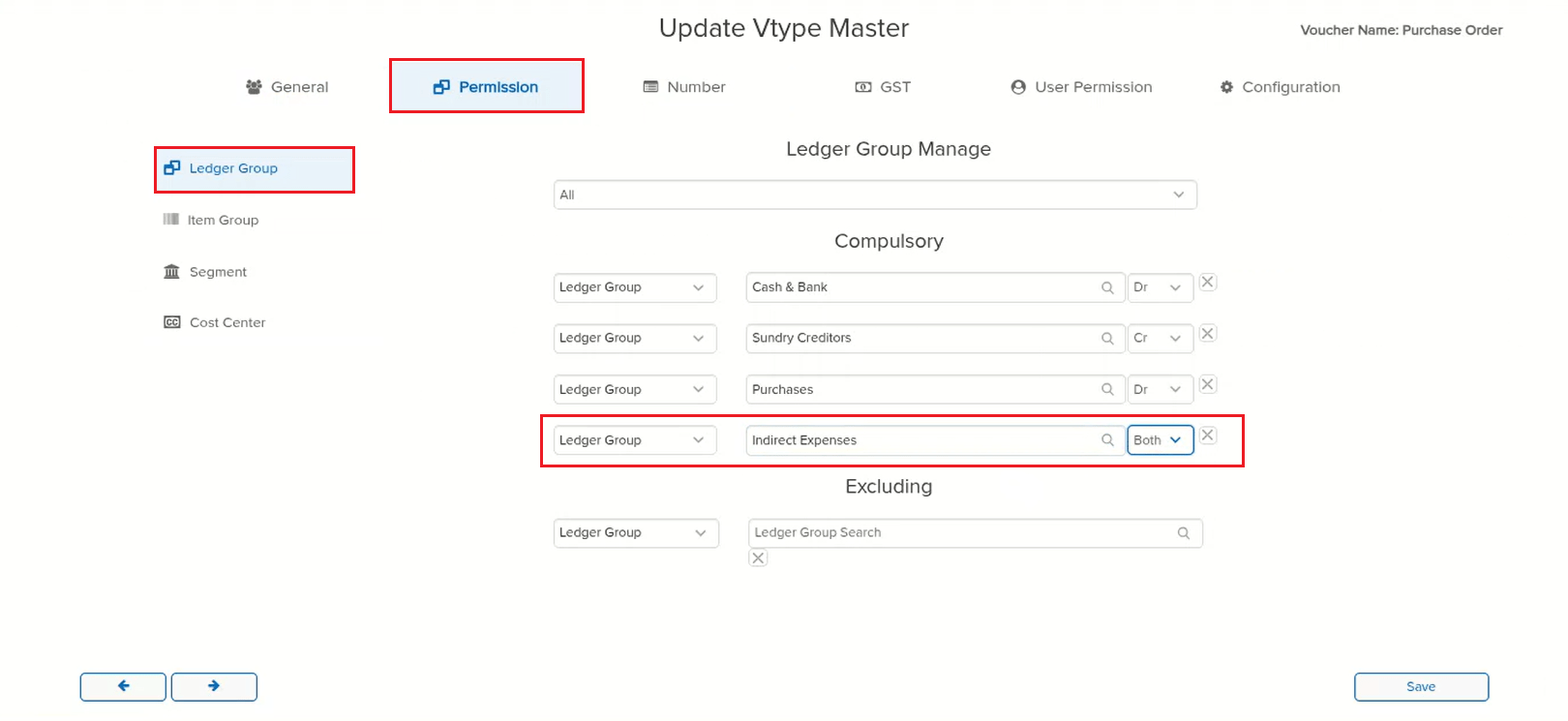
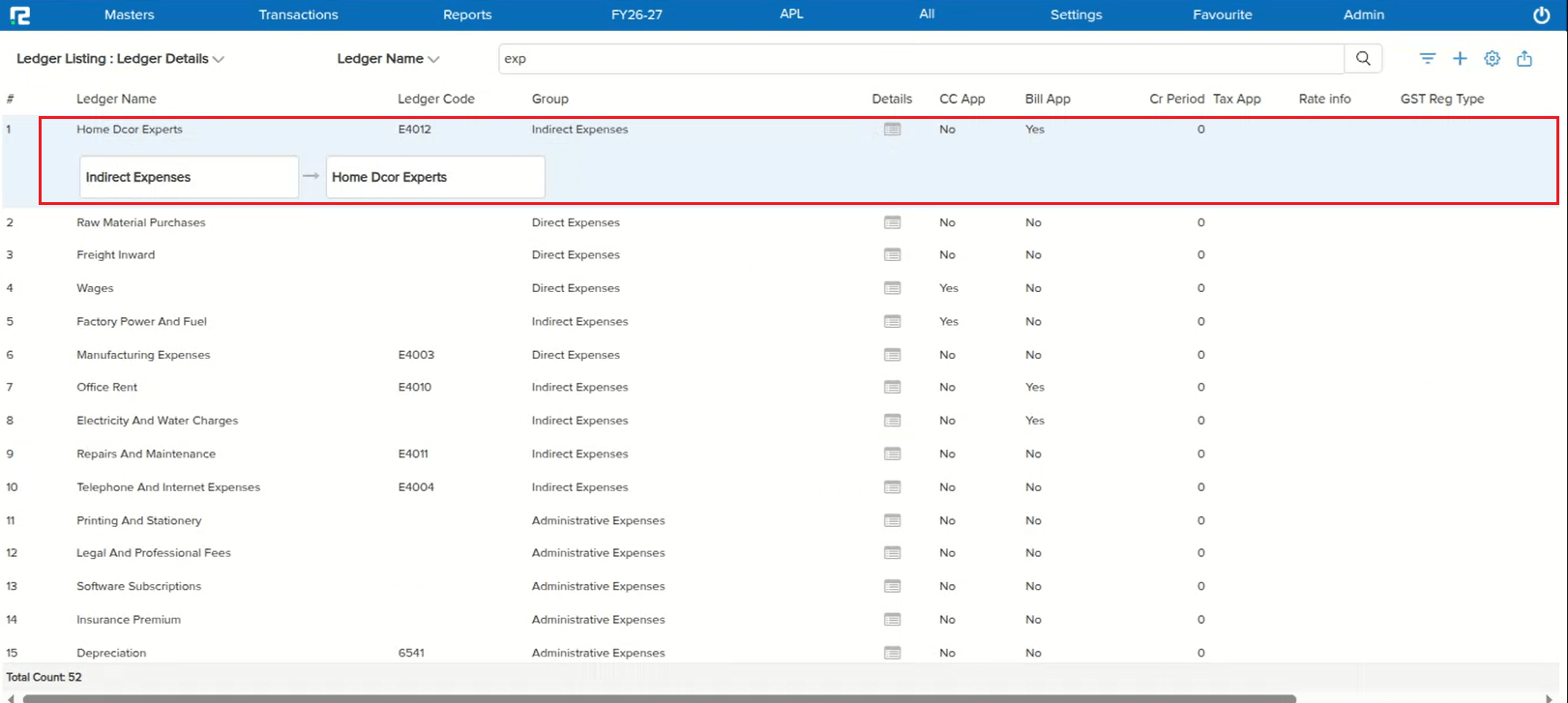
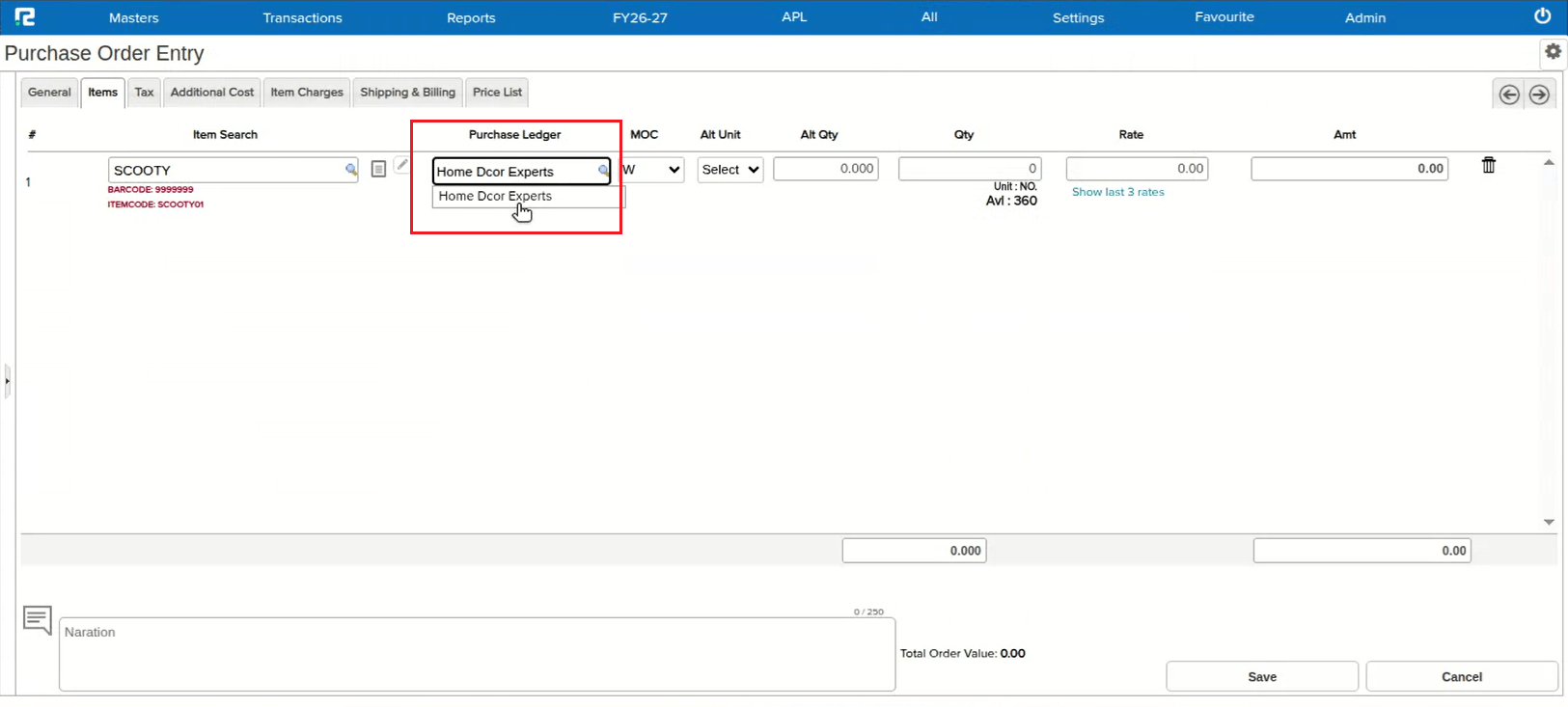
For the voucher type mapped under voucher nature Purchase Order, when a Ledger Group (e.g. Indirect Expenses) was marked Compulsory with Both selected, ledgers under that group were not searchable in the Purchase Order Entry screen. When the same group was instead marked as Debit, the ledgers under it became searchable as expected.
🌟 How This Helps You
This is now fixed — ledgers under a Compulsory Ledger Group are correctly searchable in Purchase Order Entry regardless of whether the permission is set to Both, Debit, or Credit.
🎬 Where to Find It
📷 See It in Action
📌 What Was Happening
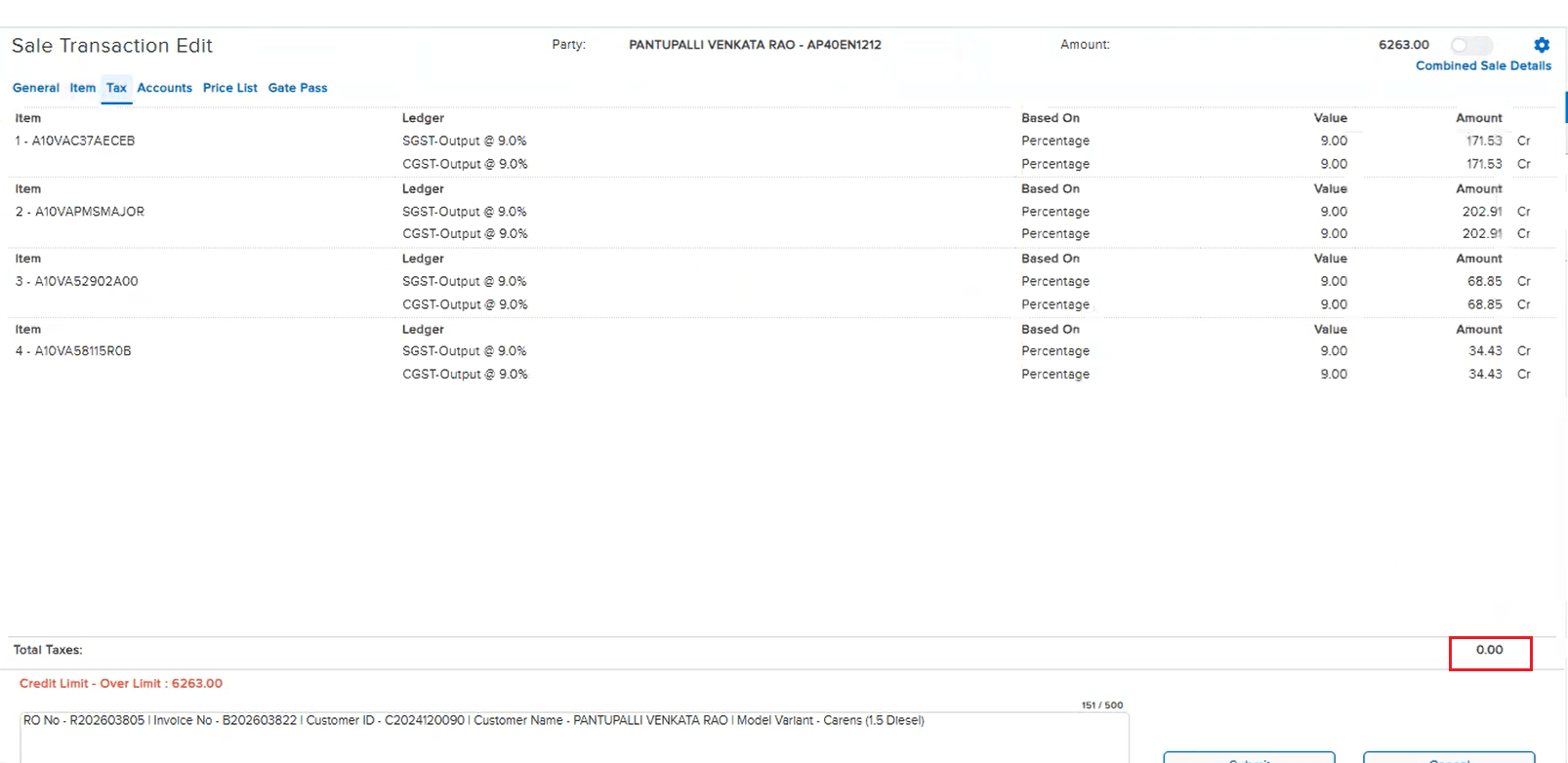
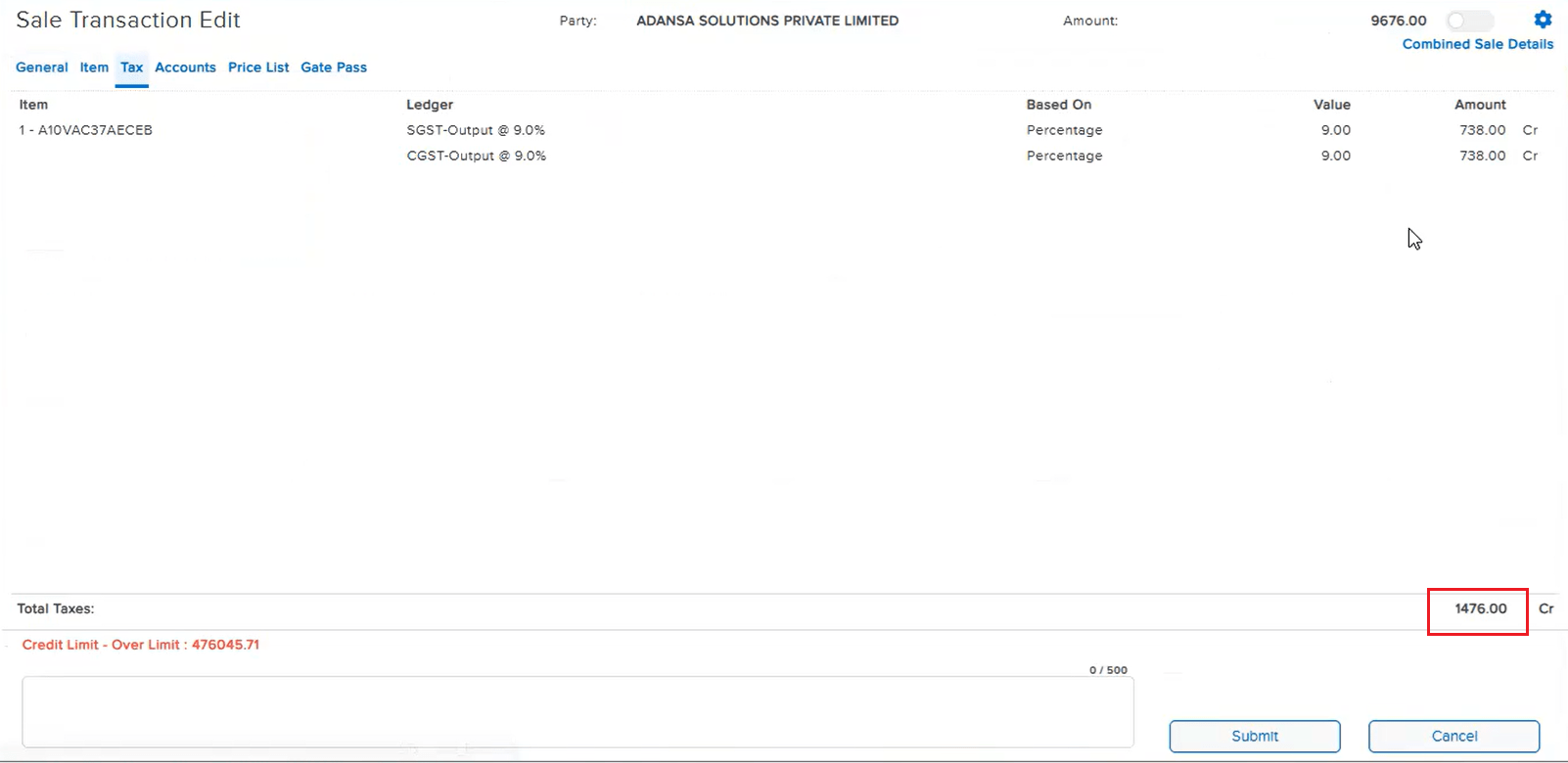
When the tax computation method was set to Automatic, opening a saved entry for edit showed the Total Taxes amount on the Tax tab as 0.00 — even though the individual tax line amounts were listed correctly and the tax posted in the books was accurate, correctly reflecting in the Accounts tab. The issue affected the edit screens of Sale, Sale Return, Purchase, Purchase Return, and Price Difference.
🌟 How This Helps You
This is now fixed — on the Tax tab of the edit screen, the Total Taxes amount is correctly computed and displayed for entries using Automatic tax computation, across Sale, Sale Return, Purchase, Purchase Return, and Price Difference.
🎬 Where to Find It
📷 See It in Action
📌 What Was Happening
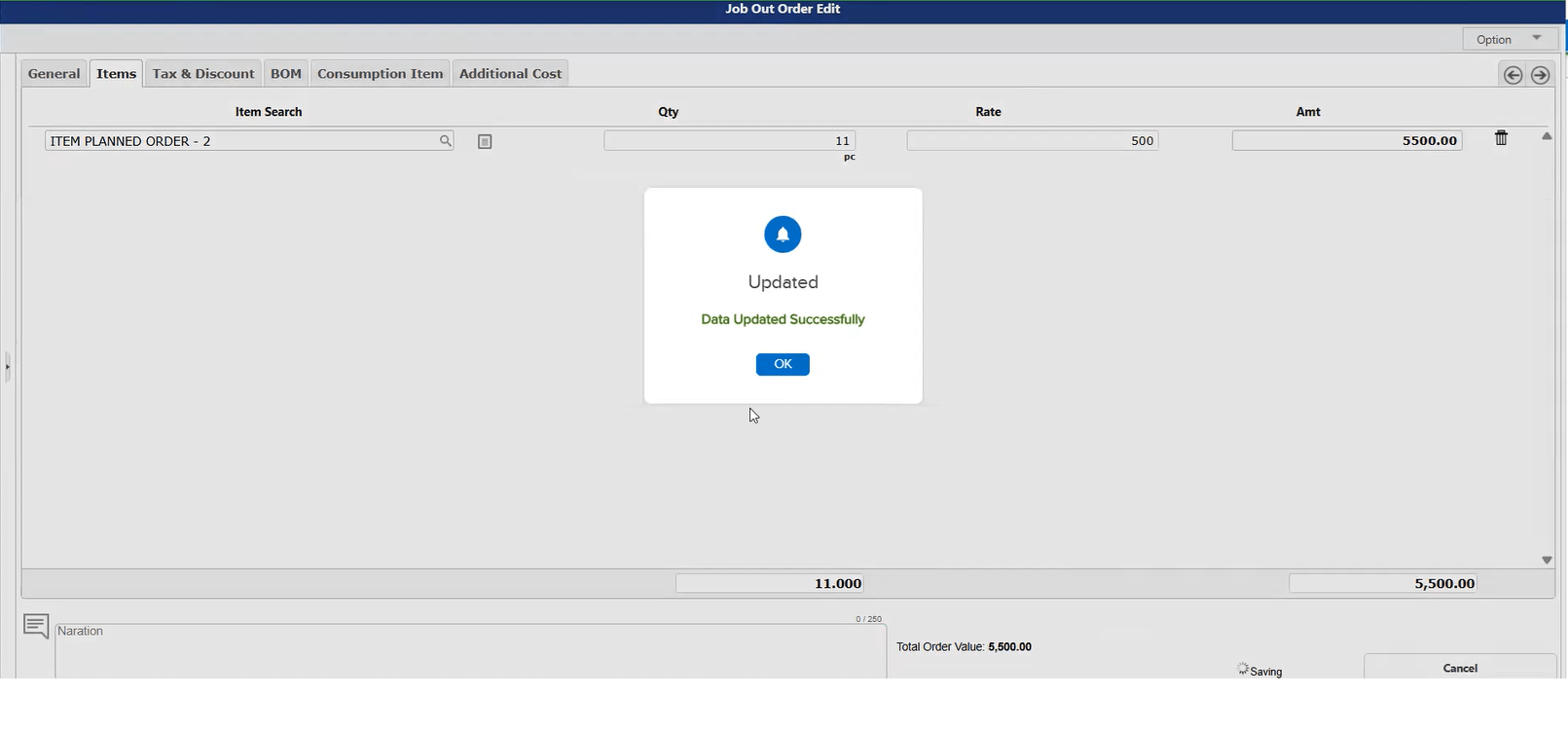
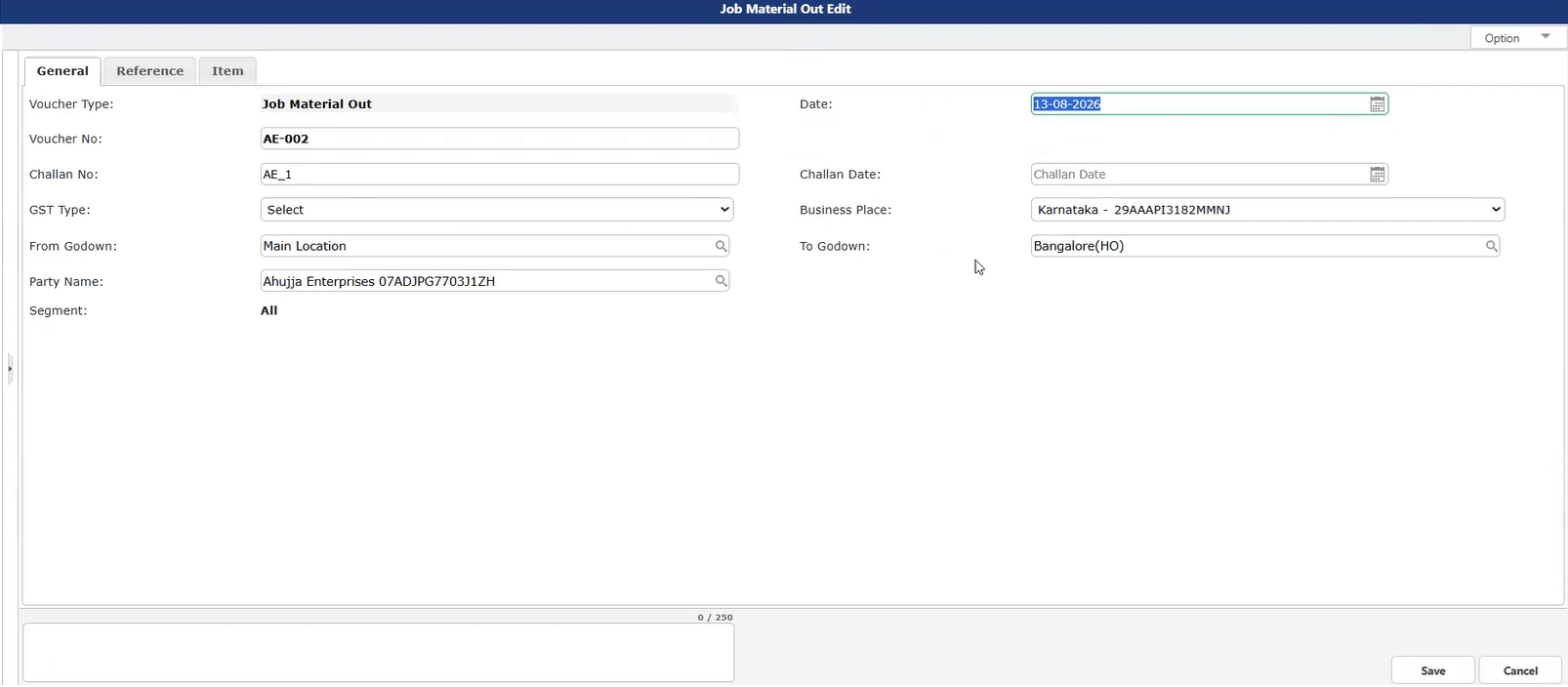
On the Job Material Out and Job Order Out screens, entries were not getting saved. As these screens were rarely used, the issue had gone unnoticed until now.
🌟 How This Helps You
This is now fixed — both Job Material Out and Job Order Out entries save correctly.
🎬 Where to Find It
📷 See It in Action
📌 What Was Happening
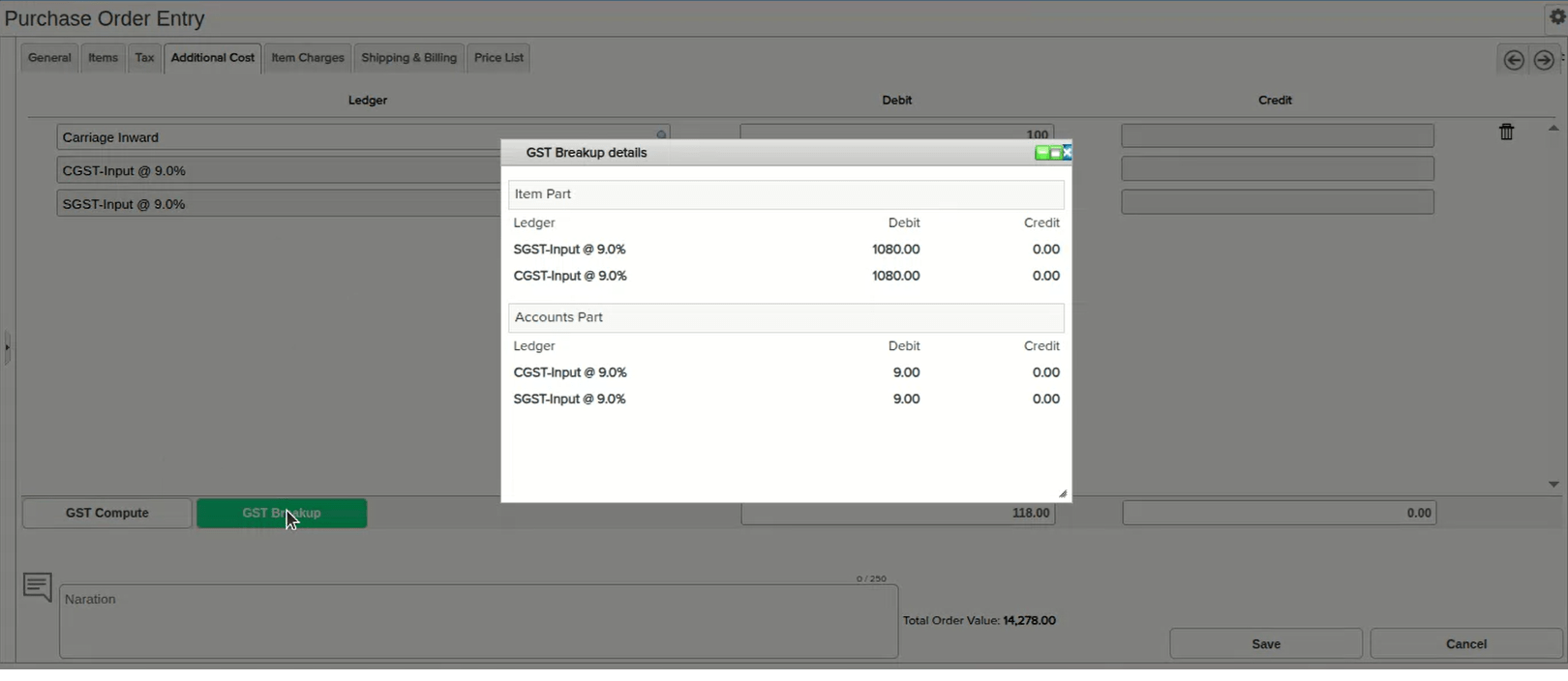
In a Purchase Order, when the Item Tax Applicability Date and the Accounts Part Ledger Tax Applicability Date did not align with the voucher’s Entry Date (e.g. Entry Date 24-09-2025, Item tax applicable from 01-09-2025, Accounts Part ledger tax applicable from 04-11-2025), clicking GST Compute did not apply the tax from the Accounts Part Ledger. Instead, the system recalculated the item tax again, resulting in the tax amount being saved twice.
🌟 How This Helps You
This is now fixed — GST Compute correctly applies the tax from the Accounts Part Ledger in this scenario instead of recomputing the item tax again, so the tax amount is no longer duplicated.
🎬 Where to Find It
📷 See It in Action
📌 What Was Happening
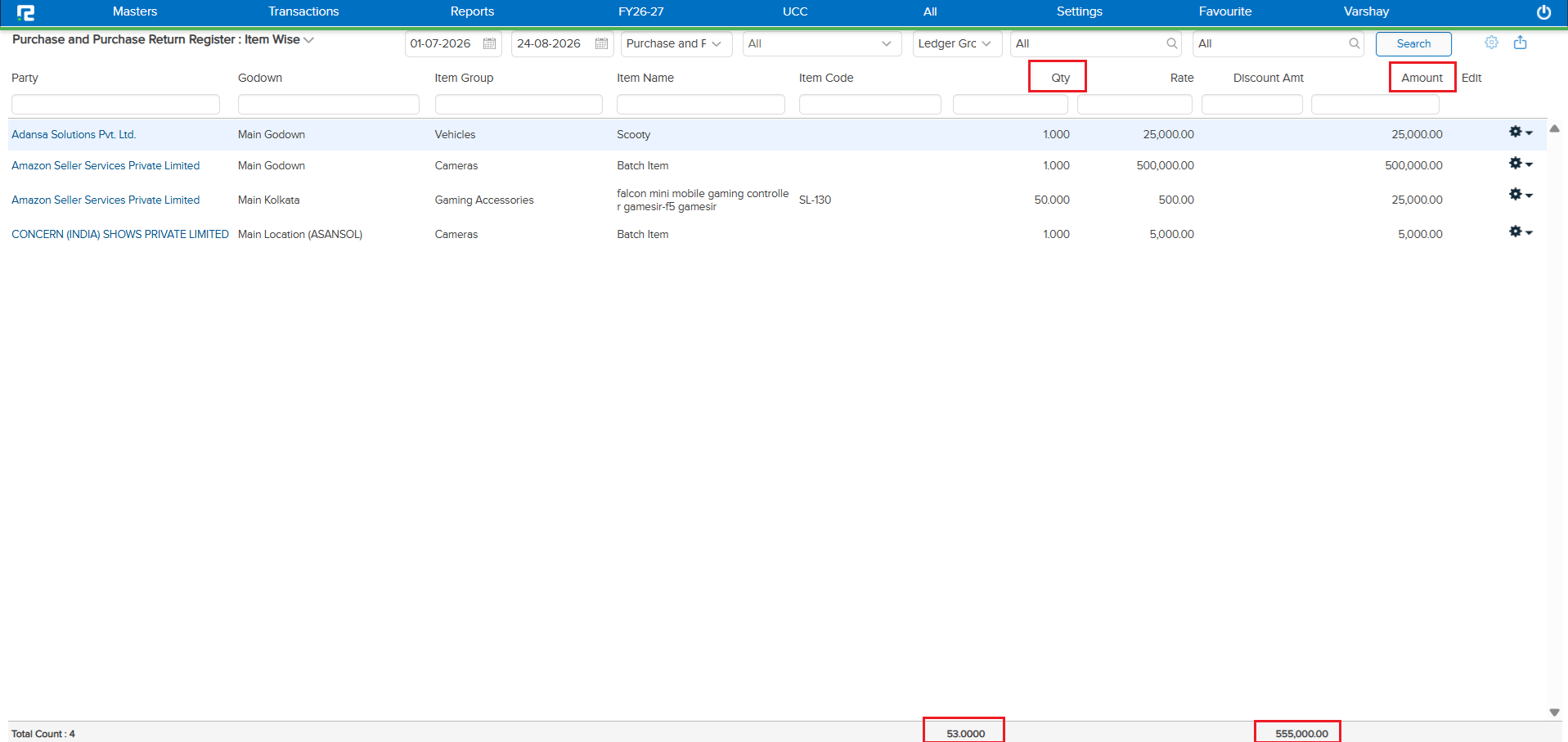
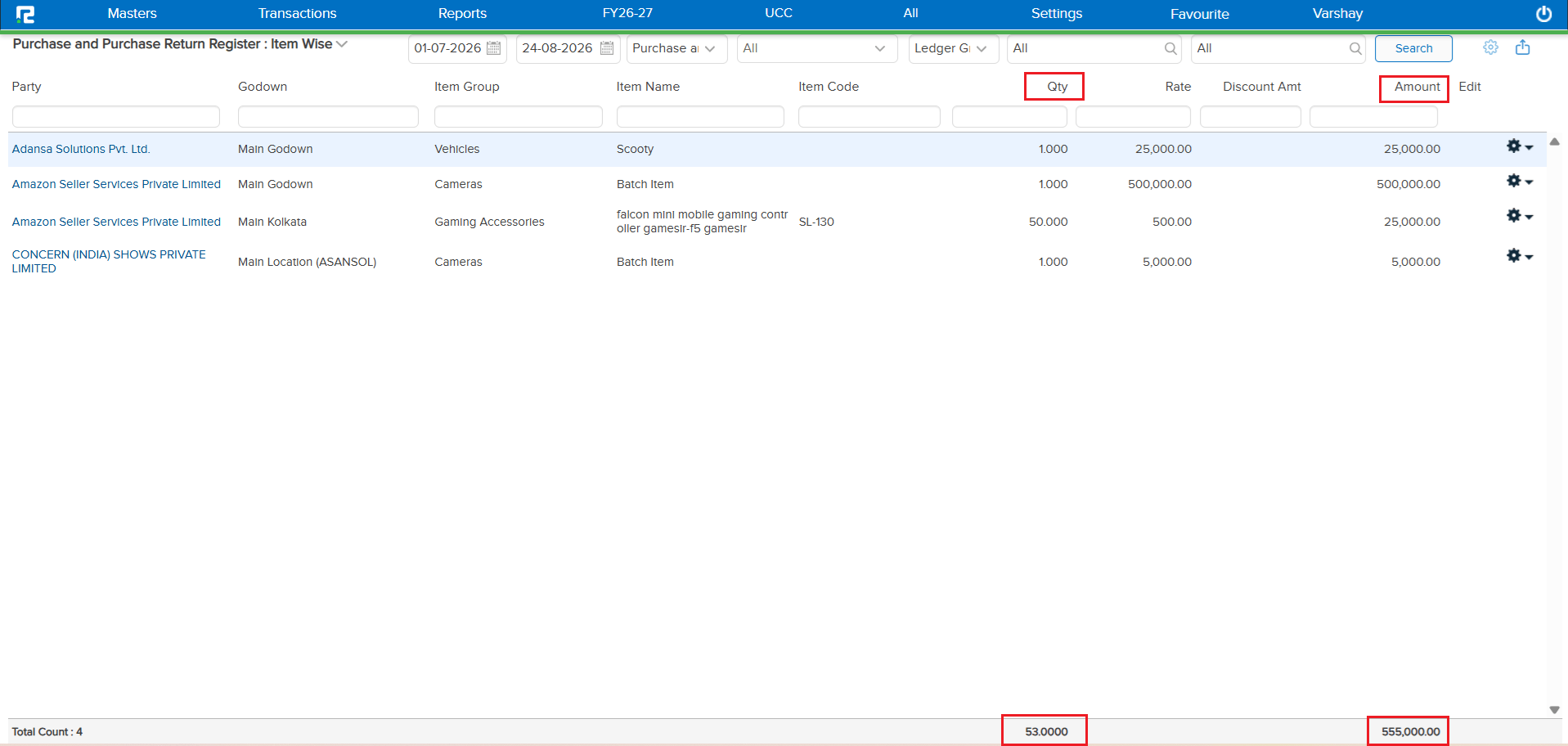
On the Purchase and Purchase Return Register: Item Wise screen, the footer row showing the total Qty and total Amount was not aligned with the corresponding Qty and Amount columns above it — a design issue that made the totals harder to read at a glance.
🌟 How This Helps You
This is now fixed — the footer Qty and Amount totals are correctly aligned directly under their respective columns, making the register easier to read.
🎬 Where to Find It
📷 See It in Action