Beta Release — 31-08-2026
📌 What Was Needed
On the Transaction Entry screen, the Narration field had to be typed out manually for every entry — describing the ledgers involved, the amount, and the purpose of the transaction. This was repetitive and time-consuming, especially for routine entries like receipts and payments against a bill.
🌟 What This Means for You
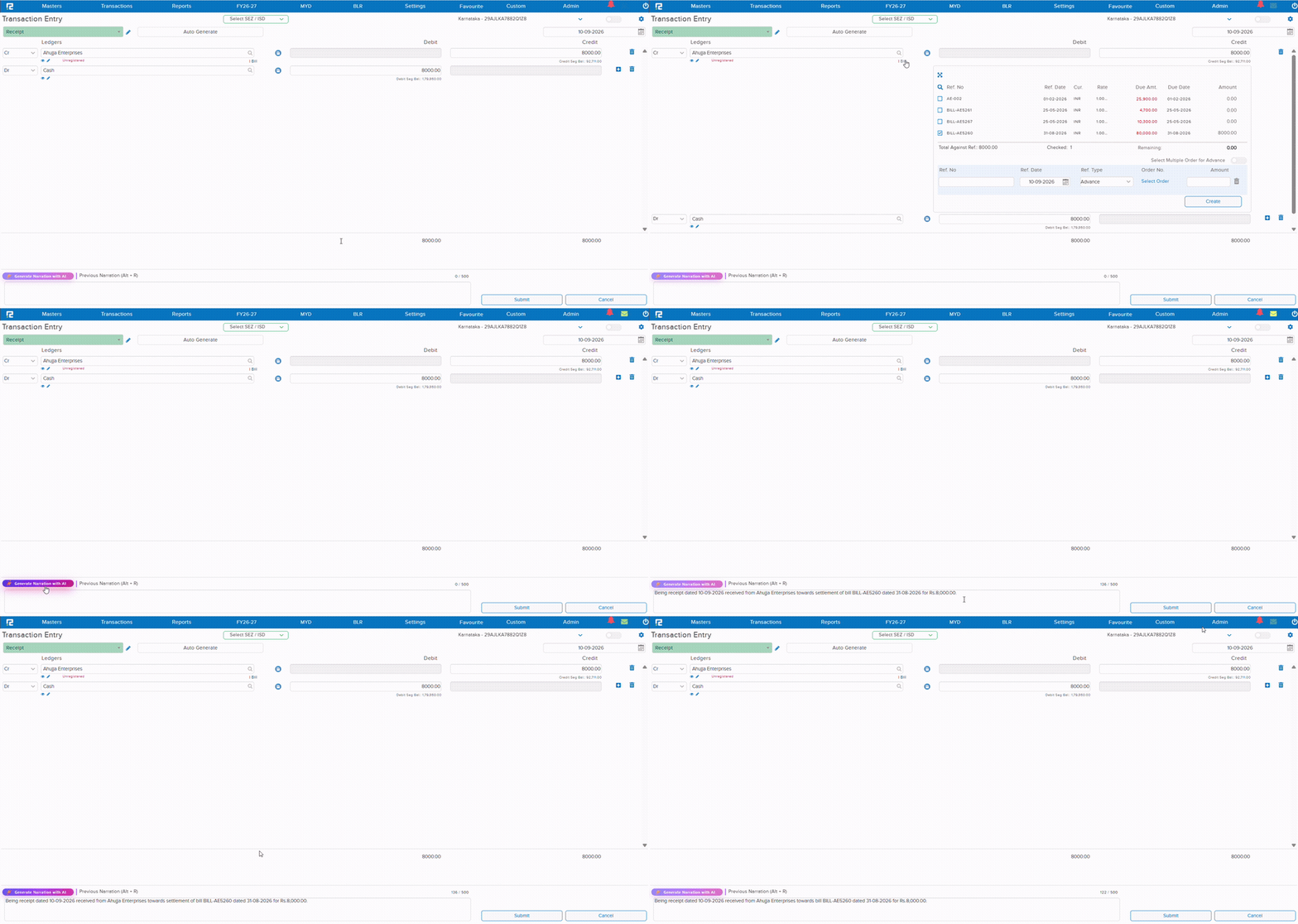
A new “Generate Narration with AI” button is now available right above the Narration box on the Transaction Entry screen. Clicking it instantly composes a clear, correctly worded narration — based on the ledgers, amount, date, and bill reference already entered on the voucher — and fills it directly into the Narration box. The previously typed narration remains accessible via Previous Narration (Alt + R) alongside it, so nothing entered manually is lost.
Currently available only while creating accounting transactions — not yet supported when editing an existing entry.
🎬 Where to Find It
📷 See It in Action
📌 What Was Needed
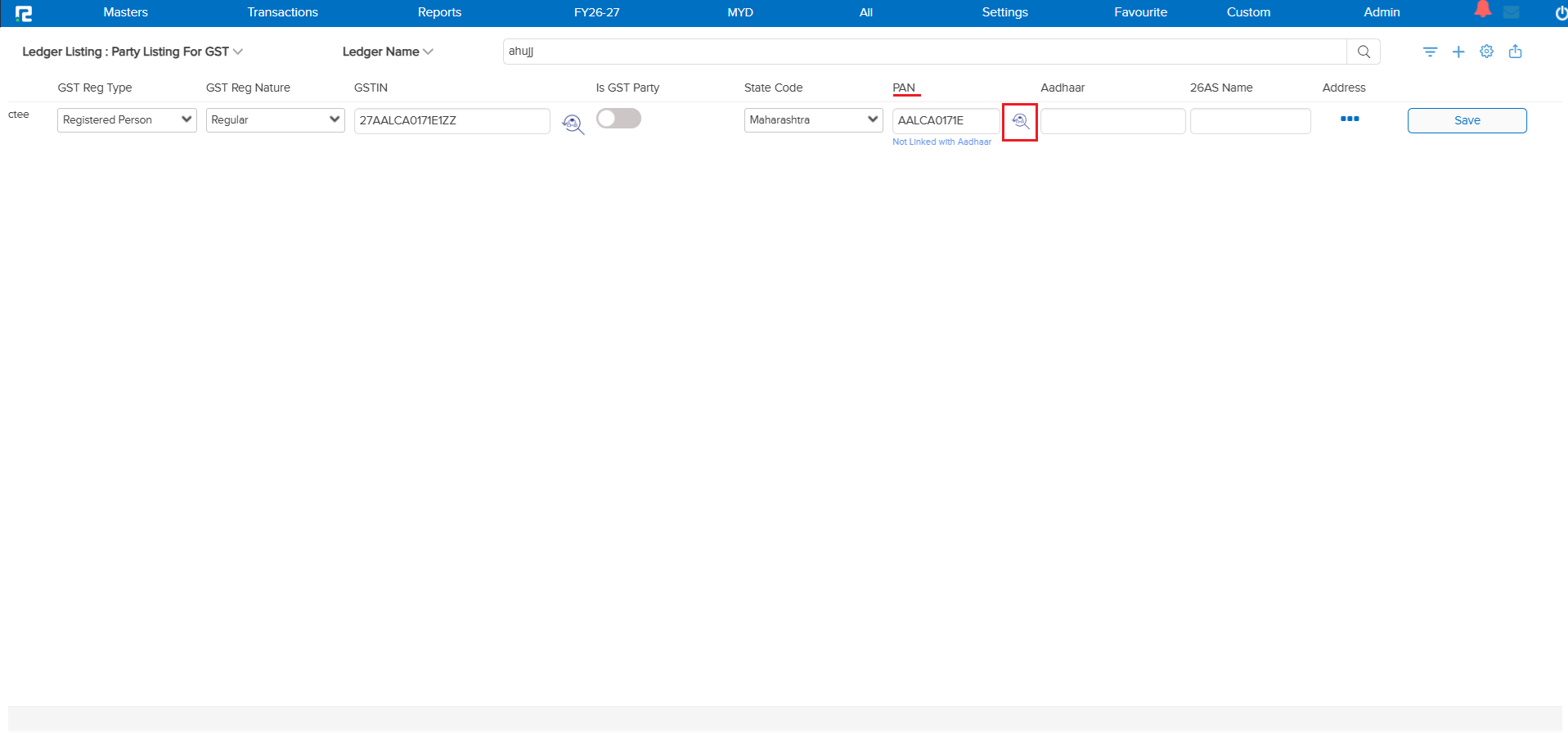
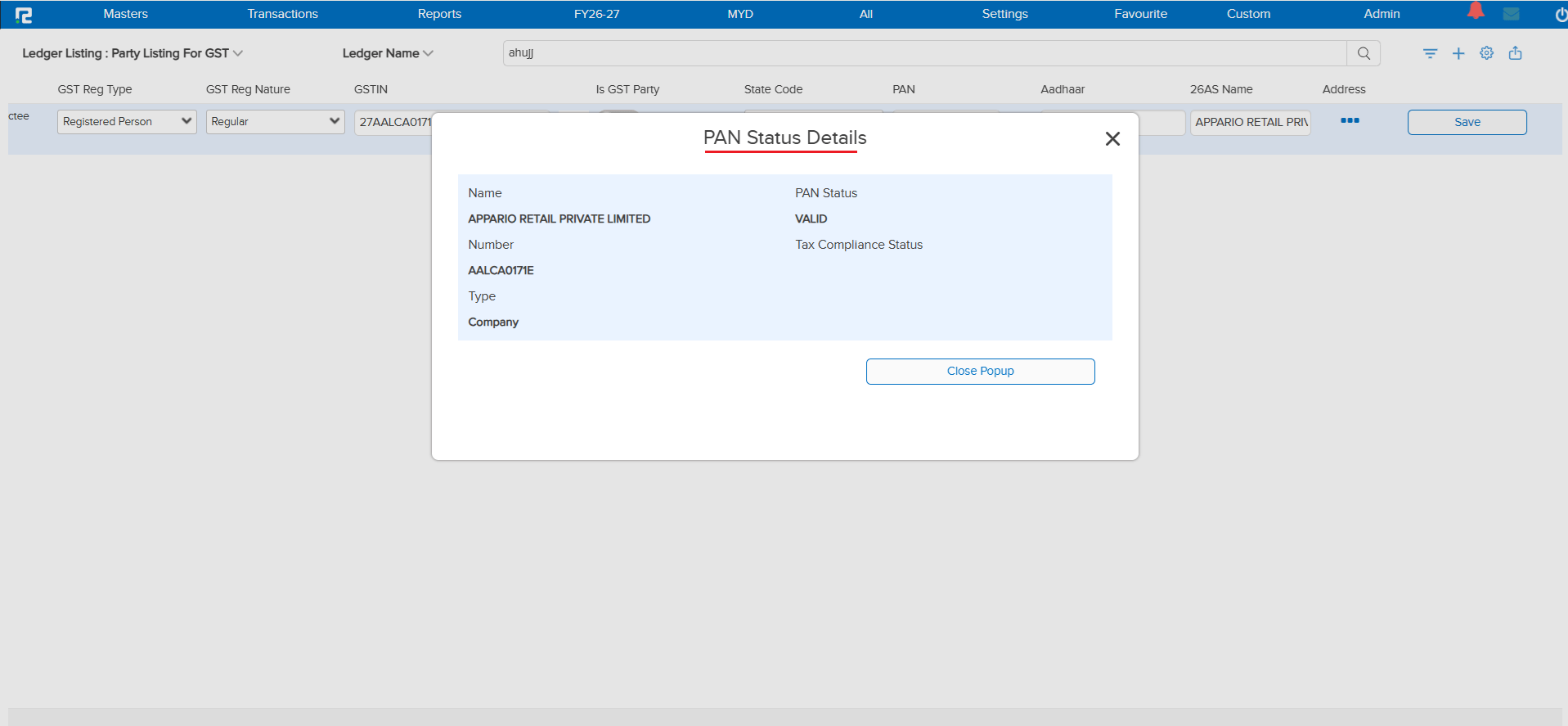
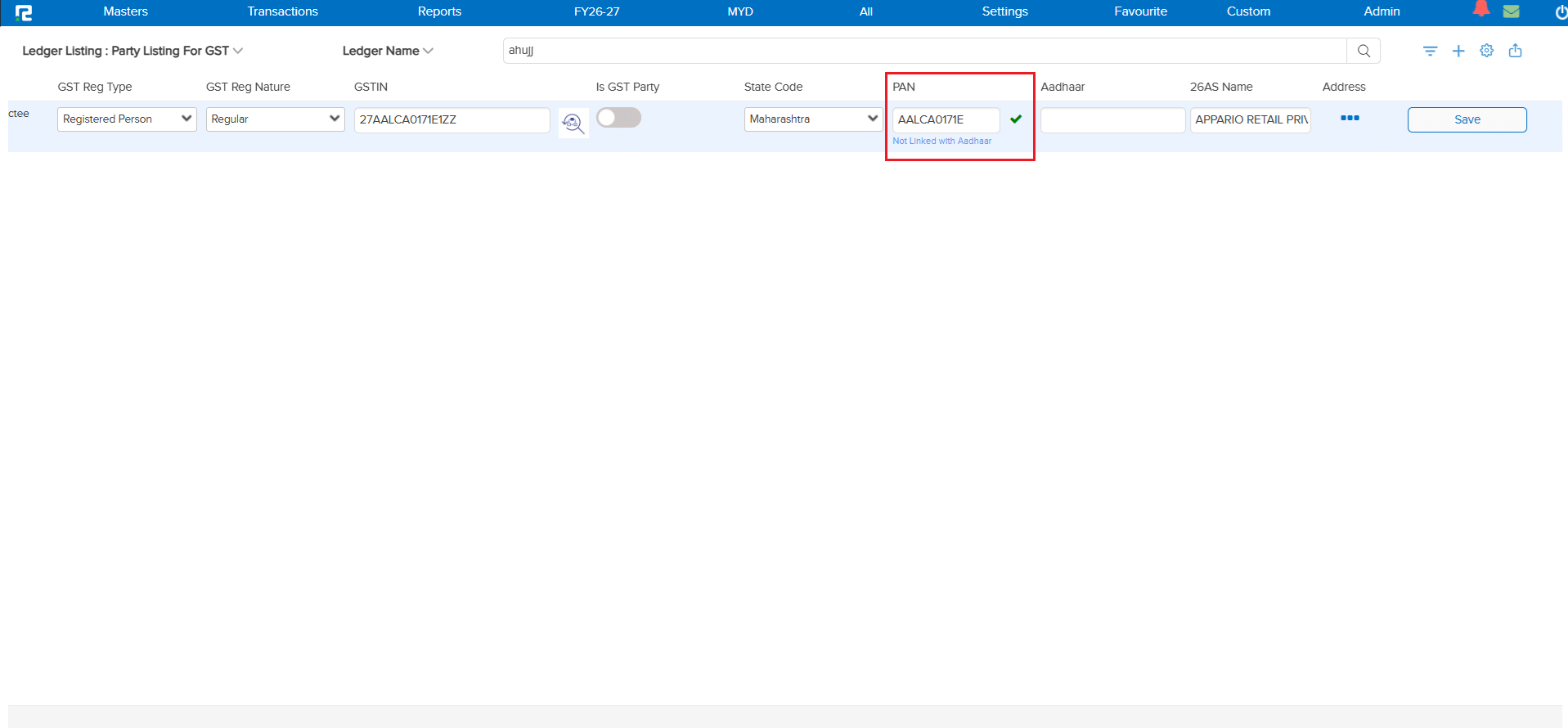
On the Partial Ledger Master Edit screen (Ledger Listing: Party Listing For GST), the PAN Verify feature — already available on the full Ledger Master — was not available, so a party’s PAN could not be validated directly from this quicker, grid-based edit view.
🌟 What This Means for You
A PAN Verify icon is now available next to the PAN field on the Partial Ledger Master Edit screen. Clicking it opens a PAN Status Details popup showing the Name, PAN Number, Type, PAN Status (e.g. Valid), and Tax Compliance Status. Once verified, the PAN field shows a confirmation checkmark and the 26AS Name is auto-filled from the verification response.
🎬 Where to Find It
📷 See It in Action
📌 What Was Needed
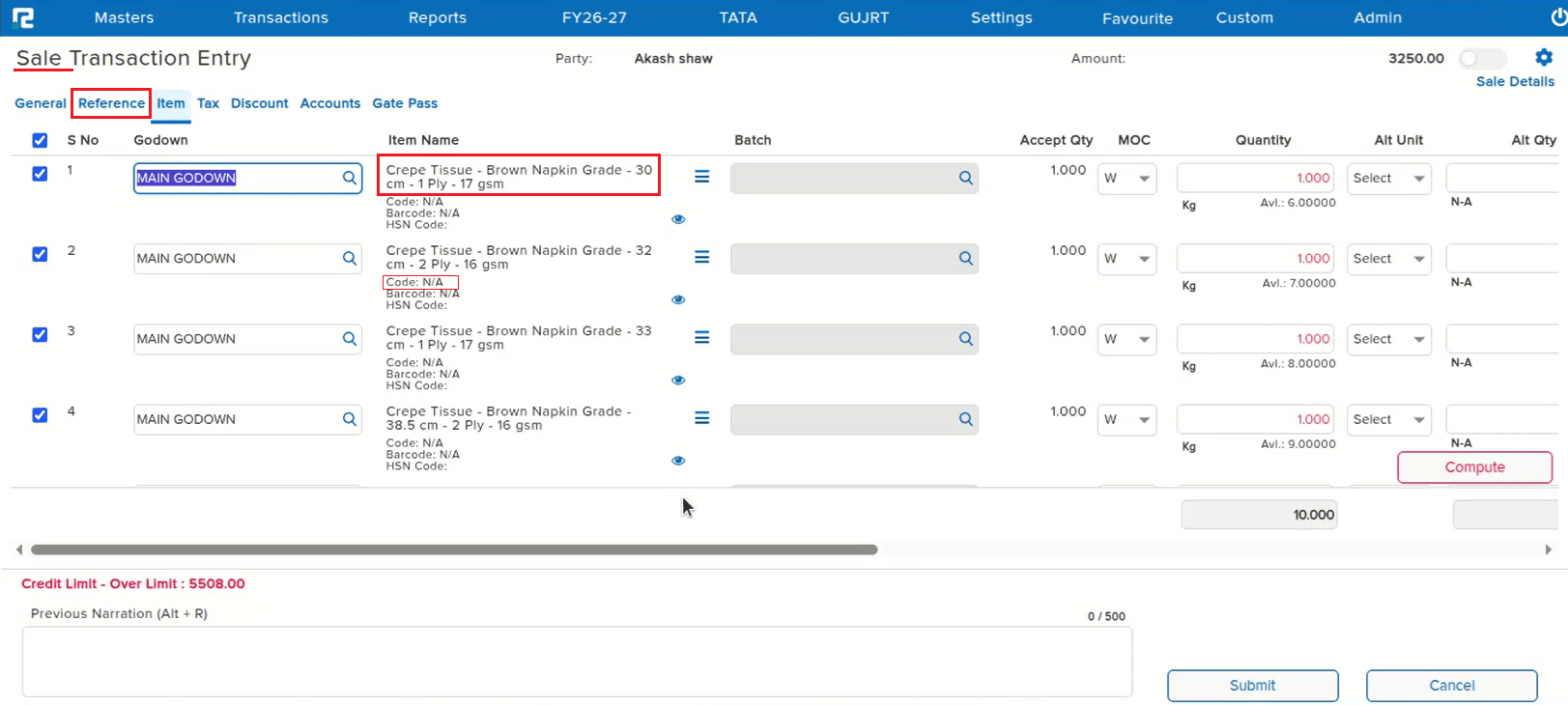
On the Sale Transaction Entry screen’s Item grid, three usability issues made it hard to pick the right item, especially when a Sale Order was chained into the Sale (where selecting the reference auto-loads all the SO’s items, and the user must then pick only the specific items needed — e.g. 3 out of 10):
• A long Item Name was cut off with an ellipsis at the end instead of wrapping, hiding the distinguishing words (e.g. size/grade) that often appear at the end of similar item names.
• Searching for an item with Ctrl+F using those hidden end-words correctly reported “1 result found”, but did not highlight the matching row, leaving the user unsure which row to select.
• In a chained Sale (from SO), only the HSN Code was shown below the Item Name — the Item Code was missing, even though both appear in a normal Sale entry without chaining.
🌟 What This Means for You
All three are now fixed on the Sale Transaction Entry Item grid: long Item Names now wrap onto multiple lines instead of being truncated with an ellipsis; a Ctrl+F search that finds a match now correctly highlights the matching row; and in a chained Sale entry (SO → Sale), the Item Code now appears below the Item Name alongside the HSN Code, matching normal Sale entry behaviour.
🎬 Where to Find It
📷 See It in Action
📌 What Was Needed
RealBooks already had an “Auto Close PO” parameter that automatically closes a Purchase Order once the pending quantity falls within a defined tolerance. No equivalent parameter existed for Sale Orders — so SOs with only a minor pending quantity had to be closed manually.
🌟 What This Means for You
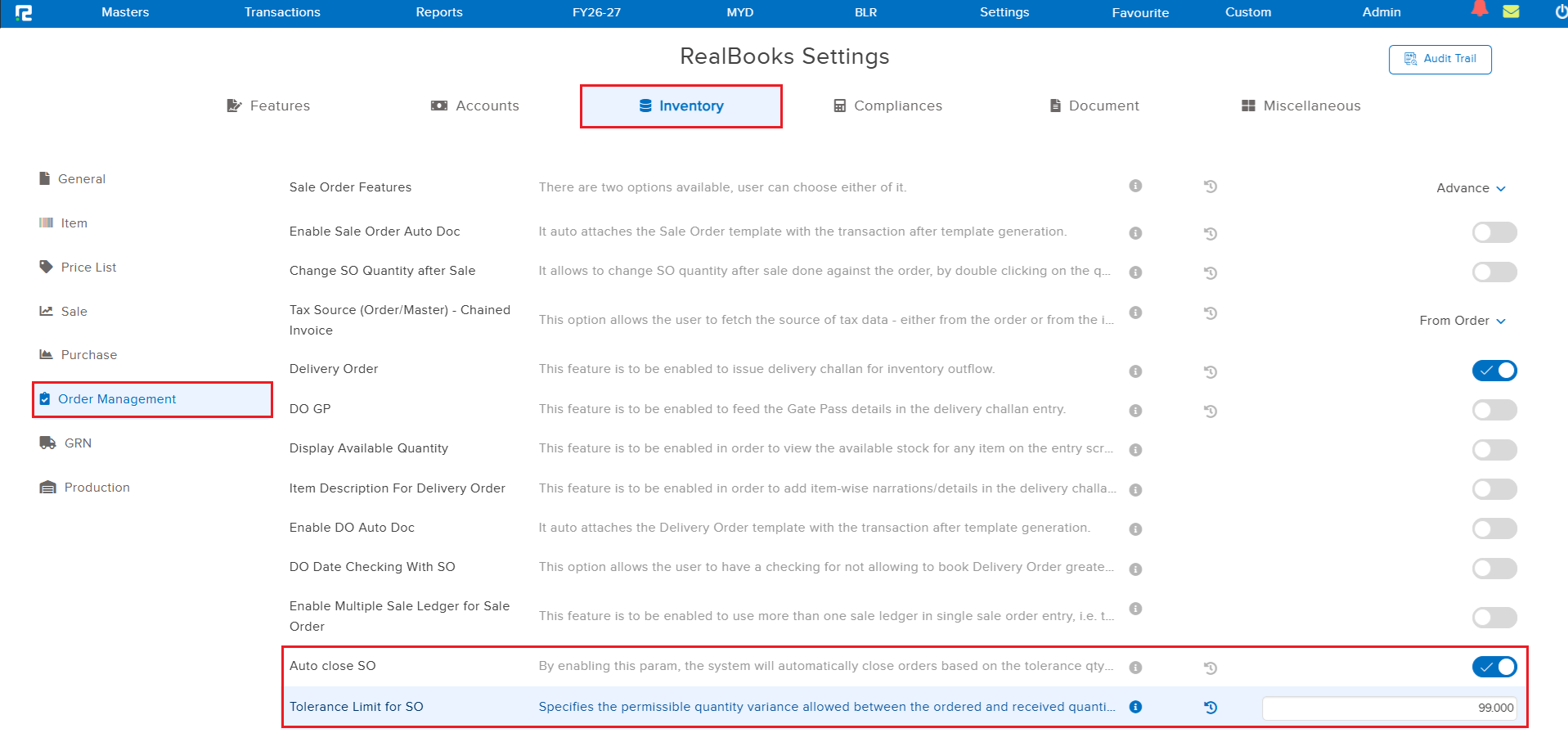
Two new parameters have been added under Settings → Inventory → Order Management, mirroring the existing Auto Close PO setup:
• Auto close SO — when enabled, the system automatically closes Sale Orders based on the defined tolerance quantity, without manual intervention.
• Tolerance Limit for SO — specifies the permissible quantity variance allowed between the ordered and received quantities; when the difference falls within this limit, the Sale Order is auto-closed.
Once configured, eligible Sale Orders are automatically closed by the overnight scheduler based on the tolerance limit — handling minor quantity discrepancies without requiring a manual closure.
🎬 Where to Find It
📷 See It in Action
📌 What Was Needed
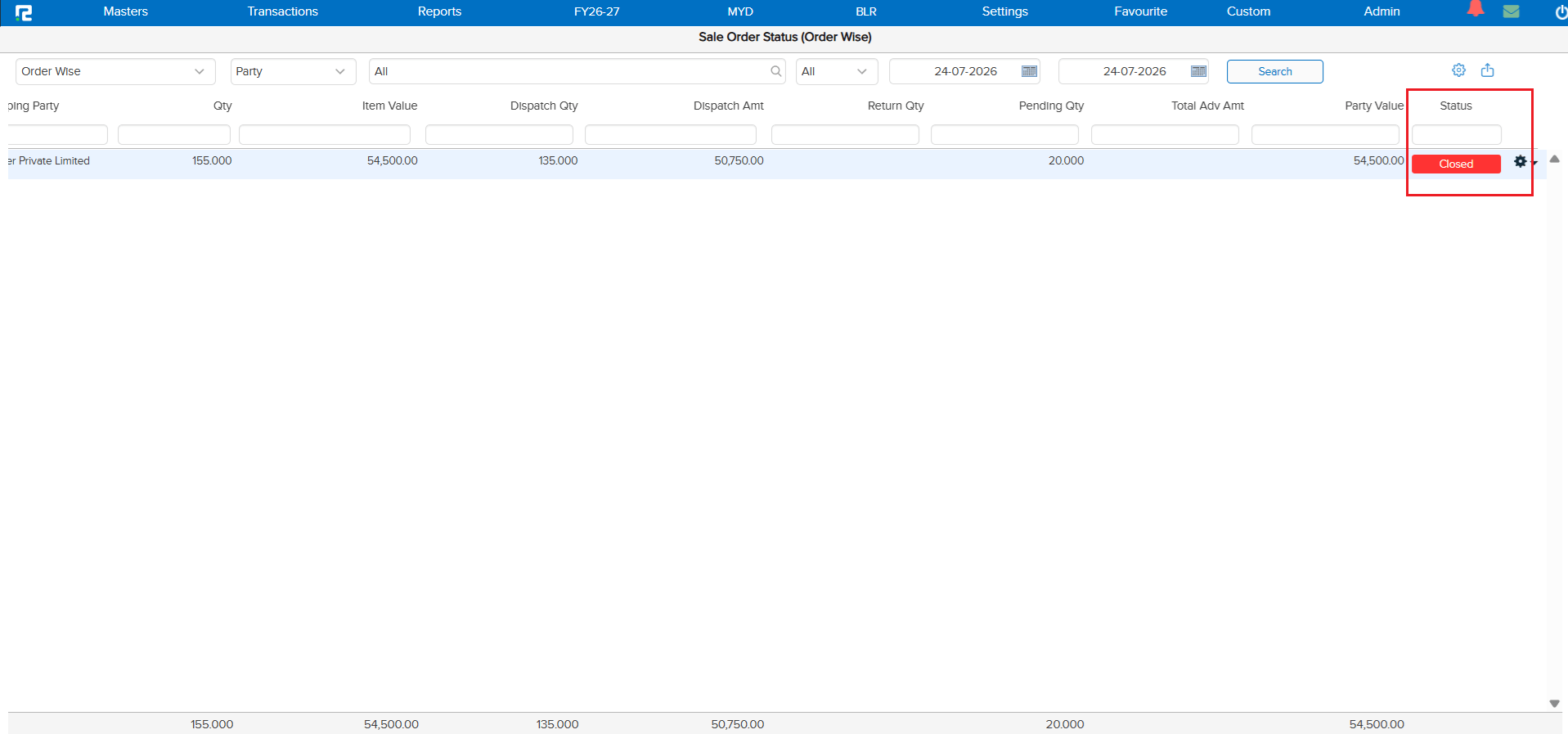
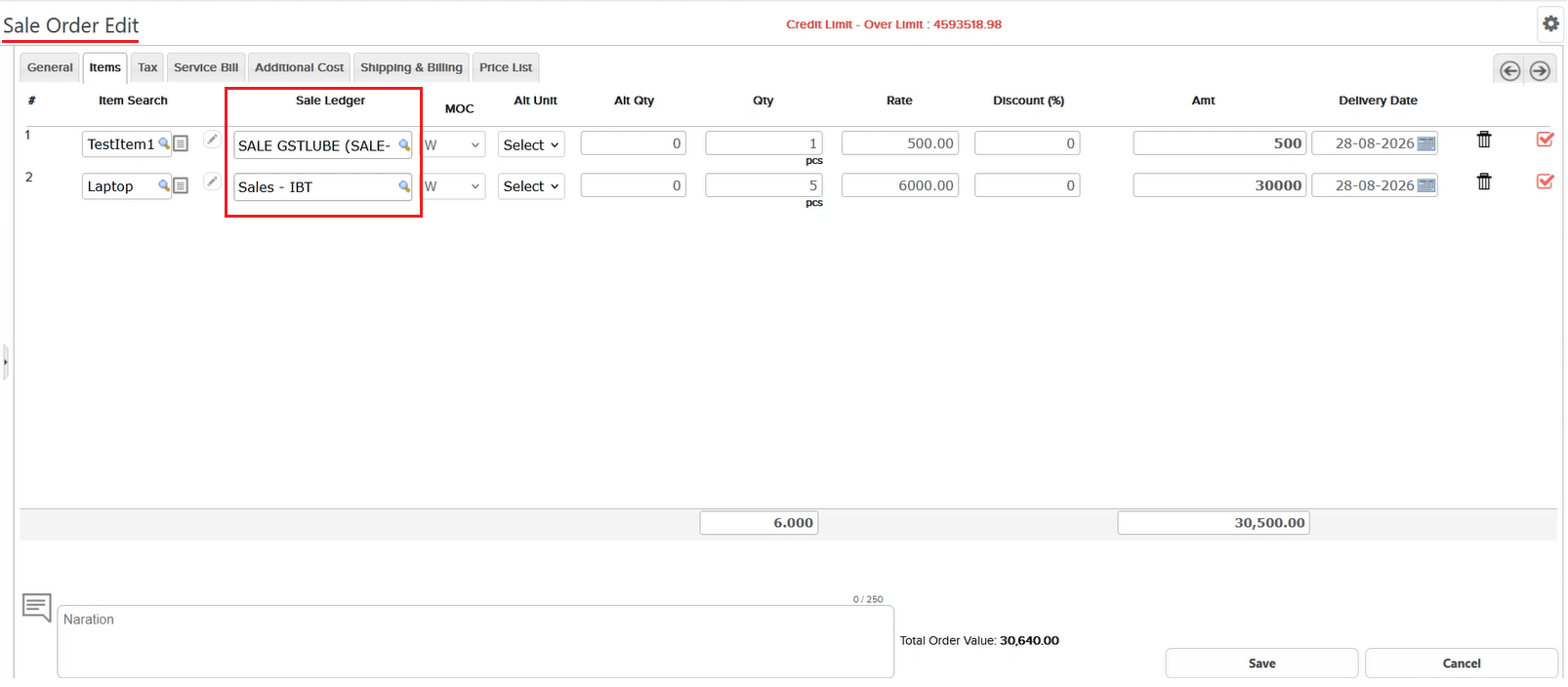
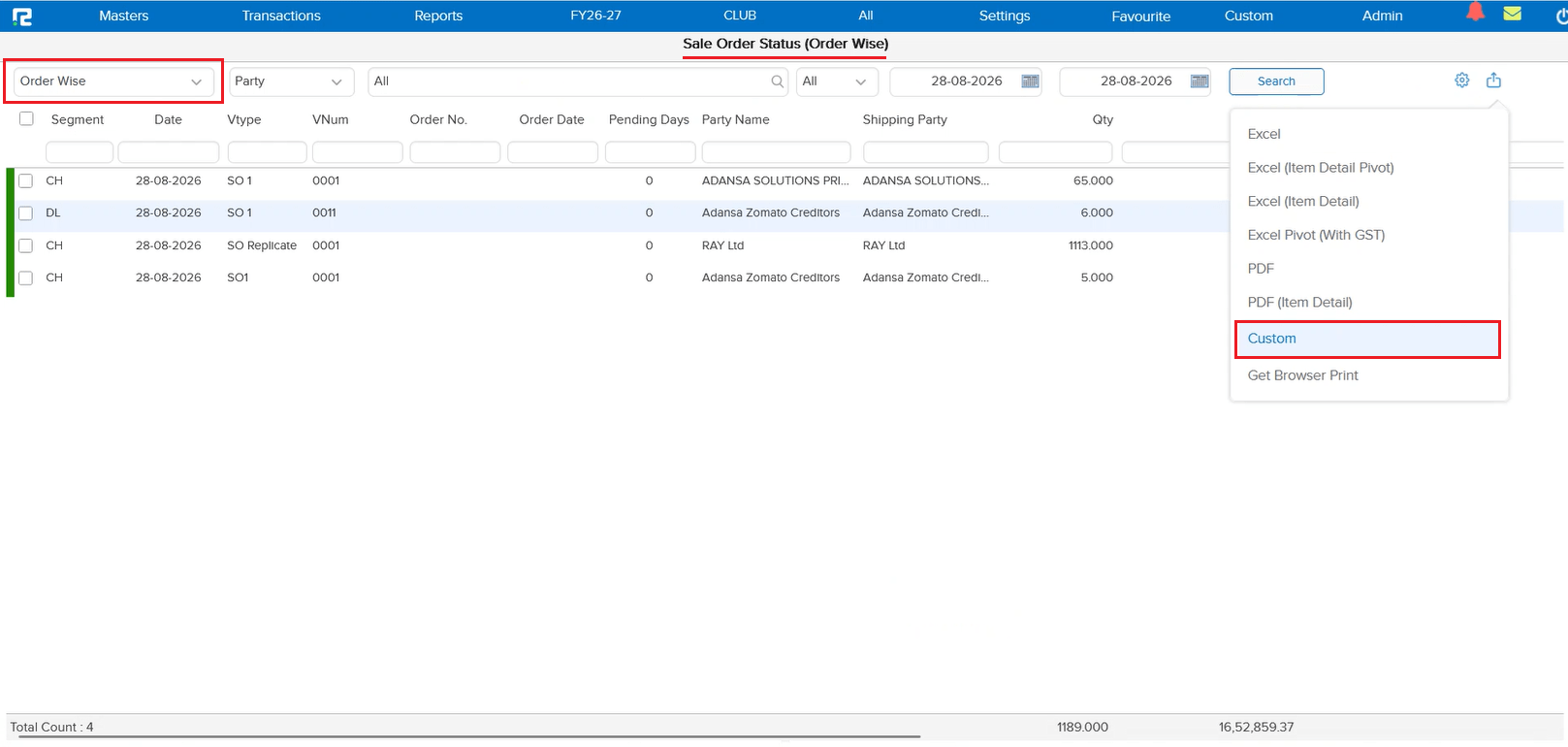
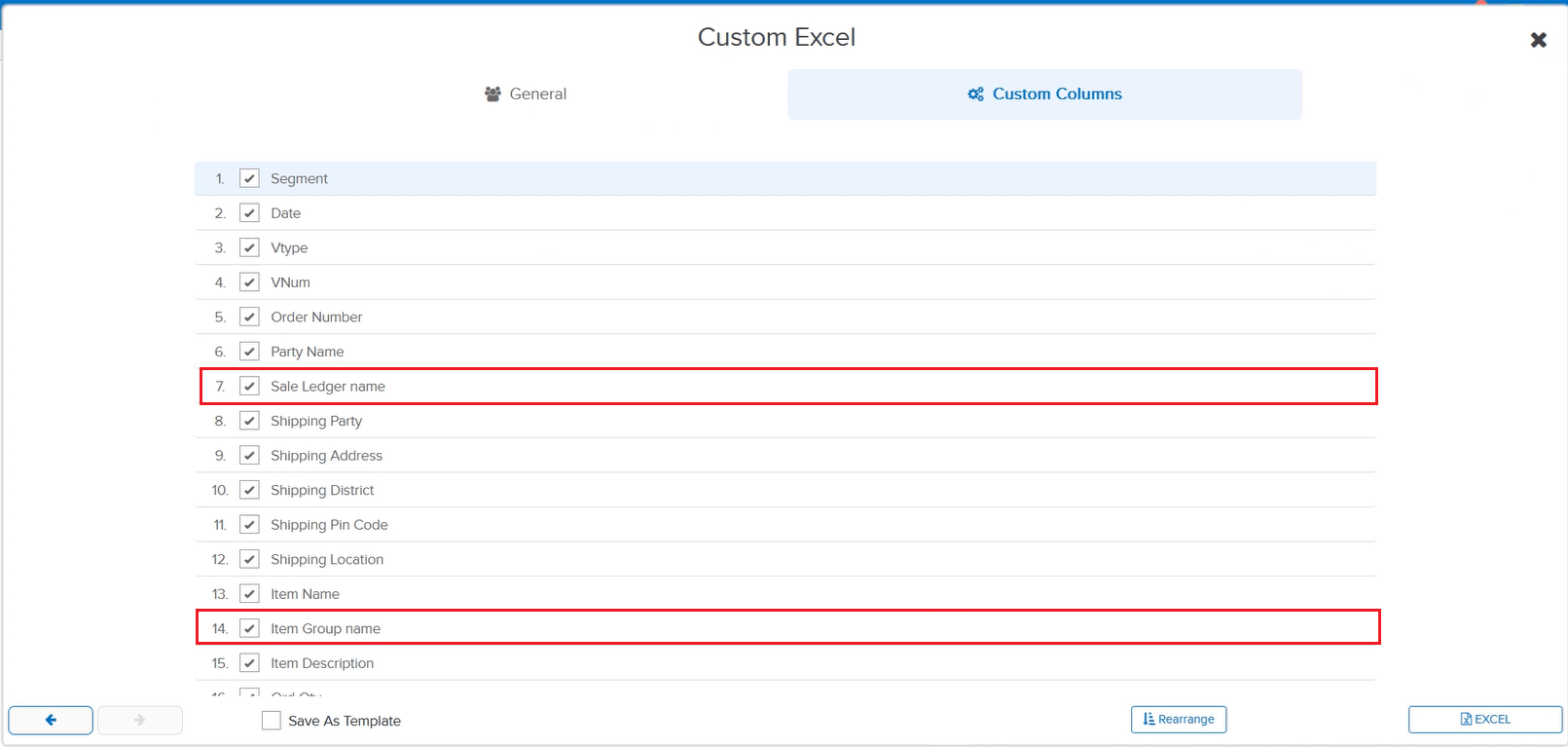
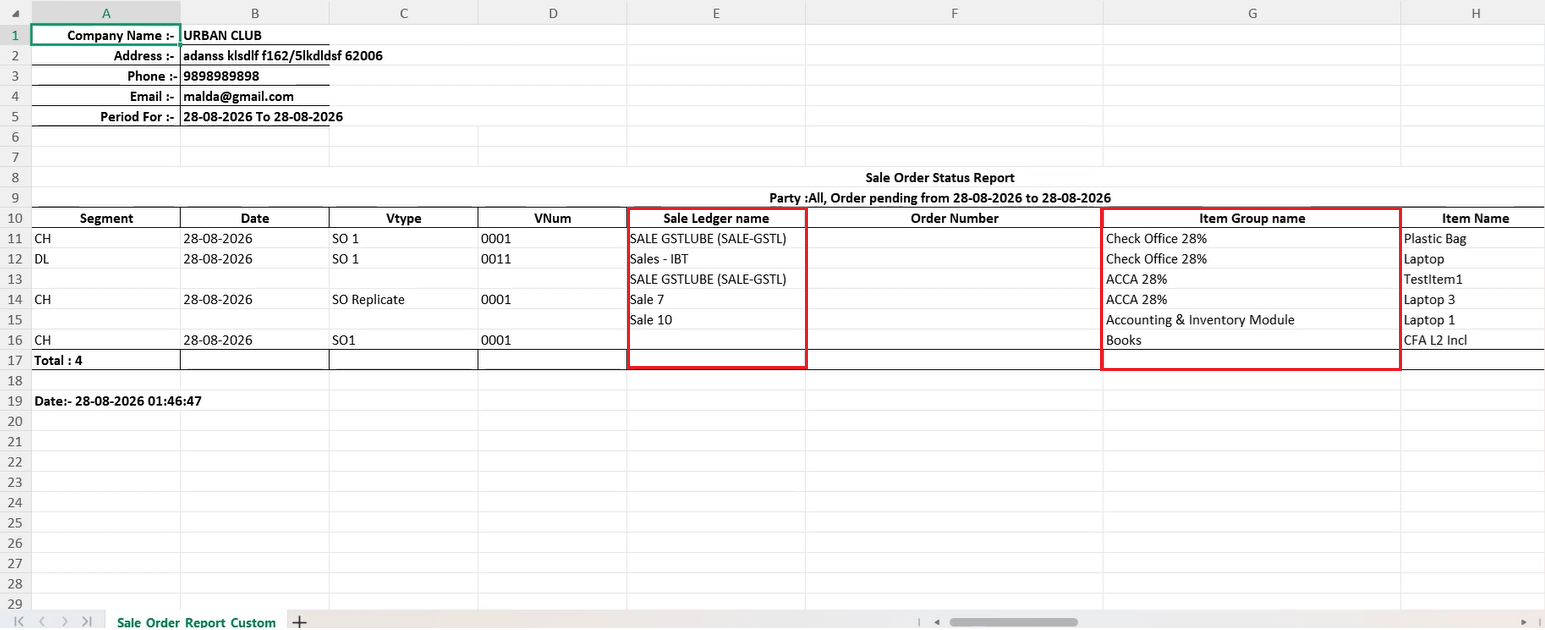
On the Sale Order Status (Order Wise) report’s Custom Excel export, two fields needed by users for item-wise analysis were not available as export columns: the Sale Ledger booked against each item, and the item’s Item Group name.
🌟 What This Means for You
Sale Ledger name and Item Group name are now available as selectable columns in the Custom Excel export dialog for the Sale Order Status report. Once selected, the exported Excel shows the Sale Ledger booked against each item and its Item Group alongside the existing Segment, Date, VNum, and Item Name columns.
🎬 Where to Find It
📷 See It in Action
📌 What Was Happening
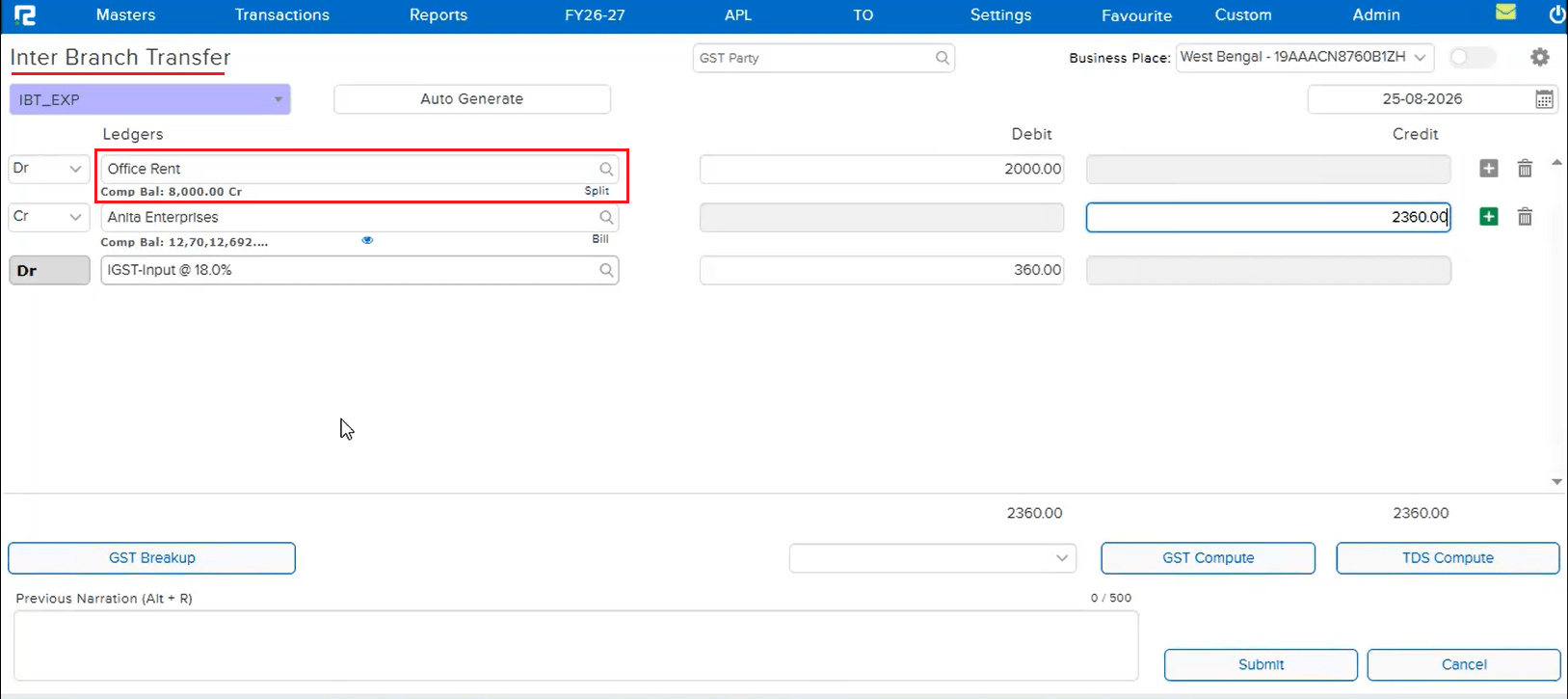
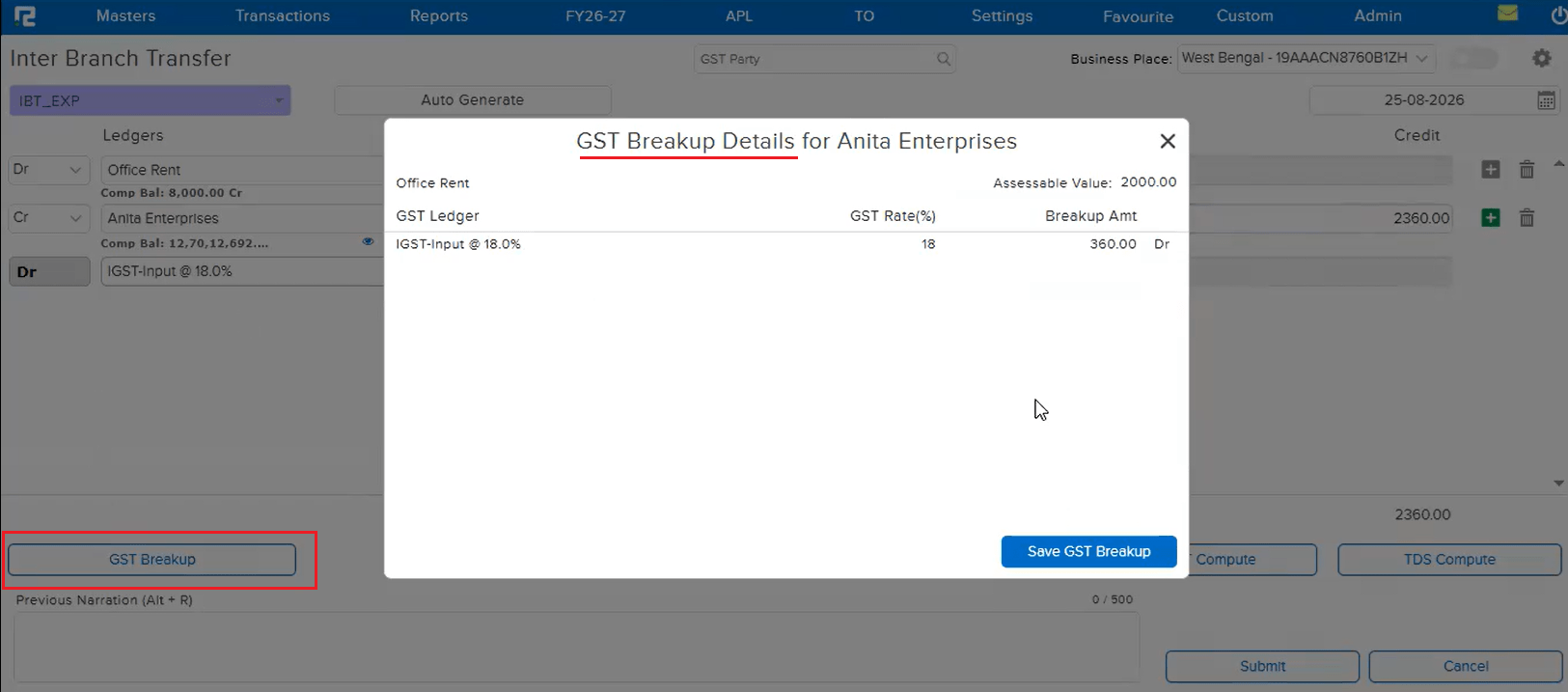
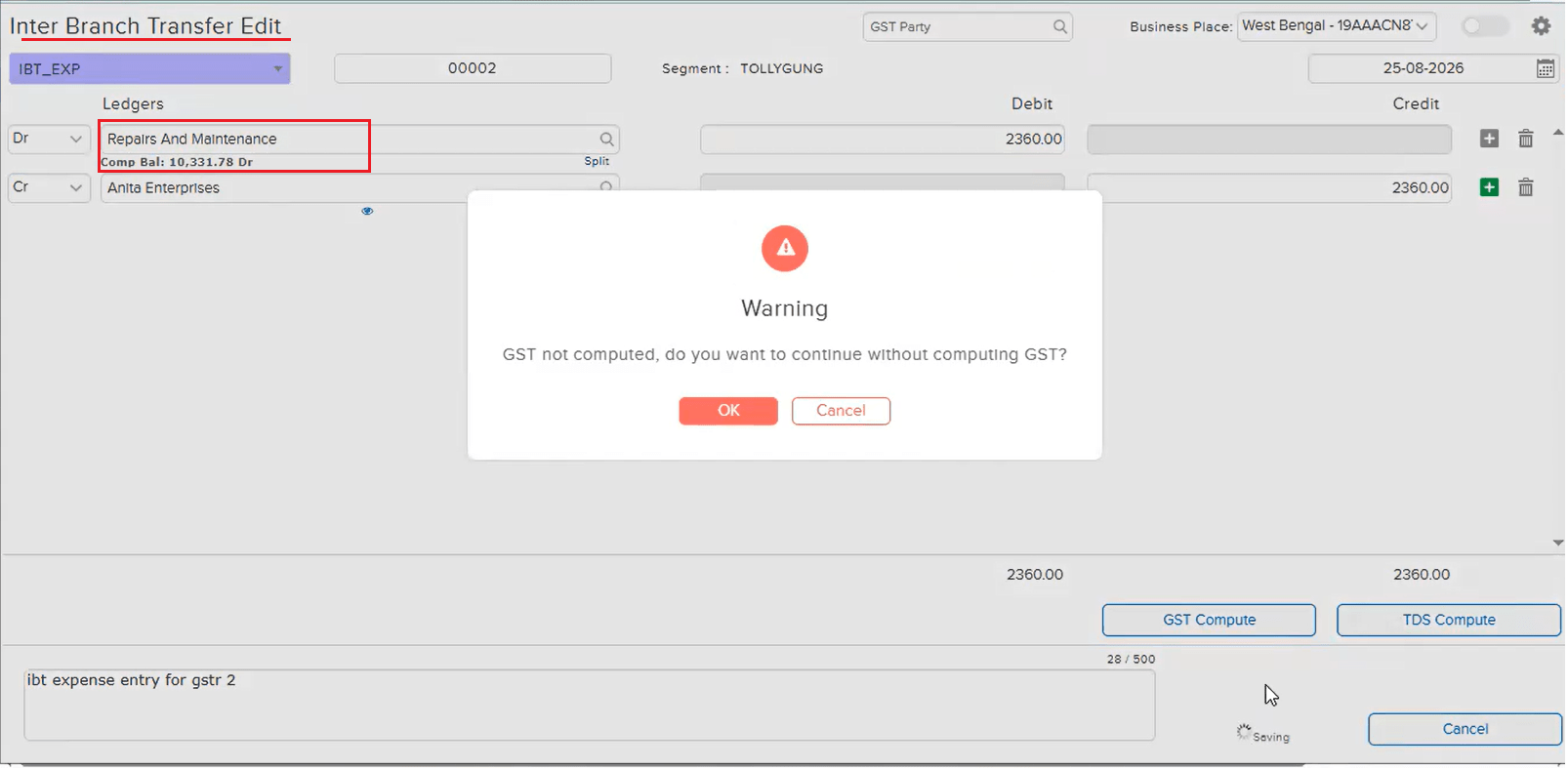
On an IBT_EXP (Inter Branch Transfer — Expense) entry with Auto GST configured, a user created a transaction with the expense ledger “Tea & Coffee Expenses” at 18% GST, and the GST breakup saved correctly. When the entry was later edited and the expense ledger was replaced with “Office Expenses” — a ledger with a different GST rate, or no GST rate at all — the previous GST amount stayed on the transaction unchanged, with no alert shown for the change. This left transactions with incorrect or blank GST details, which then reflected as mismatches in the GSTR-2B report.
🌟 How This Helps You
This is now fixed on the IBT screen — replacing the expense ledger in Edit mode when GST was previously computed now correctly prompts a “GST not computed, do you want to continue without computing GST?” warning on Save, instead of silently carrying over the stale GST. This ensures the GST Breakup is recomputed (or intentionally skipped) for the new ledger, keeping the GSTR-2B report accurate.
🎬 Where to Find It
📷 See It in Action
📌 What Was Happening
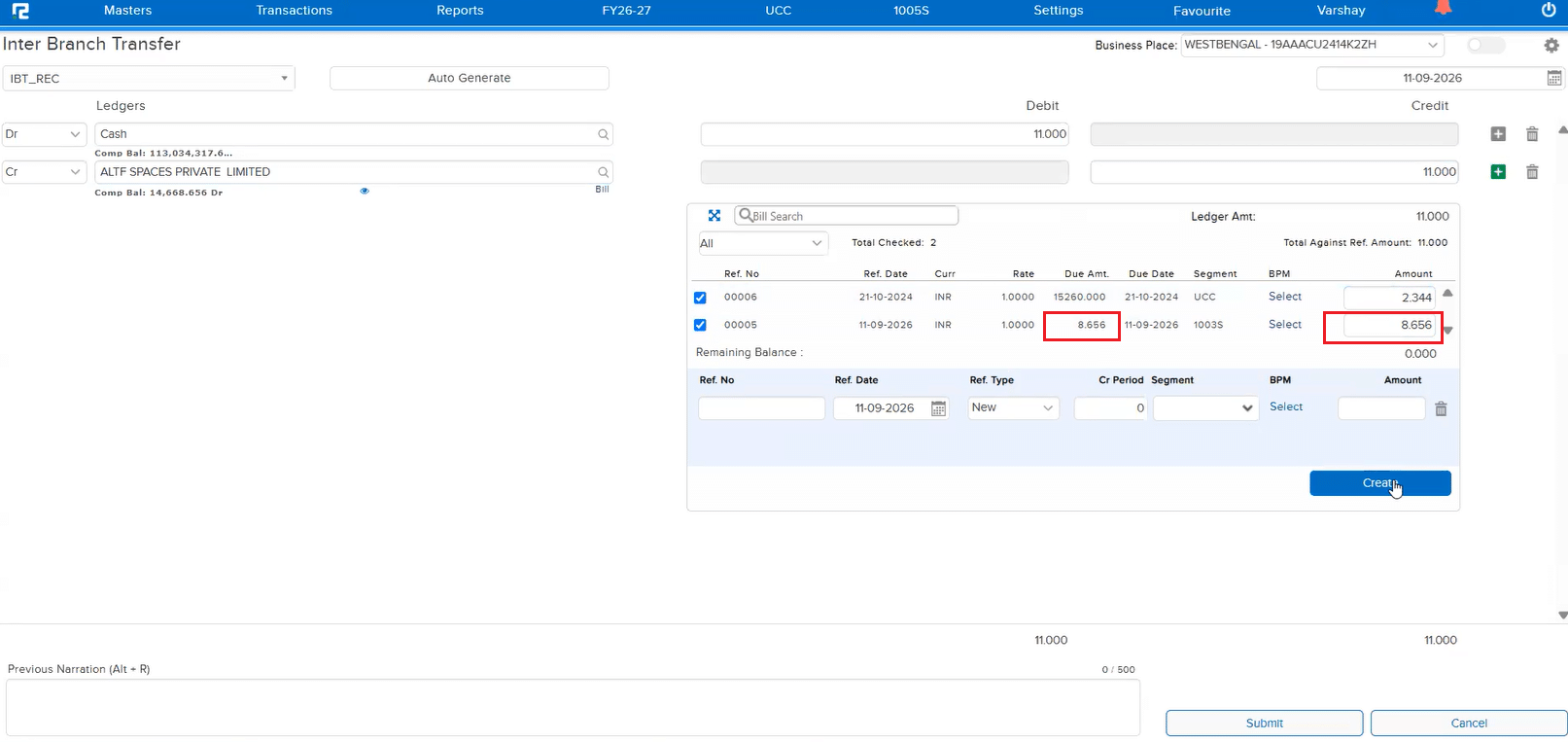
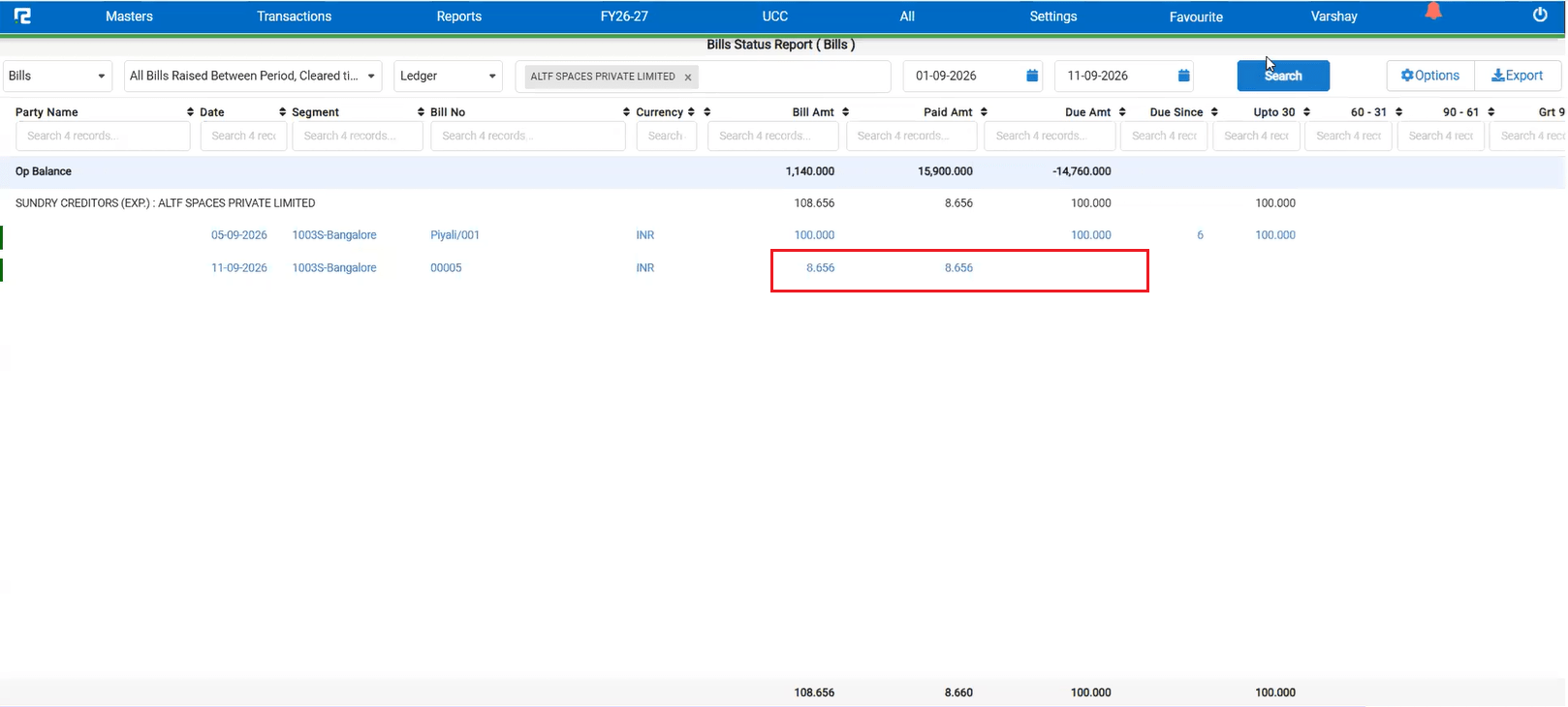
For a client with Decimal Place for Amount set to 3, a Sale was booked with a value carrying 3 decimal places. When this bill was later referenced and knocked off through an Inter Branch Transfer (IBT) entry, the amount was incorrectly fixed/rounded to 2 decimal places instead of retaining all 3 — as a result, the bill amount could not be fully knocked off, leaving a small residual balance due purely to the rounding.
🌟 How This Helps You
This is now fixed — an IBT entry against a bill now correctly honours the configured 3-decimal amount precision instead of truncating it to 2 decimals, so the bill amount knocks off completely with no leftover balance caused by rounding.
🎬 Where to Find It
📷 See It in Action
📌 What Was Happening
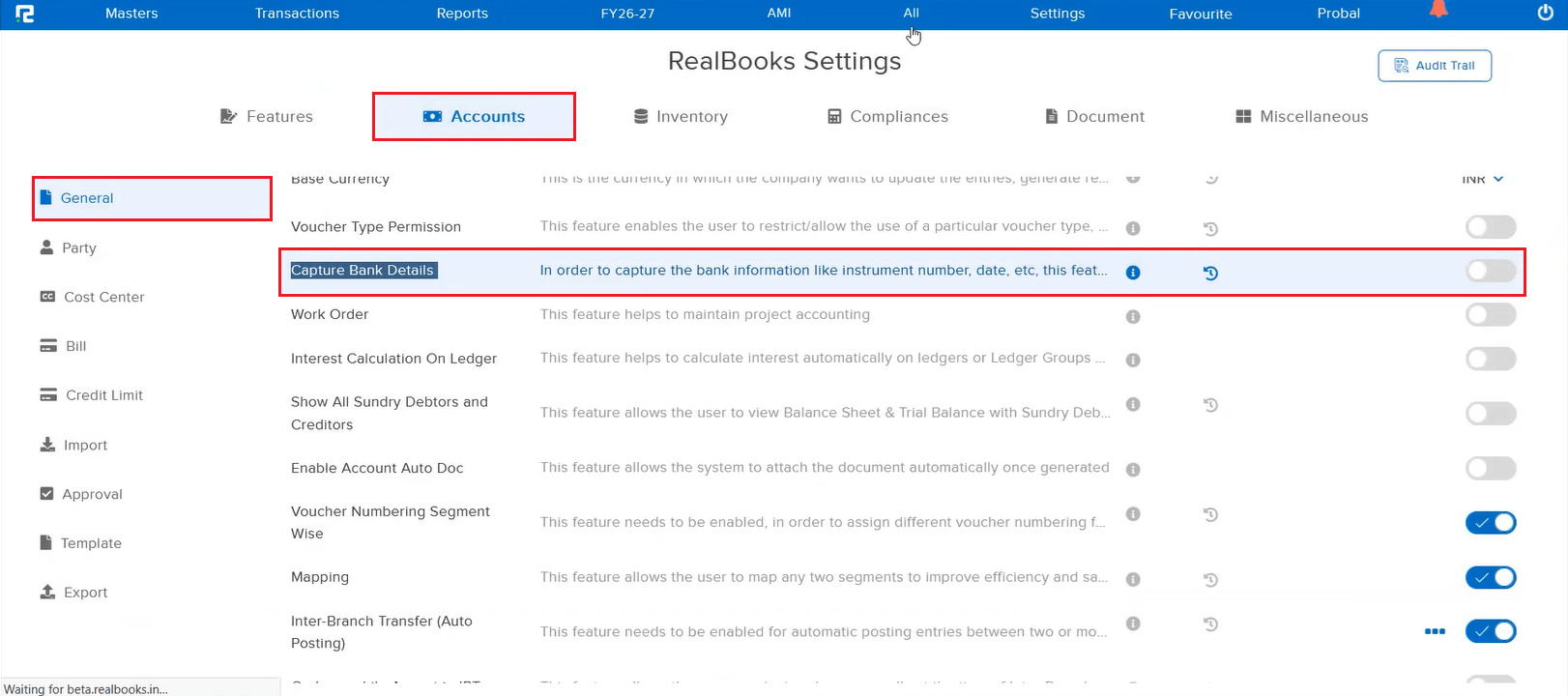
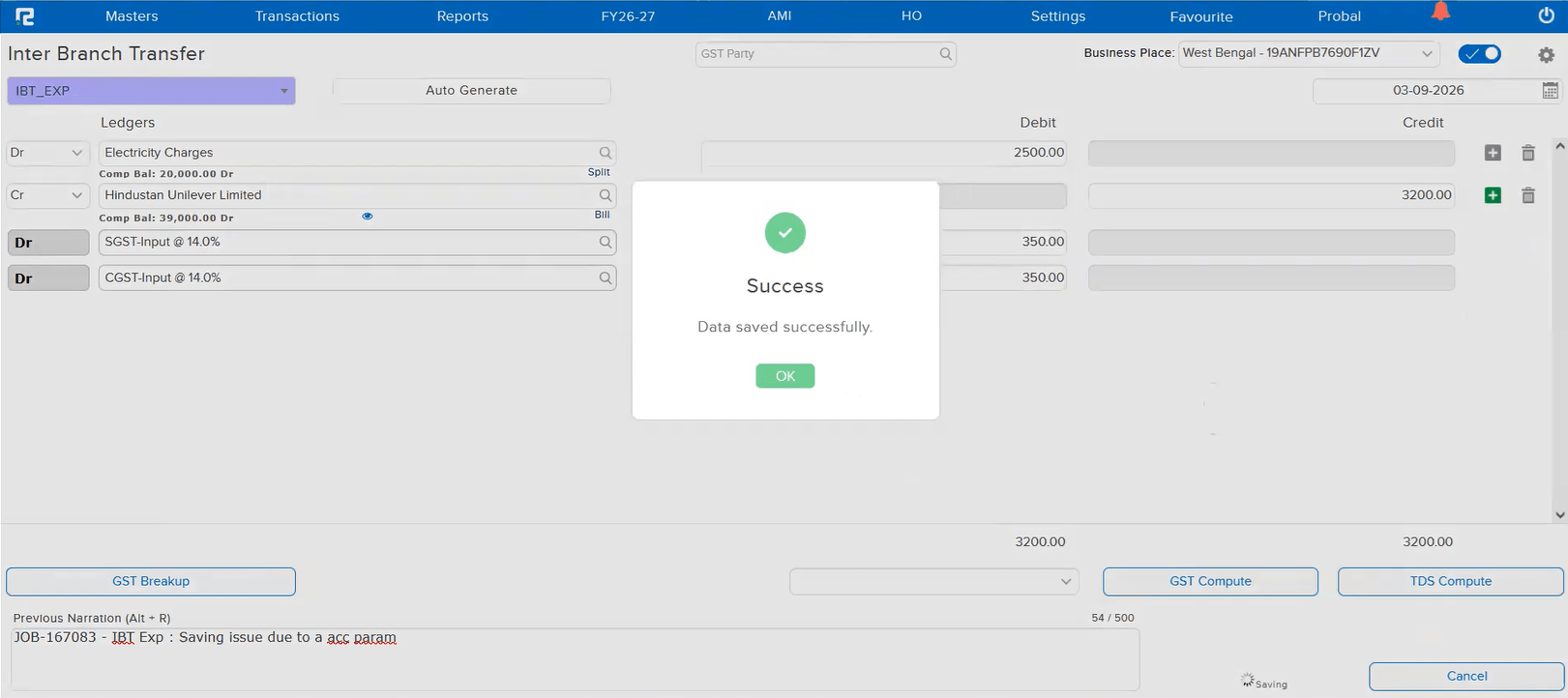
For any company where the “Capture Bank Details” account parameter was disabled, attempting to save an IBT_EXP (Inter Branch Transfer — Expense) entry incorrectly failed with a “Data not saved” error, and the entry was not saved — even though the entry itself had nothing to do with bank details.
🌟 How This Helps You
This is now fixed — an IBT_EXP entry now saves successfully regardless of whether the “Capture Bank Details” parameter is enabled or disabled for the company.
🎬 Where to Find It
📷 See It in Action