Beta Release — 27-03-2026
📌 What Was Happening
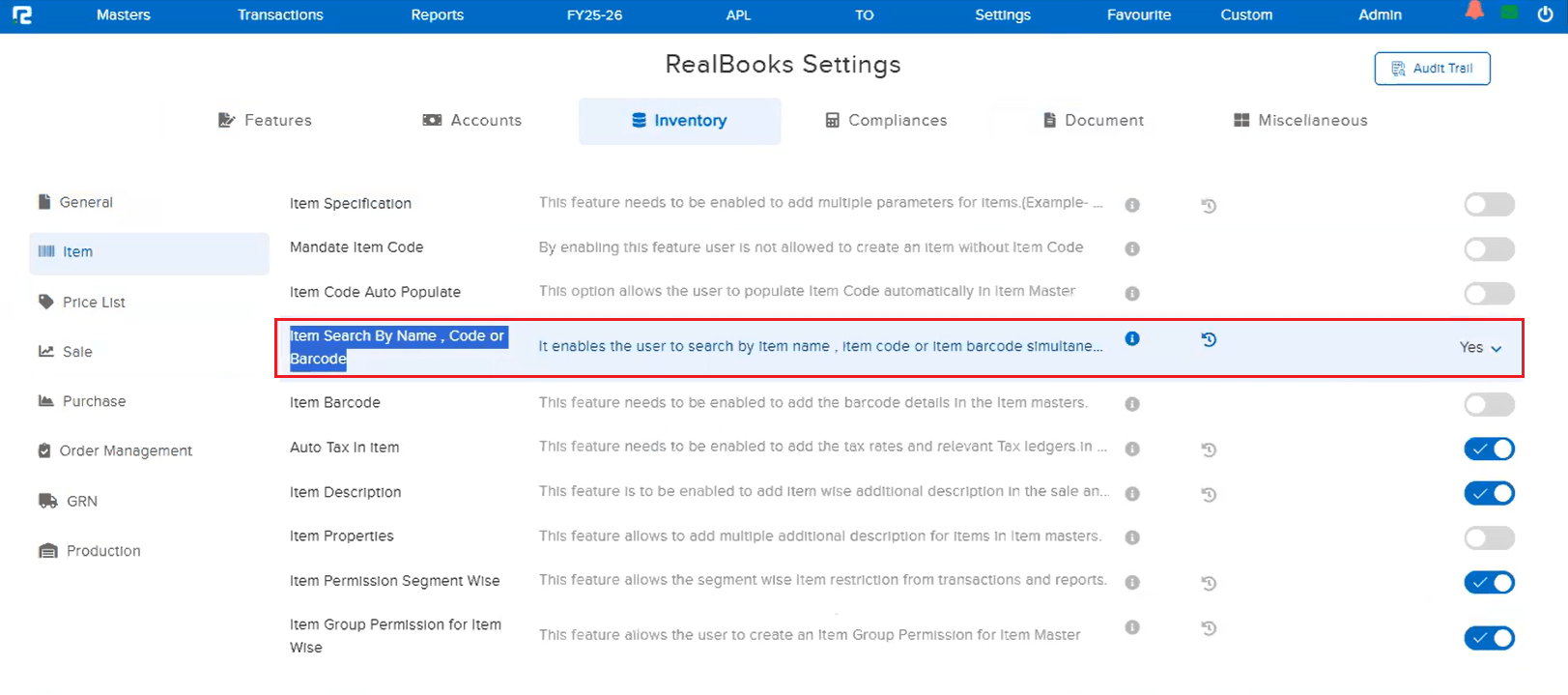
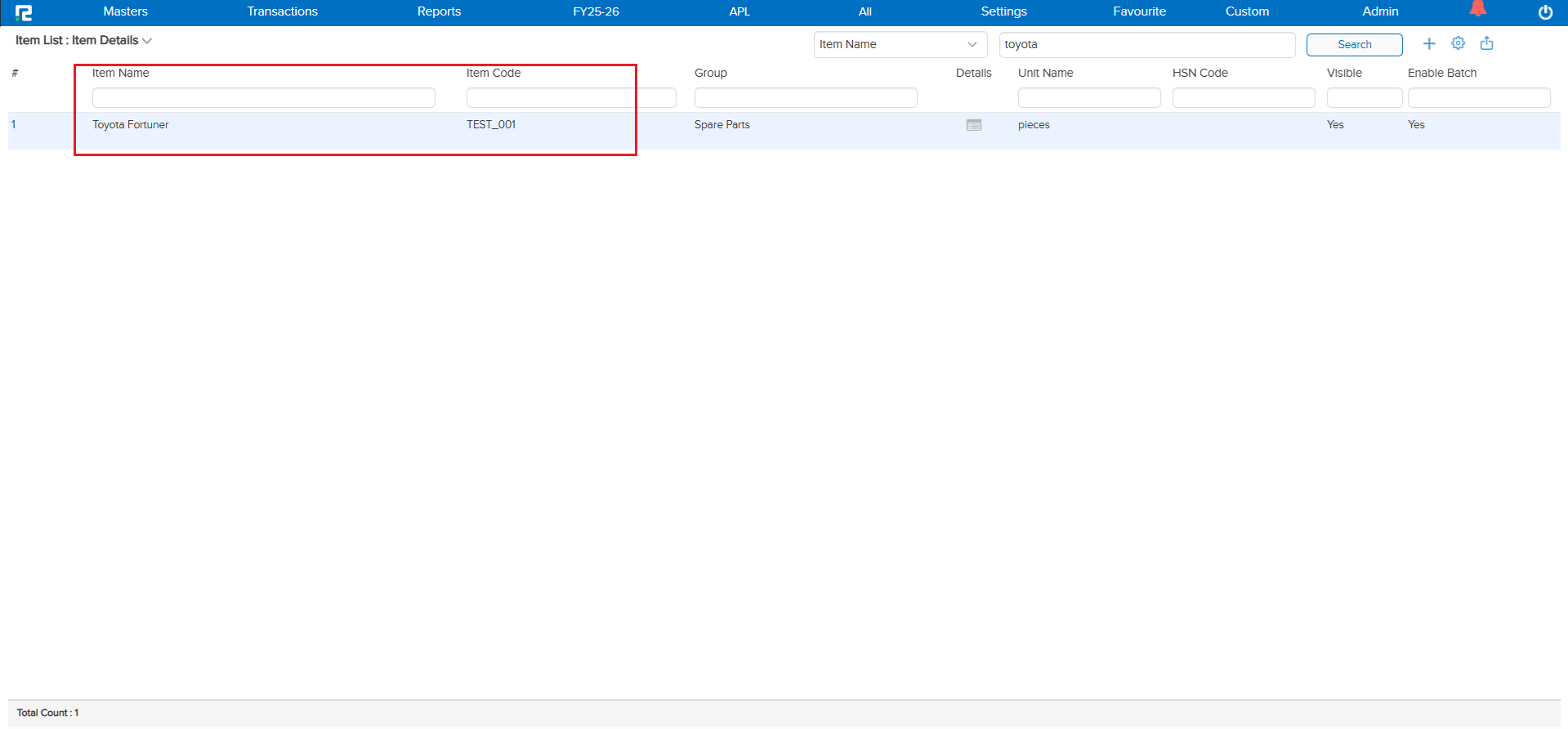
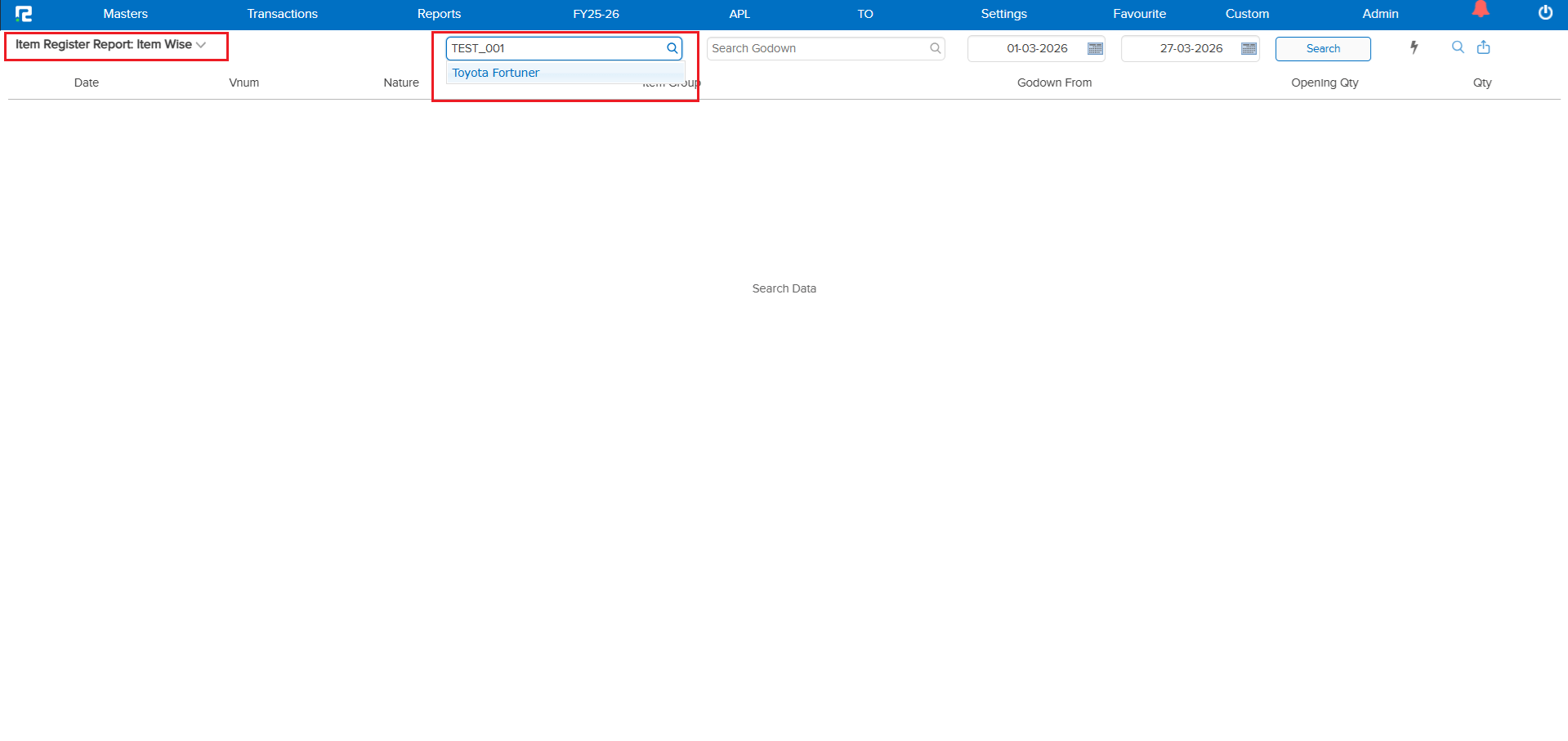
The Simultaneous Search setting for item name or code was already available and enabled in the Settings menu. However, this functionality was not working in the Item Register report — primarily because it had not been developed for that module. Users could only search by one field at a time, making it harder to locate items quickly.
🌟 What This Means for You
The simultaneous search option now works in the Item Register as intended. You can search by either Item Name or Item Code in a single search field, making it much faster and more convenient to find the item you need without switching between filters.
🎬 Where to Find It
1. Open the Item Register report.
2. Use the search field to search by Item Name or Item Code — both work simultaneously.
3. The setting can be managed from Settings menu.
📷 See It in Action
📌 What Was Happening
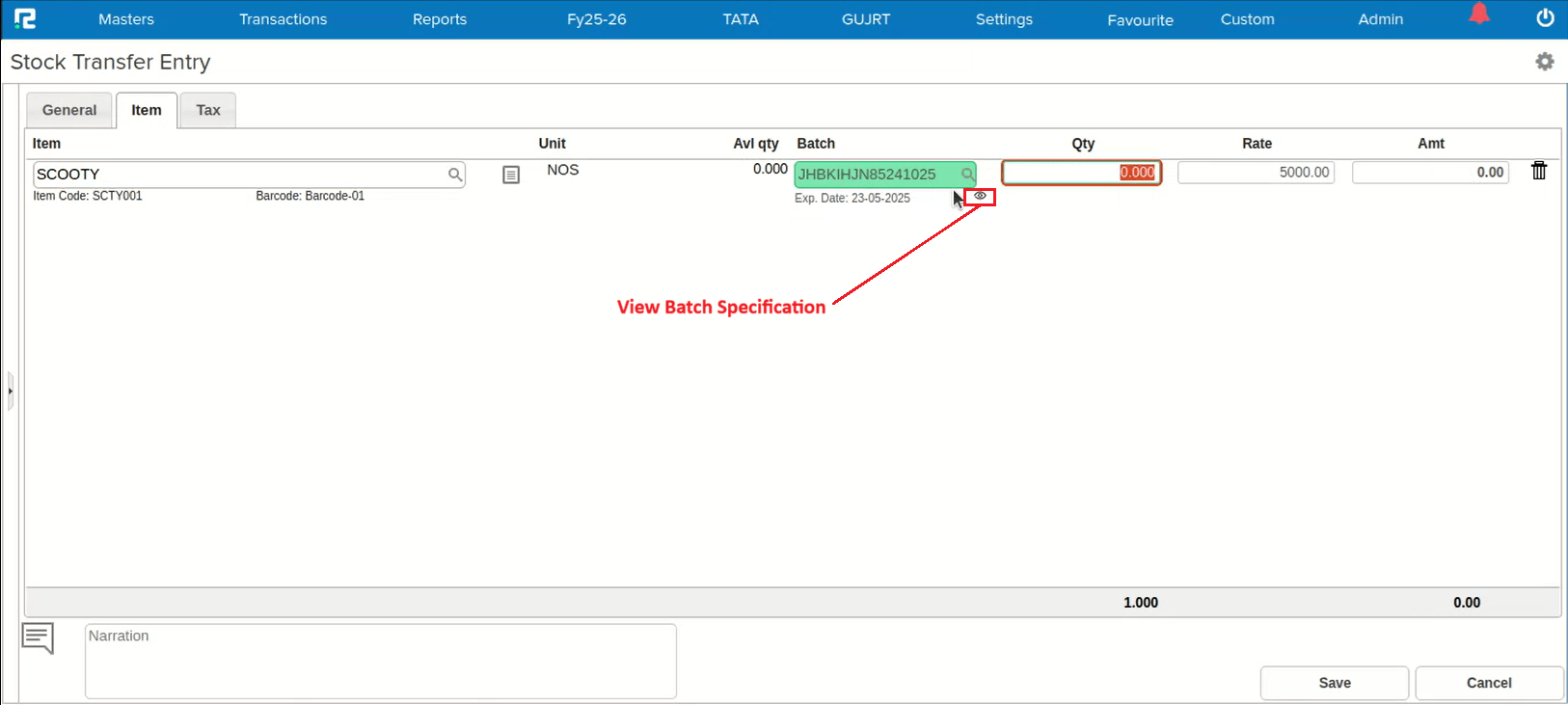
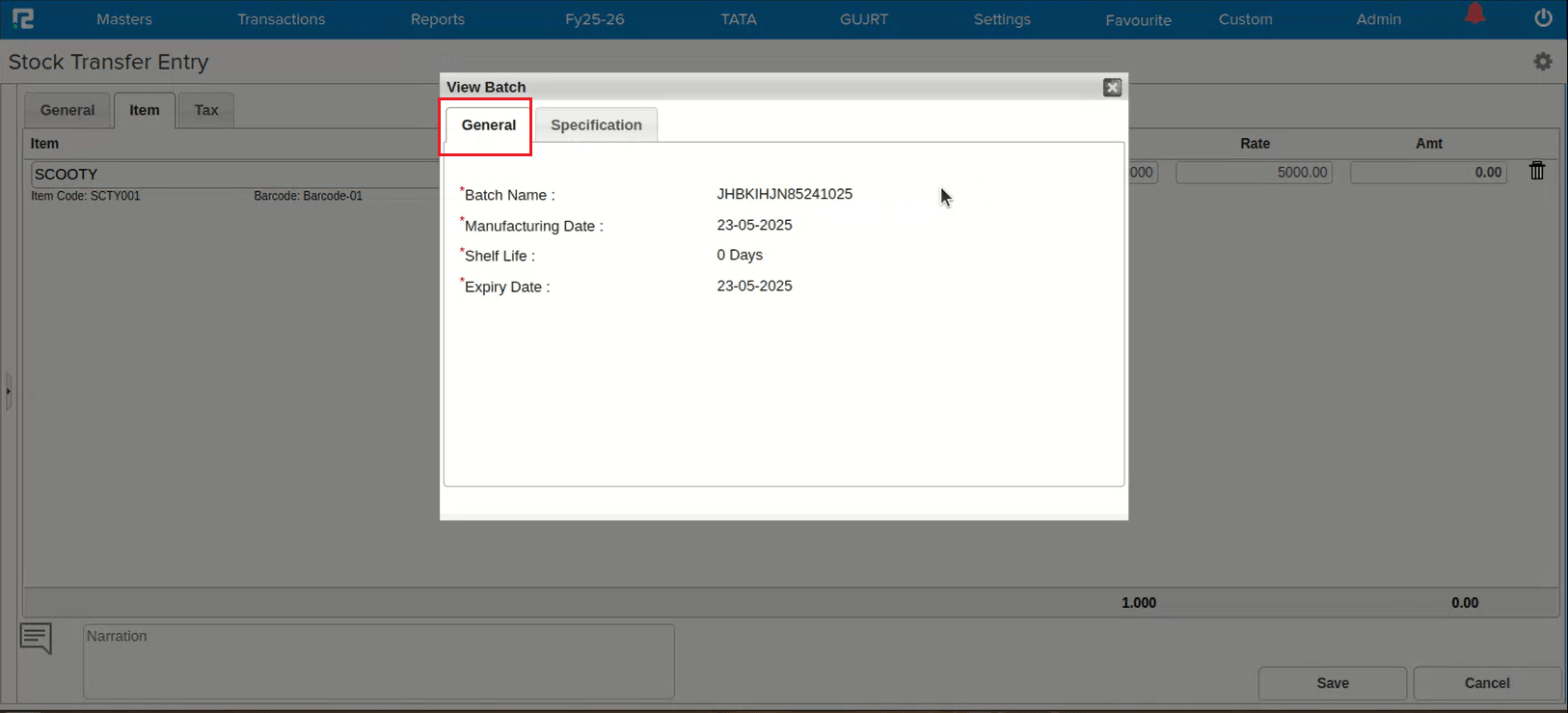
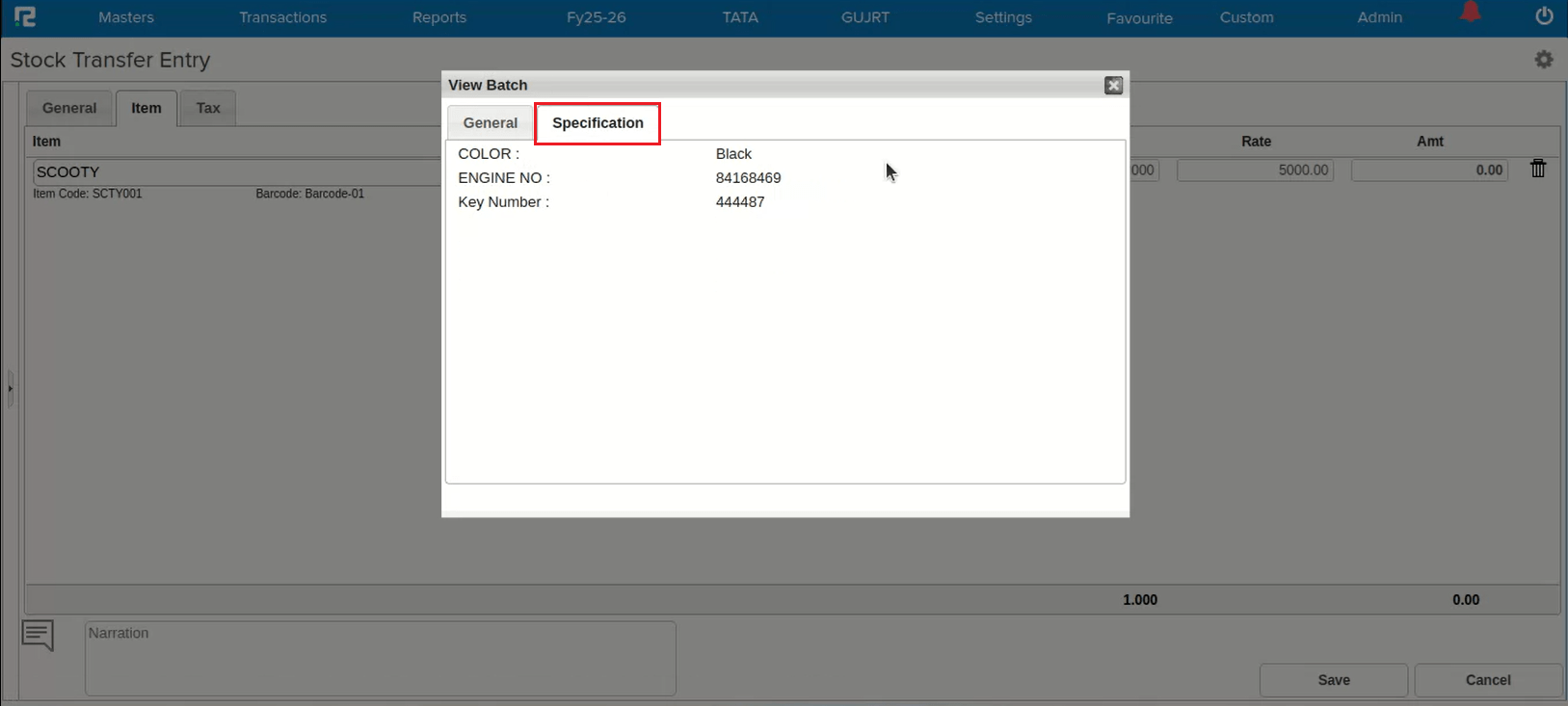
While performing a Stock Transfer (Godown Transfer), the Batch Specification was not visible under the batch selection. Users could see the batch but had no visibility into the specification details, making it difficult to identify and select the correct batch during transfers.
🌟 How This Helps You
Batch Specification now correctly reflects under the batch selection during Stock Transfer. You can easily identify batches by their specifications, ensuring accurate godown transfers without needing to look up batch details separately.
📷 See It in Action
📌 Overview
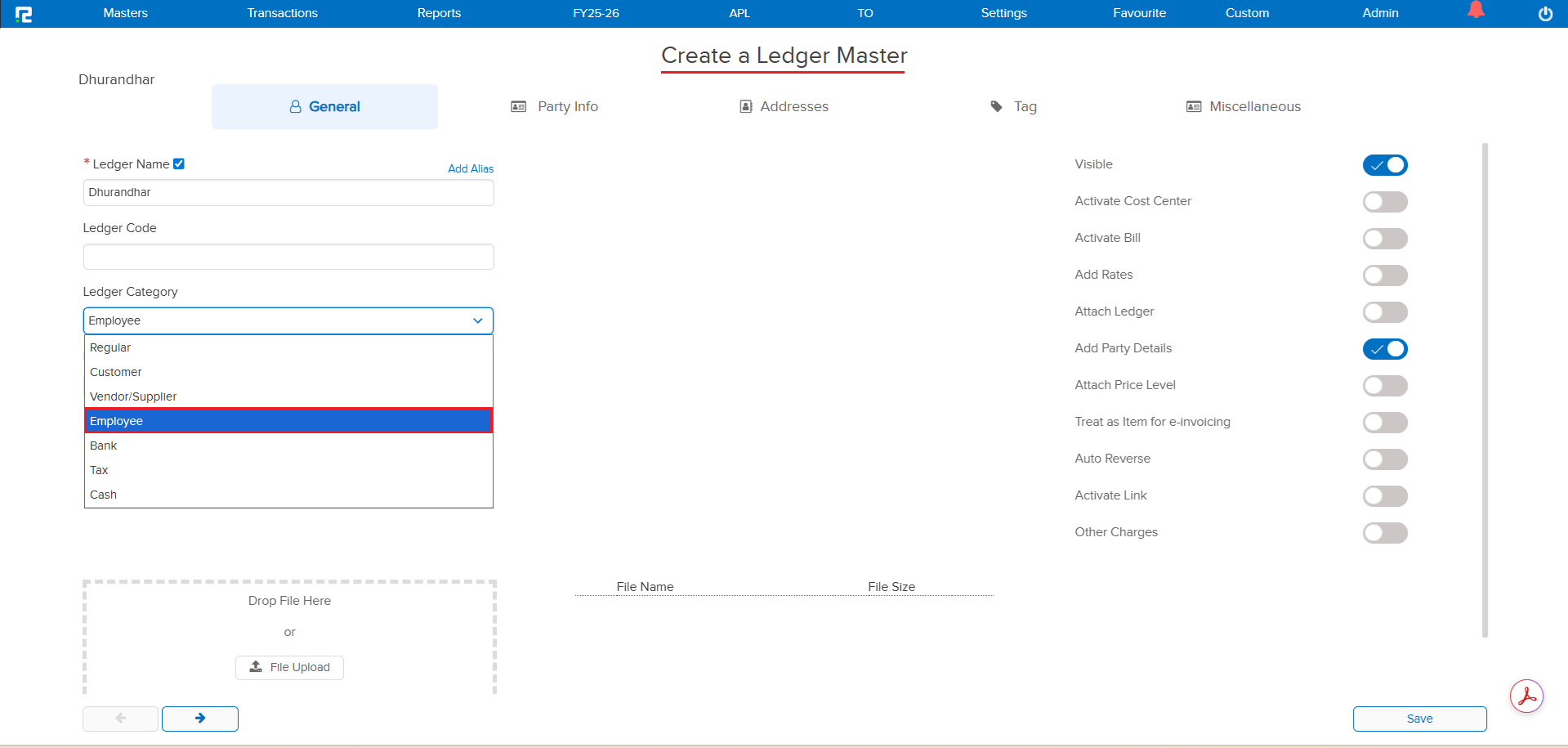
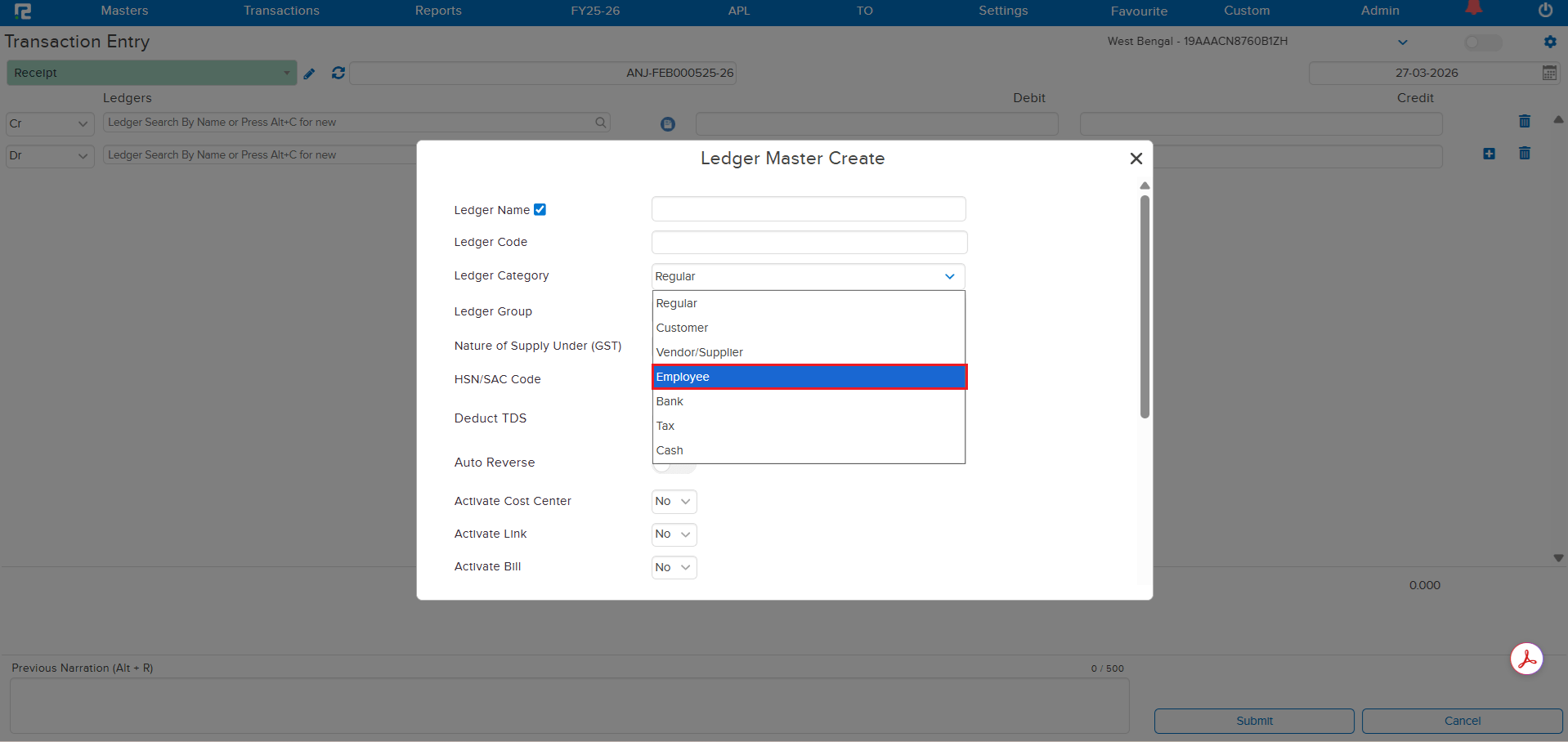
A new Employee category has been added under the Ledger Category dropdown in the Ledger Master. Previously, there was no dedicated category for employee-related ledgers, requiring users to map them under other categories. With this enhancement, you can now directly classify ledgers as Employee type during creation.
🌟 What This Means for You
You can now categorize employee-related ledgers accurately using the dedicated Employee category. This improves ledger organization, makes filtering easier, and ensures cleaner reporting for employee-specific transactions.
🎬 Where to Find It
1. Go to Masters → Accounts → Ledger → Create.
2. In the Ledger Category dropdown, select the new Employee option.
3. Complete the remaining fields and save.
📷 See It in Action
📌 Overview
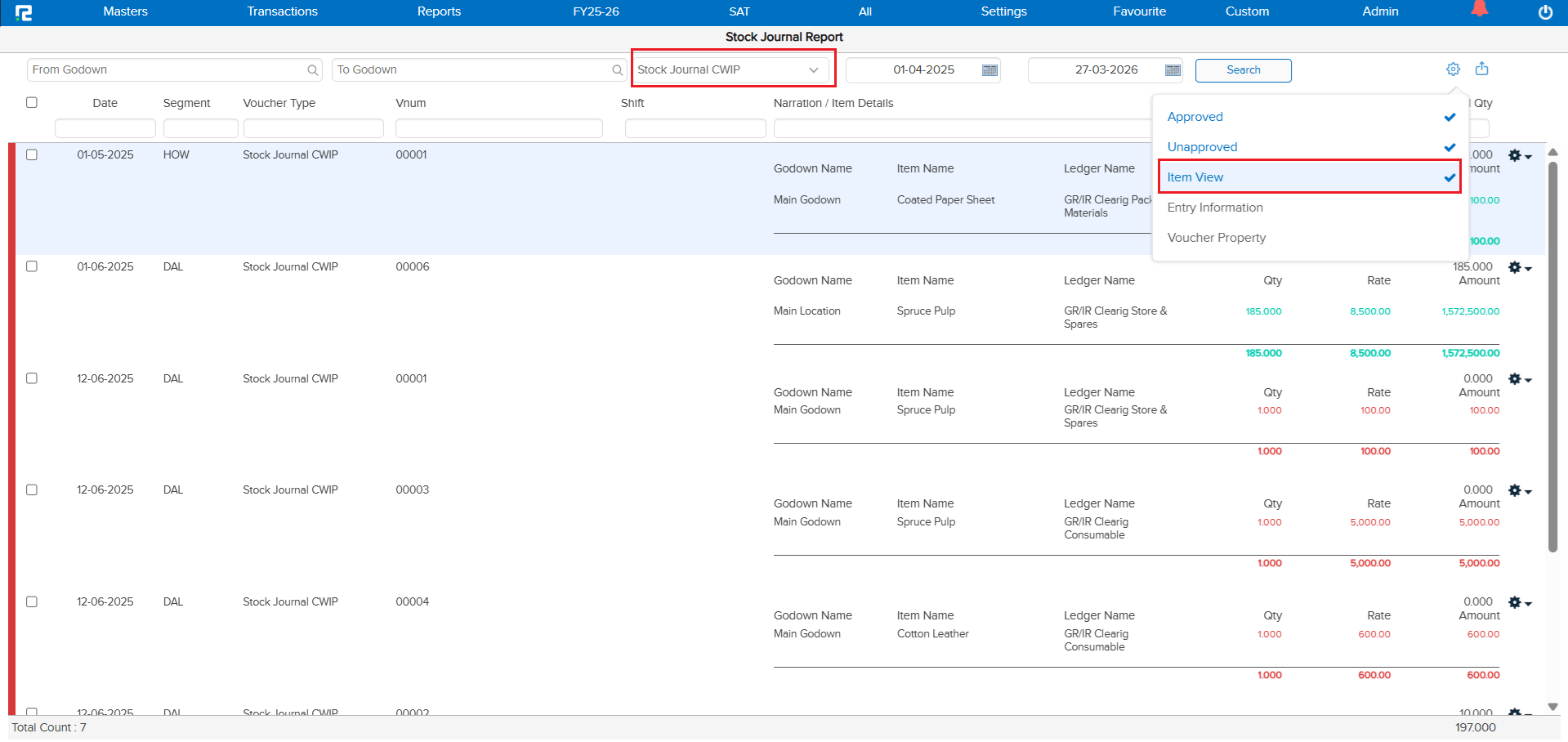
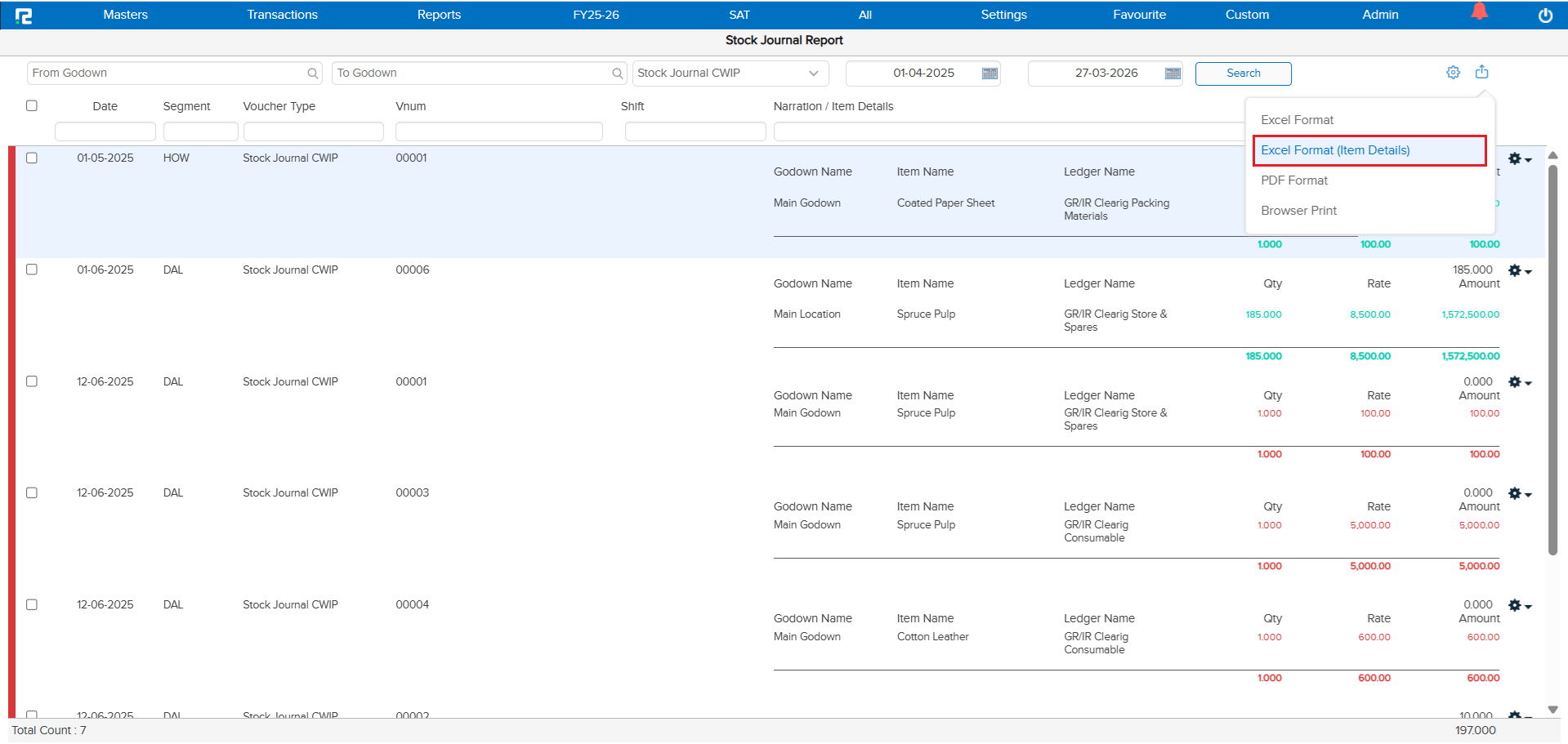
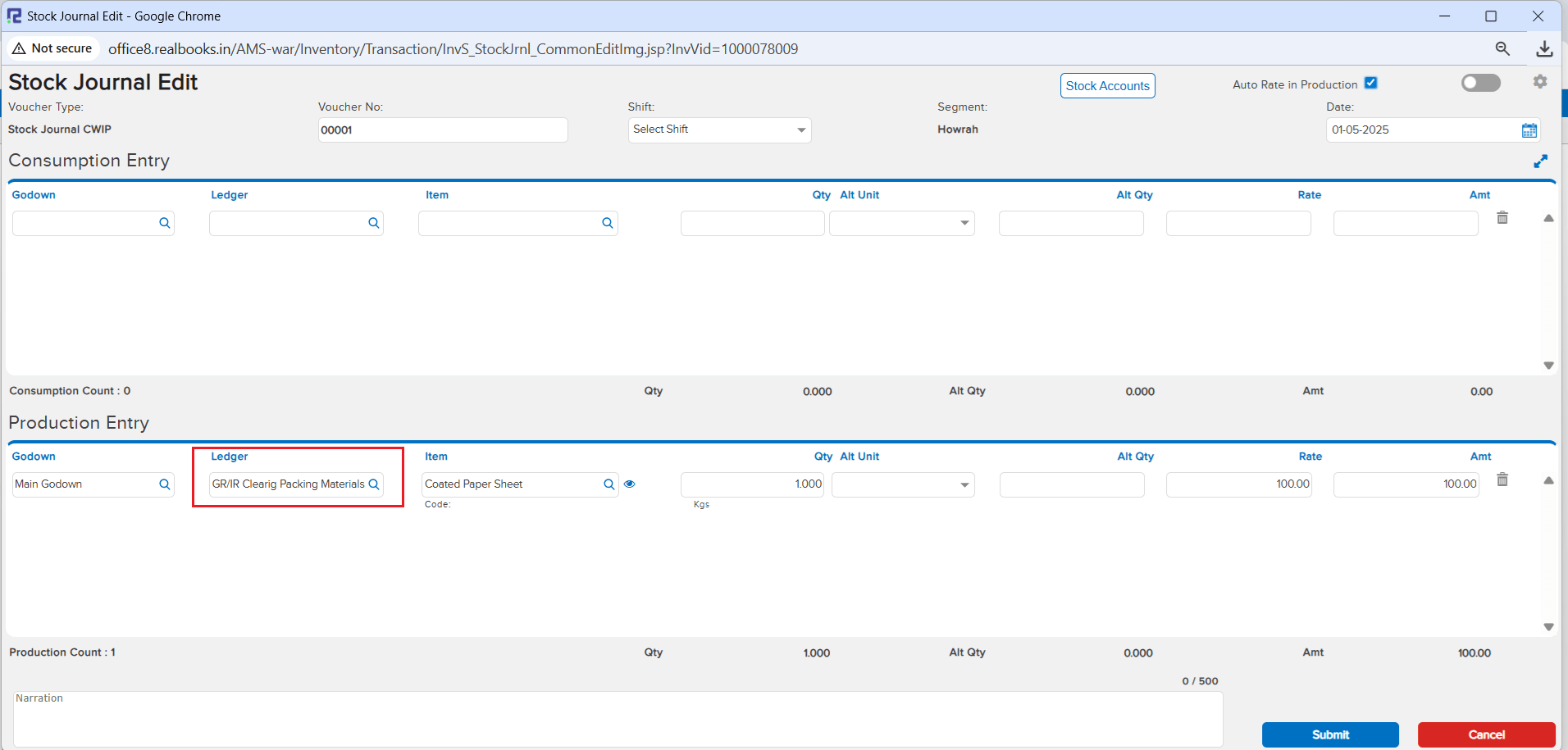
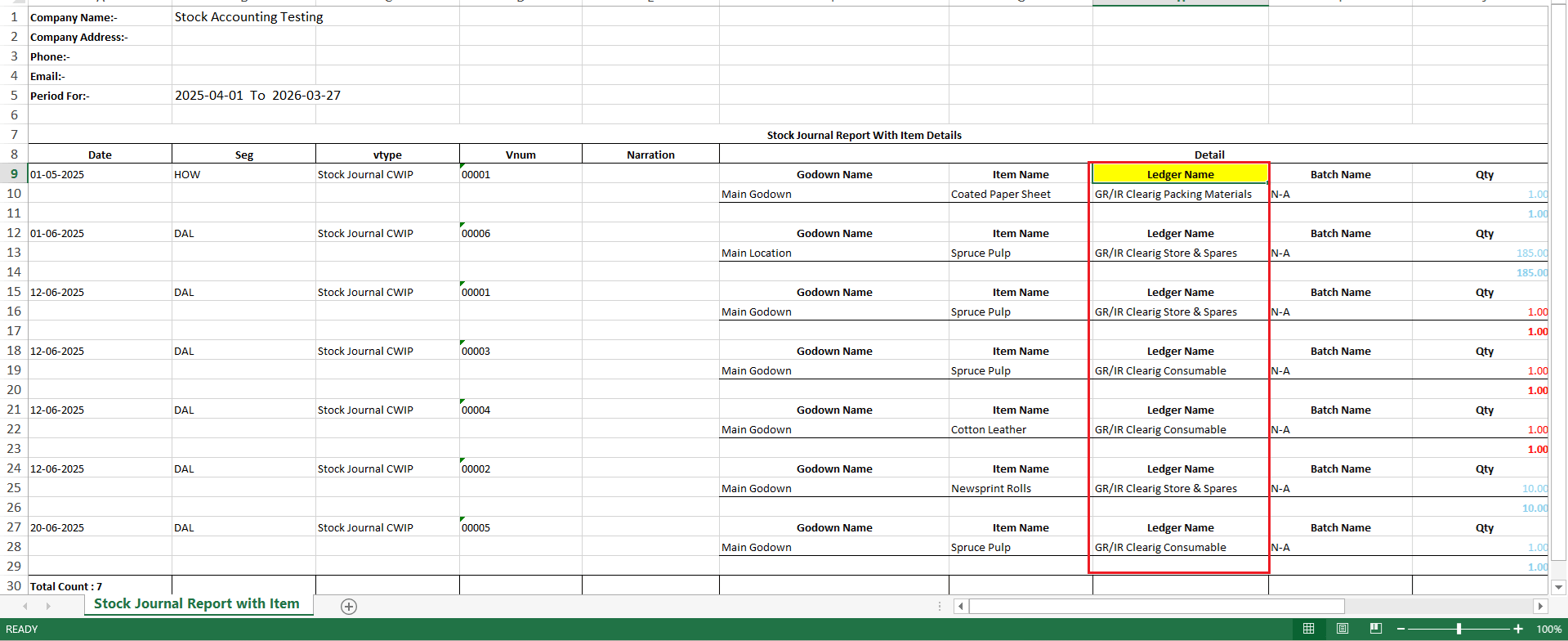
For Stock Journal entries where a stock accounting ledger is used, the option to view the ledger is now included when exporting to Excel. After clicking Item View, the ledger details are reflected in the export under Excel Format (Item Details) for the voucher type Stock Journal CWIP. Previously, this ledger information was not part of the exported data.
🌟 What This Means for You
You can now get complete ledger details in your Excel exports for Stock Journal CWIP entries. This eliminates the need to manually cross-reference ledger data and ensures your exported reports contain all the information visible on screen.
🎬 Where to Find It
📷 See It in Action
📌 Overview
The backend saving structure for Stock Journal and Stock Transfer entries has been optimized. Previously, when editing entries with a large number of line items (e.g. 191 items), the save process would take an excessively long time — sometimes over 90 minutes — during which the system kept buffering. This blocked the user from performing any other work in the company, even in other segments.
📌 What Was Happening
When rates were updated for some line items in a Stock Journal with 191 items, the system continued buffering for an extended period after saving. During this prolonged save, if the user clicked the close button, got logged out, or switched segments, the entry would get partially saved and the remaining line items would be deleted — causing significant stock discrepancies.
🌟 What This Means for You
The saving process for Stock Journal and Stock Transfer entries is now significantly faster and more reliable. Large entries no longer block you from working in other segments, and the risk of partial saves causing data loss or stock discrepancies has been addressed.
🎬 Where to Find It
📝 What Changed
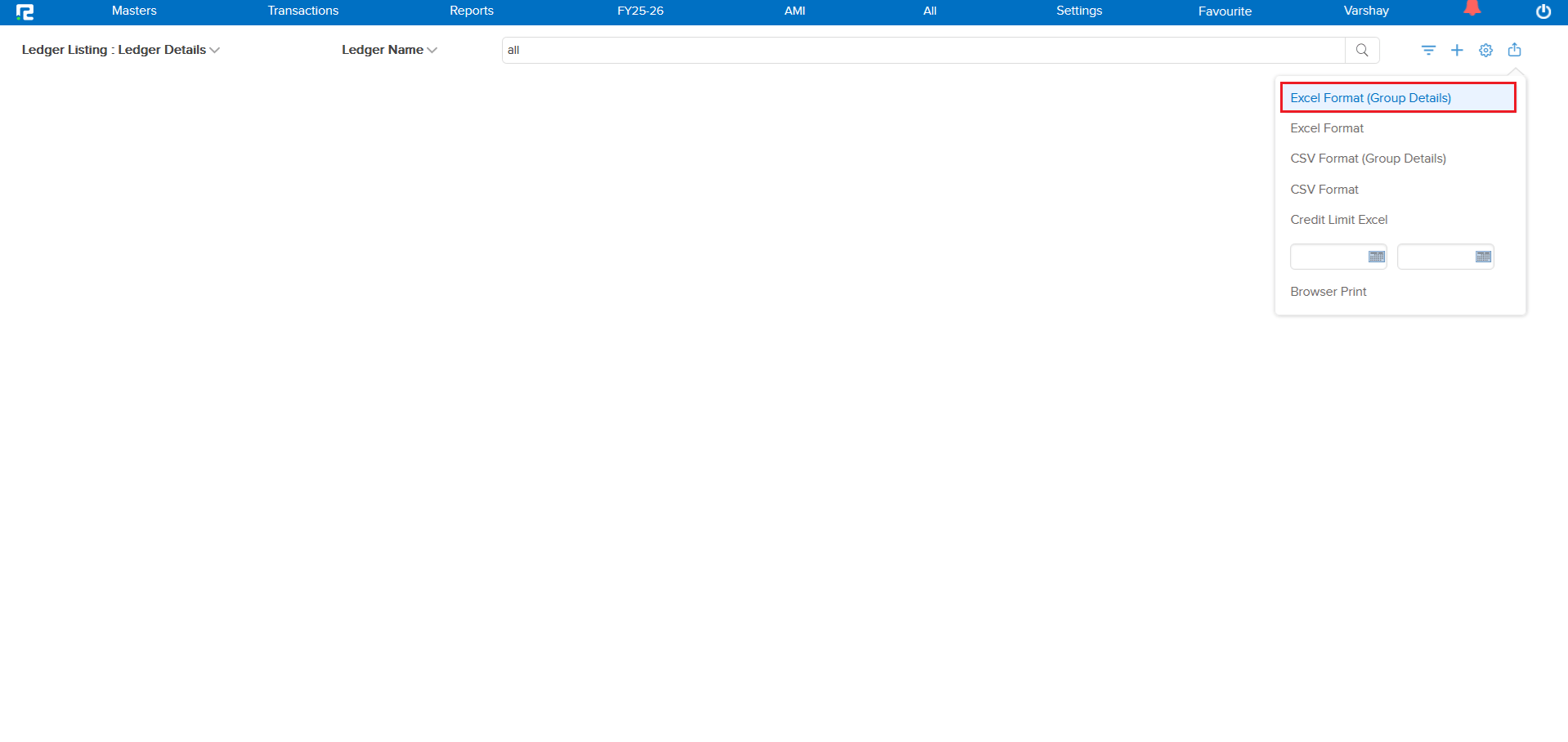
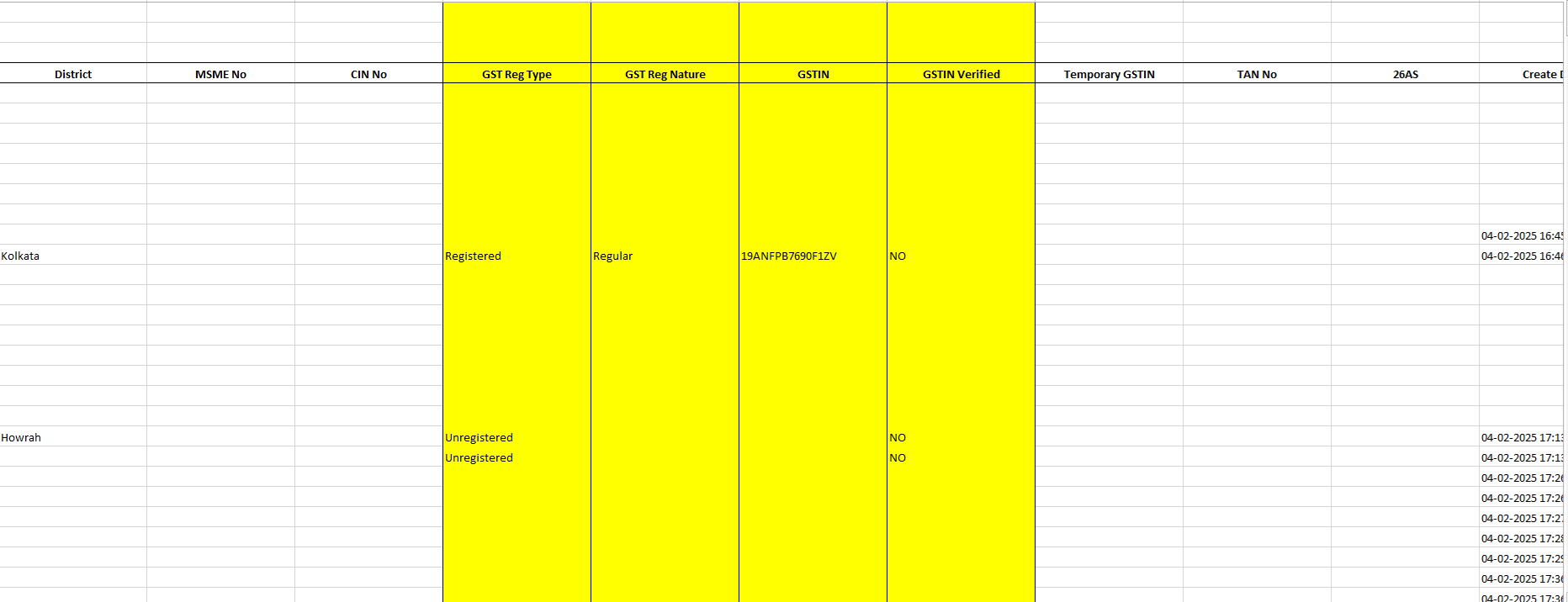
In the Ledger Master export variation “Excel Format (Group Details)”, the following new fields have been introduced:
- GST Reg Type
- GST Reg Nature
- GSTIN
- GSTIN Verified
📷 See It in Action
📌 What Was Happening
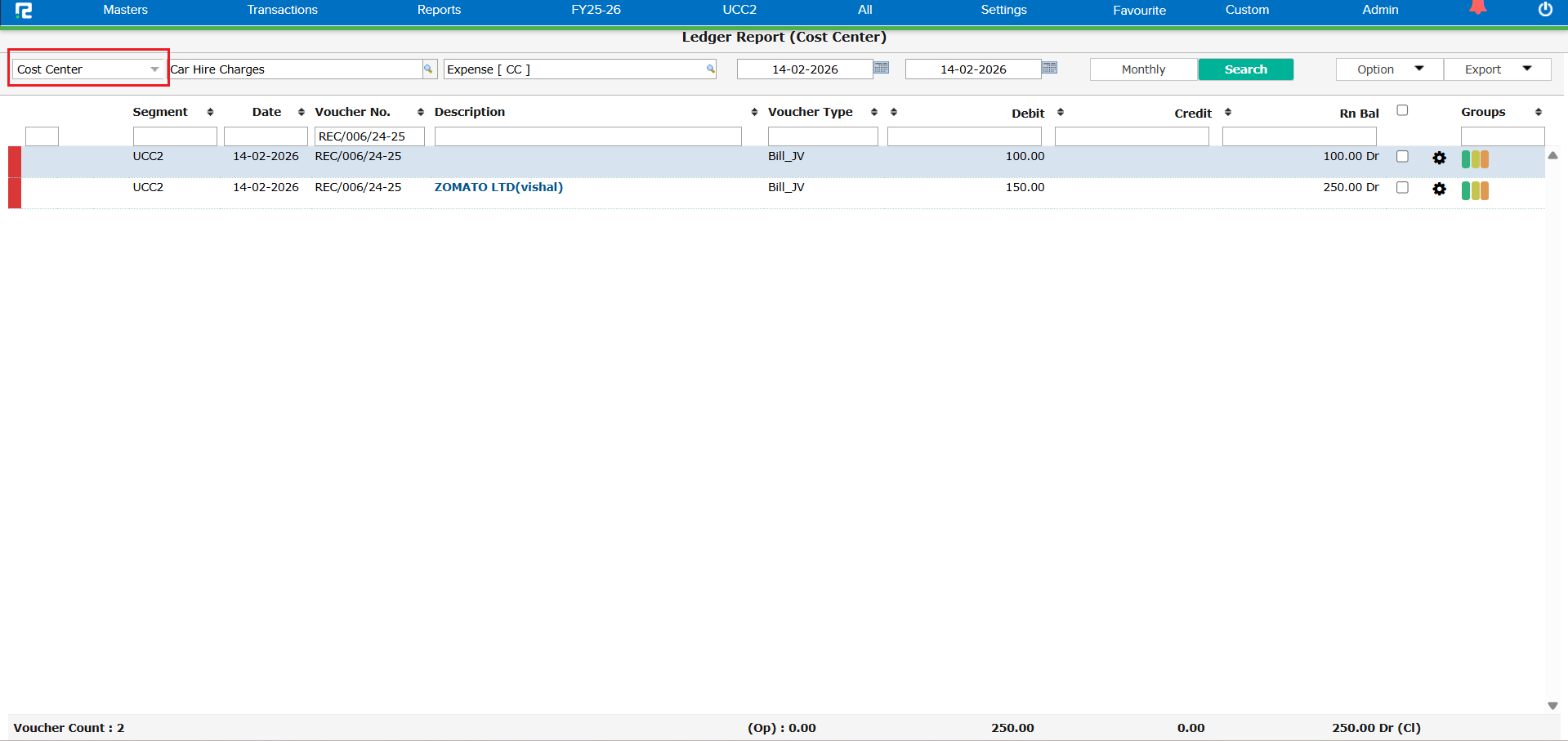
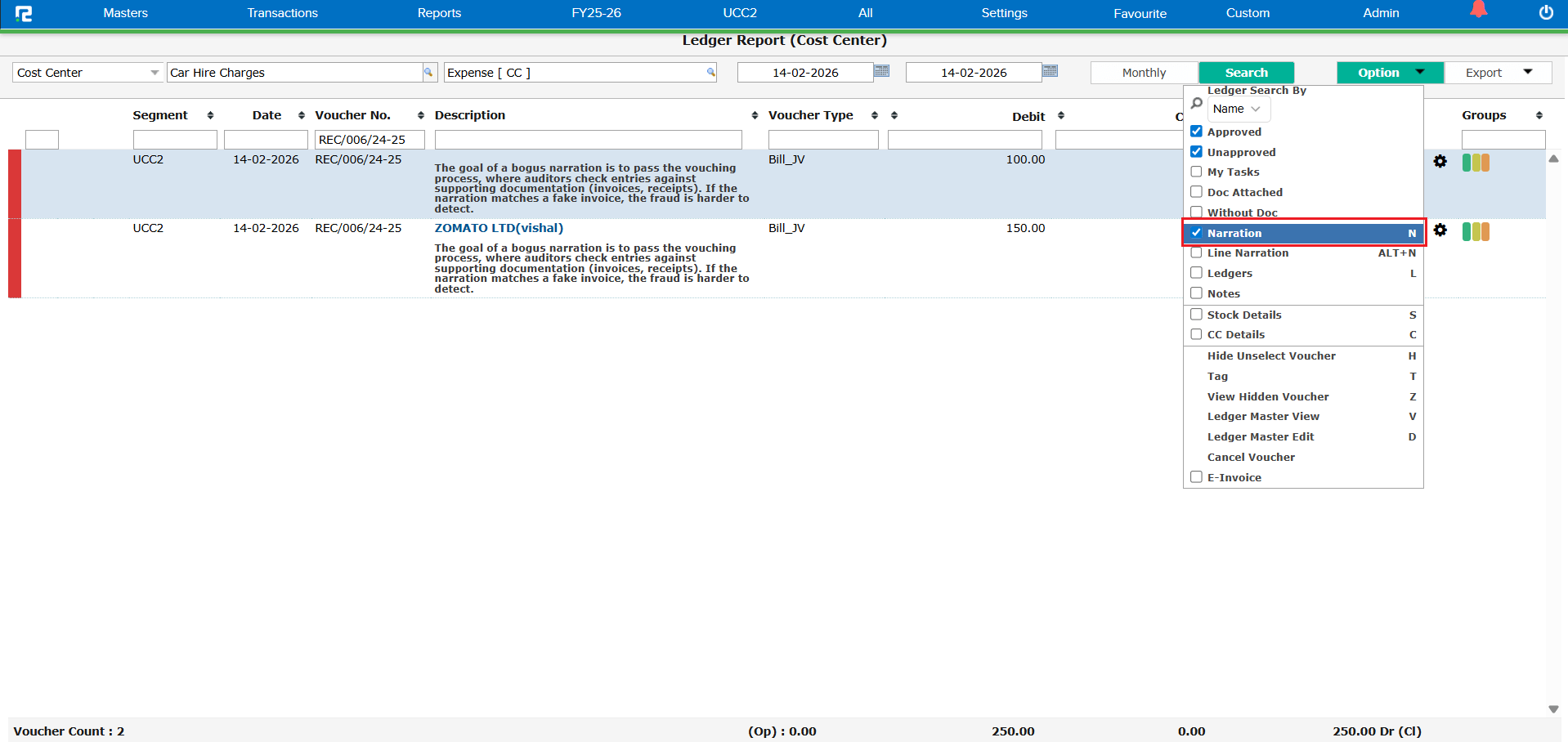
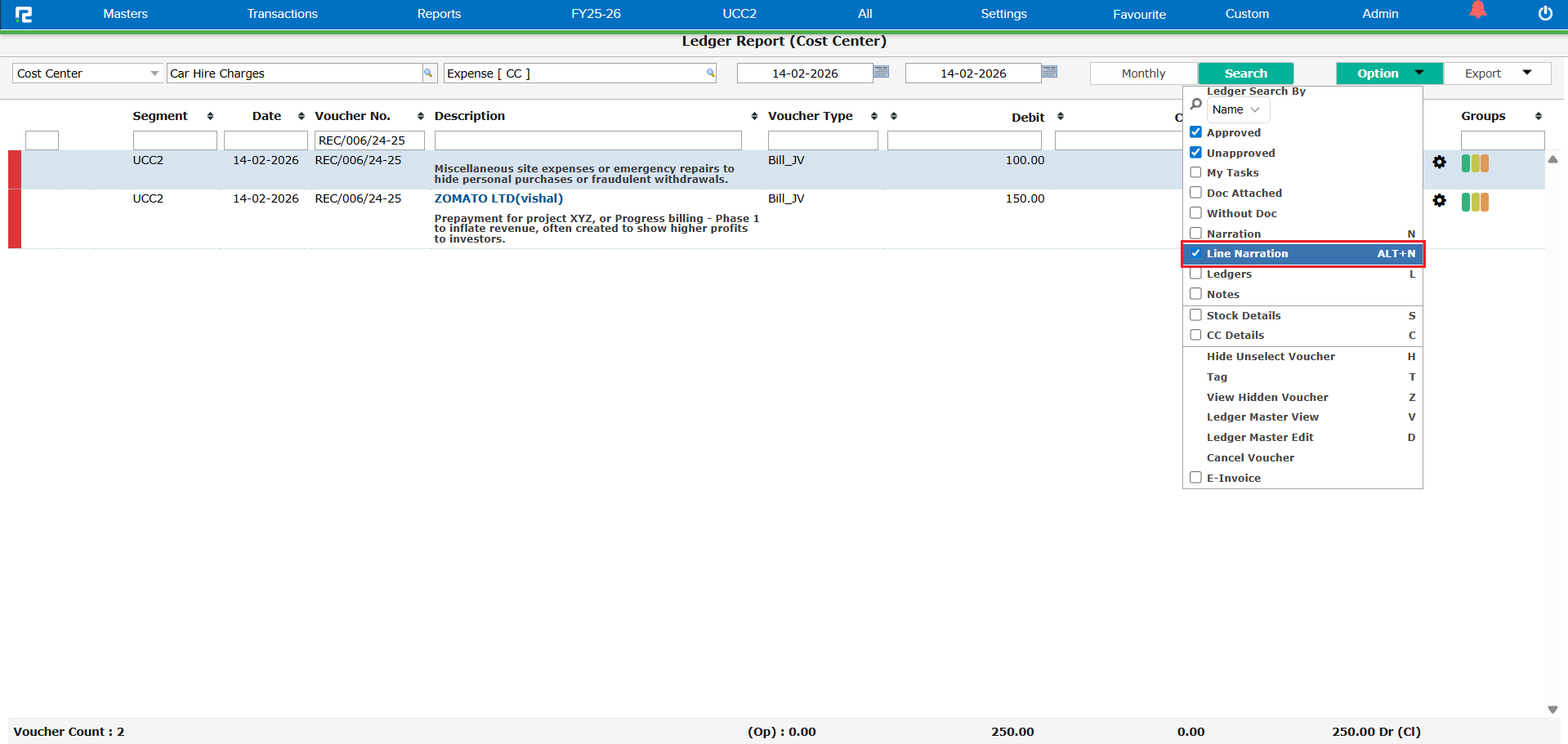
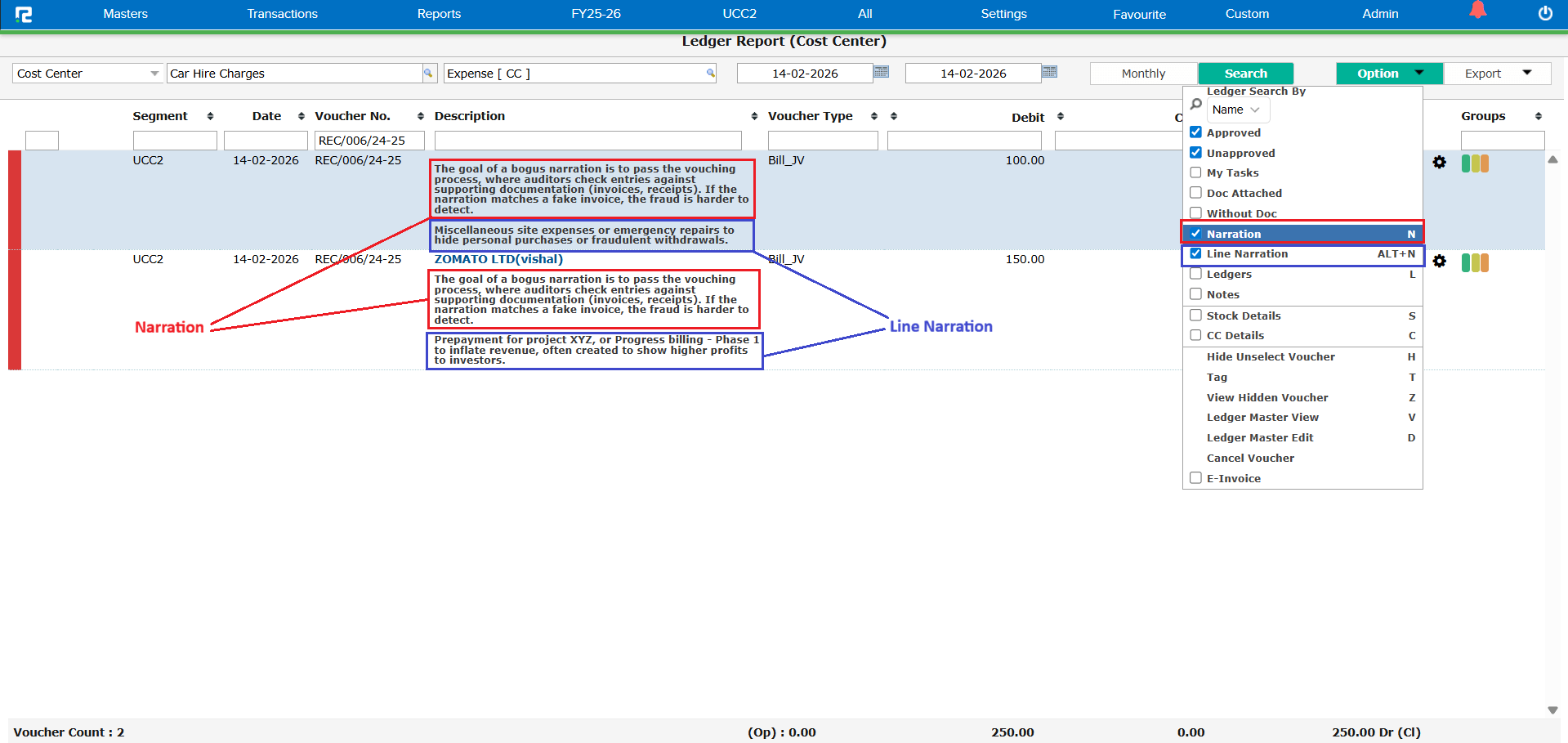
When running the Ledger Report with the Report Type set to Cost Centre, the Line Narration and Narration fields were not fetching correctly. The narrations displayed in the report did not match the actual narrations entered in the voucher entries, leading to confusion and unreliable report data.
🌟 How This Helps You
Both Line Narration and Narration now display accurately in the Cost Centre variation of the Ledger Report. You can rely on the report data for review, audit, and reconciliation without needing to cross-check each entry manually.
🛠 Where to Find It
📷 See It in Action
📌 What Was Happening
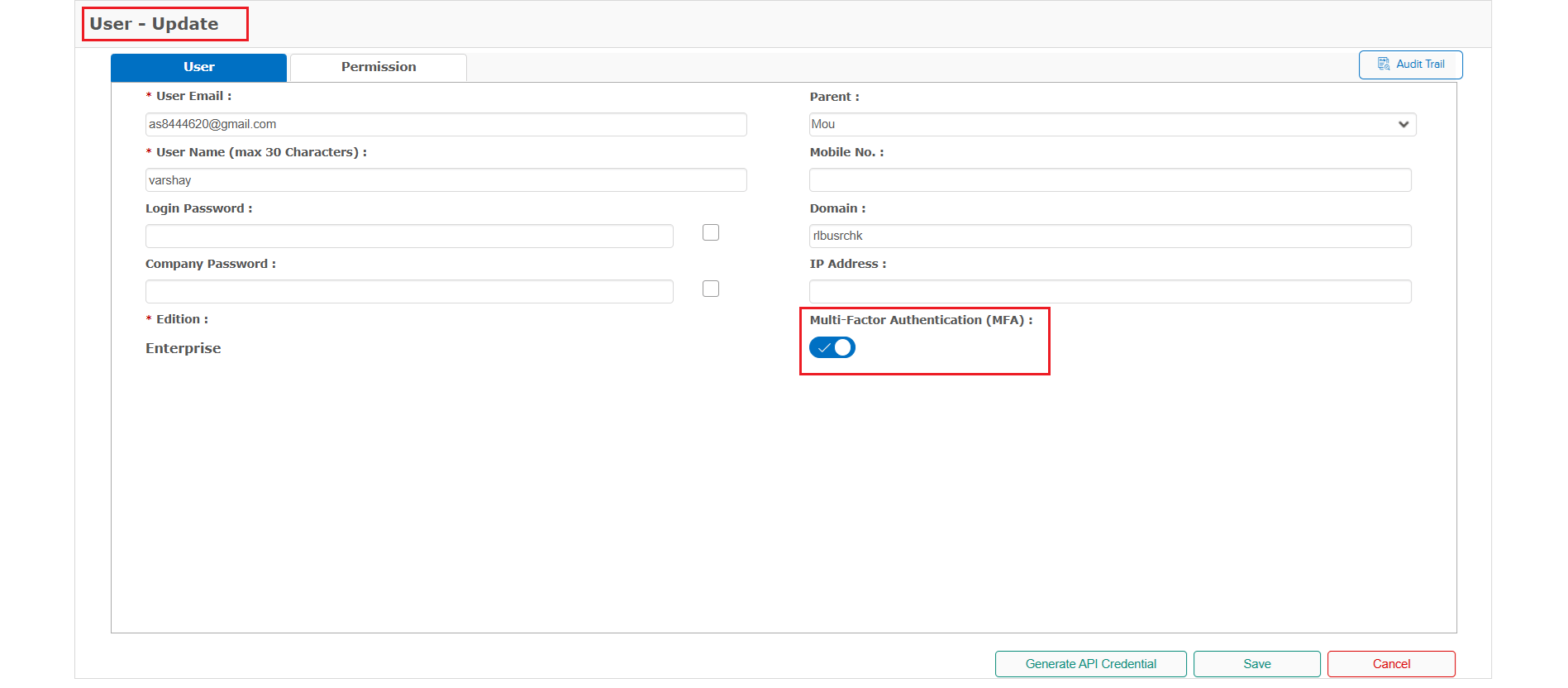
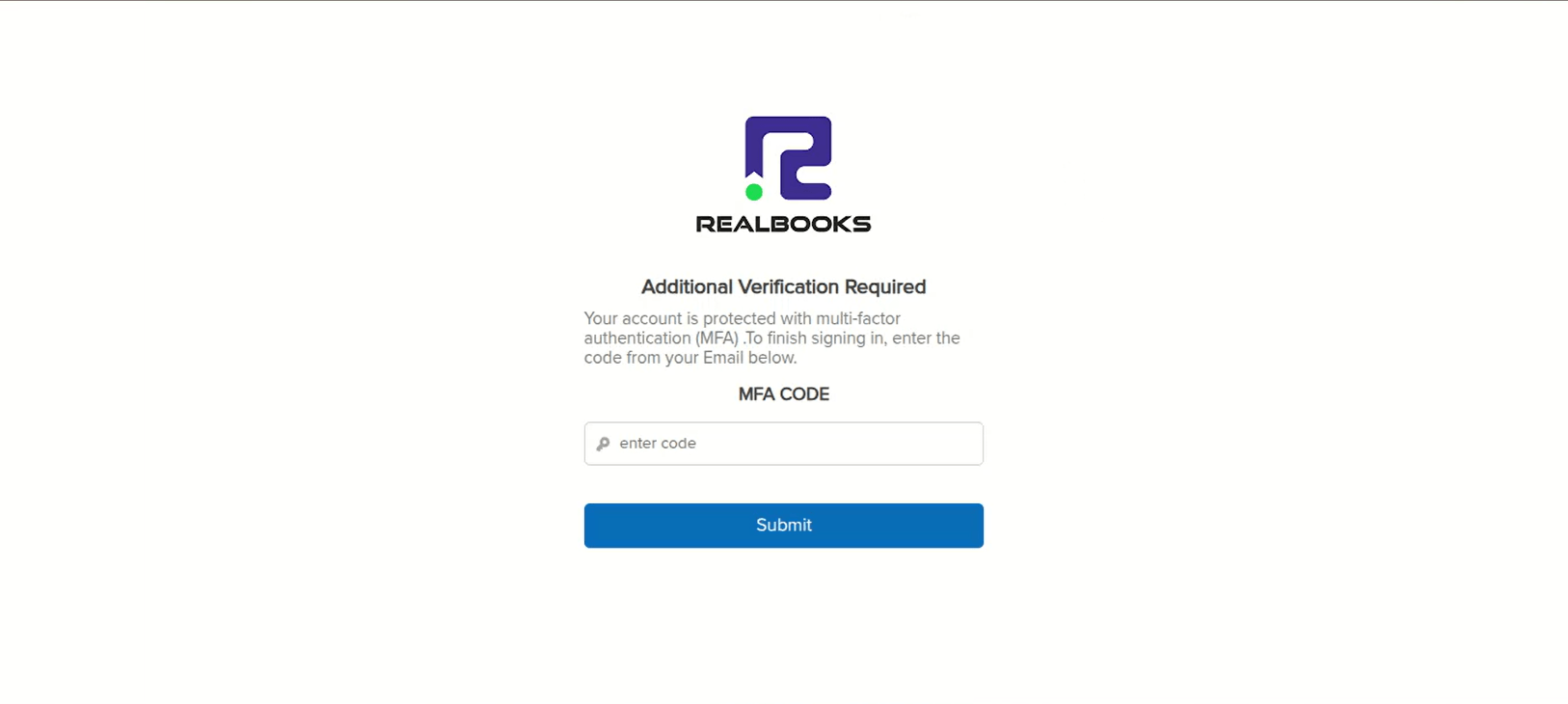
Users with Multi-Factor Authentication (MFA) enabled were experiencing login failures. The MFA code was received via email after approximately 1 minute, but by the time the user entered the code, the system had already timed out and automatically logged out of the login page. The MFA code was being triggered immediately from the RealBooks side, but email delivery delays caused the timeout to expire before users could enter it.
🌟 How This Helps You
The MFA timeout has been increased so that even if the email containing the code is delayed, the system will still accept the MFA code. You no longer have to worry about being logged out before you can enter the code.
🎬 Where to Enable MFA
📷 See It in Action
📌 What Was Happening
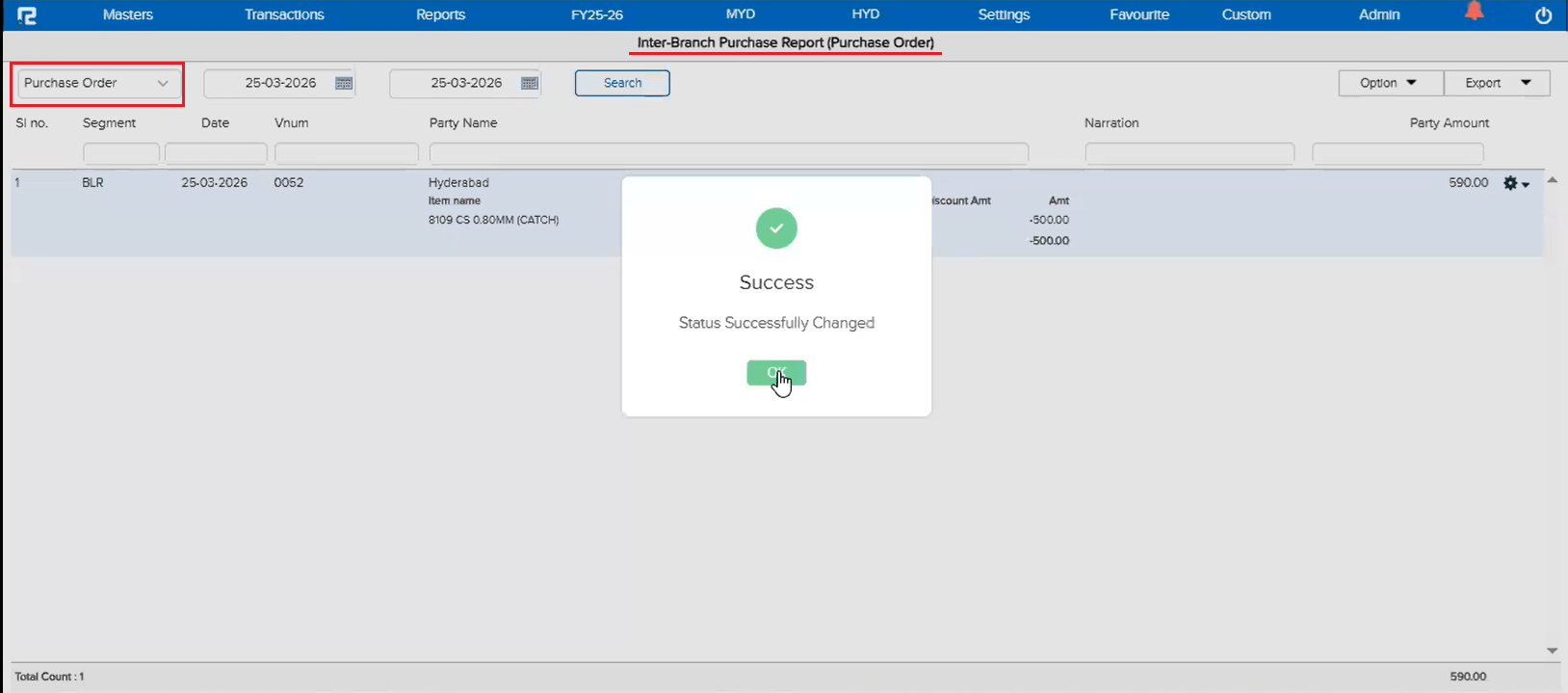
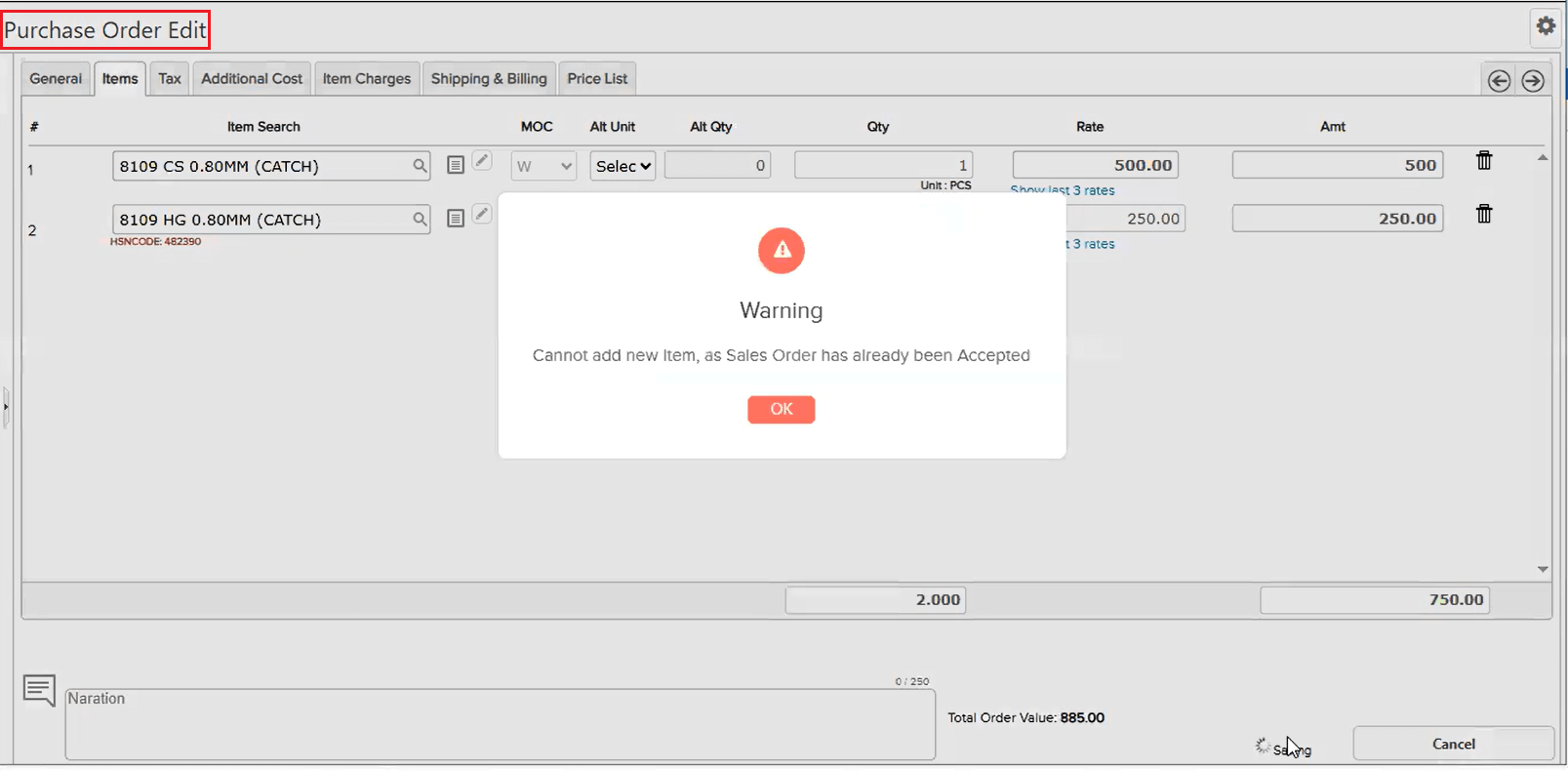
In the case of Interbranch Purchase Order to Sale Order posting, a timing issue was identified. When a Purchase Order (PO) was created with one item and later modified to add another item, the auto-posted Sale Order (SO) was already generated seconds before the PO modification — even with a difference as small as 10 seconds. This meant the SO did not reflect the latest PO changes, causing data inconsistency.
🌟 What This Means for You
A validation has been added so that once an SO is auto-posted from a PO, the PO entry gets locked. If a user attempts to modify the PO after the SO has already been posted, the system will now show an error at the time of saving — informing the user that the respective SO is already posted. This prevents data mismatches even when changes happen within seconds of each other.
📷 See It in Action
📌 What Was Happening
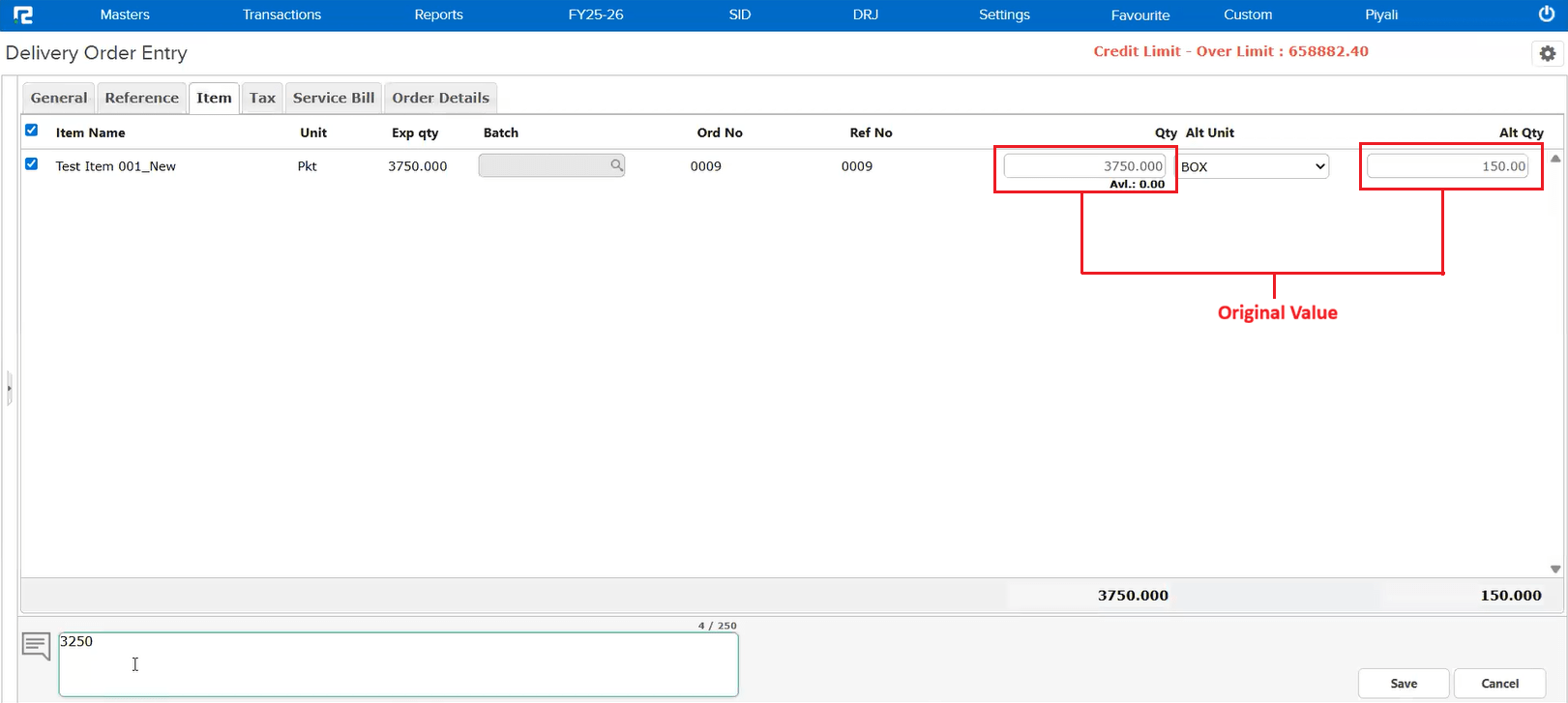
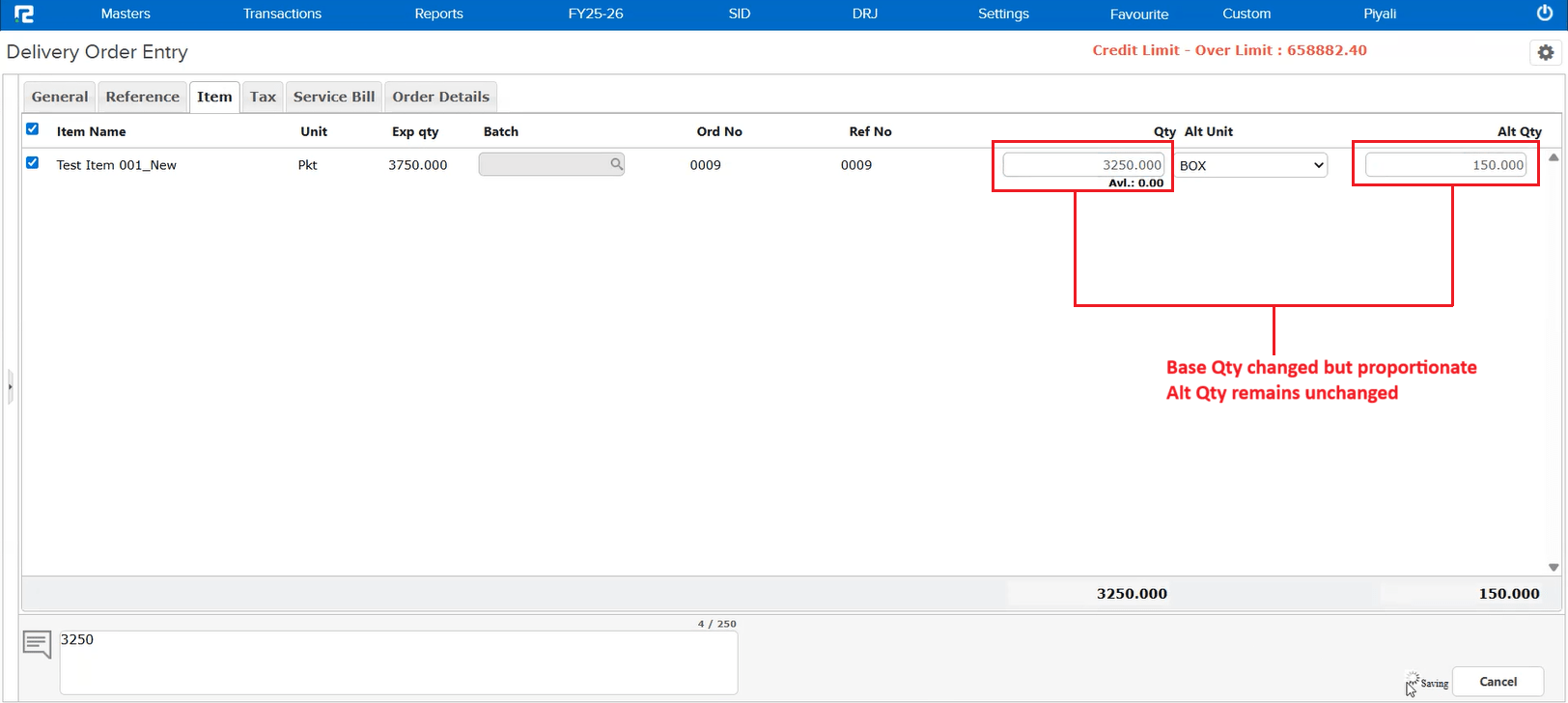
The Alternative Quantity (Alt Qty) of an item was being captured incorrectly in the Delivery Order (DO) and Sales when fetched from a Sale Order. Instead of capturing the correct Alt Qty (e.g. 130 with Base Qty 3250), the system was wrongly picking up the Alt Qty as 150 (Base Qty 3750) from the SO. This issue occurred specifically when the user copy-pasted the quantity in the Delivery Order instead of typing it manually.
🌟 How This Helps You
The Alt Qty now calculates correctly regardless of whether the quantity is typed manually or copy-pasted. You can confidently use copy-paste in Delivery Orders and Sales without worrying about incorrect alternative quantity calculations.
📷 See It in Action
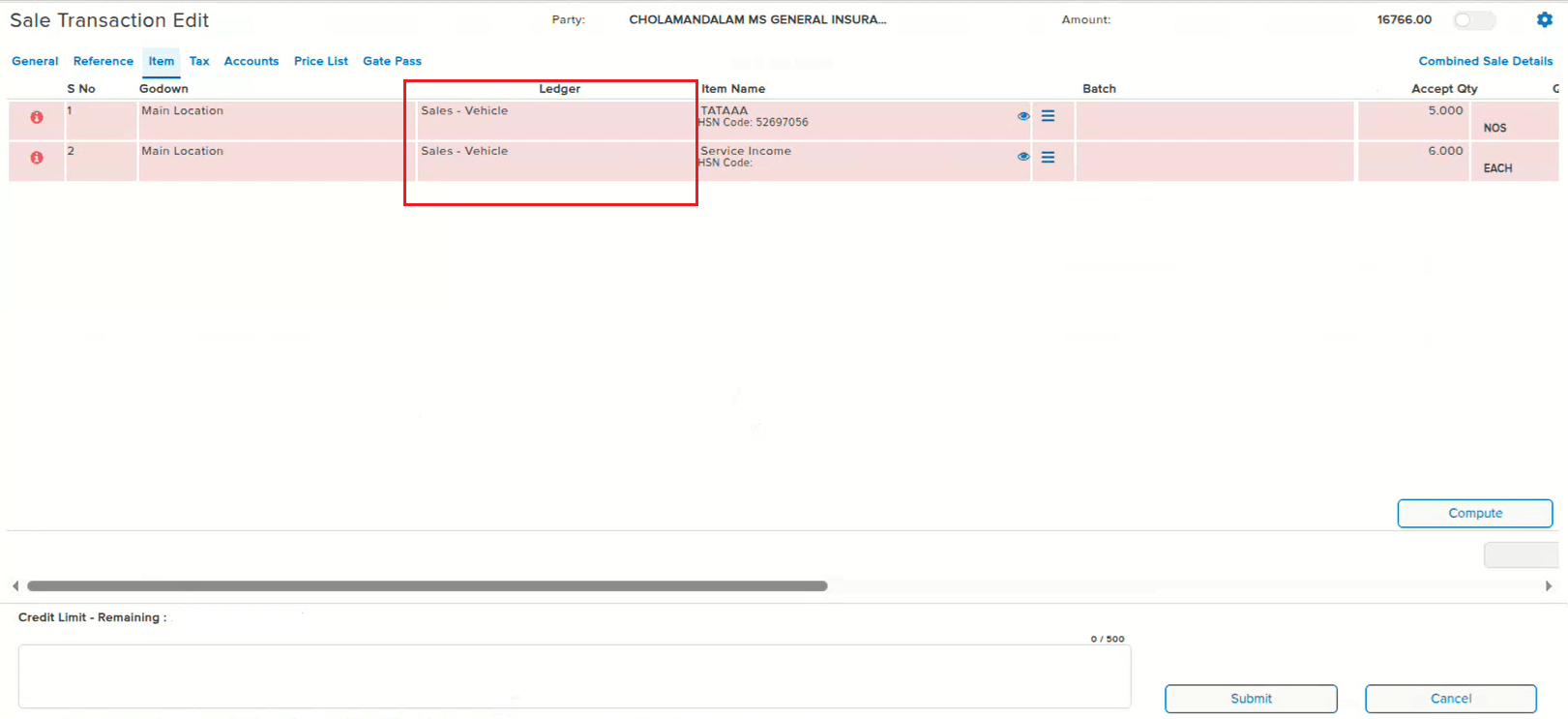
📌 What Was Happening
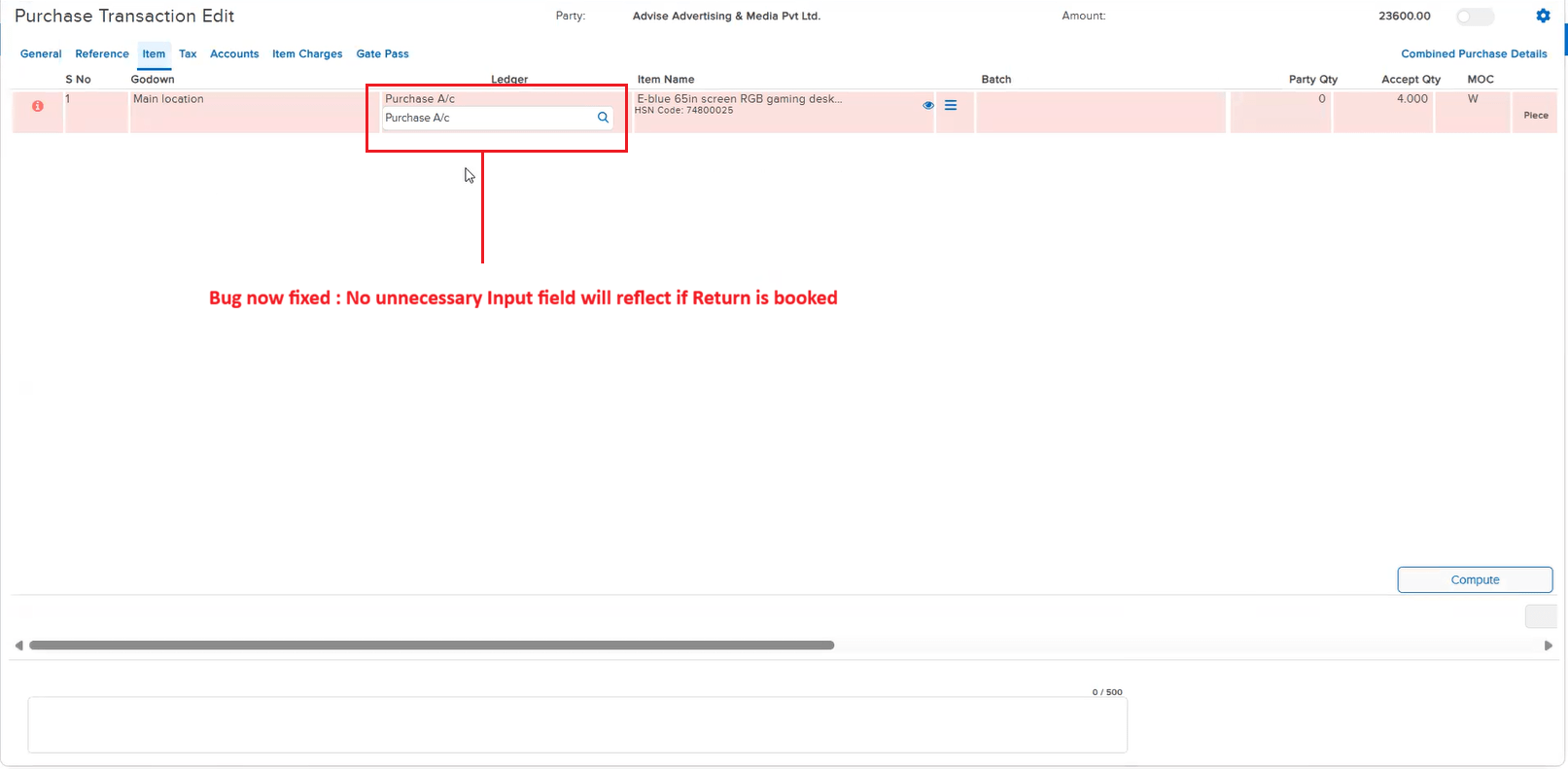
When a Sale Return or Purchase Return was done against a locked Sale or Purchase entry in a multi sale/purchase scenario, an unnecessary input field was reflecting on the screen. This extra field was confusing and not required for the return process.
🌟 How This Helps You
The unnecessary input field has been removed. Locked Sale and Purchase returns in multi-entry scenarios now display a clean interface without any extra or confusing fields.
📷 See It in Action
📌 What Was Happening
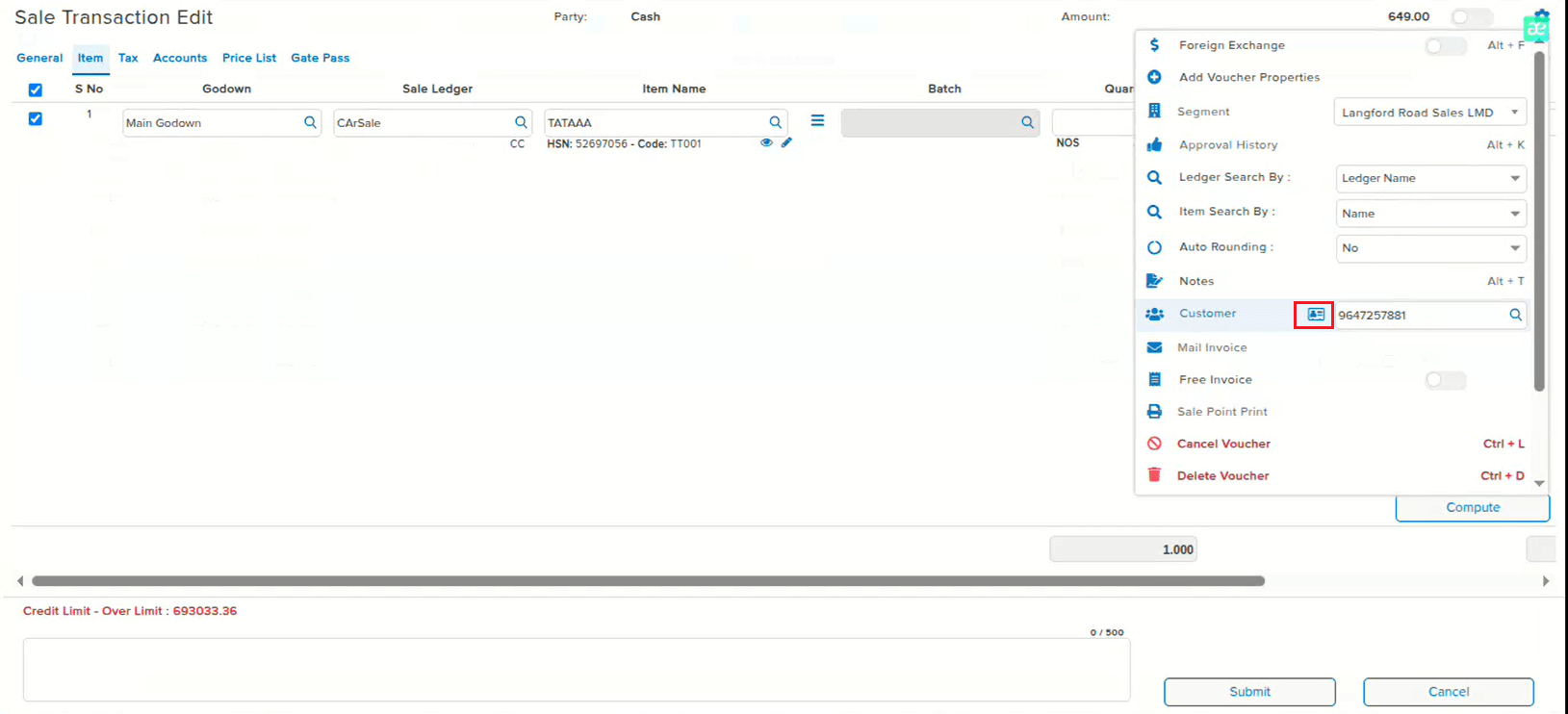
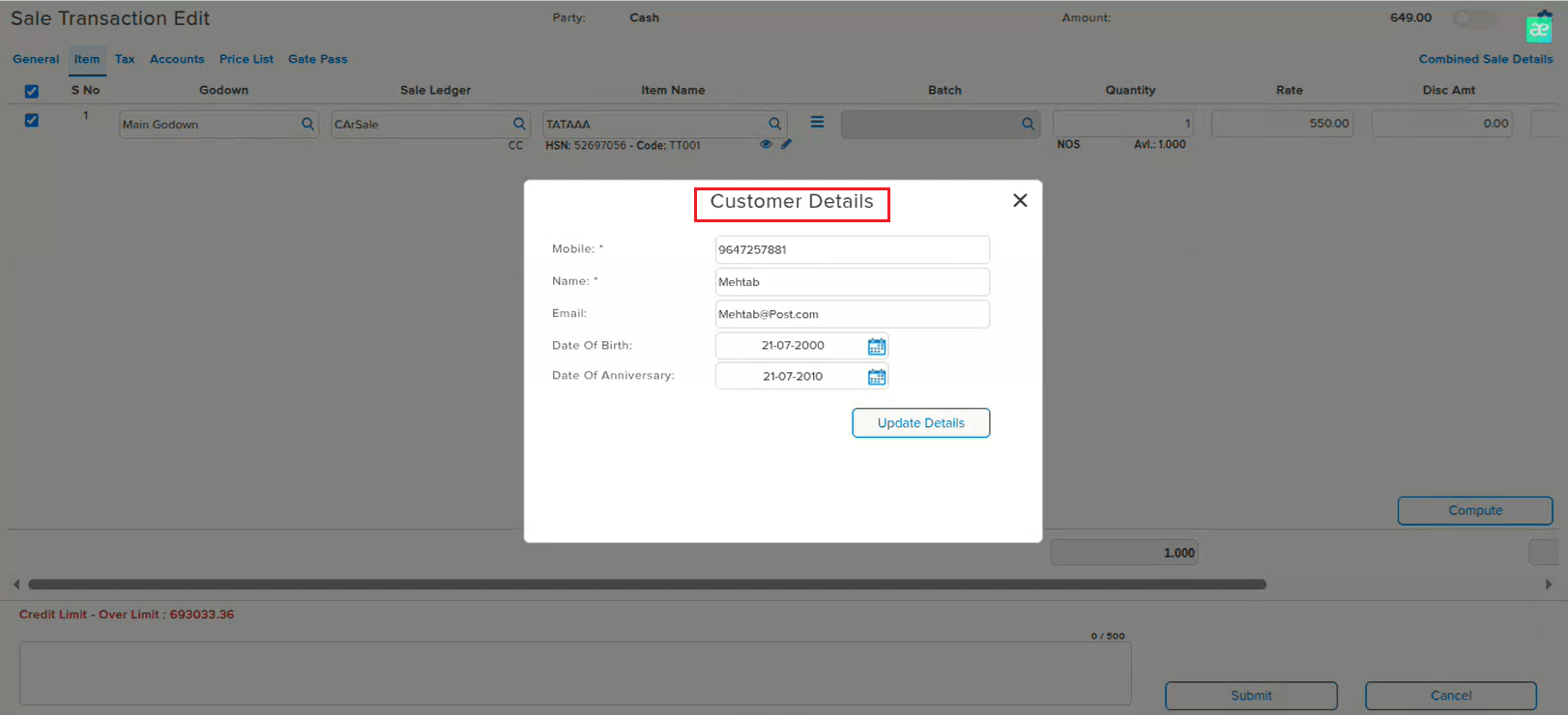
When a sale was created via POS (Point of Sale) with customer details entered, those details were not reflecting when the same sale entry was opened in the Sale edit screen. Users had to re-enter customer information manually, leading to extra effort and potential data inconsistency.
🌟 How This Helps You
Customer details entered via POS now correctly reflect in the Sale edit screen. You can view and verify all customer information without needing to re-enter it, ensuring consistency between POS and the edit view.
📷 See It in Action
📌 What Was Happening
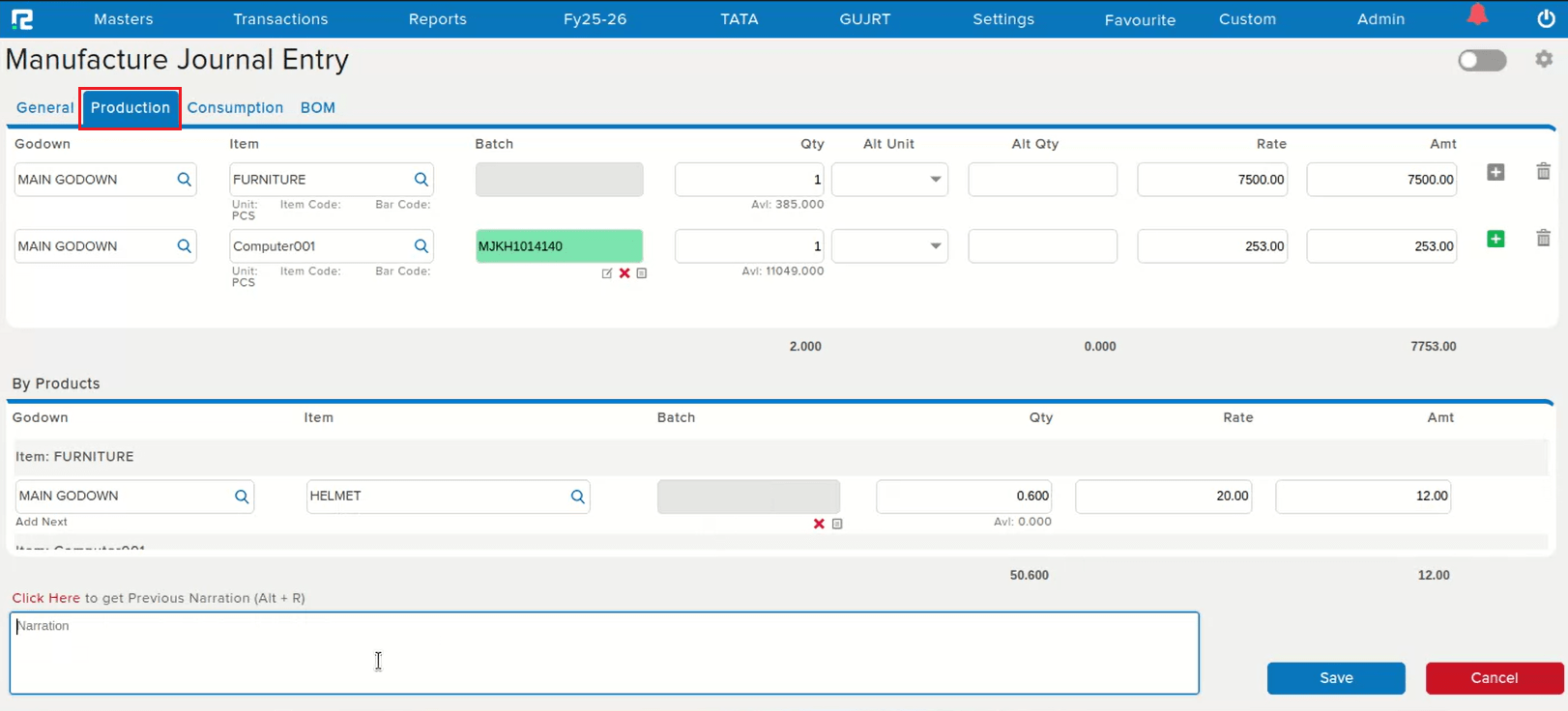
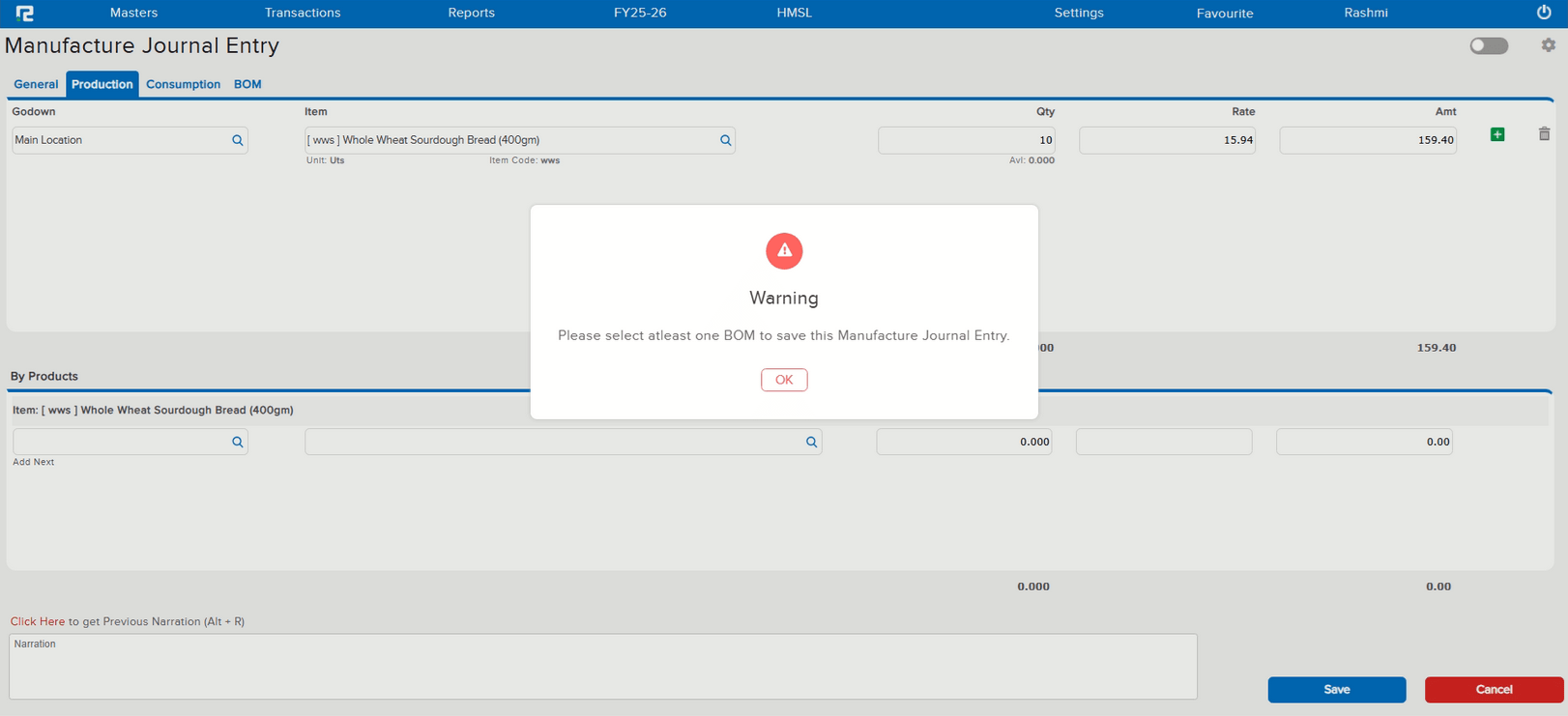
Users were unable to save a Manufacturing Journal entry when multiple lines were added in the Production tab. The system was throwing an error during save. This was caused by a bug in the Multi Line Addition parameter, which controls the ability to add multiple lines in the production section.
🌟 How This Helps You
The multi-line addition parameter has been fixed and now works as expected. You can add multiple lines in the Production tab of Manufacturing Journal entries and save them without any errors.
🎬 Where to Find It
📷 See It in Action
📝 What Changed
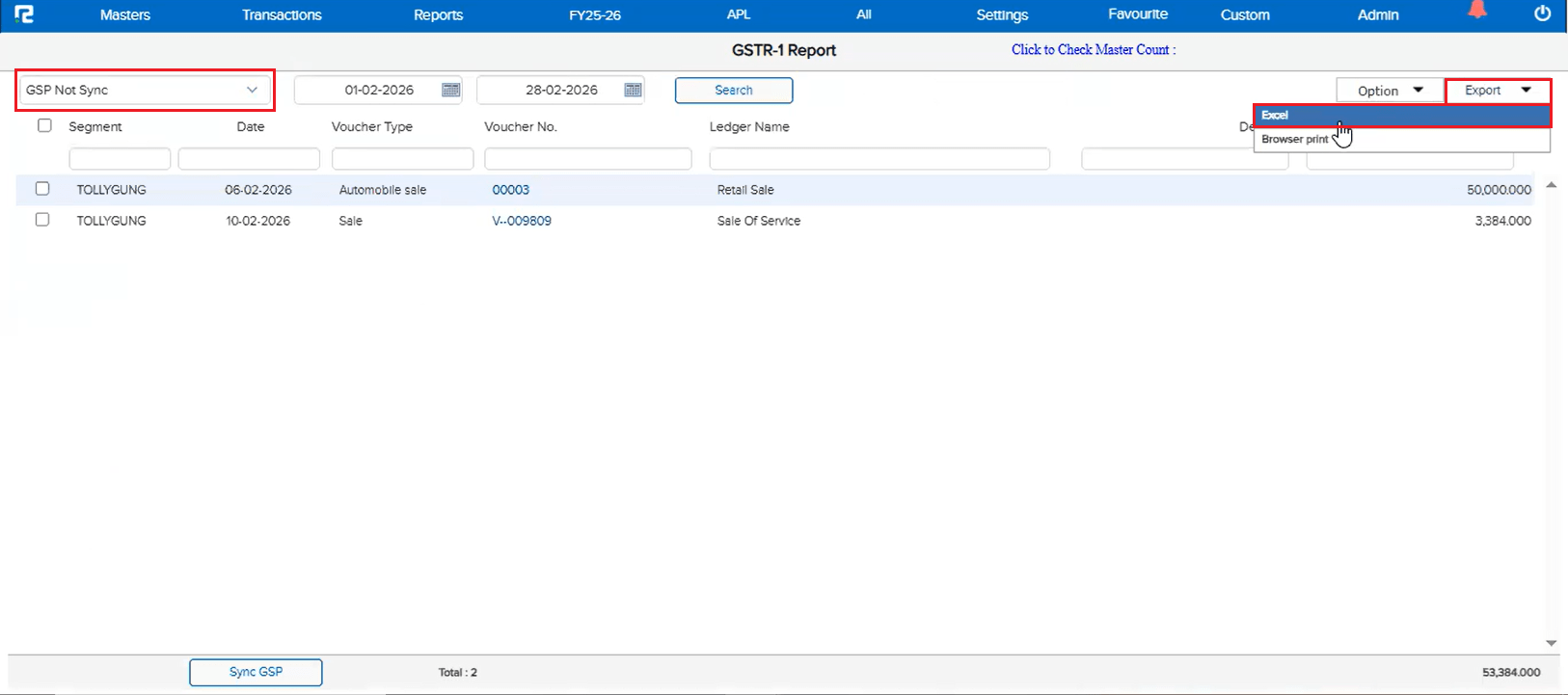
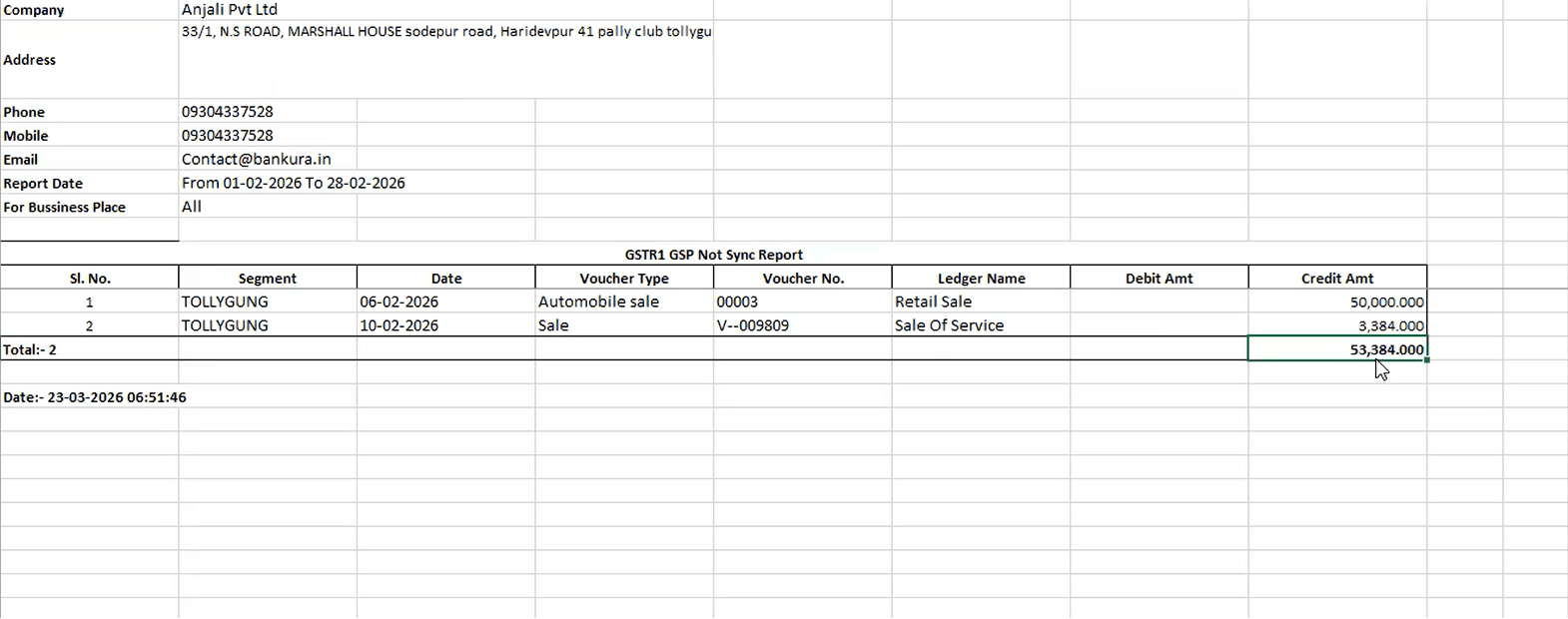
When the Excel export option is available but GSP is not synced, the exported Excel file was coming blank. This has been fixed — data now exports correctly regardless of GSP sync status.
📷 See It in Action
📝 What Changed
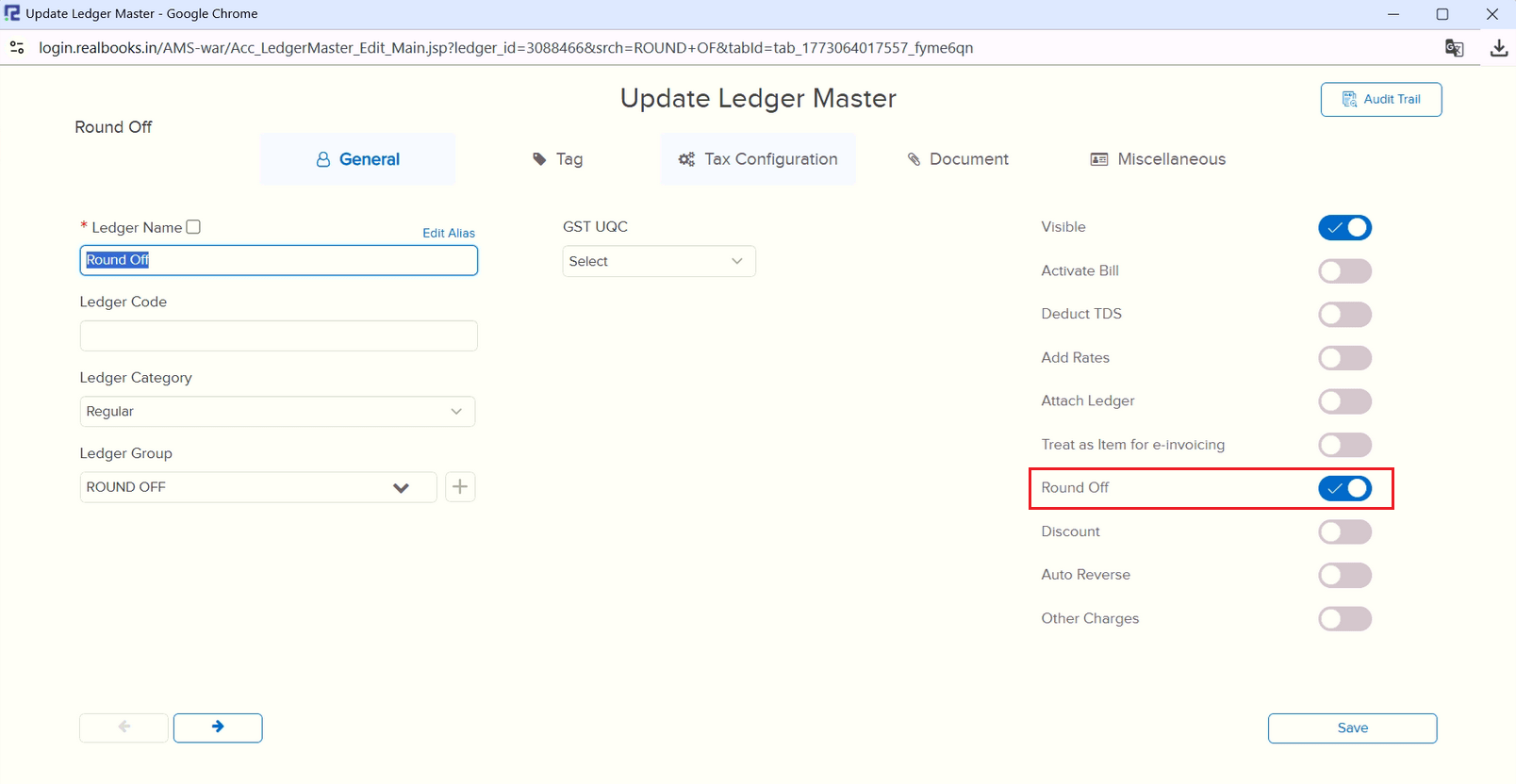
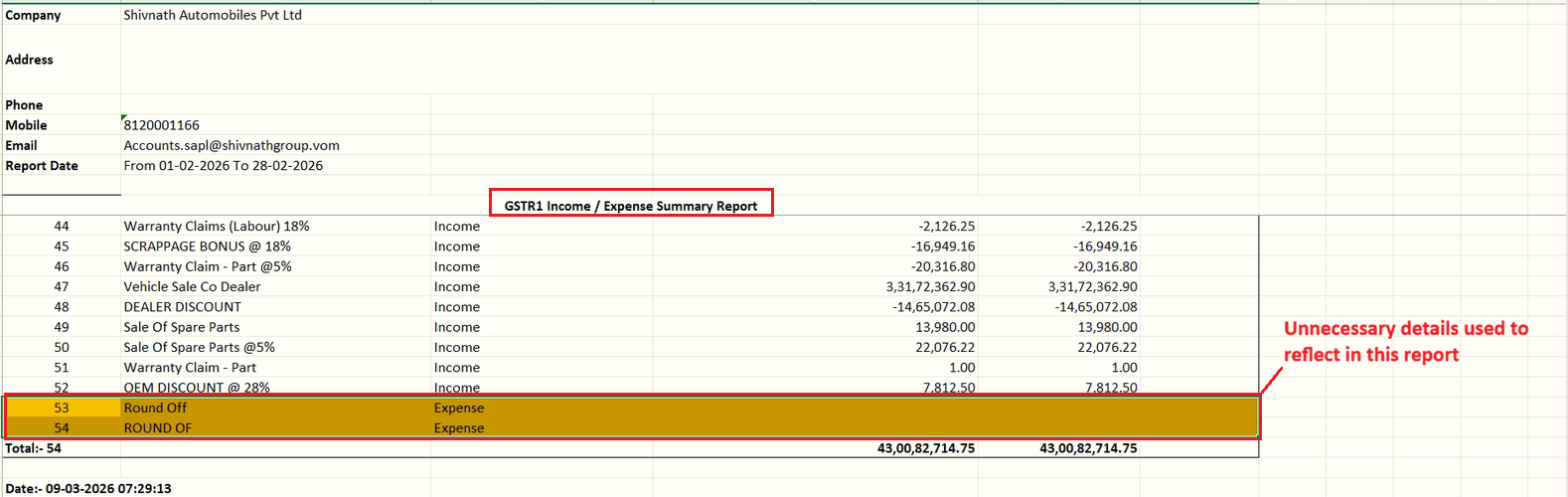
In the GSTR-1 Income / Expense Summary Report (used for reconciliation of GSTR-1 data with P/L Report), unnecessary data was reflecting. Earlier, the UI data was fetched through an API while the Excel data came from a procedure, causing data mismatches in certain cases. Now, both UI and Excel data are fetched through the API for consistency.
📷 See It in Action
📝 What Changed
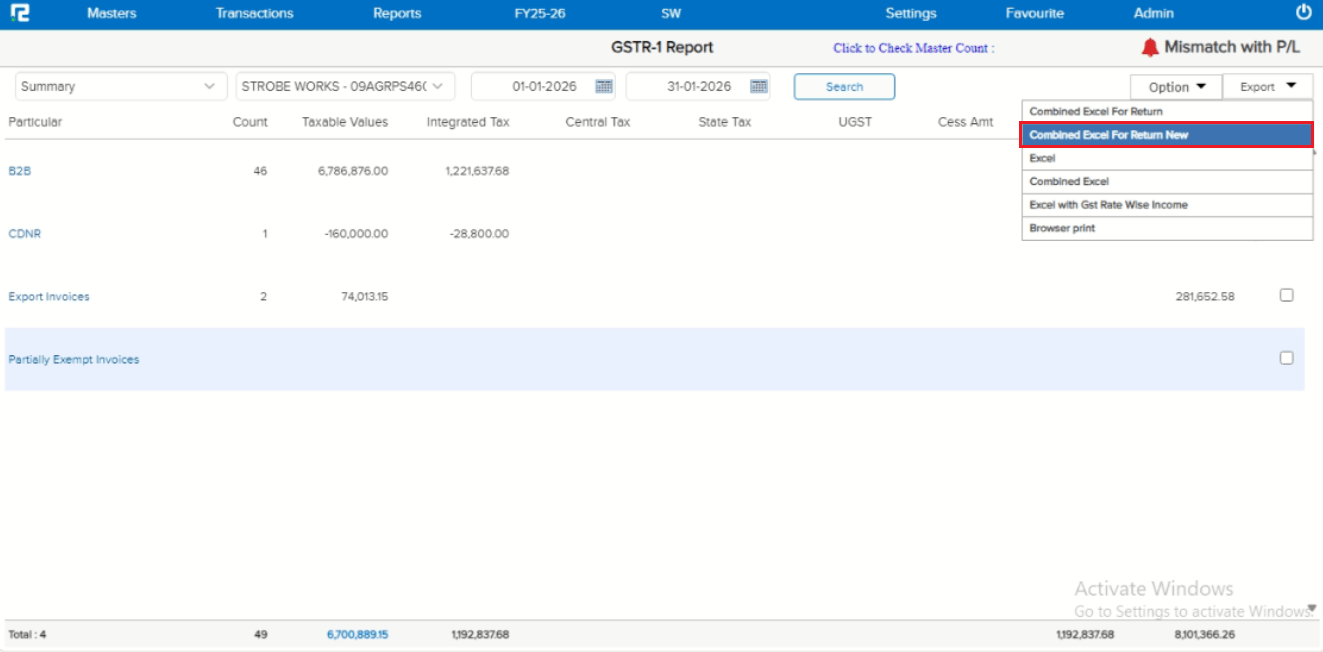
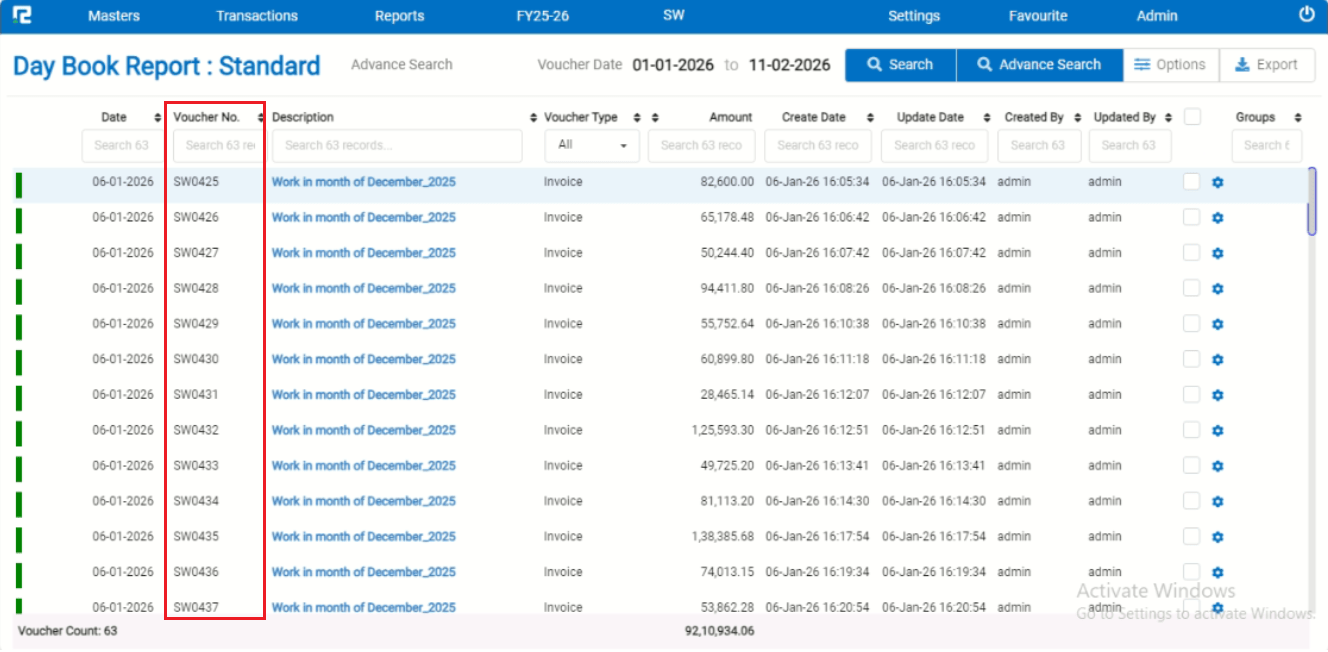
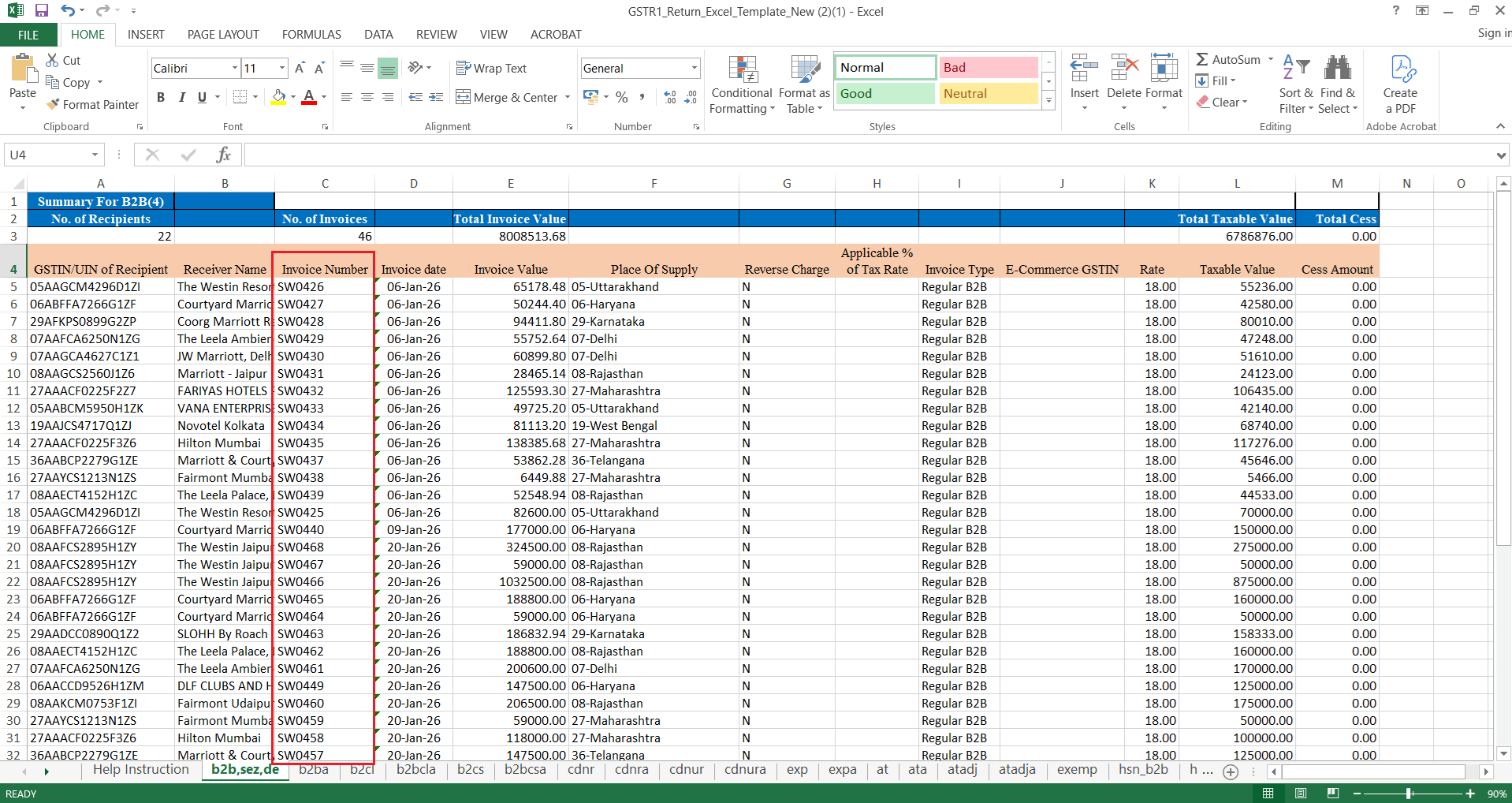
Entries were not reflecting in chronological order in the Combined Excel for Return New when exported from GSTR-1 Summary, though they reflected properly in Day Book. This has been fixed — the exported Excel now maintains correct chronological order.
🎬 Where to Find It
📷 See It in Action