Beta Release — 04-06-2026
📌 What Was Happening
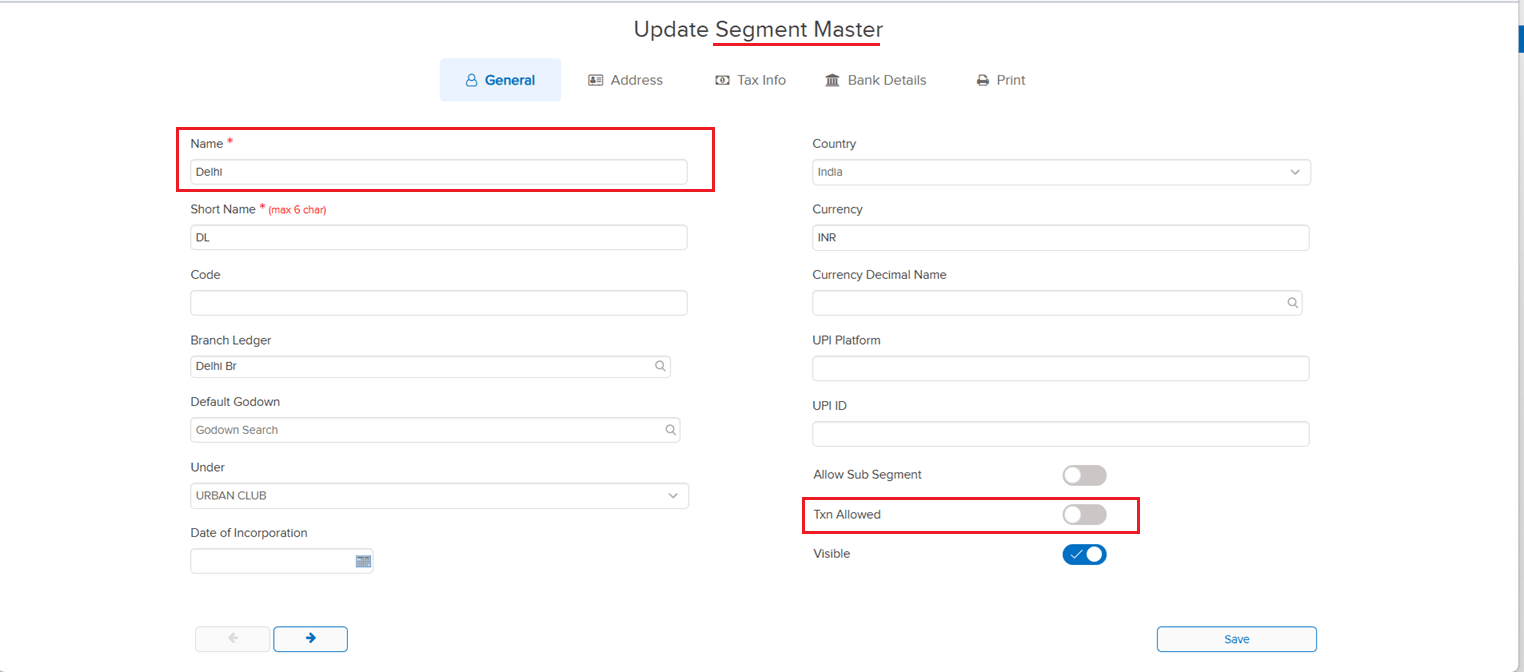
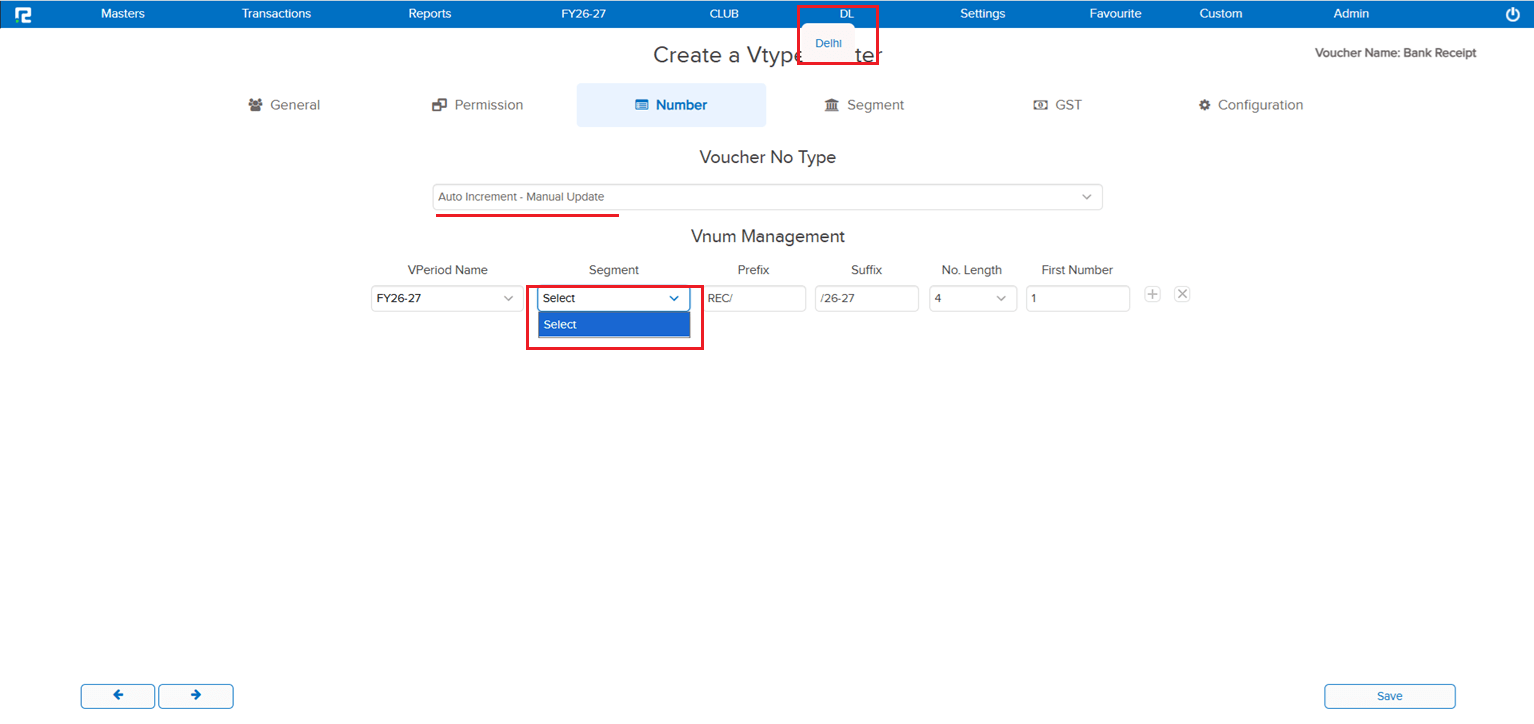
In the Voucher Type Numbering screen, the Company and Group segment names were being displayed in the UI even when the “TXN Allowed” parameter was disabled in the Segment Master. Showing segments that are not permitted for transactions caused confusion during manual voucher type numbering setup.
🌟 What This Means for You
The Voucher Type Numbering screen now respects the “TXN Allowed” parameter from the Segment Master. When this param is disabled for a segment, the corresponding Company and Group segment names will no longer appear during manual Voucher Type numbering in the UI — keeping the screen clean and showing only relevant, transaction-permitted segments.
🎬 Where to Find It
📷 See It in Action
📌 What Was Happening
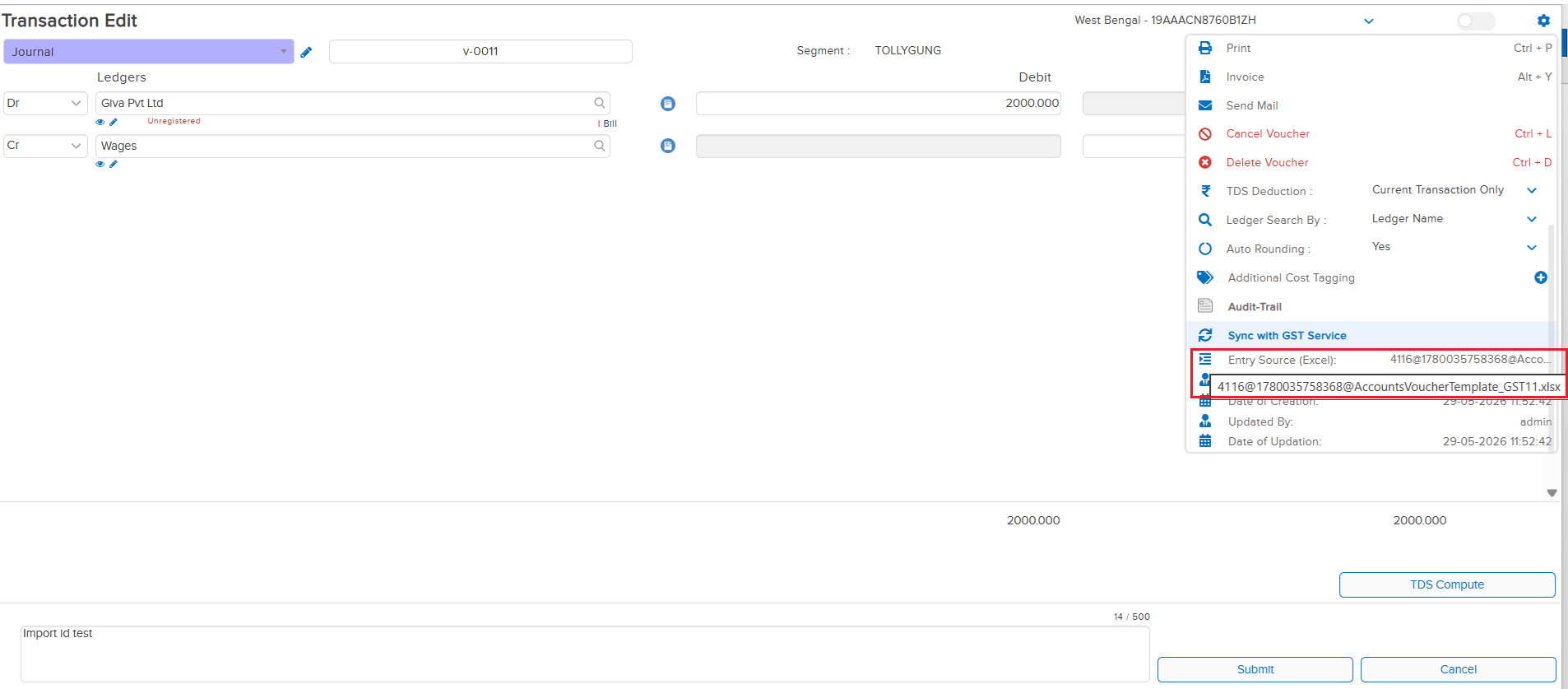
In the 30-05-2026 Beta Release, the Excel File ID tracking feature was introduced for Accounting, Sale, Sale Return, Purchase, and Purchase Return transactions. However, this tracking was not yet extended to IBT (Inter-Branch Transfer) transactions — meaning transactions created via Excel import through the IBT screen had no record of their source file.
🌟 What This Means for You
The Excel File ID tracking has now been extended to IBT transactions as well. When a transaction is created through an Excel import on the IBT screen, the system will now store the source Excel File ID against that transaction — bringing IBT imports in line with the other transaction types and ensuring complete audit traceability across all import workflows.
🎬 Where to Find It
📷 See It in Action
📌 What Was Happening
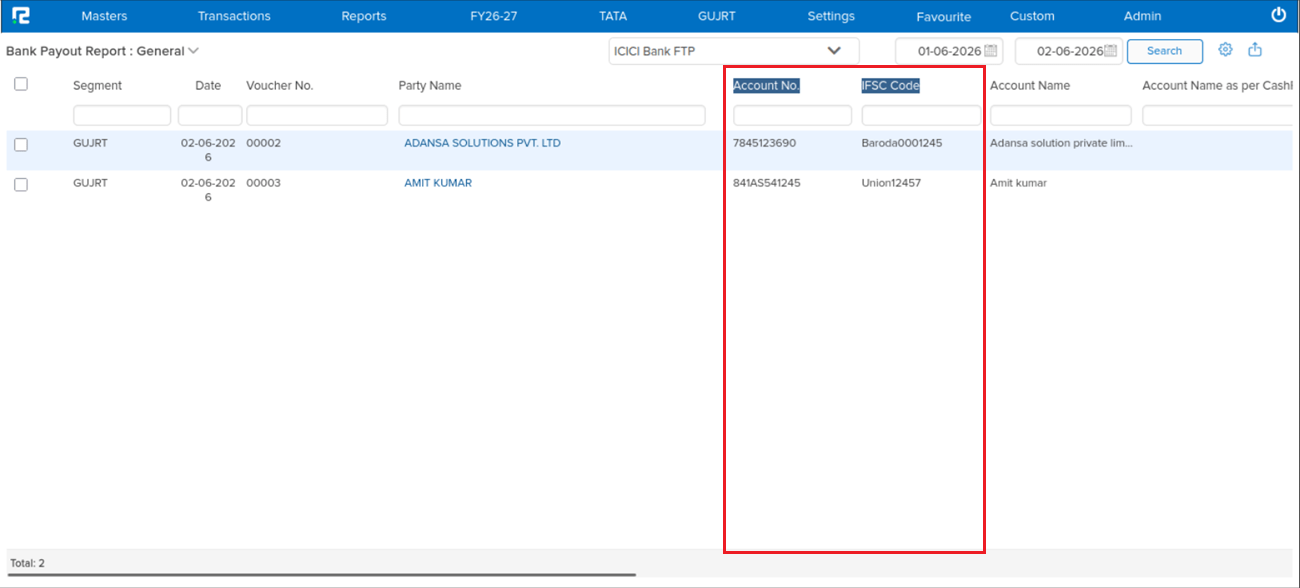
During the Bank Pay Review process, the reviewer could see the party name and account name but had no visibility of the Bank Account Number or IFSC Code from the party’s ledger master. This made it difficult to verify payment details before approving, requiring the reviewer to cross-check the master separately.
🌟 What This Means for You
Two new columns have been added to the Bank Pay Review screen, positioned between the Party Name and Account Name columns:
• Bank Account No — fetched from the party’s ledger master
• IFSC Code — fetched from the party’s ledger master
Reviewers can now verify bank details inline before approving payments — eliminating the need to navigate away to the ledger master for cross-checking.
🎬 Where to Find It
📷 See It in Action
📌 What Was Happening
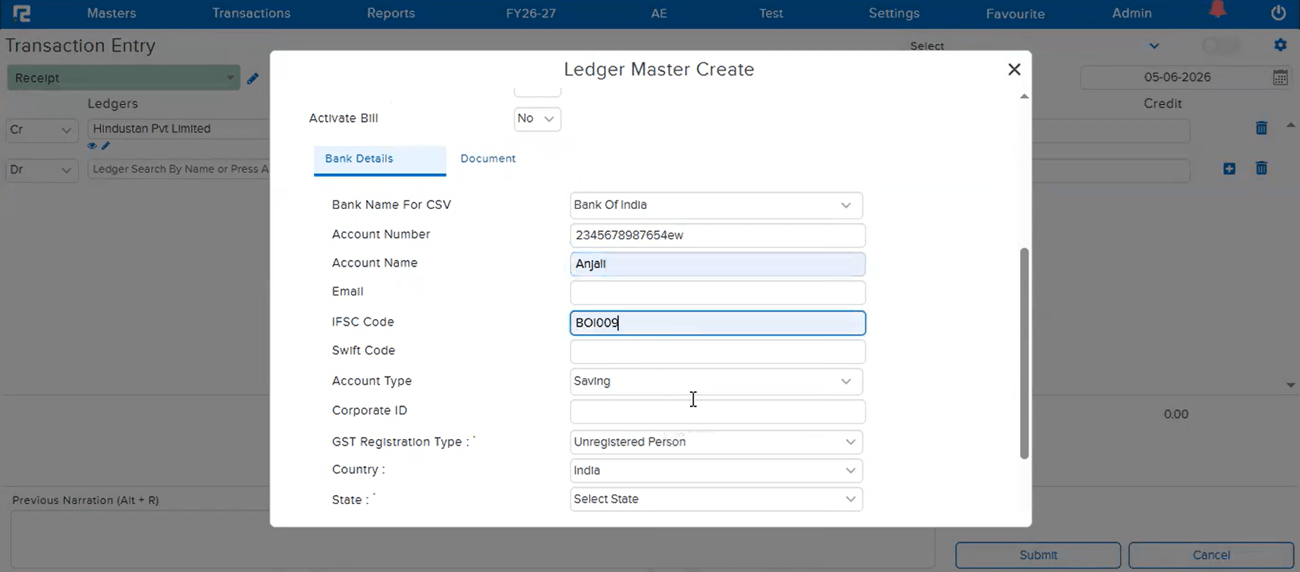
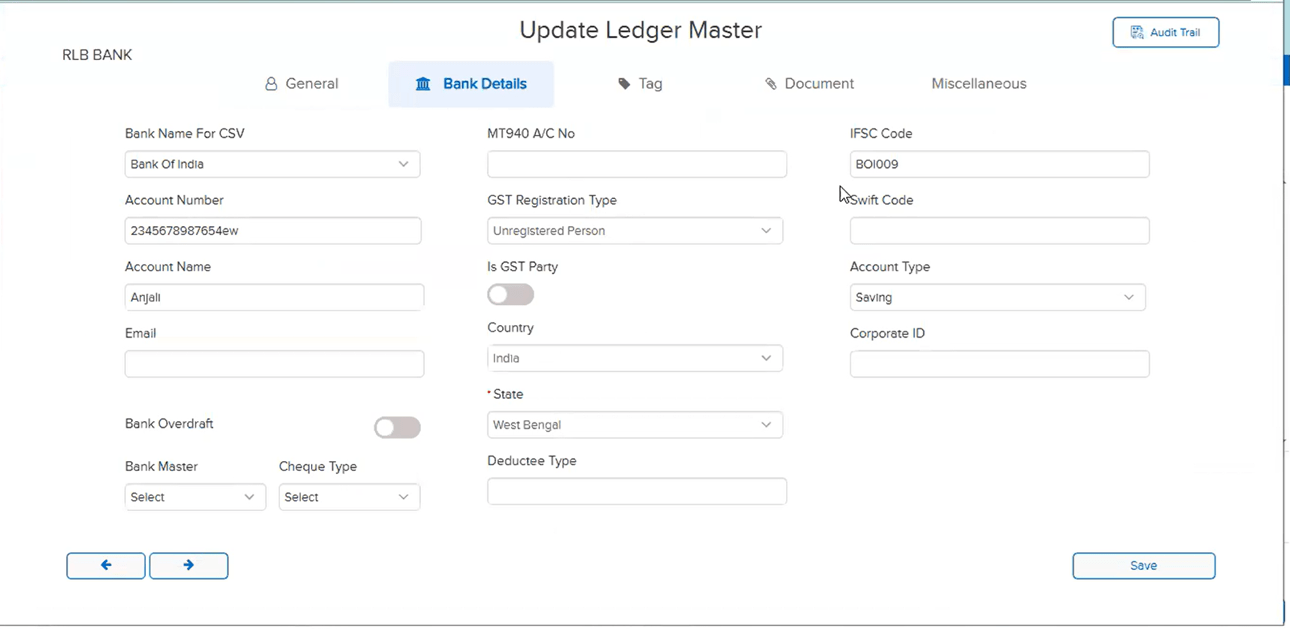
When a ledger was created directly from the transaction screen using the Alt+C shortcut key, the bank details or party details entered by the user were not being saved — even though all the necessary information had been filled in. This issue was occurring for companies where the Cashfree parameter is enabled, causing the details to silently drop without any error or indication to the user.
🌟 How This Helps You
The issue has been fixed. For companies with the Cashfree parameter enabled, bank details and party details entered while creating a ledger via Alt+C from the transaction screen will now be saved correctly — ensuring no information is lost after ledger creation.
🎬 Where to Find It
📷 See It in Action
📌 What Was Happening
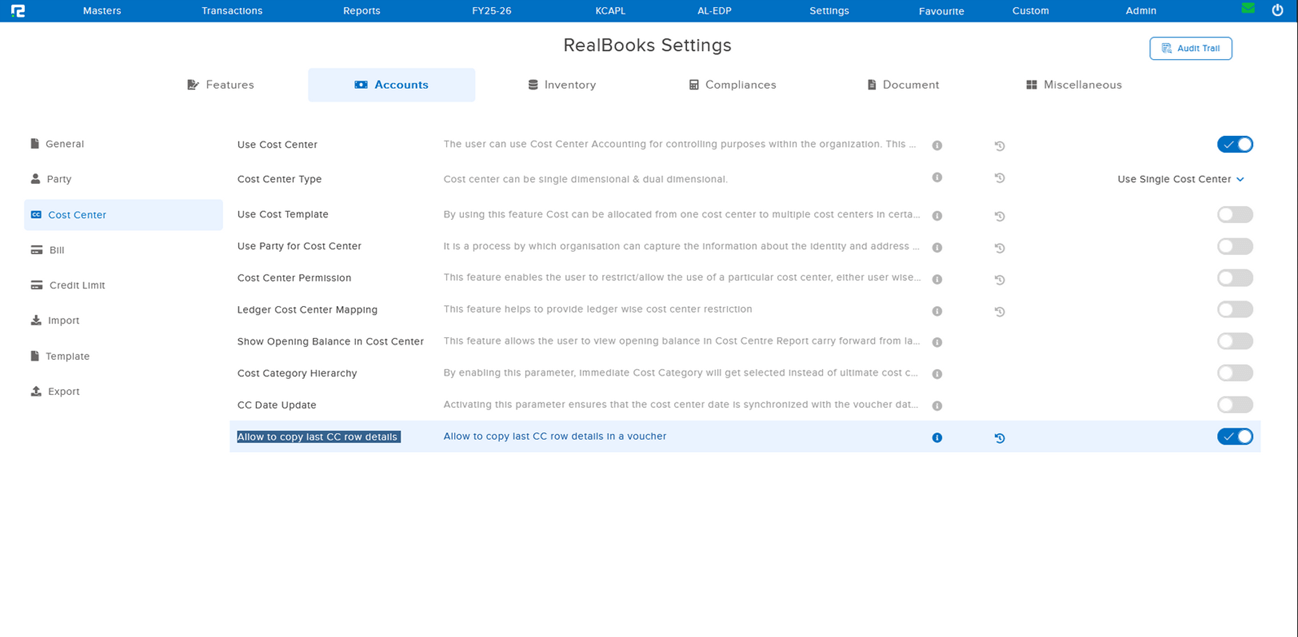
While posting a Purchase entry with PO tagging, two issues were observed related to Cost Center (CC) allocation across line items. These issues occurred only when the parameter “Allow to copy last CC row details” under Cost Center settings was enabled — disabling the param made it work correctly:
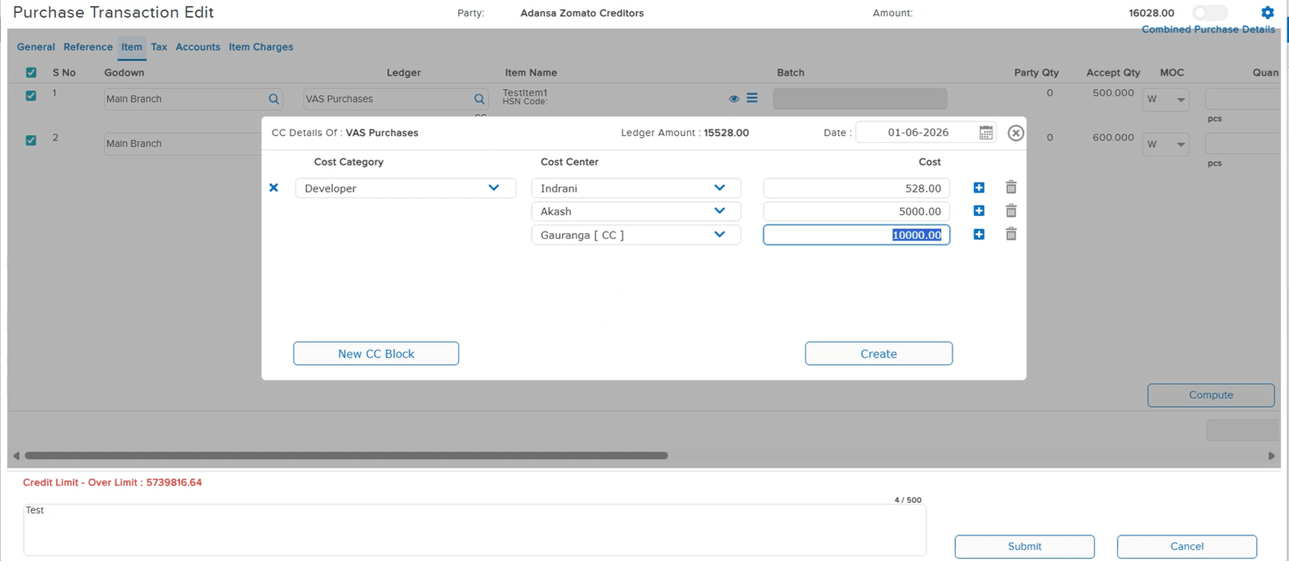
• Issue 1 — CC Split not working: After selecting a single Cost Center for the first line item, when attempting to assign a different CC to subsequent items, the split was not being applied — the same CC was being carried over regardless.
• Issue 2 — CC Removal not working: After selecting multiple Cost Centers of the same category in the first line item, when trying to remove the CC for other items, the removal was not taking effect.
🌟 How This Helps You
Both Cost Center issues in PO-tagged Purchase entries have been resolved. With the “Allow to copy last CC row details” parameter enabled, you can now:
• Split Cost Centers independently per line item without the previous item’s CC being forced onto subsequent rows
• Remove Cost Centers from individual line items even when multiple CCs of the same category were selected in an earlier row
🎬 Where to Find It
📷 See It in Action
📌 What Was Happening
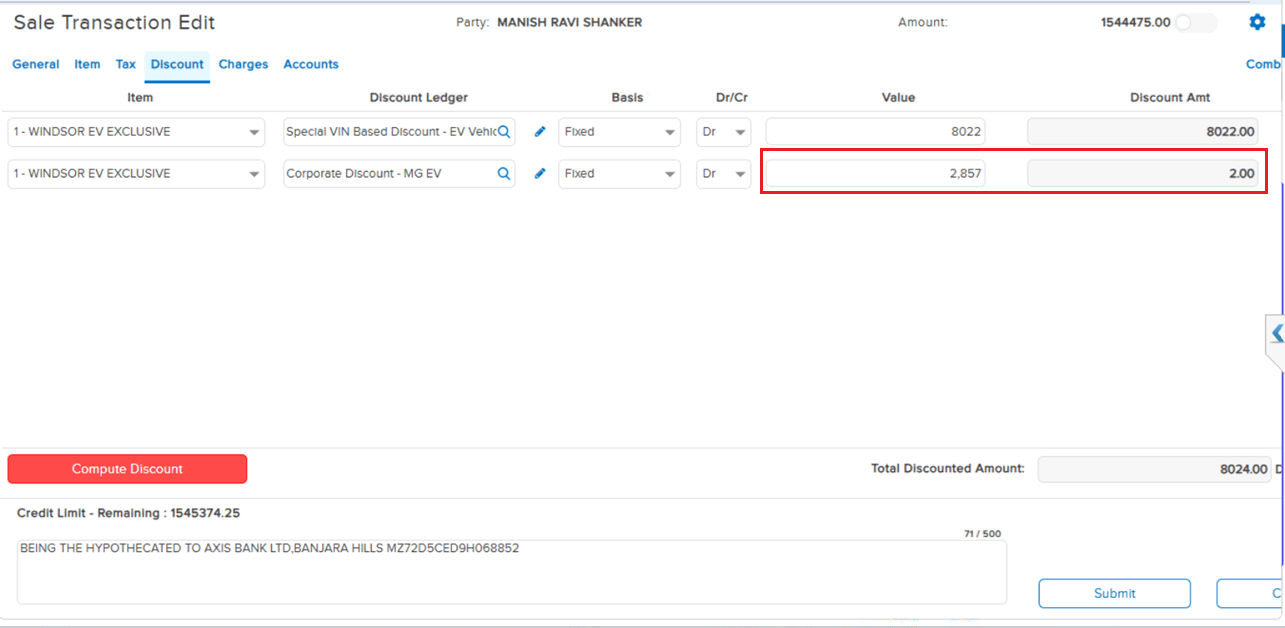
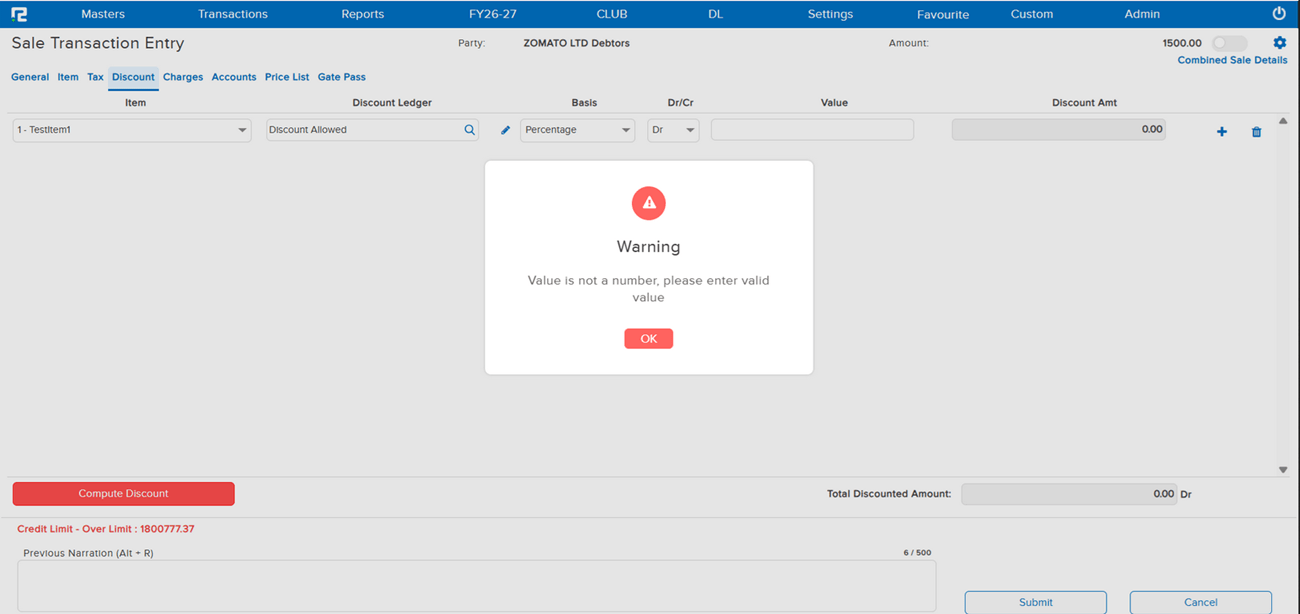
In an inventory entry, the system was allowing a comma to be entered in the Discount Amount field under the Discount tab. The entry was getting saved with the comma intact, resulting in an invalid numeric value being stored. This caused the invoice to not get generated for that entry.
🌟 How This Helps You
The validation on the Discount Amount field has been corrected. The system will now reject any value entered with a comma, preventing invalid data from being saved. Invoice generation will no longer be blocked due to a malformed discount amount.
🎬 Where to Find It
📷 See It in Action
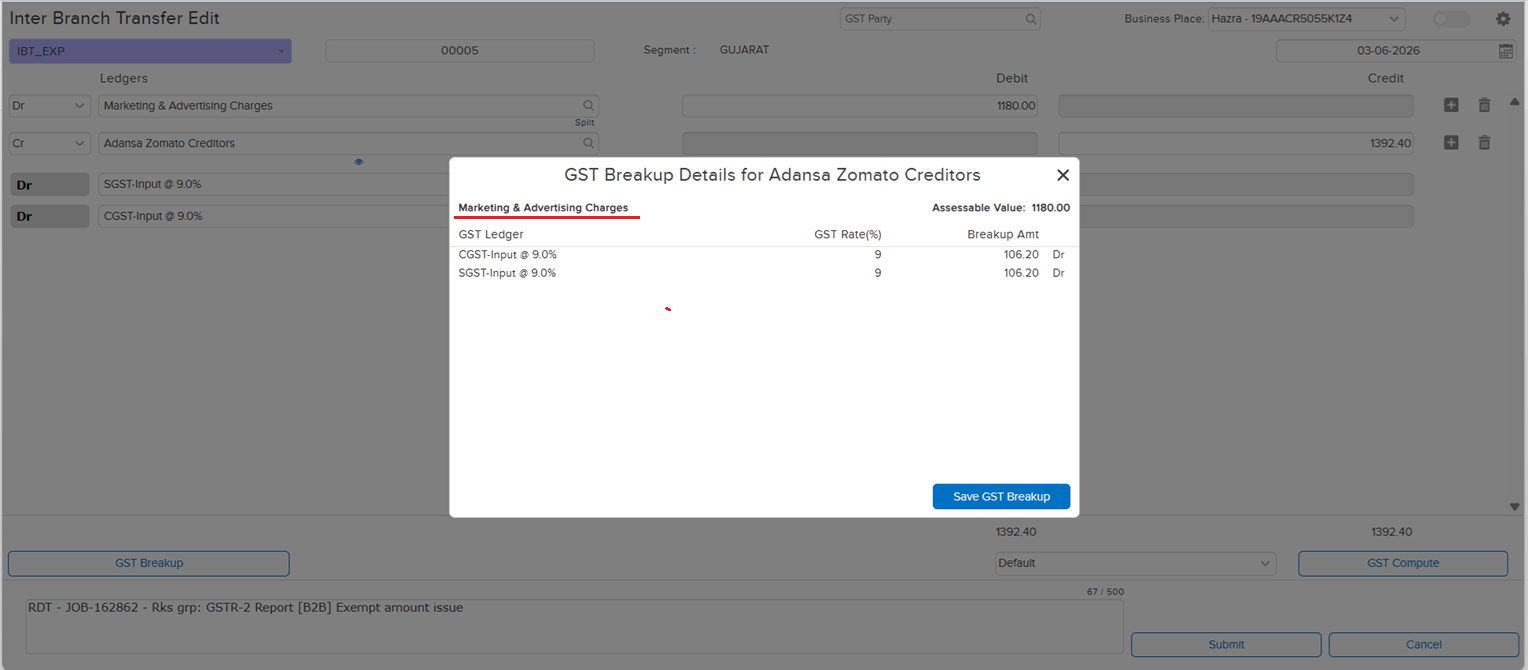
📌 What Was Happening
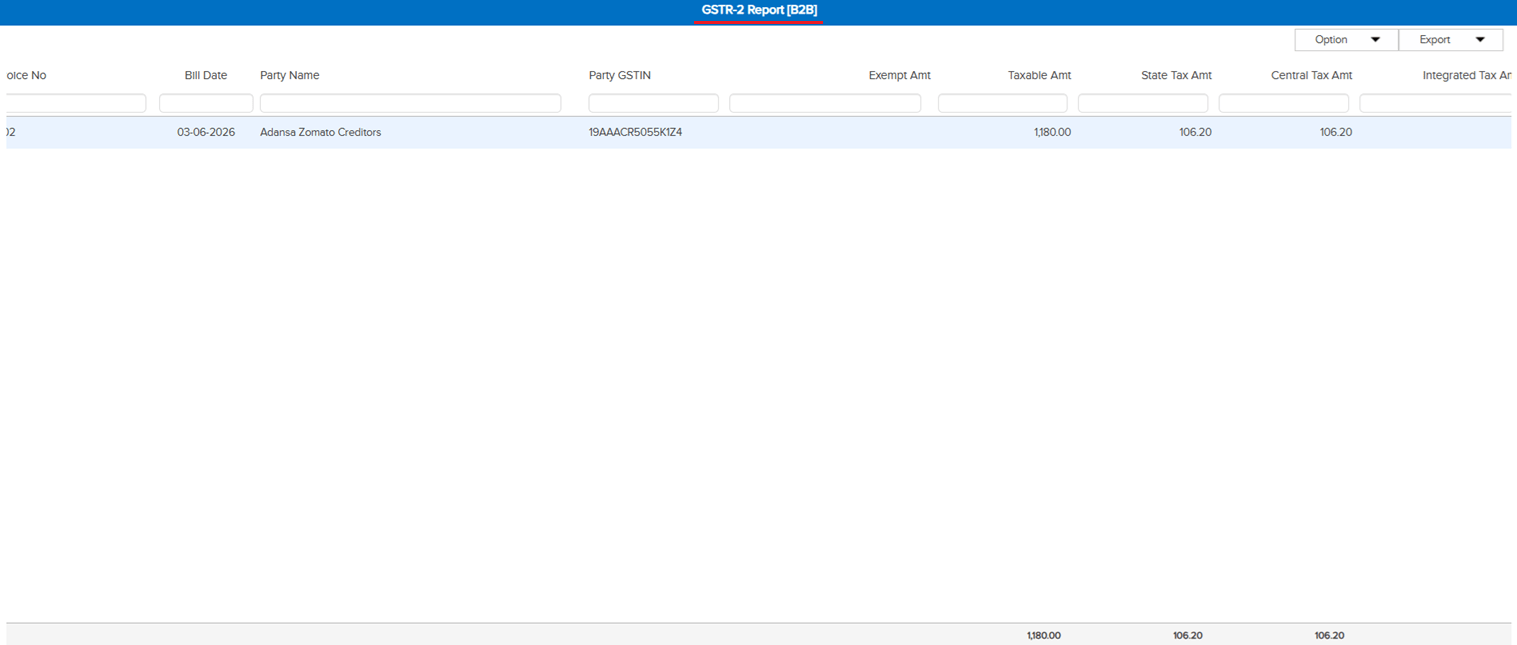
In the GSTR-1 Report — B2B section, two issues were observed for certain entries:
• Issue 1 — Incorrect Exempt Amount: An entry was showing an exempt amount of ₹1,118.66 even though the ledger was already marked as taxable. The amount was incorrectly being reflected as exempt.
• Issue 2 — Blank Invoice Number: For the same transaction, despite a bill reference number being present, the Invoice Number field was showing blank in the report.
Root Cause: In the IBT parent screen, when the expense ledger was changed and the entry was saved without re-computing auto GST, the GST ledgers were not getting removed cleanly — causing the GST data to be dropped from the transaction, leading to both the exempt amount discrepancy and the missing invoice number.
🌟 How This Helps You
The issue has been fixed. When the expense ledger is changed in the IBT parent screen, the system will now correctly handle GST ledger removal and data recomputation — ensuring GST data is not silently lost. Entries will no longer appear with incorrect exempt amounts or blank invoice numbers in the GSTR-1 B2B report.
🎬 Where to Find It
📷 See It in Action